
Adding a Tax 1 Code
Tax 1 codes added to the system will appear as a valid tax 1 code option in the drop down list of Tax 1 fields and can be used throughout the system.
-
From any IntelliDealer screen, click on the Configuration tab.
The Configuration Quick Links screen will appear.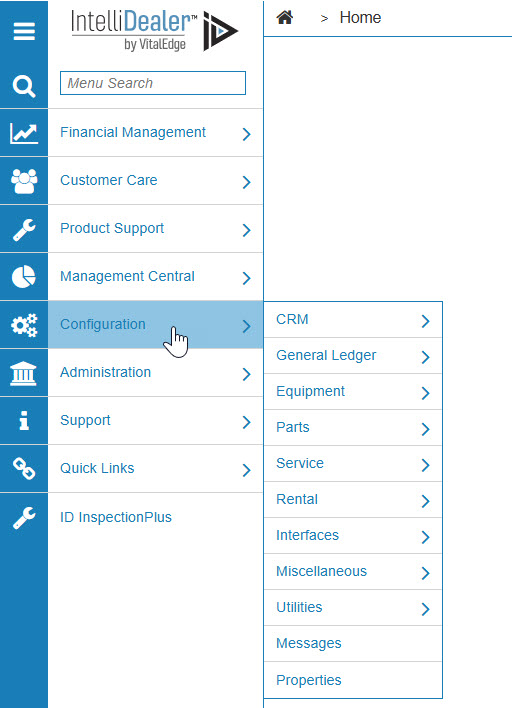
Configuration Quick Links screen
-
From the CRM list, click the Taxes & Discounts link and select Tax 1 from the drop down list.
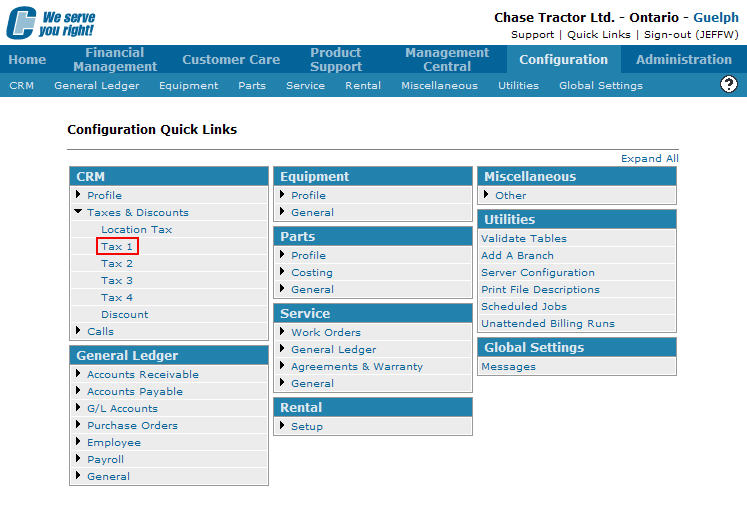
Configuration Quick Links screen
-
The Tax 1 screen will appear.
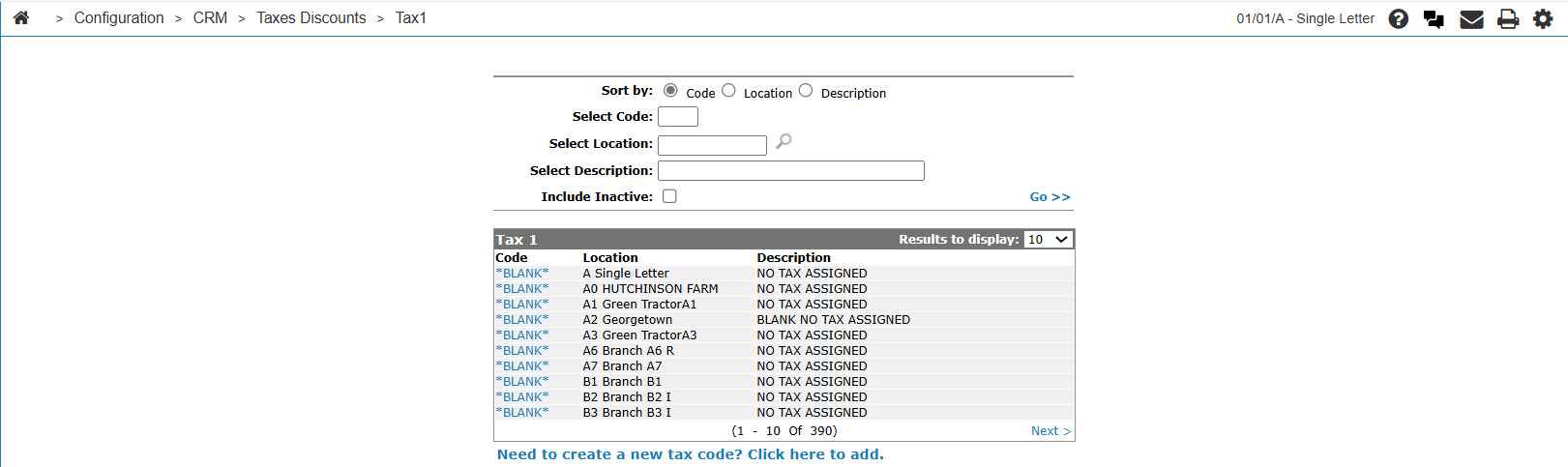
Tax 1 screen
-
On the Tax 1 screen, click on the Need to create a new tax code? Click here to add link.
The Tax 1 screen will appear.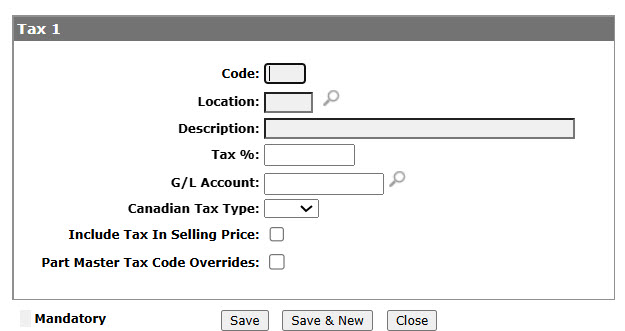
Tax 1 screen
-
On the Tax 1 screen, enter a 1 digit alpha or numeric tax Code.
-
Enter a Location.
- or -
Click on the Search icon.
The Location Selection screen will appear.
Location Selection screen
-
On the Location Selection screen, click on a Location.
The Tax 1 screen will appear with the selected location in the Location field.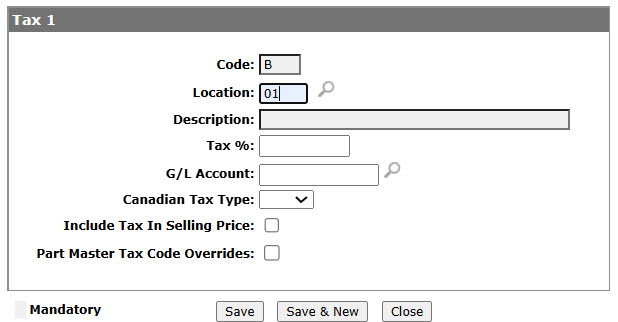
Tax 1 screen
-
On the Tax 1 screen, enter a tax 1 code Description.
-
Enter a Tax % applied by the tax code when used.
Note:
The Tax % field value must be 0 for alpha tax 1 codes. -
Enter a G/L Account number.
- or -
Click on the Search icon.
The Account Lookup screen will appear.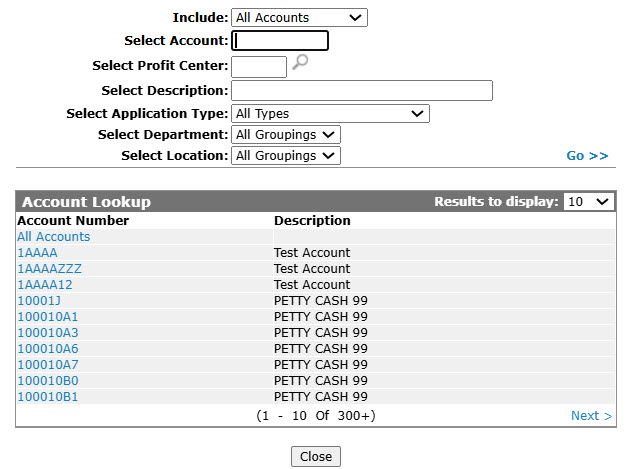
Account Lookup screen
-
On the Account Lookup screen, fill out the appropriate fields and click the Go >> link.
The Account Lookup screen will refresh listing the generated search results.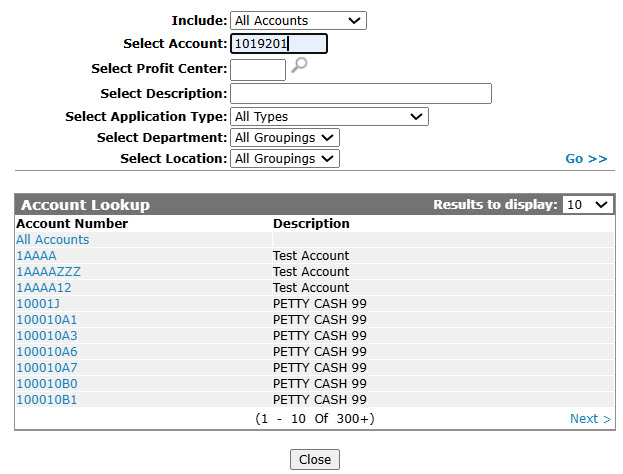
Account Lookup screen
-
Click on an Account Number.
The Tax 1 screen will appear with the selected account number in the G/L Account field.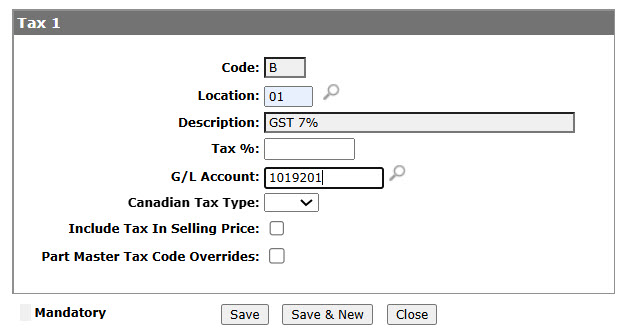
Tax 1 screen
-
(OPTIONAL) If you are a Canadian dealership, (CA is entered in the Country Company Located In field of the COTAB1 table), select the Canadian Tax Type you want to associate to the selected tax code; either GST, PST, HST, or QST.
This information will be recorded on credit card transactions for which the selected code applies and sent to the credit card company when the transactions are submitted using the Authorization Maintenance screen. -
On the Tax 1 screen, select the Include Tax in Selling Price checkbox to include the tax 1 code amount within the sales price.
-
Select the Part Master Tax Code Overrides field if you wish to use the part tax 1 code in the Part Master (PARTMAST) instead of the customer tax 1 code.
-
Click the Save button to save the new tax 1 code and return to the Tax 1 screen.
- or -
Click the Save & New button to save the new tax 1 code.
The Tax 1 screen will refresh allowing you to add another tax 1 code without closing the screen.