
Using a Deposit as Payment on a Parts Invoice
Use a collected deposit as payment when invoicing parts on a partial or full sale. This procedure applies after a deposit has been collected on the parts invoice. See How to Collect a Deposit for steps to collect a deposit before invoicing.
-
Navigate to Product Support > Parts > Parts Invoicing.
The Parts Invoicing screen opens.
-
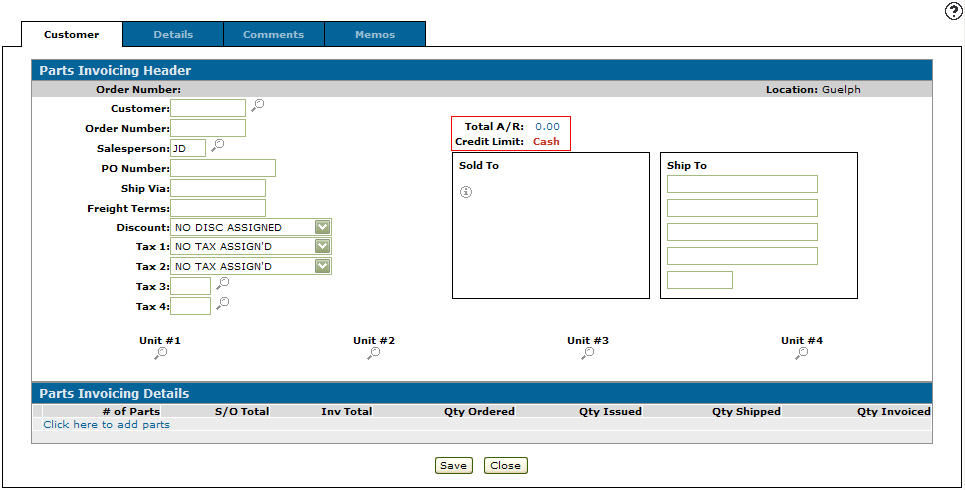
Create or locate the parts invoice you wish to apply a deposit to.
The Parts Invoicing: Customer tab opens.
-
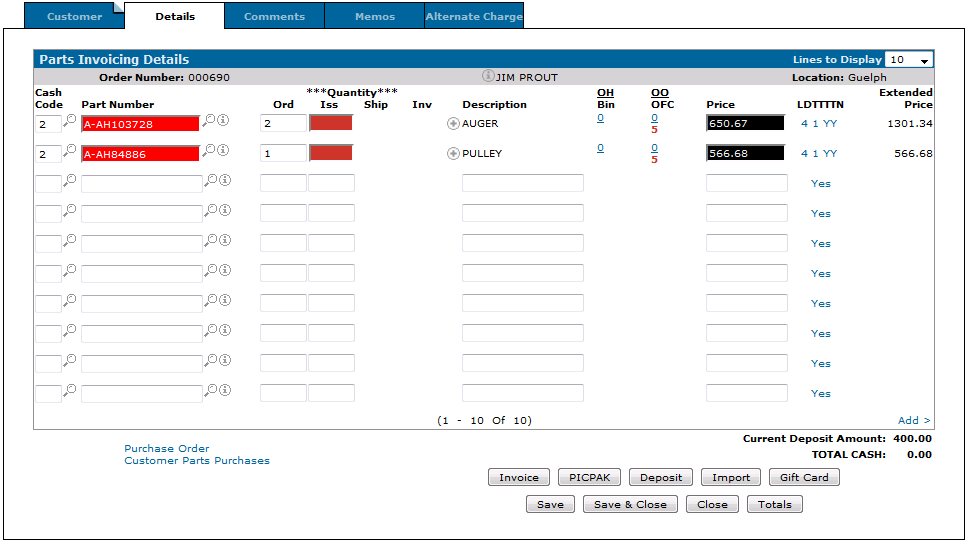
Click the Details tab.
The Parts Invoicing Details tab opens.
-
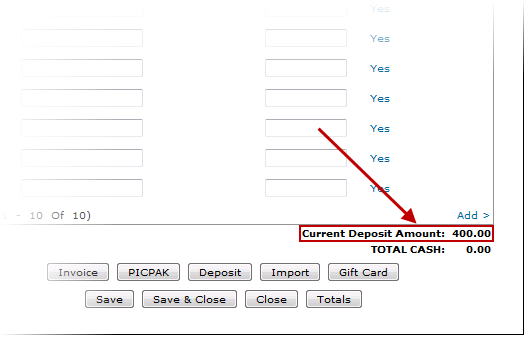
Note the Current Deposit Amount; this is the amount of money currently available to make a whole or partial payment on this invoice.
-
Confirm your Iss numbers, and when ready click the Invoice button.
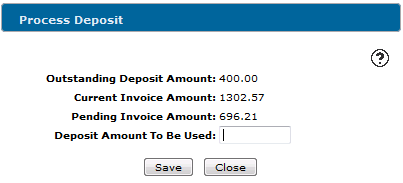
The Process Deposit screen opens.
Note: If the entire order is being fulfilled on this invoice (all parts delivered to the customer), the entire deposit amount is applied and the invoice closes (see the final step).
-
Enter the Deposit Amount To Be Used as a payment against the invoice and click Save.
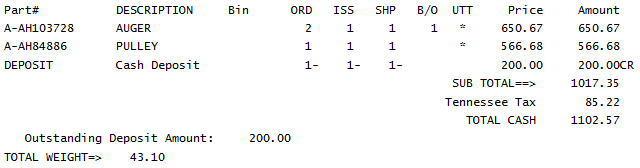
IntelliDealer applies the deposit amount to the sale, and a DEPOSIT part number with a quantity of -1 and a value the same as your Deposit Amount To Be Used is sold to this parts invoice. The invoice also shows the amount of money left as a deposit (Outstanding Deposit Amount).
-
When all parts have arrived and you fulfill the entire order, the invoice closes as normal.
 Parts Invoicing screen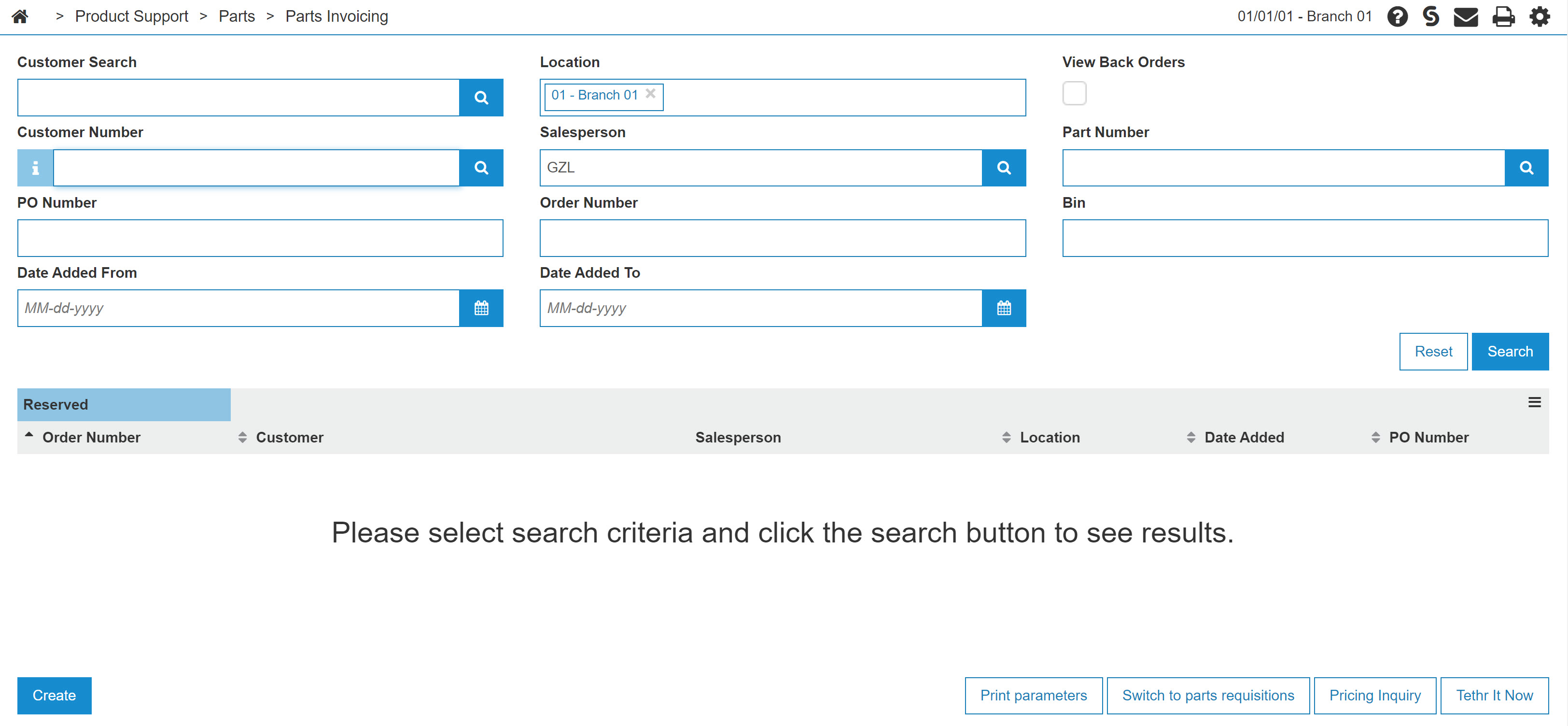
See also: Parts Deposit and Process Deposit, How to Collect a Deposit, and Deposit: Parts.
Security: 823 - Product Support - Parts Invoicing
Revision: 2026.07