
Quick Add Defaults
Use the Quick Add Defaults screen to set up the default values used when quick adding a work order from within the Service and Rental systems.
To open the Quick Add Defaults screen, navigate to Configuration > Service > Work Orders > Quick Add Defaults.
Note: When quick adding a work order within the system, certain fields may be filled out with default information depending on the specific conditions that apply to the work order. For example, when a work order is quick added through the Service menu, the technician, salesman and estimated completion date are the only default values which apply.
Topics in this section are:
Adding a Quick Add Default
-
From any IntelliDealer screen, navigate to Configuration > Service > Work Orders > Quick Add Defaults.
-
Click the Need to create a new quick add default? Click here to add link.
-
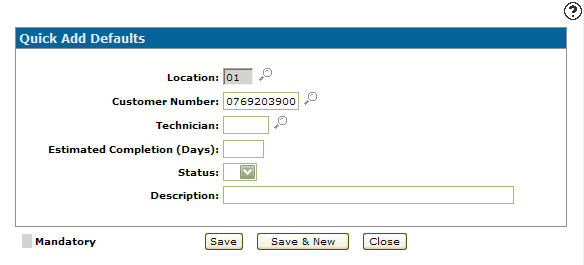
On the Add Quick Add Defaults screen, enter a Location.
- or -
Click the Search
 icon.
icon. -
On the Location Selection screen select a location.
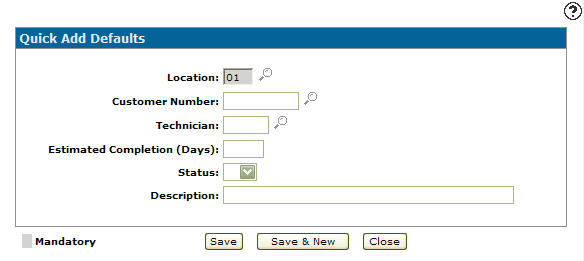
The Add Quick Add Defaults screen appears listing the selected location in the Location field.
-
On the Add Quick Add Defaults screen, enter a Customer Number. The customer number entered is used as the default customer number on work orders quick added from the service and rental systems.
- or -
Click the Search
icon. -
On the Your Customers screen, fill out the appropriate field and click the Go >> link. The Your Customers screen refreshes, listing the generated search results.
-
Click a Customer.
-
On the Add Quick Add Defaults screen, enter a default Technician. The technician number entered is used as the default technician number when quick adding a work order in the service and rental systems.
- or -
Click the Search
icon. The Technician Selection screen appears.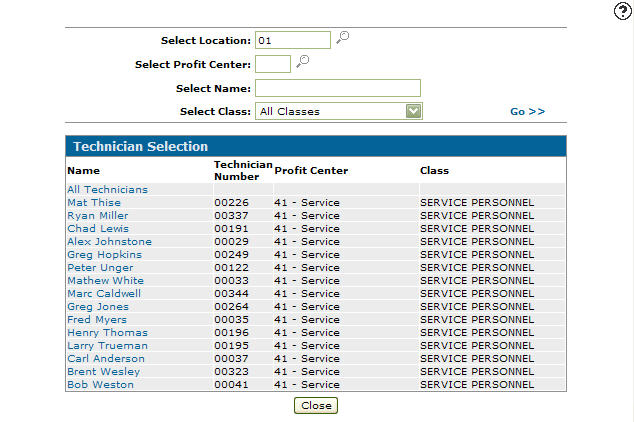
-
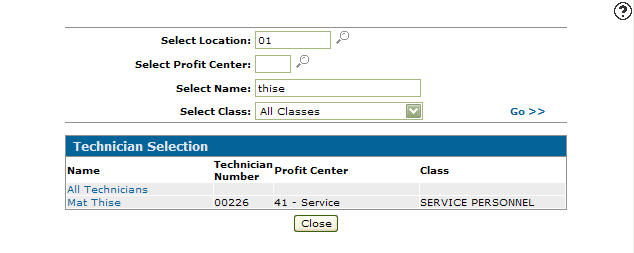
Fill out the appropriate fields and click the Go >> link. The Technician Selection screen refreshes listing the generated search results.
-
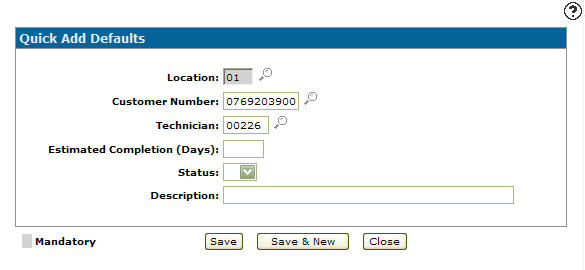
Click a Name. The Add Quick Add Defaults screen appears listing the selected technician in the Technician field.
-
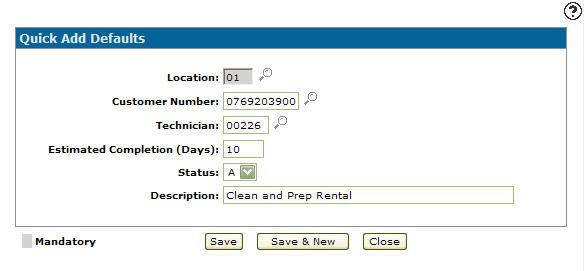
On the Add Quick Add Defaults screen, enter an Estimated Completion date (days).
-
Select a Status from the drop down list. The selected work order status is used as the default work order status when quick adding a work order in the rental system.
-
Enter a work order Description. The description entered is used as the default description when quick adding a work order in the rental system.
-
Click Save to save the new quick add default and return to the Add Quick Add Defaults screen.
- or -
Click Save & New to save the new quick add default. The Add Quick Add Default screen refreshes allowing you to add another quick add default without closing the screen.
 The
The 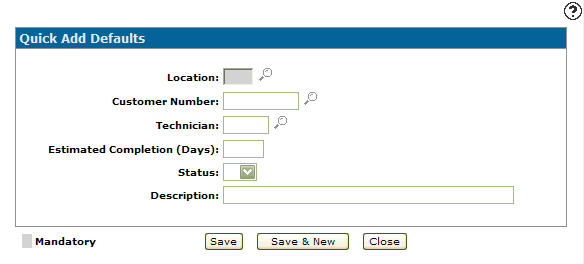
Deactivating a Quick Add Default
-
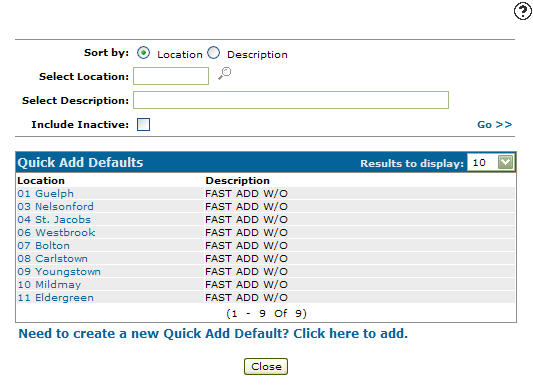
From any IntelliDealer screen, navigate to Configuration > Service > Work Orders > Quick Add Defaults. The Quick Add Defaults screen appears.
-
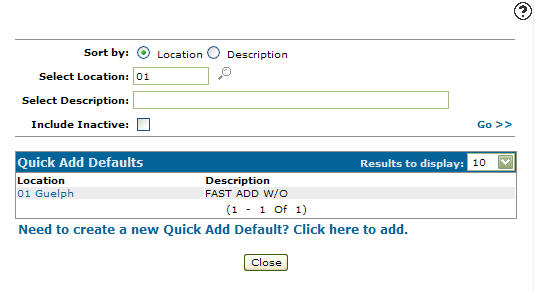
Fill out the appropriate fields and click the Go >> link. The Quick Add Defaults screen refreshes listing the generated search results.
-
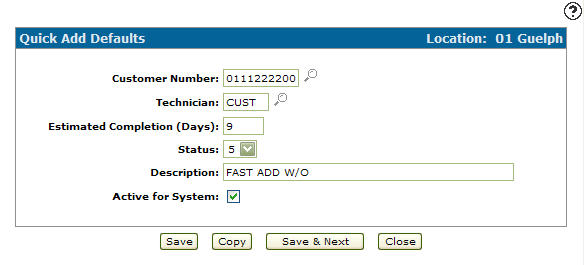
Click a Location. The Change Quick Add Defaults screen appears.
-
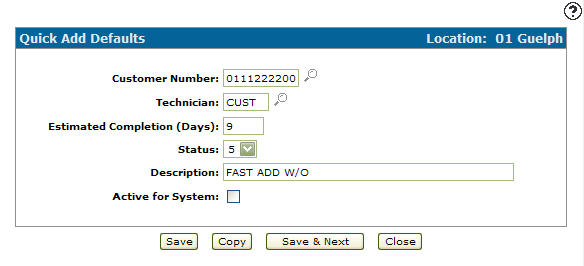
Select the Active for System checkbox, removing the checkmark.
-
Click Save to deactivate the quick add default.
Screen Description
The sorting options on the Quick Add Defaults screen are:
| Sort by | |
|---|---|
| Field | Description |
| Location | Sort the search results by branch location. |
| Description | Sort the search results by work order description. |
The search fields on the Quick Add Defaults screen are:
| Field | Description |
|---|---|
| Select Location | Search for quick add defaults by entering a branch location. |
| Select Description | Search for quick add defaults by entering a work order description. |
| Include Inactive | If selected, includes inactive quick add defaults within the search results. |
The fields on the Quick Add Defaults screen are:
| Field | Description |
|---|---|
| Location | The branch location where the quick add defaults are set up for use. |
| Description | A brief work order description. The description entered is used as the default description when quick adding a work order. |