
Kubota: Draft Claims Submission
Use the Kubota Draft Claim Submission interface to submit draft warranty claims from the Work Order Segments screen. The draft claim screen is populated by data from segments on the work order. You can then complete the draft claim and submit it to Kubota to finalize the process. Using this process you no longer need to rekey work order segment data for Kubota equipment repairs.
To access the Draft Claims Submission screen:
-
Navigate to Product Support > Service > Work Orders.
-
Search for and open the desired Work Order.
-
Click the Segments tab.
-
Click the Work Order Options link, then select the sub menu item Kubota Draft Claim Submission.
 Kubota Warranty Claims Submission Menu Location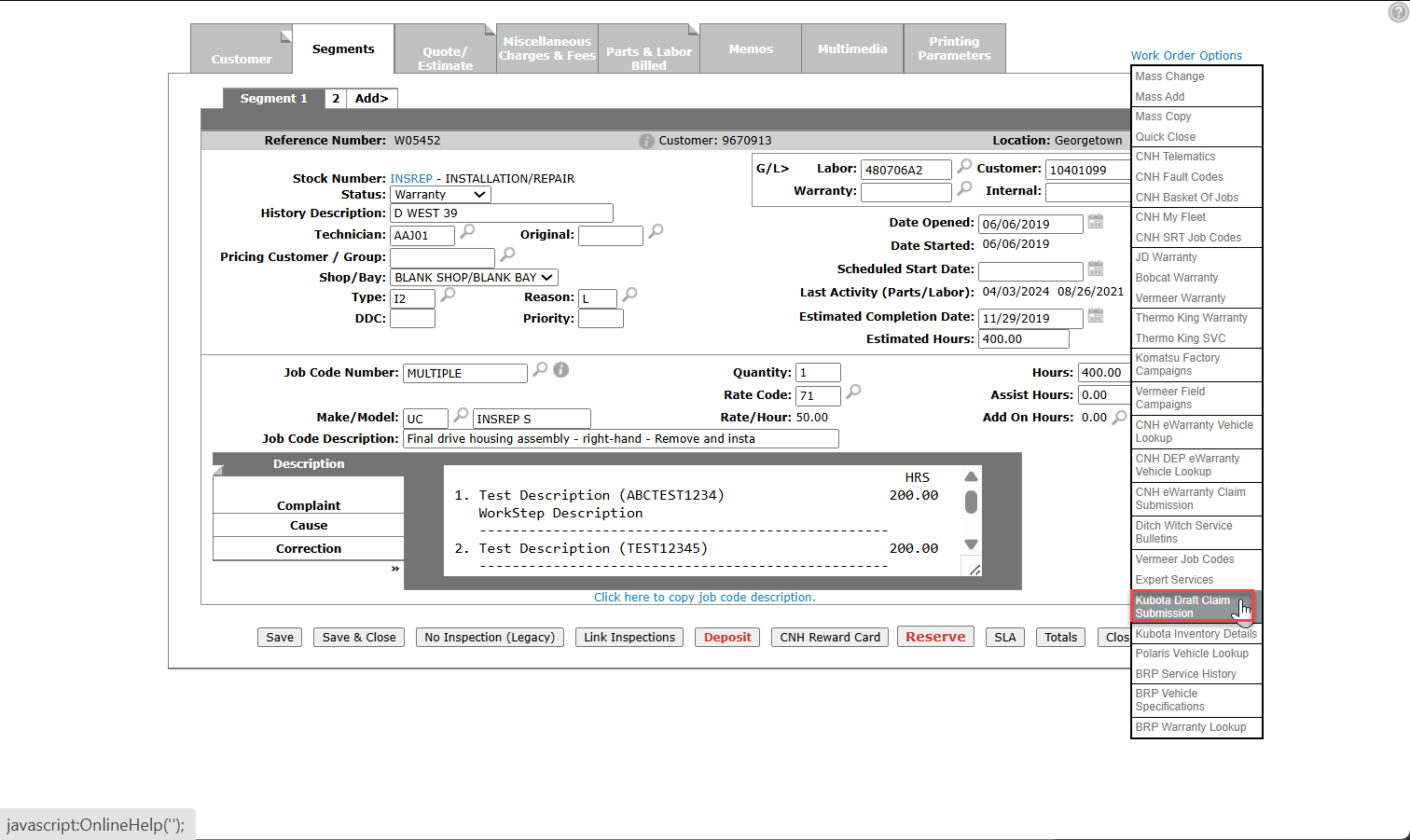
Topics in this section include:
Using the Draft Claim Submission Screen
Work Order Segments that have been added to the Work Order appear on the claim screen as individual segments.

Select individual segments using the checkbox next to the segment number, then select the Next button to open the Claim Details screen.
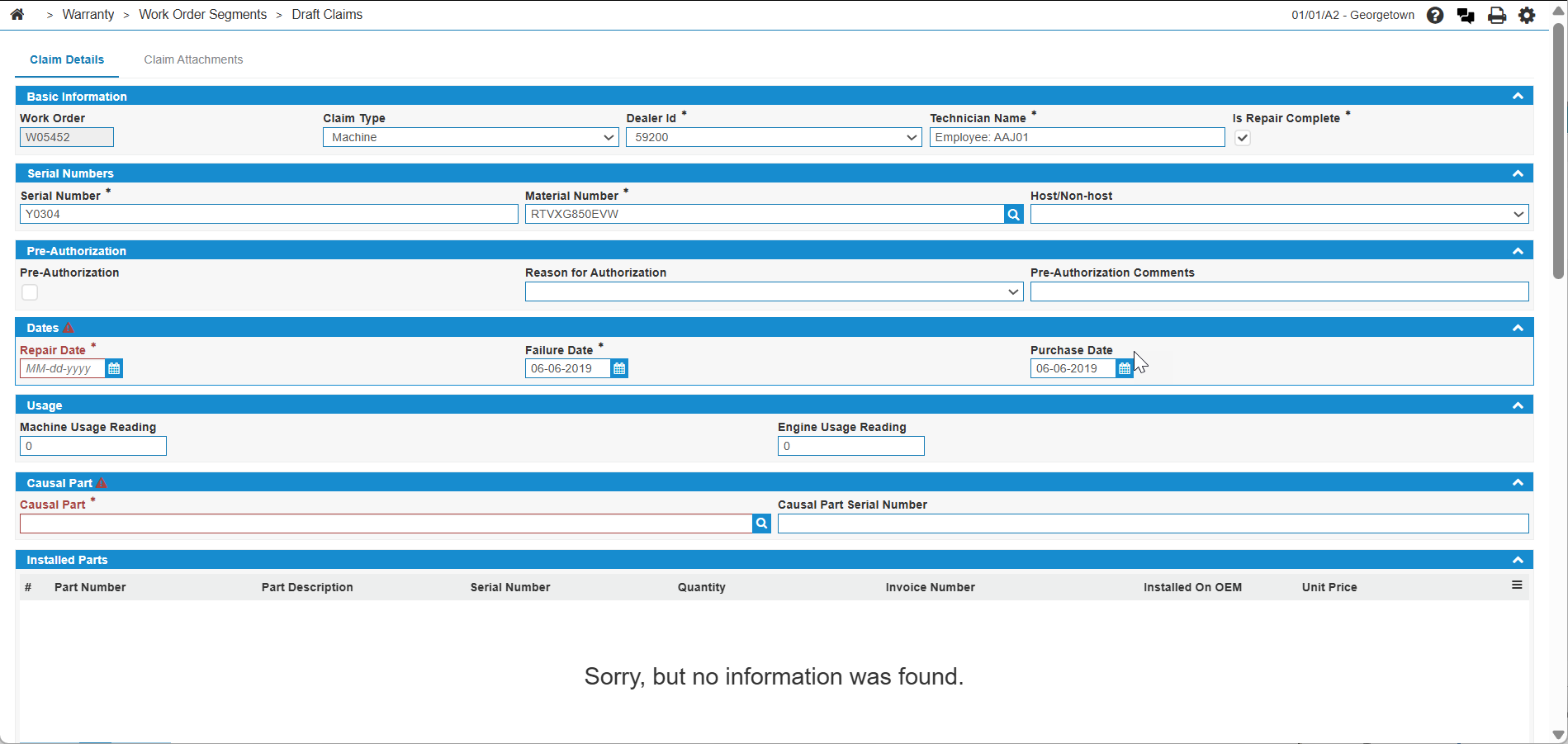
Use the Claim Details screen to enter additional draft claim information that may not have been retrieved by the work order.
Screen Description
The fields on the Claim Details screen are:
| Basic Information | |
|---|---|
| Field | Description |
|
Work Order |
The system-assigned Work Order Number. |
| Claim Type | Indicates whether the claim is for a Machine classification or a Part classification. |
| Dealer ID | A dropdown list of dealer IDs based on the Dealer Number. |
| Is Repair Complete | A checkbox to indicate whether the repair on the Work Order has been completed. |
| Serial Numbers | |
|---|---|
| Field | Description |
|
Serial Number |
Populated from the work order, the machine serial number. |
| Material Number | Populated from the work order, the machine model number. |
| Host/Non-host | A dropdown list to determine if any installs from the work order are Not Installed, Installed on OEM Machine, or Installed on competitor machine. |
| Pre-Authorization | |
|---|---|
| Field | Description |
|
Pre-Authorization |
A checkbox that confirms if pre-authorization can be applied. This option defaults to checked. |
| Reason for Authorization |
A dropdown that determines the reason a work order segment has been pre-authorized. This option is mandatory if the Pre-Authorization checkbox has been checked. |
| Pre-Authorization Comments |
A text field where any comments related to the pre-authorization of a work order segment. This option is mandatory if the Pre-Authorization checkbox has been checked. |
| Dates | |
|---|---|
| Field | Description |
|
Repair Date |
Populated from the work order, the date the repair was made. |
| Failure Date | Populated from the work order, the date the repair was originally scheduled. |
| Purchase Date | Populated from the work order, the date the equipment unit was purchased. |
| Reason for Delay |
Canadian dealers only. A dropdown on a separate row directly under the date fields. Kubota Canada requires a delay reason when the repair is submitted more than 30 days after the failure. The field is always displayed for Canadian dealers. Select one of: Parts Delay, Diagnosis, or Customer Time Issue. The field is mandatory (and marked with an asterisk) when Repair Date minus Failure Date is more than 30 days. United States Kubota dealers do not see this field. |
| Part Invoice Order Number |
Canadian dealers only. A text field displayed only when Reason for Delay is Parts Delay. When displayed, the field is mandatory (marked with an asterisk). Enter the Kubota parts invoice number manually—the invoice number Kubota assigns when parts are shipped to the dealer (the same number stored on Kubota invoices in IntelliDealer). See Kubota: Invoice Download Interface. |
| Usage | |
|---|---|
| Field | Description |
|
Machine Usage Reading |
Populated from the machine hours on the work order. |
| Engine Usage Reading | Populated from the engine hours on the work order. |
| Causal Part | |
|---|---|
| Field | Description |
|
Causal Part |
Search field where you can search by part from the Parts Profile screen. |
| Causal Part Serial Number | The serial number of the selected causal part. |
| Installed Parts | |
|---|---|
| Field | Description |
|
Part Number |
Populated from the work order, the part number for any listed installed parts. |
| Part Description | Populated from the work order, the part description for any listed installed parts. |
| Serial Number |
The entered serial number. This field is NOT populated by the work order and is entered manually. |
| Quantity | Populated from the work order, the quantity amount for the listed installed parts. |
| Installed On OEM | Indicates whether or not the part was installed on an OEM equipment unit. |
| Unit Price | The total price for the installed part. |
| Installed Parts Comments | An area for comments on any additional information on the installed part. |
| Labor | |
|---|---|
| Field | Description |
|
Job Code |
Populated from the work order, the job code assigned to the work order. |
| Requested Labor Hours | Populated from the work order, the number of requested hours for the job. |
| Job Code Hours | Populated from the work order OR from the job code if hours are present, the number of hours on the Job Code. |
| Reason for Additional Labor Hours | An area for any additional comments regarding added labor hours. |
| Other Costs | |
|---|---|
| Field | Description |
|
Cost Category Type |
A dropdown list that determines if the type of cost is Miscellaneous, Freight, Sublet Labor, EW Parts and Labor Tax, Hazardous Waste Disposal, or Uptime Assistance. |
| Comments | Any comments related to the Cost Category Type appear in this field. |
| Total Costs | The total cost for the amount listed in the Other Costs section of the draft claim. |
| Invoice Number | The invoice number for any other costs that have been added to the draft claim. |
| Other Costs Comments | A text field for any additional comments related to entries in the Other Costs section of the draft claim. |
| Comments | ||
|---|---|---|
| Field | Description | Supported Country |
|
Symptom |
A dropdown list of symptoms on the Symptom tab. |
United States dealers only. |
| Symptom Comment | Populated from the work order segment Complaint field. | United States dealers only. |
| Defect | A dropdown list of defects on the Defect tab. | United States dealers only. |
| Defect Comment | Populated from the work order segment Cause field. | United States dealers only. |
| Remedy | A dropdown list of remedies on the Remedy tab. | United States dealers only. |
| Remedy Comment | Populated from the work order segment Correction field. | United States dealers only. |
| Comment | Overall comments for the draft claim on the Comment tab. Populated from the work order segment Description field. For Canadian dealers, this is the only comments tab displayed on the draft claim screen. | United States and Canada. |
Claim Attachments Tab
The Claim Attachments tab allows you to attach multimedia files to a draft claim. On the Claim Attachments tab, you can see all file attachments that are already associated with the work order.
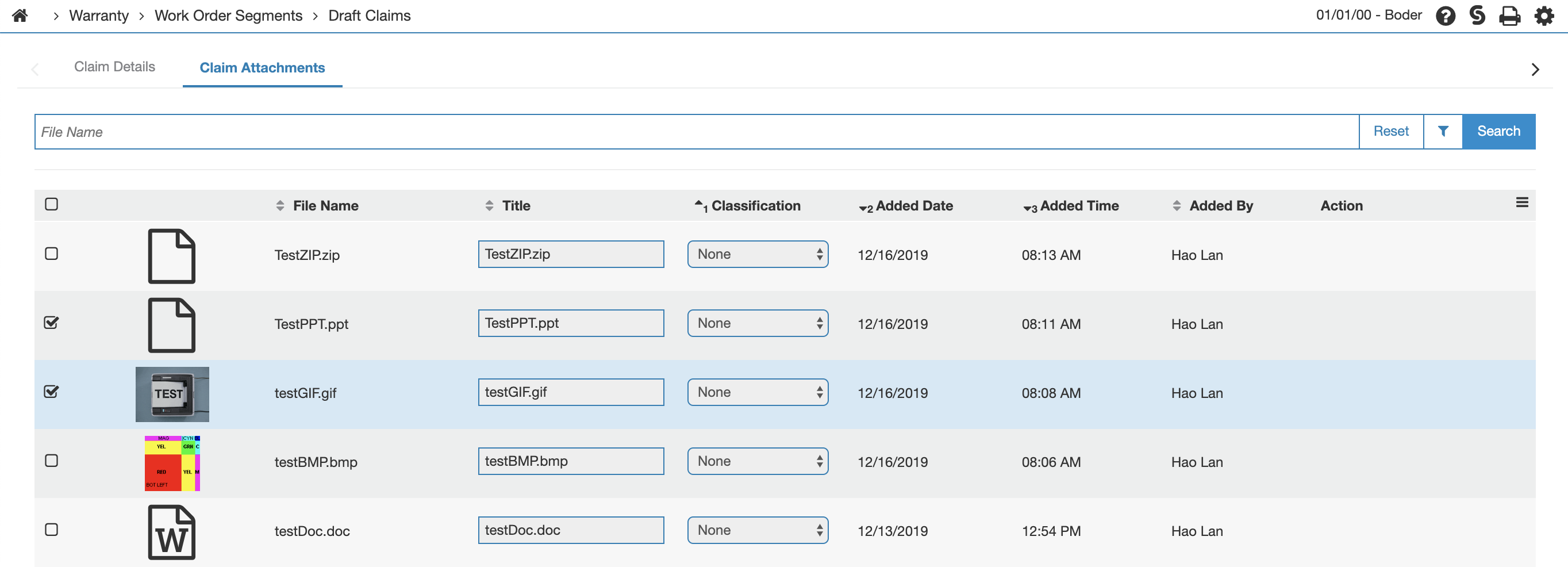
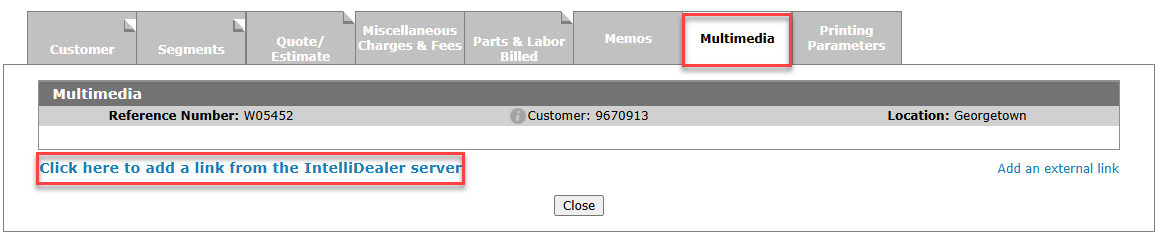
New multimedia selections can be added to this list but must be done from the Multimedia section of the work order. See Multimedia Tab.
When all Warranty Claim information is entered, click the Submit button at the bottom left on the Claim Details tab to send the draft claim to Kubota.