
VitalEngage Text
Use VitalEngage Text in to exchange SMS text messages with customers, open existing conversation threads, and start new conversations using customer contact information from IntelliDealer.
VitalEngage Text is available only when your dealership licenses the VitalEngage Text feature and it is configured on the server.
To open VitalEngage Text, open the side menu and underCustomers, and select VitalEngage Text.
Topics in this article:
User Configuration in IntelliDealer
Users that can send and receive conversations within VitalEngage Text must first add their IntelliDealer User ID on Configuration > Interfaces > VitalEngage Text > Alert Phone Number Configuration.
See IntelliDealer VitalEngage Text Configuration
Conversation List and Search
The main VitalEngage Text view shows your text conversations as a scrollable list.
Each row is a conversation tile. The tile shows the conversation name, a short preview of the last message, and the date and time of that message when available. A visual unread indicator appears when the conversation has unread messages. When you allow notifications on your device, new messages can update unread state and the app icon badge even when IDMA is not open. Opening a conversation marks its messages read and refreshes notification state.
 Conversation List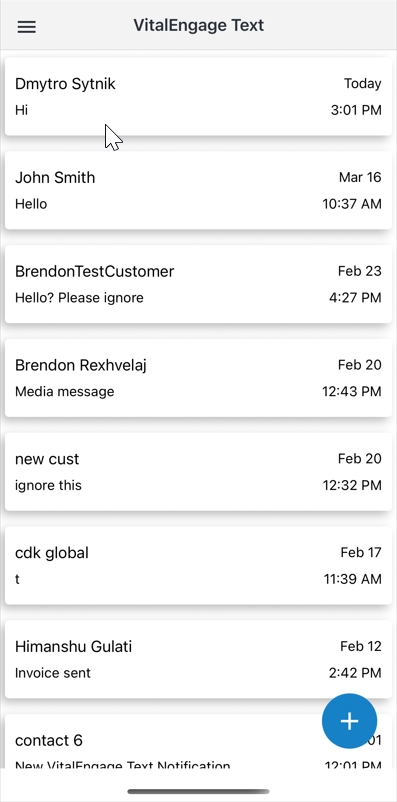
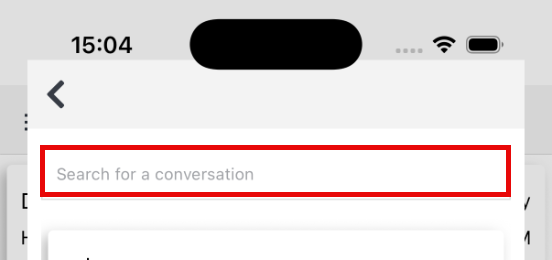
Use the search field at the top to limit the list. The app matches conversations when the search text appears in the recipient phone number or in the conversation name (matching is not case-sensitive for the name). Clearing the search text restores the full list.
When more conversations are available, scrolling near the bottom of the list loads additional items.
Tap the add button ( ) to open the address book and start a conversation from a contact or from a manually entered number.
The screen is laid out in these sections:
| Control | Description |
|---|---|
| Search | Filters conversations by phone number or conversation name. |
| Conversation | Opens the conversation and loads messages. Unread messages are marked read when the conversation opens. |
| Add | Opens the address book to pick a contact or add a conversation with a new number. SMS consent rules apply when you start a conversation; see SMS Consent and Starting Conversations. |
Conversation Details
The conversation screen shows the full message thread for the selected customer or number.
Tap Back to return to the conversation list. The app updates read status and refreshes the list when you go back.
Messages are grouped with date markers when the day changes. Incoming and outgoing messages use distinct layout so you can scan the thread quickly. Messages can include plain text and attachments such as images, PDF documents, video, and audio; previews open according to the attachment type.
Scroll to the top of the message area to load older messages when more history is available.
Before you can send messages, the app checks whether the customer’s phone number has opted in to receive texts. How missing consent is handled depends on your dealership’s Do Not Mandate SMS Consent setting in IntelliDealer. See SMS Consent and Starting Conversations.
When composing is allowed, use these controls to complete your work:
| Control | Description |
|---|---|
| Message text | Enter the body of the text. You can send text only, or combine text with attachments in one send action. |
| Attach | Choose files to include. You can attach up to four files per send. Each file must be no larger than 50 MB. Images are sent as media messages; other file types are uploaded and links are inserted into the outgoing message. |
| Send | Sends the message and any attachments, then clears the compose area. When the message is sent successfully, any draft stored for that conversation and user is removed. The send action is ignored when there is no text and no attachments. |
SMS Consent and Starting Conversations
US text messaging regulations require customer consent before you send SMS messages. In IntelliDealer, administrators configure consent branding and whether the application enforces consent on the Configuration > Interfaces > VitalEngage Text > Opt-in Form screen. See IntelliDealer VitalEngage Text: Opt-in Form.
When SMS consent is mandated
When Do Not Mandate SMS Consent is Disabled on the Opt-in Form (the default), IDMA enforces consent before you can compose a message. If the customer has not opted in, the compose area is not shown when you open the conversation. You can still review message history when a conversation already exists. If you start a conversation from the address book for a contact that has not opted in, you cannot send messages until the customer completes opt-in.
When SMS consent is not mandated
When Do Not Mandate SMS Consent is Enabled on the Opt-in Form, IDMA does not block you from opening or starting a conversation solely because consent is missing. When you open or start a conversation for a number that has not opted in, a prompt may ask whether you want to send a consent request email to the customer.
-
Tap Send Email to send the consent request to the email address shown (you can edit the address when needed).
-
Tap Continue to Chat to open the conversation and use the compose area without sending a consent email. Your dealership is responsible for obtaining and keeping proof of consent if you message without a consent record in the system.
-
Tap Cancel to close the prompt without opening the conversation.
After you continue to chat without system consent on file, a warning may indicate that the system does not have a consent record for that customer.
Note: Changing Do Not Mandate SMS Consent affects how IDMA and IntelliDealer handle new conversations. It does not replace your obligation to follow applicable text messaging regulations.
Message Drafts
Draft messages are created and updated only in IntelliDealer. When you open a conversation in IDMA, the app loads the draft for your user ID and that conversation ID, if one exists, and shows the text in the message box. If there is no draft, the message box is empty. Each user sees only their own draft for the conversation being opened.
You can edit draft text in the message box before you send. IDMA does not save changes to the draft in the database. To save or update draft text, use IntelliDealer.
See Saving Message Drafts in IntelliDealer online help.
Note: IDMA cannot create, update, or delete drafts except when a message that used a loaded draft is sent successfully; in that case the stored draft is cleared.
Feature: 6285
Revision: 2.3.14