
OFC Reclass - Copy
Use the OFC Reclass - Copy screen to create a copy of an existing OFC reclass table. Copying is useful when you want to reuse a proven set of phase-in, phase-out, and element-line rules for another location, vendor, or reclass code, then adjust the copy as needed.
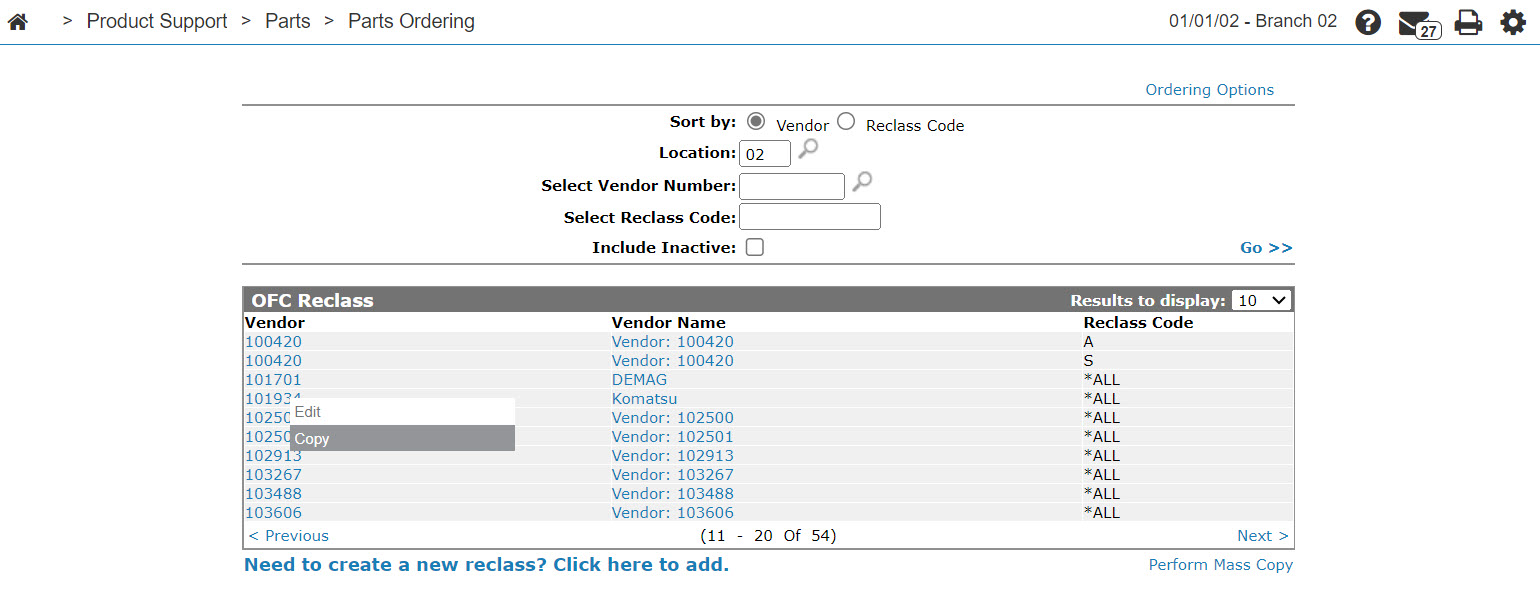
To open the OFC Reclass - Copy screen, move the cursor over a Vendor number on the OFC Reclass screen and select Copy from the pop-up.
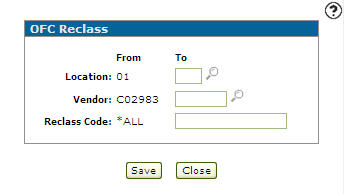
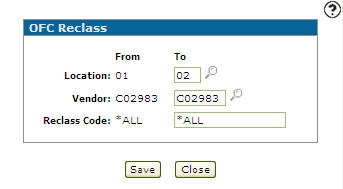
Note: The From parameters are automatically populated from the selected Vendor. The To parameters require a value in at least one of the fields.
Topics in this section are:
Copying an OFC Reclass Table
-
Navigate to Product Support > Parts > Parts Ordering.
The Parts Ordering screen appears.
-
Hover over the Ordering Options link and select OFC Reclass from the drop-down menu.
-
Fill out the appropriate fields to search for the OFC reclass table you want to copy and click Go >>.
The OFC Reclass screen refreshes listing the generated search results.
-
Move the cursor over a Vendor number and select Copy from the pop-up menu.
-
Fill out the fields under the To column, indicating the Location, Vendor, or Reclass Code for the new copy of the original OFC reclass parameters.
-
Click Save.
-
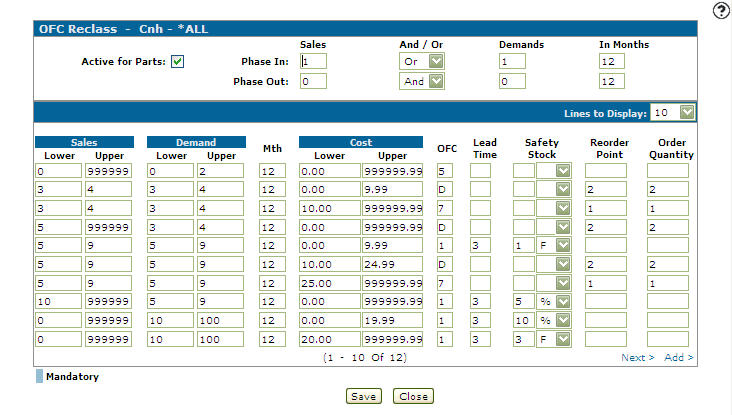
On the OFC Reclass - Edit screen, edit any of the parameters as needed. After copying, review the table for gaps or overlaps before using it in production. See Best Practices.
-
Click Save.
 The
The 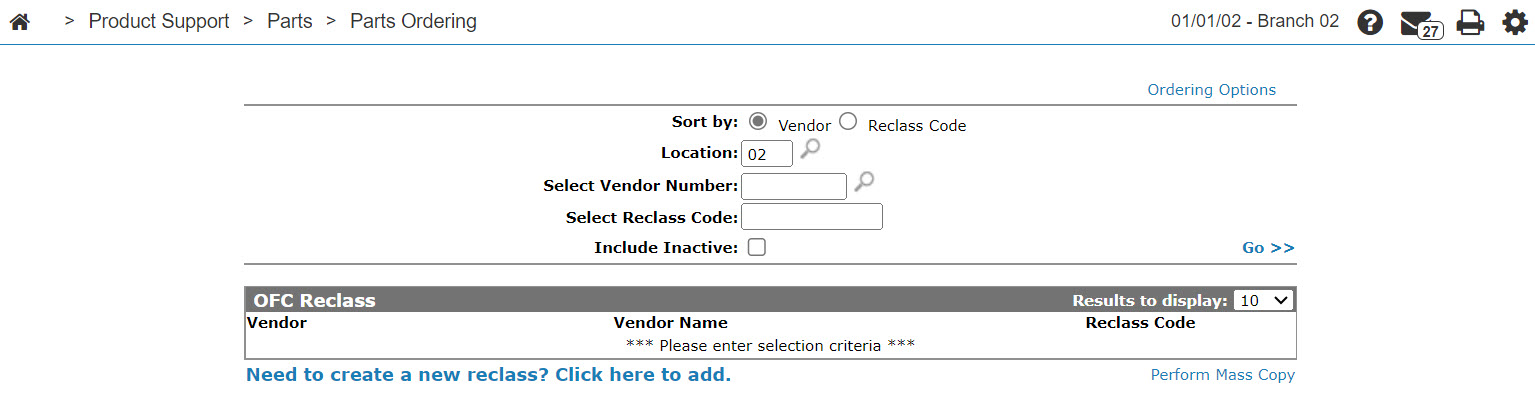
Screen Description
The fields that appear on the OFC Reclass - Copy screen are:
| Field | Description |
|---|---|
| Location | The location the OFC reclass table is applied to. |
| Vendor |
The vendor number that is affected by the parameters in the OFC reclass table. Parts with this vendor number are affected by the parameters set up on the OFC reclass table. |
| Reclass Code |
A code of up to 10 alpha- numeric characters. The code is used as a label for a part. This code is used to associate parts with a reclass table and the lines within that table. You can use the Reclass code to group parts. This is not the same as the OFC but is dealer-defined. This code can be specified on the Part Profile Ordering Information tab in the Reclass text field. |
Use these buttons to complete your work on the OFC Reclass - Copy screen:
| Button | Description |
|---|---|
| Save | Creates a new OFC reclass table using the parameters of the selected table. |
| Close | Closes the OFC Reclass - Copy screen without creating a new table and returns to the OFC Reclass screen. |
See also: OFC Reclass - Mass Copy, OFC Reclass - Edit.