
Configuration: Area Sales G/L Accounts
Use the Area Sales G/L Accounts screen to set up area sales G/L accounts for specified areas and branch locations. The sales accounts drive the data displayed on the MTD and YTD Area Sales Meters views found on the Select View screen accessed through theExecutive Summary Dashboard.
To open the Area Sales G/L Accounts screen, navigate to Configuration>General Ledger>G/L Accounts>Area Sales G/L Accounts.
Topics in this section are:
Adding an Area Sales G/L Account
-
Navigate to Configuration>General Ledger>G/L Accounts>Area Sales G/L Accounts.
The Area Sales G/L Accounts screen appear.
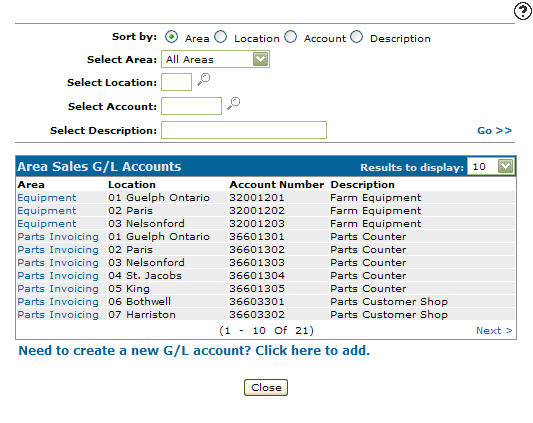
-
Click Need to create a new G/L account? Click here to add.
The Add/View G/L Accounts screen appears.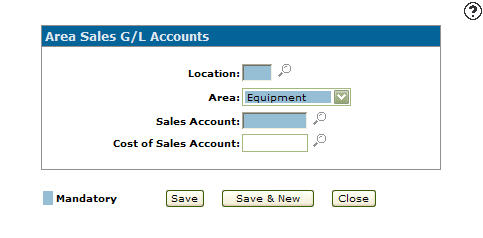
-
Enter a branch Location or Click on the Search
 icon.
icon.Click the desired location.
The Location Selection screen appears, listing the selected location in the Location field.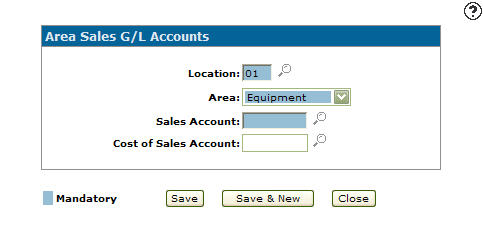
- Select an Area from the drop down list.
- Equipment
- Parts Invoicing
- Rental
- Shop Labor
- Shop Parts
-
Enter a Sales Account number, the sales G/L account number that is posted to when the area sales G/L account is used within the system.
- or -
Click on the Search icon.
The Account Lookup screen appears.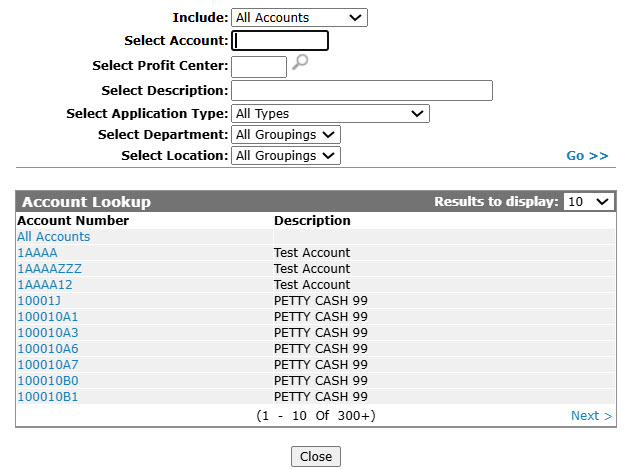
-
Fill out the appropriate fields and click Go >>.
The Account Lookup screen refreshes listing the generated search results.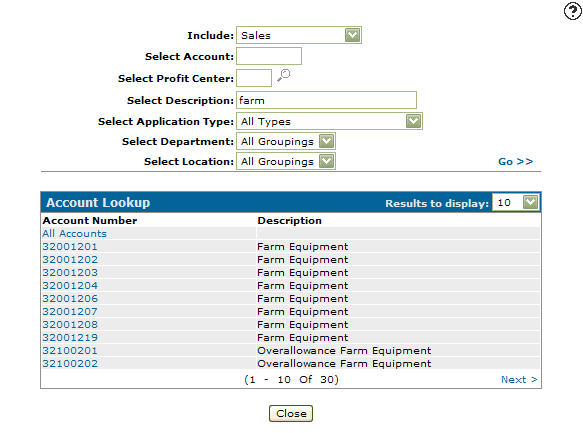
-
Click Account Number.
The Add/View G/L Accounts screen appear listing the select account number in the Sales Account field.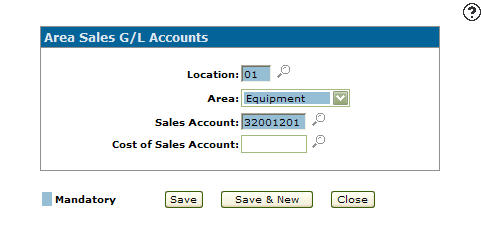
-
(OPTIONAL) enter a Cost of Sales Account number, transactions that occur after a equipment, parts, rental, or service invoice has been processed will be posted to the cost of sales account entered.
- or -
Click on the Search icon and select an account from the Account Lookup screen. -
Click the Save button to save the new area sales G/L account and return to the Add/View G/L Accounts screen.
- or -
Click the Save & New button to save the new area sales G/L account.
The Add/View G/L Accounts screen will refresh allowing you to add another area sales G/L account without closing the screen.
Copying an Area Sales G/L Account
-
Navigate to Configuration>General Ledger>G/L Accounts>Area Sales G/L Accounts.
The Area Sales G/L Accounts screen appears.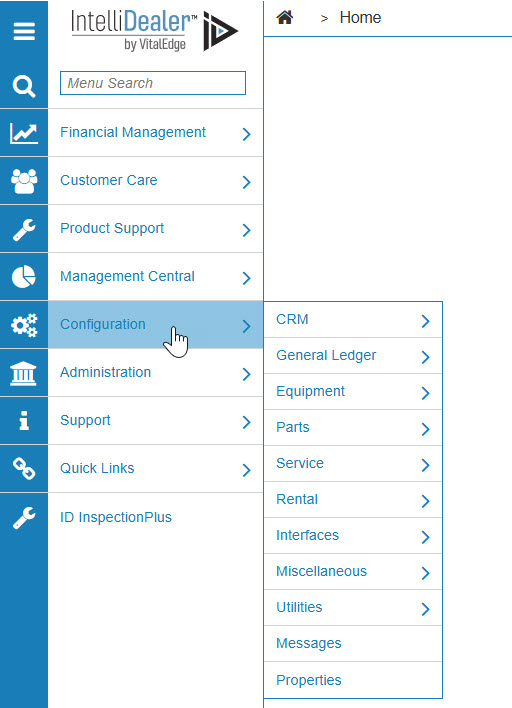
-
The Area Sales G/L Accounts screen appears.
-
Fill out the appropriate fields and click Go >>.
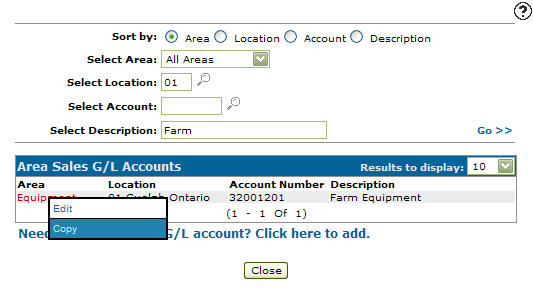
The Area Sales G/L Accounts screen refreshes listing the generated search results.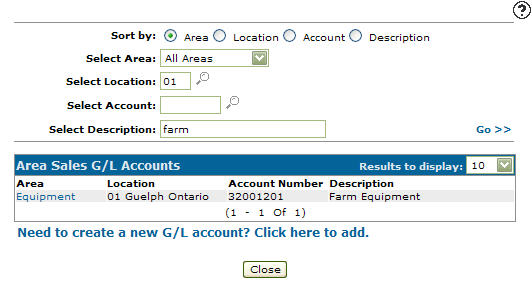
-
Move the cursor over an Area and select Copy from the pop-up list.
-
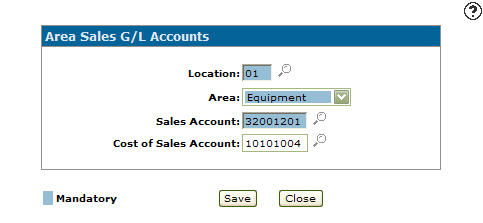
The Add/View G/L Accounts refreshes, allowing you to add additional information to the copied area sales G/L account before creating the new copy.
-
Once you have fill out all the desired fields click on the Save button to create the new area sales G/L account.
Screen Description
The sorting options on the Area Sales G/L Accounts screen are:
| Sort by | |
|---|---|
| Field | Description |
| Area | Sort the search results by system area. |
| Location | Sort the search results by branch location. |
| Account | Sort the search results by sales account. |
| Description | Sort the search results by sales account description. |
The search fields on the Area Sales G/L Accounts screen are:
| Field | Description |
|---|---|
| Select Area |
Search for an area sales G/L account by selecting a system area. |
| Select Location | Search for an area sales G/L account by entering a branch location. |
| Select Account | Search for an area sales G/L account by entering a sales account number. |
| Select Description | Search for an area sales G/L account by entering a sales account description. |
The fields on the Area Sales G/L Accounts screen are:
| Field | Description |
|---|---|
| Area | The sales area of the business the sales G/L account is associated with. |
| Location | The branch location the area sales G/L account will be associated with. |
| Account Number | The sales G/L account number. |
| Description | A brief description of the sales G/L account number. |