
CRM Equipment Make/Model Filtering Configuration
This configuration screen allows for filtering equipment unit access through the Elead CRM Integration. This screen allows units to be filtered by Make and Model.
Make Configuration
The make configuration screen can be found on the first tab of the CRM Equipment Transmit screen. This allows units to be filtered based on the equipment make associated with the unit in the Equipment Profile. Makes are shown in a list by division, as makes are configured on a division-specific basis.
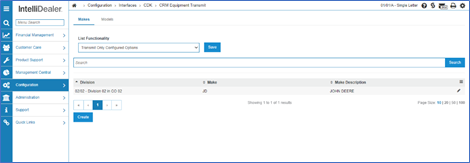
The configuration screen also has a list functionality option, which changes how the configured list functions when determining what information to transmit. The possible settings are:
-
Transmit Only Configured Options—transmit ONLY the makes configured on the list below. If nothing is configured in the list, nothing is transmitted by the interface.
-
Transmit All—transmit all makes in the system, regardless of what is configured on the list.
-
Transmit All Excluding Configured Options—transmit all makes EXCEPT the ones configured in the list. This option is useful when only a few makes should be excluded from the transmission, but the majority should be sent. If nothing is configured in the list, all makes are transmitted.
Adding a New Make Configuration
To add a new make to the configuration screen list, click Create in the bottom right. In the popup, select a division and the desired make code:
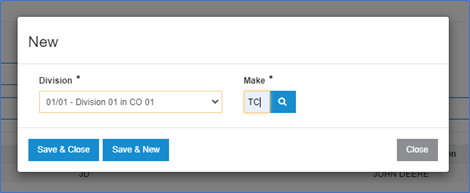
Click Save & Close to return to the configuration screen, or Save & New to configure an additional make.
Model Configuration
The model configuration screen can be accessed on the second tab. This screen functions similar to the make configuration screen, but the models are considered system-wide and not specific to a particular division.
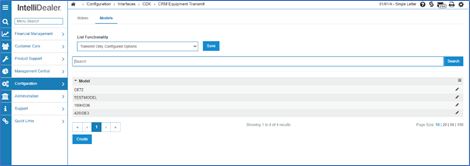
The model configuration screen supports the same list configuration options as the make screen. The possible settings are:
-
Transmit Only Configured Options—transmit ONLY the models configured on the list below. If nothing is configured in the list, nothing is transmitted by the interface.
-
Transmit All—transmits all models in the system, regardless of what is configured on the list.
-
Transmit All Excluding Configured Options—transmits all models EXCEPT the ones configured in the list. This option is useful when only a few models should be excluded from the transmission, but the majority should be sent. If nothing is configured in the list, all models are transmitted.
3. To add a new model to the configuration screen, click the Create button in the bottom right. This launches a small window which allows for a model to be selected:
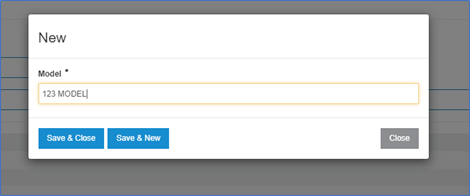
4. When all mandatory fields have been filled in, click the Save & Close button to return to the configuration screen, or Save & New to configure an additional model.