
Bill.com Overview
The Bill.com Accounts Payable integration enables IntelliDealer to exchange Accounts Payable data with Bill.com. Dealers create and maintain vouchers, vendors, and chart of accounts in IntelliDealer, sync bills to Bill.com for approval and payment, and sync paid transactions back into IntelliDealer check run batches. IntelliDealer remains the system of record for general ledger posting.
Topics in this section are:
See also:
Daily Usage Workflow
The typical accounts payable workflow uses IntelliDealer for voucher entry and general ledger posting, and Bill.com for bill approval and vendor payment.
-
Maintain master data. Create or update vendors and chart of accounts in IntelliDealer as needed. Changes sync to Bill.com automatically when you save the record.
-
Create vouchers. Enter outstanding accounts payable vouchers in IntelliDealer when invoices are received. Each voucher must have an invoice number, an invoice date, a due date, and distribution line items with general ledger accounts. IntelliDealer stages eligible outstanding vouchers for Bill.com sync.
-
Sync vouchers to Bill.com. When vouchers are ready for payment, open Configuration > Interfaces > Other > Bill.com, select the company, and click Sync Vouchers. Vouchers appear as bills in Bill.com.
-
Approve and pay in Bill.com. Use Bill.com to approve bills and pay vendors according to your dealership process.
-
Sync payments to IntelliDealer. After payments are made in Bill.com, return to the Bill.com configuration screen in IntelliDealer, select the company, and click Sync Payments. Paid vouchers are added to check run batches in IntelliDealer.
Note: Payment sync adds vouchers to a check run batch but does not perform the check run for you. Review the batch before printing checks or posting.
-
Complete the check run. Review the check run batch on Check Run (Batches), then print checks or complete your normal accounts payable check run process.
Data Flow Between IntelliDealer and Bill.com
The Bill.com integration supports accounts payable workflows in which IntelliDealer remains the system of record for vouchers and general ledger posting, and Bill.com is used to approve bills and pay vendors.
Chart of account and vendor records sync to Bill.com automatically when you save them in IntelliDealer. Outstanding vouchers and vendor credits are sent to Bill.com when you click Sync Vouchers on the configuration screen. After bills are paid in Bill.com, click Sync Payments to retrieve payment details and add the matching vouchers to check run batches in IntelliDealer.
Note: Voucher and payment sync are manual. There is no scheduled sync job. Chart of account and vendor sync occur automatically when you save those records.
 Data flow between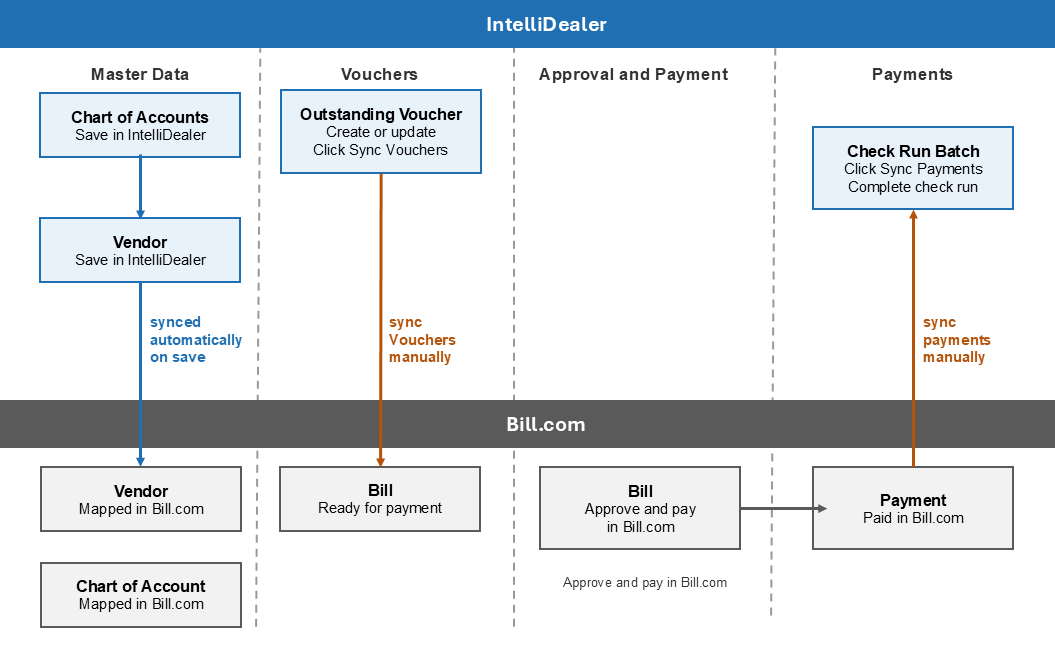
Outbound (IntelliDealer to Bill.com)
| Data | Purpose | When synced |
|---|---|---|
| Chart of accounts |
Bill.com uses these accounts on bill line items when voucher G/L distribution lines sync. See Chart of Accounts. |
When you create or modify a chart of account (in near real-time). Also sent when you click Sync Vouchers. |
| Vendors |
Bill.com needs a vendor record before bills for that vendor can be created. Vouchers for a vendor cannot sync until that vendor has been sent to Bill.com from IntelliDealer. See Vendor Profile. |
When you create or modify a vendor or vendor contact (in near real-time). Also sent when you click Sync Vouchers. |
| Vouchers (bills) |
Sends outstanding accounts payable vouchers to Bill.com as bills. Each voucher must have an invoice number, an invoice date, a due date, and distribution line items with general ledger accounts. See Vouchers Information and Vouchers - Outstanding Batches. |
Staged when you create or update an outstanding voucher; sent when you click Sync Vouchers. |
| Vendor credits |
Sends negative outstanding vouchers to Bill.com as vendor credits. |
Staged when gross amount is negative; sent when you click Sync Vouchers. |
Inbound (Bill.com to IntelliDealer)
| Data | Purpose | When synced |
|---|---|---|
| Payments |
Adds fully paid Bill.com vouchers to accounts payable check run batches, grouped by company, division, and bank account. The batch description is Bill.com paid vouchers. See Check Run (Batches). |
When you click Sync Payments. |
| Payment voids |
Removes vouchers from check run batches when a payment is voided or cancelled in Bill.com, returning them to outstanding status. If a bill is paid again in Bill.com, the voucher can be added to a new batch on a later sync. |
On the next Sync Payments run after the void or cancel in Bill.com. |
Email Alerts and Integration Mapping
Bill.com integration alerts are sent to the email addresses configured for Bill.com integration failures on the System Notification Email Address screen (Administration > Settings > System Notification Emails). You can configure up to nine recipient addresses.
If no recipient is configured, the integration continues to run but alert emails are not sent.
| Alert | Description |
|---|---|
| Chart of account transmission error | A chart of account could not be sent to Bill.com. |
| Vendor transmission error | A vendor could not be sent to Bill.com. |
| Voucher sync errors | One or more bills or vendor credits failed during a Sync Vouchers run. The email lists failed items and error details. |
| Payment sync completed | A Sync Payments run completed and processed vouchers into check run batches. |
| Payment sync completed - items need attention | A payment sync run completed but one or more payments or vouchers require review (for example, a Bill.com payment with no matching IntelliDealer voucher, or a voucher already moved to history). |
| Payment sync failed | A payment sync run did not complete (for example, Bill.com login or API failure). |
Troubleshooting
| Issue | Possible Fix |
|---|---|
| Bill.com menu option or configuration screen is not available |
|
| Cannot save or sync |
|
| Vouchers do not appear in Bill.com after Sync Vouchers |
|
| Sync Payments does not create a check run batch |
|
| Bill.com and IntelliDealer totals or statuses do not match |
|
| No alert emails are received |
Confirm that Bill.com integration failures is configured on the System Notification Email Address screen. |
BCMAP Integration Mapping
The BCMAP table stores the mapping between IntelliDealer records and Bill.com records. VitalEdge Support uses BCMAP when investigating sync failures or discrepancies between IntelliDealer and Bill.com. Each row includes:
-
Local IntelliDealer identifier and Bill.com identifier
-
Entity type (chart of account, vendor, bill, vendor credit, or payment)
-
Sync status (for example, pending, success, retry, error, or voided)
-
Request and response details from the Bill.com API
Feature: 6529 - BILL.com A/P Automation
Revision: 2026.08