
John Deere: Claim Submission
This feature is currently in beta.
Use the Repair tab on the John Deere draft claim screen to enter or review the cause of the unit failure before you submit the claim to John Deere. This information describes why the equipment failed or why the repair was required.
The draft claim opens on the Claim tab of the Deere Warranty Claim Submission screen after you select work order segments and validate the PIN and dealer number. Several fields on the Claim tab, including labor lines in the Labor panel, are pre-filled from the selected work order segments. The Repair tab is the first tab in the Comments panel near the bottom of the Claim tab.
Prerequisites:
-
License 6200 - John Deere Warranty Web Service
-
Configure active John Deere credentials
-
On the John Deere: Warranty Main tab, select Use New Warranty.
Note: If John Deere credentials or tokens expire, these interfaces stop working until credentials are updated.
Topics in this section are:
How to Open the Repair Tab
To open JD Claim Submission from a work order:
-
Navigate to Product Support > Service> Work Orders and open a Work Order.
-
Click the Segments tab.
-
Hover over Work Order Options and select JD Claim Submission.
The Warranty: Work Order Segments screen opens.
-
Select one or more segments, then click Next.
-
Enter your Dealer Code, obtained from John Deere, and the unit's Serial Number, then click Validate.
The Claims tab appears.
 The Validate Pin screen opens.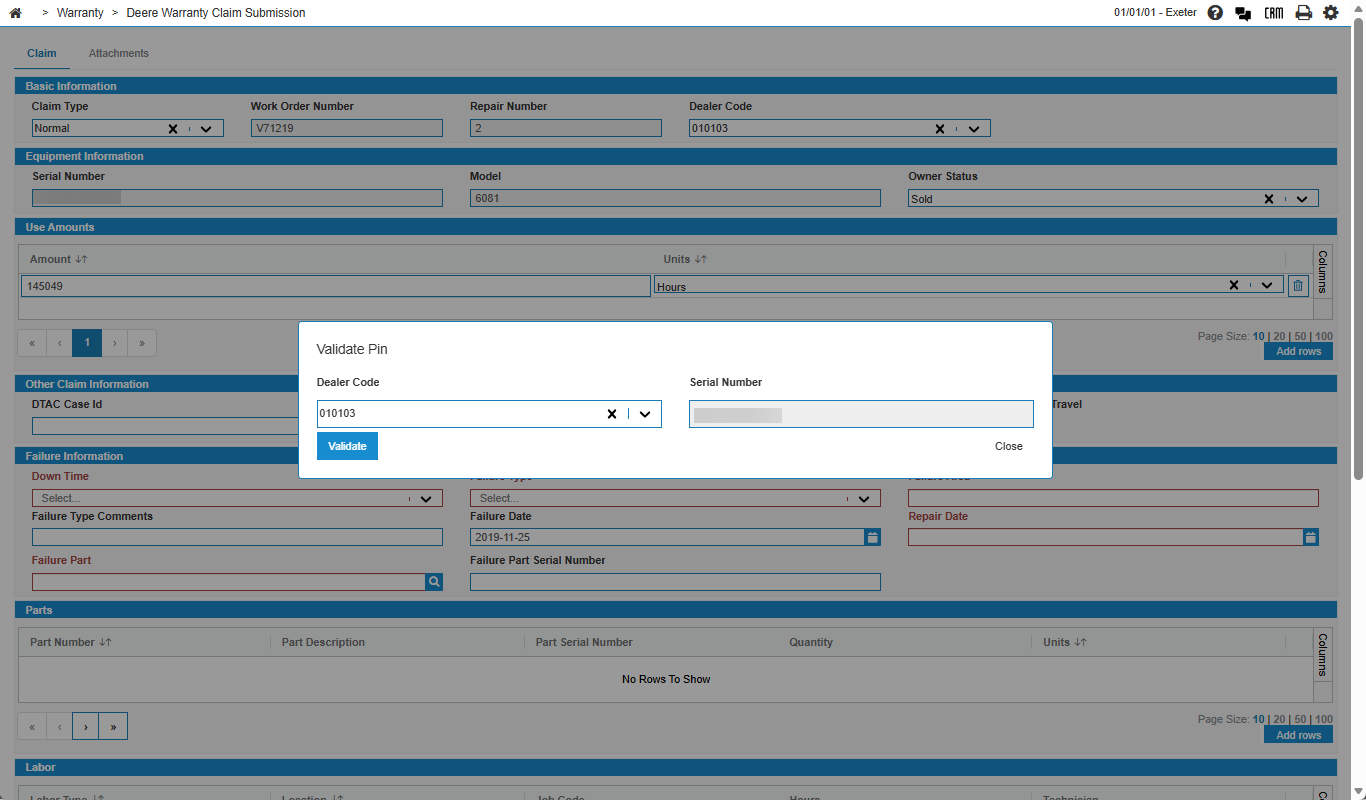
Repair (Cause) Field
The Comments panel groups complaint, cause, correction, and related narrative fields for the claim. On the screen, the cause information appears on the tab labeled Repair.
| Comments Panel — Repair Tab | |
|---|---|
| Field | Description |
| Repair |
A description of the cause of the unit's failure. Enter the diagnostic findings or failure analysis that explains why the repair was required. When the draft claim is created from a work order, IntelliDealer pre-fills this field from the Cause text on each selected work order segment. Text from multiple segments is combined in segment order, with each segment on a new line. |
Related Comments Tabs
Complete the other tabs in the Comments panel when they apply to your claim type. Work order segment text maps to these tabs as follows:
| Work order segment field | Draft claim tab | Description |
|---|---|---|
| Complaint | Operators Complaint | The operator's description of the problem or symptom. |
| Cause | Repair | The cause of the failure (this topic). |
| Correction | Diagnostic | Steps taken to diagnose or correct the problem. |
| Description | Comments | Additional comments for the claim. |
| — | Basis For Settlements | Basis for settlement when required for the claim type. |
Labor Panel Fields
The Labor panel on the Claim tab lists the labor lines included on the warranty claim. When the draft claim is created from a work order, IntelliDealer adds one row for each posted labor line on the selected segments.
The fields in the Labor panel are:
| Labor Panel | |
|---|---|
| Field | Description |
| Labor Type | Required. The John Deere labor type for the line. |
| Location | Required. The labor location for the line, such as shop labor. |
| Job Code Description |
When the draft claim is created from a work order, IntelliDealer pre-fills this field with the Job Code Description from the related work order segment instead of the numeric job code value. Review and update the description text before you submit the claim, if needed. This value is sent to John Deere with the labor line on claim submission. |
| Hours | The labor hours for the line. |
| Technician | Required. The technician assigned to the labor line. |
| Technician XID | The John Deere RACFID (XID) for the selected technician. IntelliDealer populates this value automatically when the technician is selected. |
Battery Claim Type Fields
When Claim Type is set to Battery on the Claim tab, additional fields appear in the Other Claim Information panel. Complete these fields when they apply to the battery warranty claim you are submitting.
| Other Claim Information Panel — Battery Claim Type | |
|---|---|
| Field | Description |
| Installed By | Required. Identifies who installed the battery. |
| Installed Date | The date the battery was installed. |
| Test Results Code | The test results code for the battery claim, when applicable. |
| Application | The application type for the battery, when applicable. |
| Previous Invoice Number | Optional. Enter the previous invoice number when the dealer has prior invoice information to include with the Battery warranty claim submission to John Deere. |
Before You Submit the Claim
For most claim types, including Normal, Parts, Special Allowance, Battery, Attachments, and Track, the Repair field is required before you can submit the draft claim. Marketing claims do not require this field.
Review and update the pre-filled cause text and labor line descriptions so they accurately reflect the repair before you submit. After you submit the claim to John Deere, you cannot change the claim from IntelliDealer.
When the Claim tab is complete, click Next to open the Attachments tab, add any required multimedia, and submit the claim.
Feature: 6200 - John Deere Warranty Web Service
Security: 810 - Product Support: Work Orders
Revision: 2026.08