
Create Account Profile - Next Gen
This NextGen IntelliDealer screen is being introduced through the controlled rollout. NextGen modernizes the screen experience while preserving the core business behavior dealers rely on today. During the rollout period, related legacy help content may remain available for users who have not yet moved to the NextGen experience or who need to compare familiar workflows. Help content for this screen will continue to be updated as the screen progresses through the rollout phases.
If you are using this NextGen screen today, refer to the guidance on this page first. If you need help with a related legacy workflow, use the linked legacy help content where available. For an overview of the project see NextGen Overview. To determine which phase this screen is in see NextGen Configuration.
Use the Create New Chart Of Accounts modal to add an account to the chart of accounts from the Chart of Accounts tab. You can attach an existing account profile to a profit center, or create a new account profile and chart of accounts record together.
IntelliDealer stores G/L account information at two levels. An account profile is the base account number for your company. A chart of accounts account combines that account number with a profit center for posting. See Account Master and Chart of Accounts for more information.
To open the Create New Chart Of Accounts modal, navigate to Financial Management > General Ledger > Chart of Accounts, open the Chart of Accounts tab, and click Create Account.
The modal contains these tabs:
Add Existing Account
Use the Add Existing Account tab when an account profile already exists and you want to add it to the chart of accounts for a profit center.
 Add Existing Account tab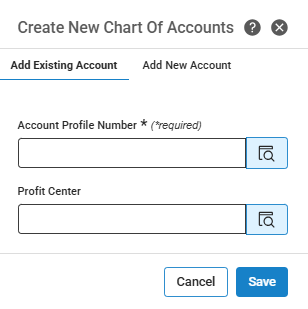
The fields on the Add Existing Account tab are:
| Field | Description |
|---|---|
| Account Profile Number |
The base G/L account number (the account master) for the existing account profile. Required. Enter the account number directly, or click the lookup icon to search and select from the account profile list. |
| Profit Center |
The department and location for the chart of accounts record. Required. Enter the profit center directly, or click the lookup icon to search and select a profit center. |
Click Save to create the chart of accounts record and close the modal. Click Cancel to close the modal without saving.
Add New Account
Use the Add New Account tab to create a new account profile and chart of accounts record together.
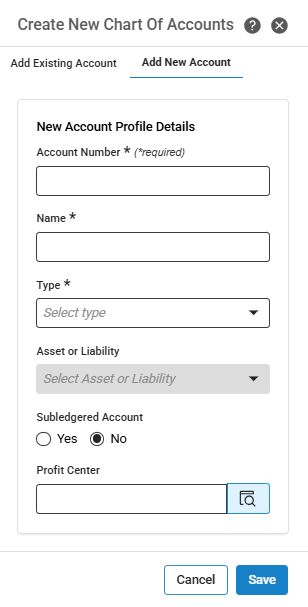
The fields on the Add New Account tab are:
| Field | Description |
|---|---|
| Account Number |
The five-character G/L account number for the new account profile. Required. The account number must be unique. If you enter a duplicate number, the system displays an inline error: This account number is already in use, enter a different number. The duplicate check runs automatically when five characters are entered. |
| Name |
The account name. Required. Up to 30 alphanumeric characters. The name appears throughout the system and on reports where the G/L number is shown. |
| Type |
The account type. Required. Determines where the account appears on financial reports. Can be one of:
|
| Asset or Liability |
Indicates which side of the balance sheet the account appears on. Enabled and required only when Type is set to Balance Sheet. Not editable for other account types. |
| Subledgered Account |
Specifies whether this account is subledgered in the business system. The subledger is a detail listing of all items that reconcile to the total amount in that account. Select Yes or No. Defaults to No. Do not select Yes for accounts receivable or accounts payable accounts; those accounts have their own dedicated subledger systems. |
| Profit Center |
The department and location for the chart of accounts record. Enter the profit center directly, or click the lookup icon to search and select a profit center. |
Click Save to create the account profile and chart of accounts record, then close the modal and return to the Chart of Accounts tab.
Click Cancel to close the modal without saving.
Data Source: ACCMAST, COACMAST
Security: 602 - Financial Management - General Ledger
Revision: 2026.09