
Customer Pricing - NextGen
This NextGen IntelliDealer screen is being introduced through the controlled rollout. NextGen modernizes the screen experience while preserving the core business behavior dealers rely on today. During the rollout period, related legacy help content may remain available for users who have not yet moved to the NextGen experience or who need to compare familiar workflows. Help content for this screen will continue to be updated as the screen progresses through the rollout phases.
If you are using this NextGen screen today, refer to the guidance on this page first. If you need help with a related legacy workflow, use the linked legacy help content where available. For an overview of the project see NextGen Overview. To determine which phase this screen is in see NextGen Configuration.
Use the Customer Pricing screen to view customer pricing, create a customer pricing record, and view price inquiries.
The system uses configured Customer Pricing Records to find the best price, or a special price, for that customer, when an IntelliDealer user adds a part to an invoice and/or a requisition. Expired records are purged after at least 31 days, depending on when you run your Accounts Receivable month end and subsequent full database reorganize.
To open the Customer Pricing screen, navigate to Product Support > Parts > Customer Pricing.
Customer Pricing records are only recognized by the system if the Utilize Parts Customer Discount Pricing field is enabled on the System Settings - Location screen. If the Your Savings field is also activated, invoices created for customers with a pricing record will include a "Your Savings" line, displaying the total sales price reduction that was applied.
The Customer Pricing screen is organized into three tabs. Each tab lists a different type of customer pricing record:
-
Individual Customer Pricing—pricing for a specific customer.
-
Group Pricing—pricing for a pricing group. The group name must match the Group Name entered elsewhere in the system, such as customer profile, service agreements, and work orders.
-
All Customers—pricing that applies to all customers.
Topics in this section are:
See also: Listing Screens.
Common Screen Elements
The options available on every tab of the Customer Pricing screen are:
| Option | Description |
|---|---|
| Price Inquiry |
Opens the Customer Pricing Inquiry window to look up pricing for a part, customer, location, and quantity. See also Pricing Inquiry. Tip: Use this after creating or editing a rule. Price Inquiry is the fastest way to confirm the intended pricing record is driving the result before users encounter the price in live workflows. |
| Delete Program ID | Opens the Delete Program ID window to delete all customer pricing records associated with a program ID. Available only when you have delete program ID permission. |
| Customer Pricing Import | Opens the Customer Pricing Import workflow to import a CSV file and create or update customer pricing records (customer special pricing). |
| Show Filters | Displays filter fields you can use to narrow the search results. Click Hide Filters to close the filters. |
| Search | Search for customer pricing records by entering a keyword. The fields included in the search depend on the active tab. See each tab section for the searchable fields. |
| Customize Columns | Specify which columns are displayed or hidden in the results grid. A numeric badge on the button shows how many columns are currently visible. |
Click a column heading to sort the search results by that column.
Use the pagination controls at the bottom of the grid to change the number of rows displayed per page and move between pages of search results.
Each row in the results grid includes an Edit button that opens the customer pricing record modal for the active tab. See Individual Customer Pricing Record - NextGen, Group Pricing Record - NextGen, or Pricing Record for All Customers - NextGen. A delete icon on each row removes that pricing record after you confirm the action. When you edit a record, the modal can also include Save As New to create a copy without overwriting the original.
Individual Customer Pricing Tab
Use the Individual Customer Pricing tab to search for, create, and maintain customer pricing records for individual customers.
 Individual Customer Pricing screen
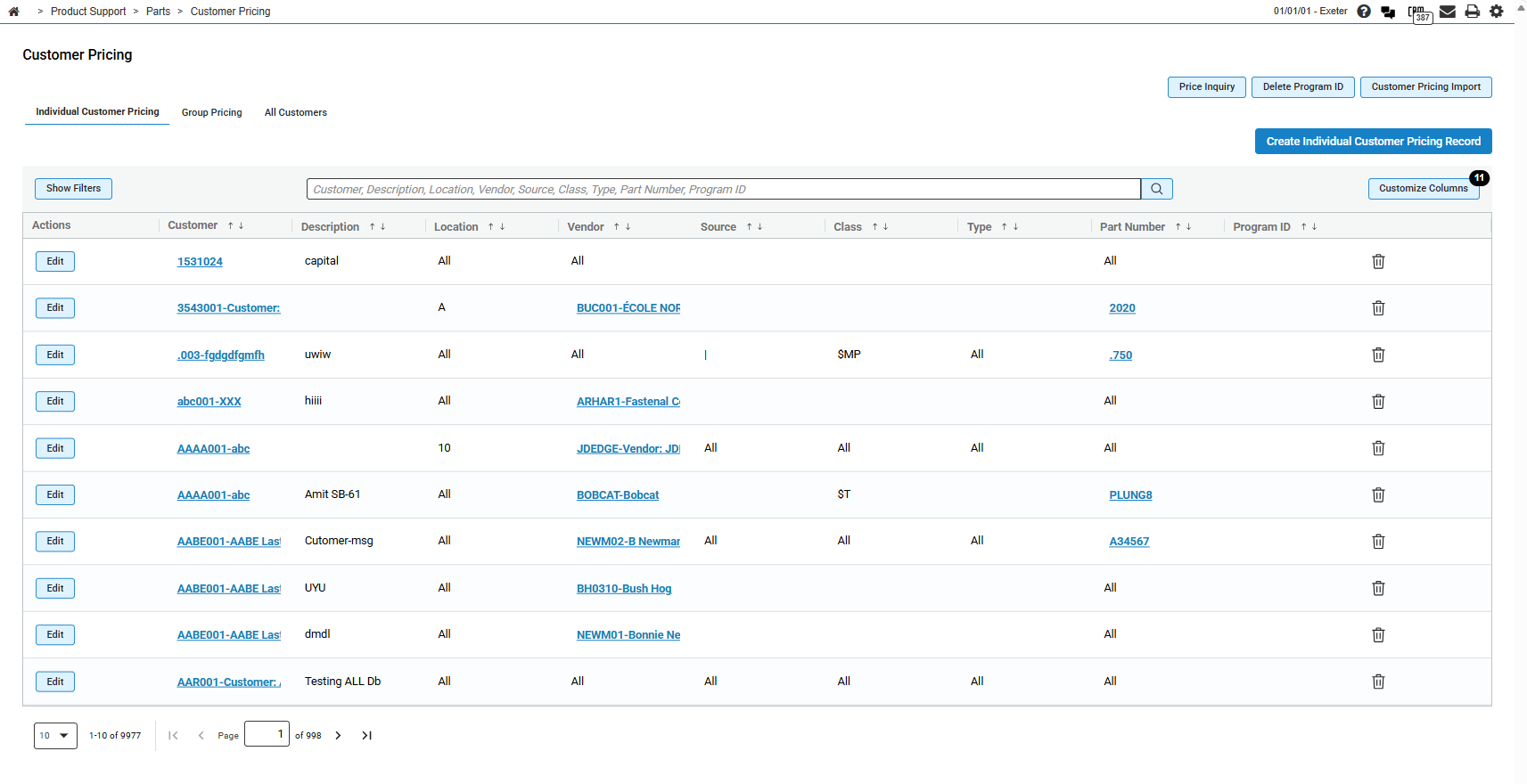
Click Create Individual Customer Pricing Record to open the Individual Customer Pricing Record modal and add a new customer pricing record for an individual customer.
The fields on the Individual Customer Pricing tab are:
| Field | Description |
|---|---|
| Customer |
The customer number and name the pricing record applies to. When displayed as a link, the customer value opens the Customer Profile. Click Edit to open the customer pricing record. |
| Description |
A brief description of the pricing record. Maximum 30 characters. Required when creating or editing a record. |
| Location | The location where the customer pricing applies, or All for all locations. |
| Vendor |
The vendor number associated with the customer pricing, or All for all vendor numbers. When displayed as a link, the vendor value opens the vendor profile. Click Edit to open the customer pricing record. |
| Source | The source code, or All for all source codes. |
| Class | Applies the customer pricing to parts with a specific class code, or All for all class codes. |
| Type | Applies the customer pricing to parts with a specific type code, or All for all type codes. |
| Part Number |
The number of the part affected by the customer pricing, or All for all parts. When displayed as a link, the part number opens the parts listing. Click Edit to open the customer pricing record. |
| Program ID | Identifies the record as part of a group of common customer part pricing programs. |
Click the remove a pricing record click the trash icon.
Group Pricing Tab
Use the Group Pricing tab to search for, create, and maintain customer pricing records for pricing groups.
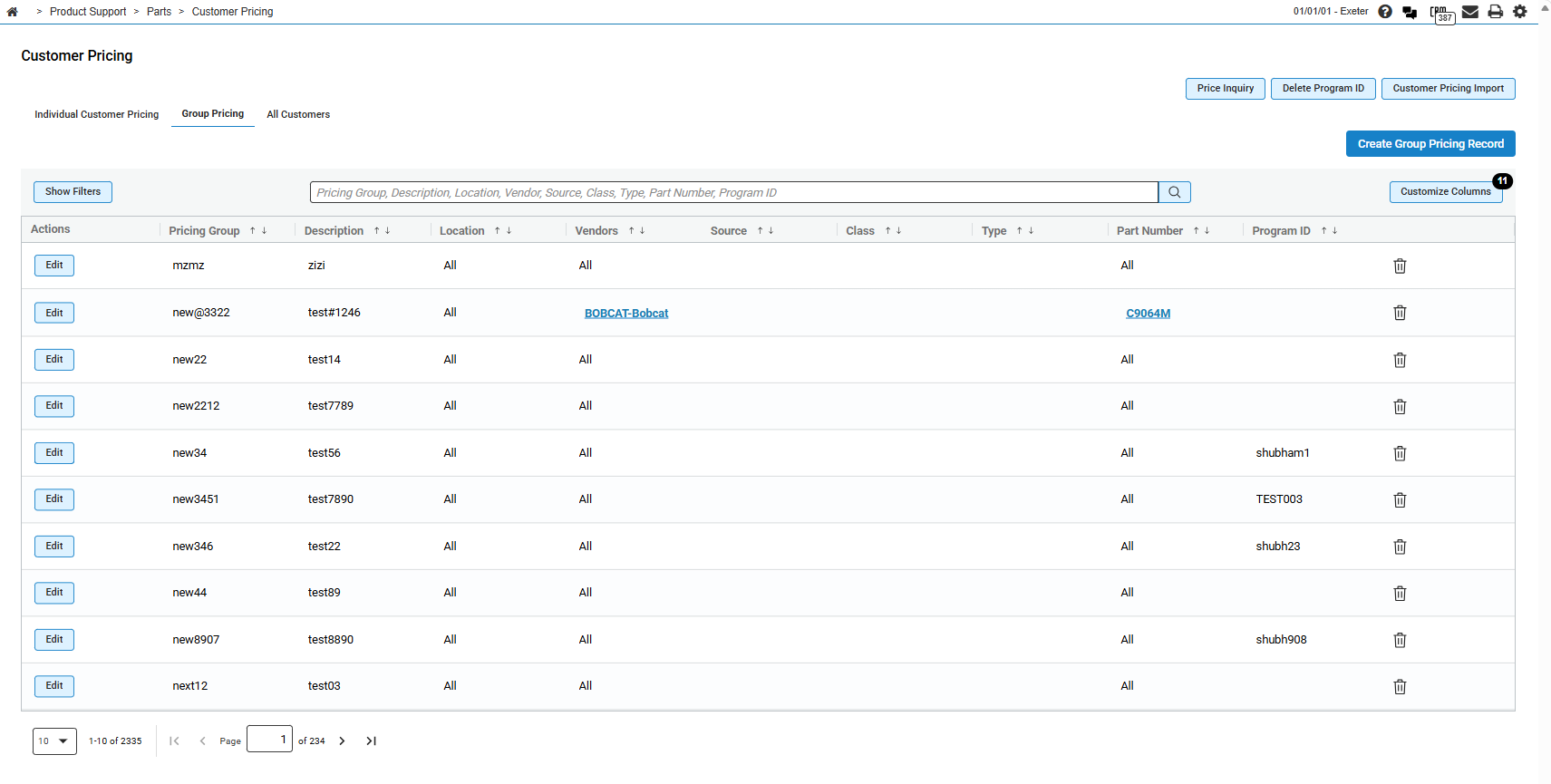
Click Create Group Pricing Record to open the Group Pricing Record modal and add a new customer pricing record for a pricing group.
The fields on the Group Pricing tab are:
| Field | Description |
|---|---|
| Pricing Group |
The group name used to identify a group of customers that this pricing applies to. This is a free text field and it is your responsibility to ensure that the group name entered here matches the Group Name entered elsewhere in the system, such as customer profile, service agreements, work orders, and so on. |
| Description |
A brief description of the pricing record. Maximum 30 characters. Required when creating or editing a record. |
| Location | The location where the customer pricing applies, or All for all locations. |
| Vendor |
The vendor number associated with the customer pricing, or All for all vendor numbers. When displayed as a link, the vendor value opens the vendor profile. Click Edit to open the customer pricing record. |
| Source | The source code, or All for all source codes. |
| Class | Applies the customer pricing to parts with a specific class code, or All for all class codes. |
| Type | Applies the customer pricing to parts with a specific type code, or All for all type codes. |
| Part Number |
The number of the part affected by the customer pricing, or All for all parts. When displayed as a link, the part number opens the parts listing. Click Edit to open the customer pricing record. |
| Program ID | Identifies the record as part of a group of common customer part pricing programs. |
All Customers Tab
Use the All Customers tab to search for, create, and maintain customer pricing records that apply to all customers.
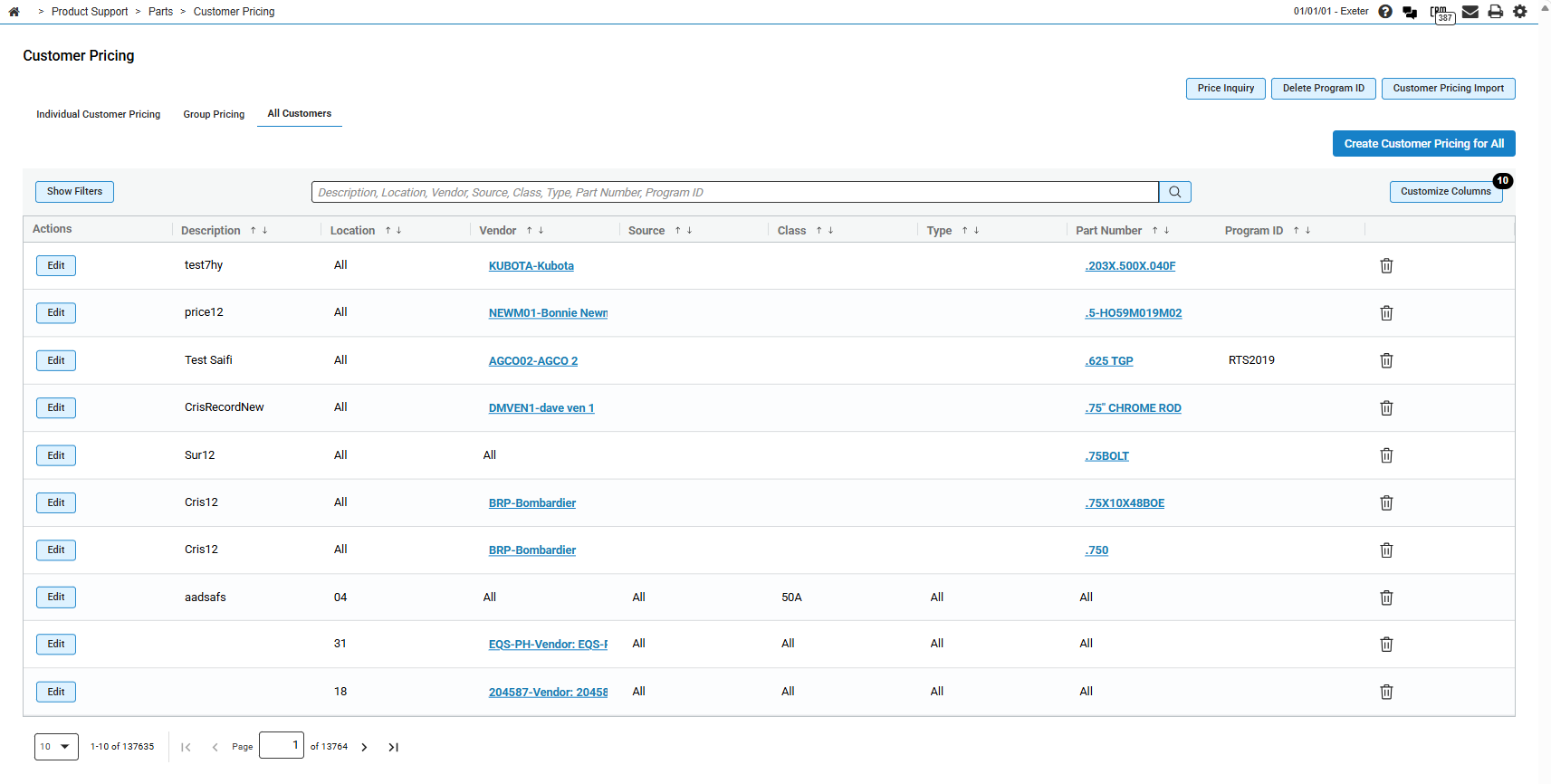
Click Create Customer Pricing for All to open the Pricing Record for All Customers modal and add a new customer pricing record for all customers.
The fields on the All Customers tab are:
| Field | Description |
|---|---|
| Description |
A brief description of the pricing record. Maximum 30 characters. Required when creating or editing a record. |
| Location | The location where the customer pricing applies, or All for all locations. |
| Vendor |
The vendor number associated with the customer pricing, or All for all vendor numbers. When displayed as a link, the vendor value opens the vendor profile. Click Edit to open the customer pricing record. |
| Source | The source code, or All for all source codes. |
| Class | Applies the customer pricing to parts with a specific class code, or All for all class codes. |
| Type | Applies the customer pricing to parts with a specific type code, or All for all type codes. |
| Part Number |
The number of the part affected by the customer pricing, or All for all parts. When displayed as a link, the part number opens the parts listing. Click Edit to open the customer pricing record. |
| Program ID | Identifies the record as part of a group of common customer part pricing programs. |