
Pricing Record for All Customers - NextGen
This NextGen IntelliDealer screen is being introduced through the controlled rollout. NextGen modernizes the screen experience while preserving the core business behavior dealers rely on today. During the rollout period, related legacy help content may remain available for users who have not yet moved to the NextGen experience or who need to compare familiar workflows. Help content for this screen will continue to be updated as the screen progresses through the rollout phases.
If you are using this NextGen screen today, refer to the guidance on this page first. If you need help with a related legacy workflow, use the linked legacy help content where available. For an overview of the project see NextGen Overview. To determine which phase this screen is in see NextGen Configuration.
The Pricing Record for All Customers screen or modal allows you to set parameters for a new customer pricing record, edit an existing customer pricing record, or create a copy of an existing record.
To open a pricing record for all customers, click Edit next to a pricing record on the Customer Pricing listing screen, All Customers tab.
Customer Pricing records are only recognized by the system if the Utilize Parts Customer Discount Pricing field is enabled on the System Settings - Location screen. If the Your Savings field is also activated, invoices created for customers with a pricing record will include a "Your Savings" line, displaying the total sales price reduction that was applied.
Topics in this section are:
Screen Description
The Pricing Record for All Customers opens as an in-page modal from the Customer Pricing listing. Open the All Customers tab, then click Create Customer Pricing for All to add a record, or click Edit on a row to open an existing record.
The modal is organized into these sections:
-
Pricing Record Information—description, date range, program ID, and special price
-
Pricing Criteria—location, vendor, source, class, type, and part number (the record applies to all customers)
-
Price Breaks Apply To—counter, shop, or both
-
Quantity Price Breaks—pricing code and tiered quantity, price, or percentage values
When you edit an existing record, the modal also displays Modified By and Date Modified at the top of the window.
 Pricing Record for All Customers modal
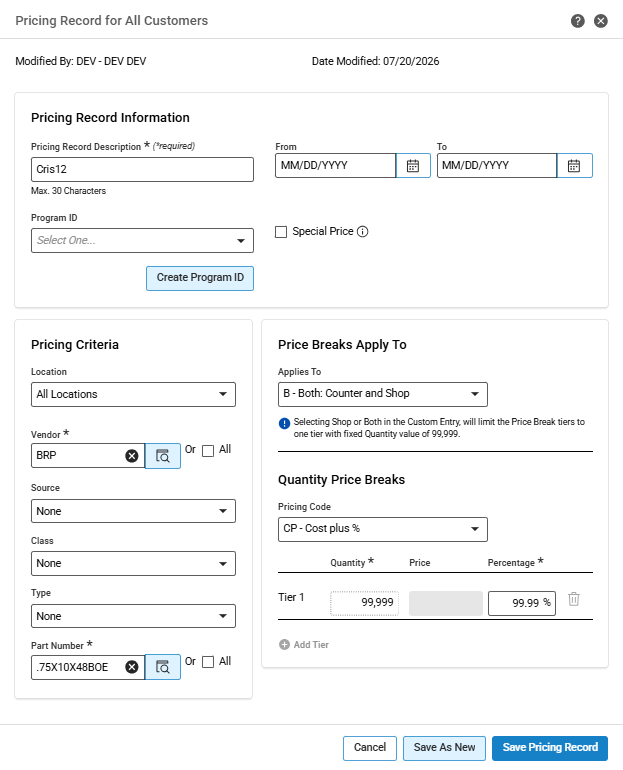
The fields on the Pricing Record for All Customers modal are:
| Field | Description |
|---|---|
| Pricing Record Description |
A brief description of the pricing record. Maximum 30 characters. Required when creating or editing a record. |
| From | The day the customer pricing starts. |
| To | The day the customer pricing ends. |
| Program ID |
Identifies the record as part of a group of common customer part pricing programs. Click Create Program ID to add a new program ID of up to 8 characters. The new ID is saved only when you save the pricing record with that program ID still selected. |
| Special Price |
Indicates a part pricing record that should be used regardless of whether the price calculates as higher or lower than any other pricing prices (or existing part price levels). Note: You should use special pricing sparingly and only when necessary. When the Special Price checkbox is selected, the system stops looking and uses that pricing, even if other customer pricing records are applicable for the part. |
| Location | Applies the selected customer pricing record to a single location or all locations. |
| Vendor |
Applies the selected customer pricing record to a single vendor or all vendors. Enter a vendor number or use the lookup to open the vendor selection flow. Next to Or, select the All checkbox to apply the record to all vendors. |
| Source |
Applies the selected customer pricing record to a single source code or all source codes. Source of supply codes are applied to parts to separate them into different categories within each vendor. |
| Class | Applies the selected customer pricing record to a single class or all classes. |
| Type | Applies the selected customer pricing record to a single part type or all part types. |
| Part Number |
The number of the part being priced. Next to Or, select the All checkbox to apply the customer pricing record to all valid part numbers within the system. Use the lookup to open the parts listing. |
| Applies To |
Indicates where to apply the pricing record. Select an option from the drop-down list:
When Applies To is set to Shop: Parts Requisition for Work Orders or Both: Counter and Shop, the modal limits quantity price breaks to one tier with a fixed quantity of 99,999. |
| Pricing Code |
The pricing code for the customer pricing. The selected code controls whether you enter a price or a percentage for each tier.
|
| Quantity |
The purchase quantity for each price break tier. If Applies To is set to Counter:
If Applies To is set to Shop or Both:
Click Add Tier to add another quantity break row when Applies To is set to Counter. Click the delete icon on a tier row to remove that tier. |
| Price | The price the part should be sold for when the selected pricing code uses a fixed or dollar-based price. |
| Percentage | The pricing percentage for the tier when the selected pricing code uses a percentage-based calculation. |
Note: If a tier row is partially filled, the paired quantity, price, or percentage value becomes required before you can save the record.
Use these buttons to complete your work on the Pricing Record for All Customers modal:
| Button | Function |
|---|---|
| Save Pricing Record | Saves changes to the current customer pricing record and closes the modal. |
| Save As New | Creates a new customer pricing record based on the current modal values without overwriting the original record. Available only when you open an existing record for editing, not when you create a new record. This is the NextGen replacement for the legacy Copy action. |
| Cancel | Closes the modal without saving and returns to the Customer Pricing listing. |