
General Invoicing
Use the General Invoicing screen to search for, view, edit and add general invoices. These invoices are used to make accounting entries that require subledgers or billing details that are not possible in a regular journal entry.
Warning: The General Invoicing system is recommended for users who are familiar with accounting principles.
To access the General Invoicing screen, navigate to Financial Management > General Ledger > General Invoicing > General Ledger.
Topics in this section include:
Overview
When performing a general invoice:
-
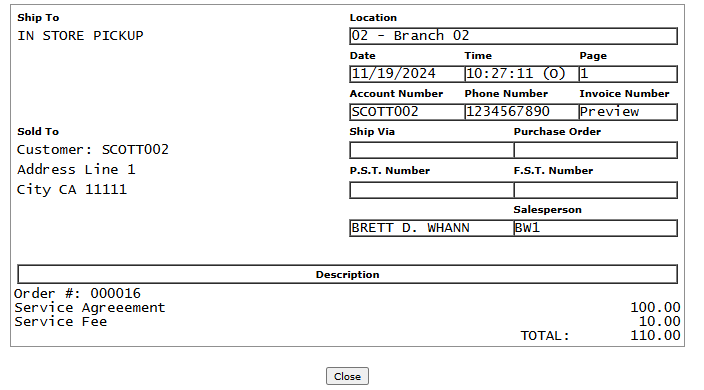
The G/L Details tab lists the amounts from the dealership's accounting perspective. When printing an invoice for the customer from the Frequency tab, the signs for the amounts are reversed (negative amount becomes positive) because the invoice is from the customer's perspective.
 Example of G/D Details tab and the resulting invoice
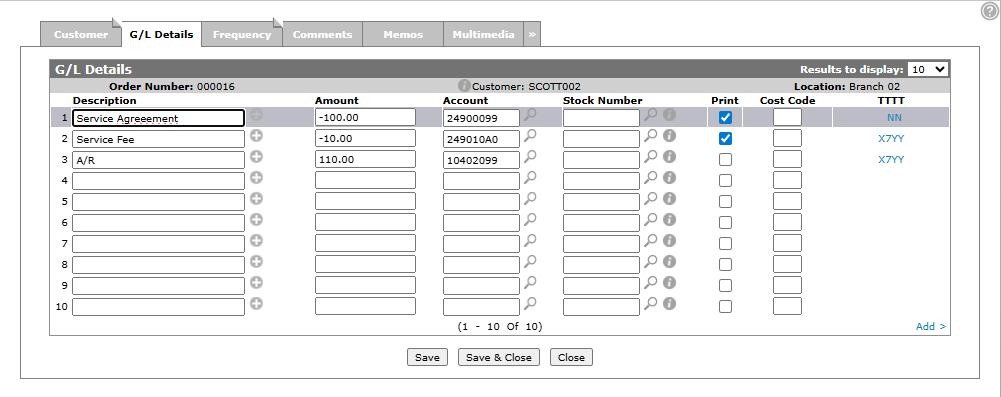
Notice that the total is automatically calculated on the customer's invoice.
-
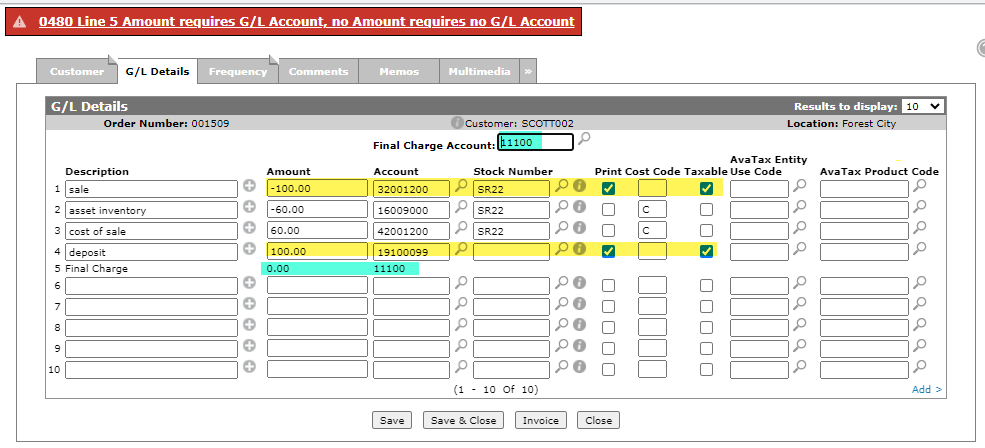
The total of the lines with the Taxable box unchecked must balance to zero, however if the total of the lines with the Taxable box checked balances to zero, the system issues error 0480.
Error 0480 example
In this invoice even though the total of the lines with the Taxable box checked is 0.00, the system still tries to add a final charge line to make the invoice balance to 0.00. But because it already balances to 0.00, the final charge line added has an amount of 0.00 which causes the error.
-
If Avalara is enabled, each line with the Taxable box checked has the appropriate tax applied (by Avalara) and an opposite entry to the total of those taxable lines after tax posts against the final charge account. See Avalara Tax Integration: General Invoicing.
-
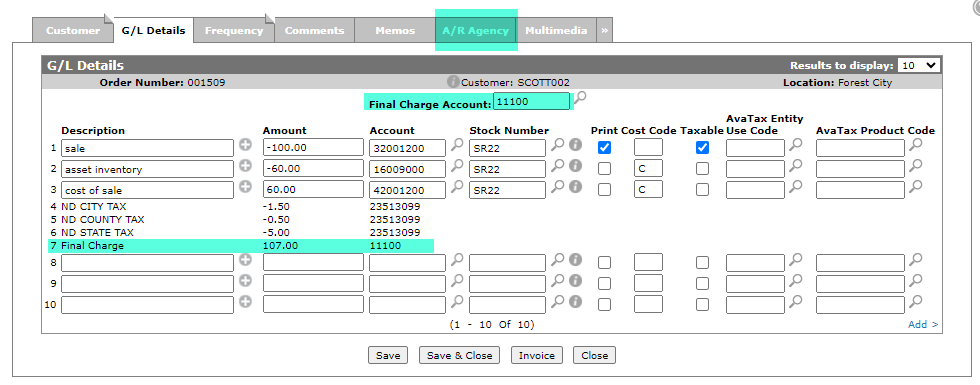
If the final charge account is linked to an Agency Code or Cash Code that requires authorization, the A/R Agency tab appears.
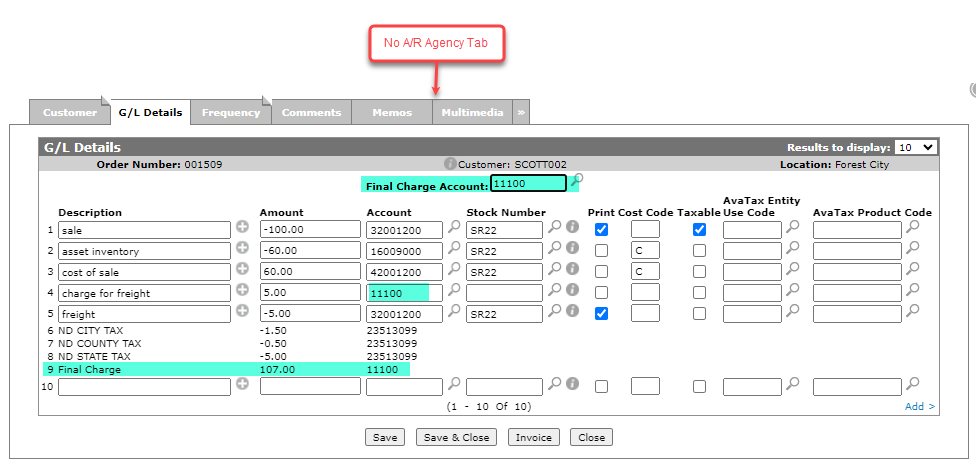
But if that same Final Charge Account is also used on one of the lines on the general invoice, you lose the AR Agency tab and so you will be unable to perform an authorization.
Invoice example using Final Charge Account incorrectly, resulting in no A/R Agency tab
In this invoice, while the 11100 account is still associated to an Agency Code/Cash Code that requires authorization, the account is being used on both line 4 and as the Final Charge Account on the invoice.
Screen Description
The sorting options on the General Invoicing screen are:
| Sort by | |
|---|---|
| Field | Description |
| Order Number | Sort the search results by order number. |
| Customer | Sort the search results by customer number. |
The search fields on the General Invoicing screen are:
| Field | Description |
|---|---|
| Select Order Number | Search for an invoice by entering an order number. |
| Select Salesperson | Search for an invoice by entering a salesperson id. |
| Select Created by | Search for an invoice by entering the id of the user who created the invoice. |
| Select Customer Number | Search for an invoice by entering a customer number. |
| Select Location | Search for an invoice by entering a location. |
| Include zero to issue | If selected, include invoices for which there are no invoices remaining to be issued (as specified in the Invoices Remaining field on the Frequency tab.) |
The report produced is:
| GENINV | General Invoice |
The results fields that appear on the General Invoicing screen are:
| Field | Description |
|---|---|
| Order Number | The order number associated with the invoice. |
| Customer | The customer name. |
| Salesperson | The user/salesperson assigned to the invoice. |
| Created By | The user/salesperson who created the invoice. |
| Location | The location where this invoice is managed. |
Click an Order Number to open the Customer - General Invoicing tab.
Click a Customer number to open the Customer Profile screen.
Click the Need to create a new order? Click here to add link to create a new general invoice.
Click the JD Proactive Jobs link to open the John Deere Proactive Jobs interface.