
Cost Code Order Update
Use the Cost Code Order Update screen to edit or addOrder Update cost codes which are automatically assigned to the parts or vendors to which the matching Order Creation cost codes have been assigned. For example, if Order Creation code 'AA' is assigned to a part, Order Update code 'AA' is also automatically be assigned. Once assigned to a part or vendor, whenever a parts order for that part/ vendor is receipted into the system, the Cost Factor associated to the code is applied to the PO Cost of the part in order to calculate the final Landed Cost The Landed Cost of a part is the final cost of the part on an order after all applicable Order Creation and Order Update cost code factors have been applied to the Current Cost of the part. Cost factors are applied when the part is ordered and receipted into the system based on the order Type (eg. SO: Stock Order, MD: Machine Down, FI: Fill In, etc.) The Landed Cost of a part will, in turn, be factored into the Average Cost of a part (as specified in the Average Cost field of the Parts Profile tab.)
For details regarding cost code logic, please see the Cost Code Logic topic in the FAQs and Troubleshooting section of the online help.
For details regarding the Average Cost of a part, please see the Average Cost definition in the Glossary section of the online help. of the part. For more specific details regarding the Landed Cost calculation, please see the Cost Code Logic topic.
The Landed Cost of a part is the final cost of the part on an order after all applicable Order Creation and Order Update cost code factors have been applied to the Current Cost of the part. Cost factors are applied when the part is ordered and receipted into the system based on the order Type (eg. SO: Stock Order, MD: Machine Down, FI: Fill In, etc.) The Landed Cost of a part will, in turn, be factored into the Average Cost of a part (as specified in the Average Cost field of the Parts Profile tab.)
For details regarding cost code logic, please see the Cost Code Logic topic in the FAQs and Troubleshooting section of the online help.
For details regarding the Average Cost of a part, please see the Average Cost definition in the Glossary section of the online help. of the part. For more specific details regarding the Landed Cost calculation, please see the Cost Code Logic topic.
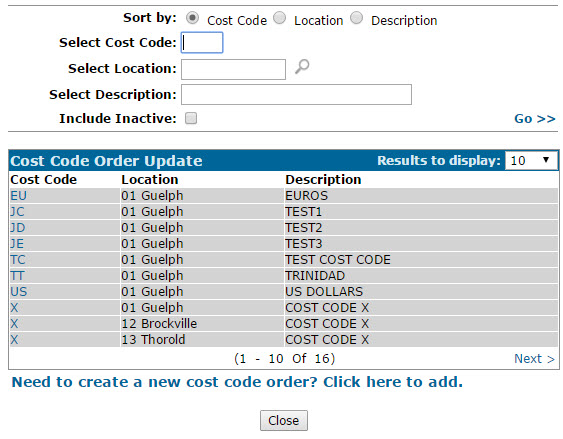
To open the Cost Code Order Update screen, navigate to Configuration > Parts > Costing > Cost Code Order Update.
Topics in this section
Creating a New Order Update Cost Code
-
From anywhere within IntelliDealer, navigate to Configuration > Parts > Costing > Cost Code Order Update.
-
Click the Need to create a new cost code order? Click here to add link.
-
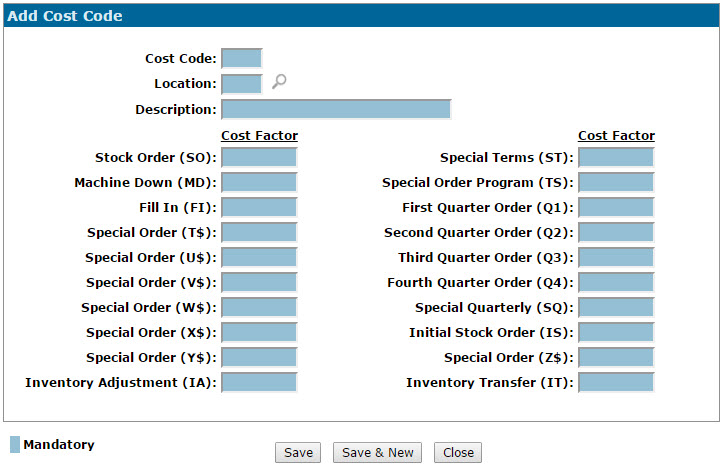
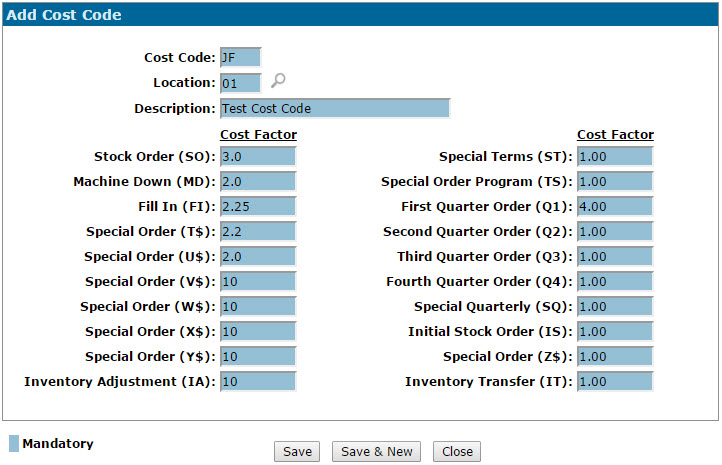
On the Add Cost Code screen, enter a two character Cost Code in the field provided. If the same code has been used for an Order Creation cost code, this code can be assigned directly to a Parts Profile or Vendor Profile in order to apply the corresponding Cost Factors to an order.
Unique Order Update cost codes cannot be assigned to a part of vendor. In order for the cost factors of an Order Update code to apply to an order, the matching Order Creation code must be assigned to the parts or vendor on the order. -
Enter the branch Location where the code is active for use.
-
Enter a Description of the cost code.
-
Enter a Cost Factor for each order type listed. Whenever an order is receipted for a part or vendor to which the selected code has been assigned, this factor will be applied to the PO Cost of the parts on the order to calculate their final Landed Cost.
-
After configuring the desired factors, click Save to save the new cost code and return to the Cost Code Order Updatescreen.
- or -
Click Save & New to save the new cost code and refresh the screen, allowing you to immediately add another cost code.
 The PO Cost of a part is calculated when the order is first created by applying the Order Creation cost factors to the Current Cost Original cost plus any additions (frieght, pre-delivery, repairs, etc.) less any removals, rental costing.
Original cost + all capitalized entries (work orders that hit the inventory account) of the parts on the order.
The PO Cost of a part is calculated when the order is first created by applying the Order Creation cost factors to the Current Cost Original cost plus any additions (frieght, pre-delivery, repairs, etc.) less any removals, rental costing.
Original cost + all capitalized entries (work orders that hit the inventory account) of the parts on the order.
Screen Description
The following search fields appear on the Cost Code Order Update screen:
| Field | Description |
|---|---|
| Sort by | Allows you to sort the search results by Cost Code, Location or Description. |
| Select Cost Code | Allows you to search for a specific cost code. |
| Select Location | Allows you to search for cost codes by entering the related branch location. |
| Select Description | Allows you to search for cost codes by entering the related description. |
| Include Inactive | If selected, will include inactive cost codes in the search results. |
The following fields appear on the Cost Code Order Update screen:
| Field | Description |
|---|---|
| Cost Code | The two character code associated to the select order update cost factors. |
| Location | The branch location associated to the cost code. |
| Description | A brief description of the cost code. |