
What is IntelliDealer - Labor Pricing?
Labor Pricing allows labor rates to be configured based on a variety of factors such as location, customer#, W/O type, W/O status, or premium code, and is similar to the parts customer discount system.
Labor pricing is more flexible when it comes to setting up labor rates. Before labor pricing became available, it was often necessary to use a combination of Premium Codes and/or Rate Codes to arrive at the correct labor price. When using Labor pricing, the requirements for premium codes and rate codes will often be greatly reduced.
Labor pricing allows you to maintain all aspects of service labor pricing from one area of the system and is a more simple design and much easier to understand. Prior to the availability of labor pricing, labor rates were maintained in multiple areas of the system. The set-up was potentially split up between CASHTAB, PREMIUM, WORATE, and Employee Maintenance. Now you can set-up all labor pricing logic in the labor pricing system and not worry about having to maintain labor rates anywhere else.
Accessing IntelliDealer - Labor Pricing
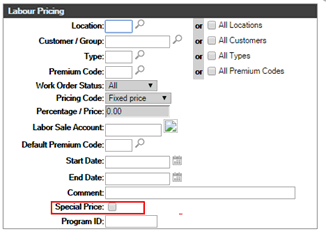
Labor Pricing must be enabled in User Group Security under system number 818 PRODUCT SUPPORT - SERVICE LABOR PRICING. Once enabled, in Product Support, click on 'Labor Pricing' under the heading Service. Click GO to bring up a listing of existing labor pricing records, with multiple sort and search parameters at the top of the screen. To add a new labor pricing record, click on the link at the bottom of the listing:
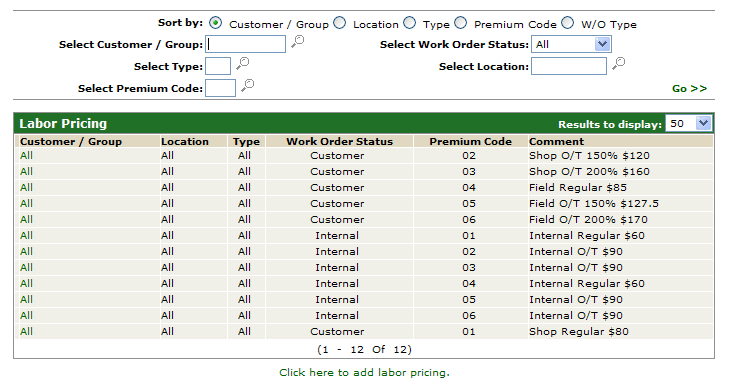
Note: In order to see labor pricing records that affect all locations, change the search parameters at the top of the screen to search all locations (Select Location field should be blank)
Field Descriptions
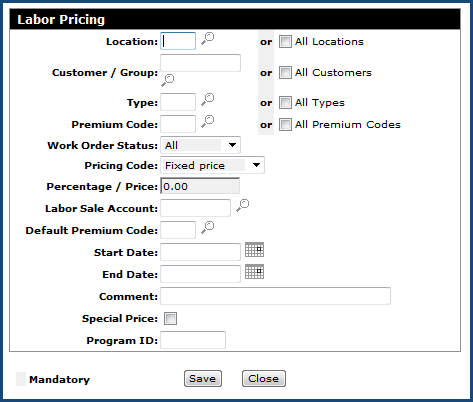
Location: The branch location that this Labor Pricing entry applies to, or check the All Locations box to have the labor pricing applied to all locations.
Customer / Group: The customer that this Labor Pricing entry applies to. This field can be populated by a any customer #, or check the All Customers box to have the labor pricing applied to all customers. A group refers to a group of customers each having the same Discount Group name loaded in Customer Profile.
Type: Allows labor rates to be defined based on the Type Code of the work order, or check the All Types box to have the labor pricing applied to all types. Work order type codes are set up in the WOTYPE table.
Premium Code: Allows labor rates to be defined based on the Premium Code used at the time labor is entered into the system, or check the All Premium Codes box to have the labor pricing applied to all Premium Codes. Premium codes are set up in PREMIUM table.
Work Order Status: Allows labor rates to be defined based on the status of the work order (Customer, Warranty, Internal, or All).
Pricing Code: Determines how the labor pricing will be determined (fixed price, or based off list or cost). Cost is referring to the cost/hr field on the Technician in the F10 window of Payroll Maintenance. List is referring to:
- For Status Customer (cash code 5) - Either the rate/hr on the Work Order segment or if a rate/hr not on the Work Order segment, then the default w/o rate loaded on the Technician in the F10 window of Payroll Maintenance.
- For Status Warranty (cash code 7) - CASHTAB rate
- For Status Internal (cash code 8) - CASHTAB rate
Percentage/Price: The actual fixed labor price or the percentage increase or decrease from cost or list (based on the Pricing Code).
Labor Sale Account: The sale (or revenue) general ledger account that will be used. (7.1 and later)
Default Premium Code: This is the premium code that will be used as the default on labor transactions that use this pricing record.
Start Date and End Date: Determines the time period this labor pricing will be in effect. Keyed in the MMDDCCYY format.
Comment: Can be used for noting anything in particular about the pricing. Used to help identify labor pricing records in the labor pricing screen.
Special Price: Check this box to indicate that this pricing record should override any other pricing records that may overlap this one.
Program ID: Can be used to identify this labor pricing record as part of group of a common labor pricing program.
Set-up of Standard Customer Labor Pricing
Consider that the following Premium Codes and standard labor rates are in use for all locations:
Premium Code Description Rate
01 SHOP REGULAR $80
02 SHOP O/T 150% $120
03 SHOP O/T 200% $160
04 FIELD REGULAR $85
05 FIELD O/T 150% $127.5
06 FIELD O/T 200% $170
Labor Pricing Entries would look like this:
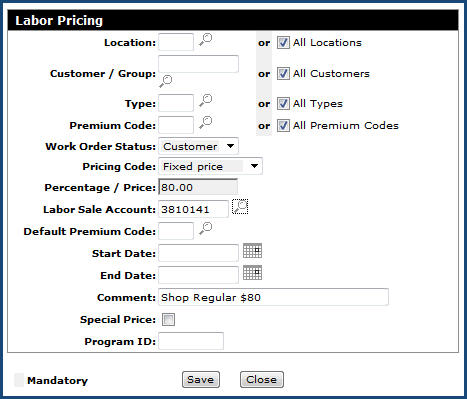
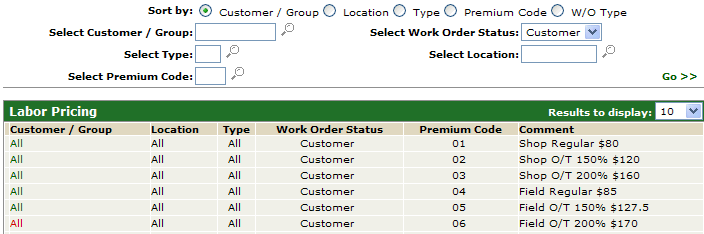
The complete list would look like this:
Set-up of Special Customer Labor Pricing
If there are customers who receive a special labor rate, this can also be accomplished using Labor Pricing.
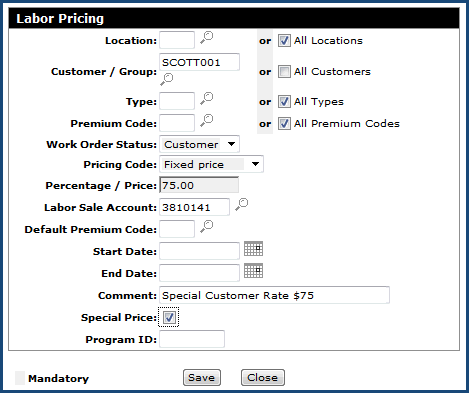
For example, Scott Construction has negotiated a labor rate of $75.
Labor Pricing Entry would look like this:
Set-up of Warranty Labor Pricing
If using special customers for warranty purposes, then it is possible to set-up the warranty labor rates using the Labor Pricing System. You will set-up pricing records for each warranty customer. For example, if customer# WARRA001 is set-up as NEW HOLLAND WARRANTY at $65/hour, you would build your Labor Pricing record as follows:
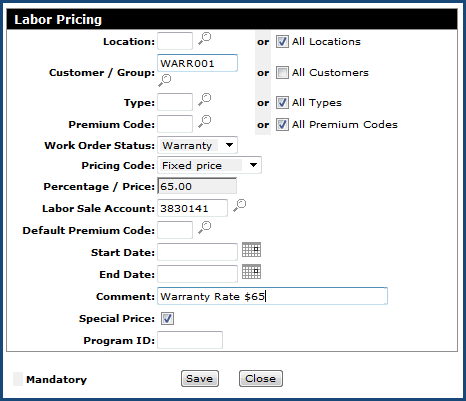
Note: The special price option is a good idea here because you don't want any other overlapping labor rates that happen to be a lower price to be used. When selecting "Special Price" the system will use this price regardless. Also note that Work Order Status is set to All - the reason is to cover the possibility that the user creating the work order might inadvertently choose an incorrect Work Order Status when creating a Warranty Work Order (i.e. leaving the work order as Status Active or Customer). This may happen from time to time, but if it does, the correct labor price will still be used, because this Labor Pricing record is set-up based on the Customer.
Set-up of Internal Labor Pricing
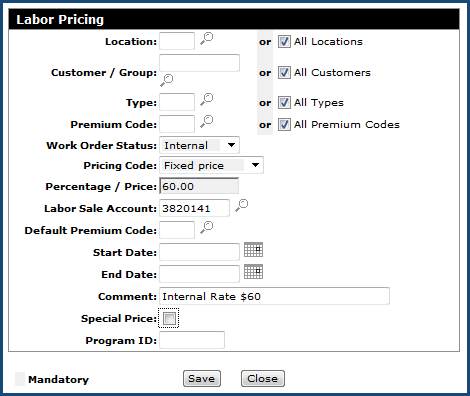
Set-up of Internal Labor rates can be accomplished very easy if there is only one internal labor rate. For example, if there is one internal labor rate at $60, you would build your Labor Pricing record as follows:
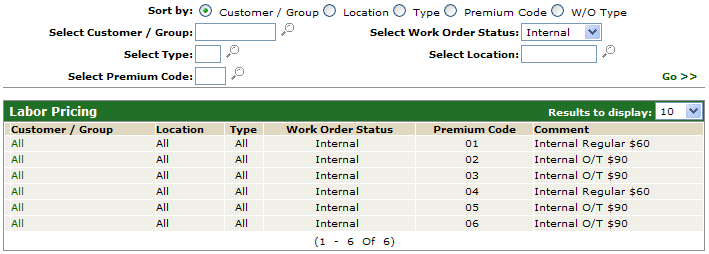
However, if more than one Internal Labor Rate is needed, then there will be more work in setting up Internal Labor Pricing. For example, if there is a $60 Regular Internal Rate, and a $90 Overtime Internal Rate then the set-up would require individual Labor Pricing entries for each overtime and regular premium code. Using the same Premium Code example as above:
Premium Code Description Customer Rate
01 SHOP REGULAR $80
02 SHOP O/T 150% $120
03 SHOP O/T 200% $160
04 FIELD REGULAR $85
05 FIELD O/T 150% $127.5
06 FIELD O/T 200% $170
Labor Pricing Entries would look like this:
How Labor Pricing Determines what record to use?
The system starts off by looking for the lowest rate, unless the special pricing box is checked. Special Pricing will always trump. If there are multiple records the system will stop once it hits the first match, it uses PARTDIA3 which is in descending, meaning the most relevant record will be found first
Considerations when Setting up Labor Pricing
Note: 7.1 and later do not require premium codes to post to alternate sale accounts.
Careful consideration must be taken when setting up labor pricing, especially prior to version 7.1. You should understand all of the other factors which may affect the labor rate other than the labor pricing system.