
Releasing a Printer Output File
-
From any IntelliDealer screen, move the cursor over Quick Links and select Printer Output from the pop-up menu.
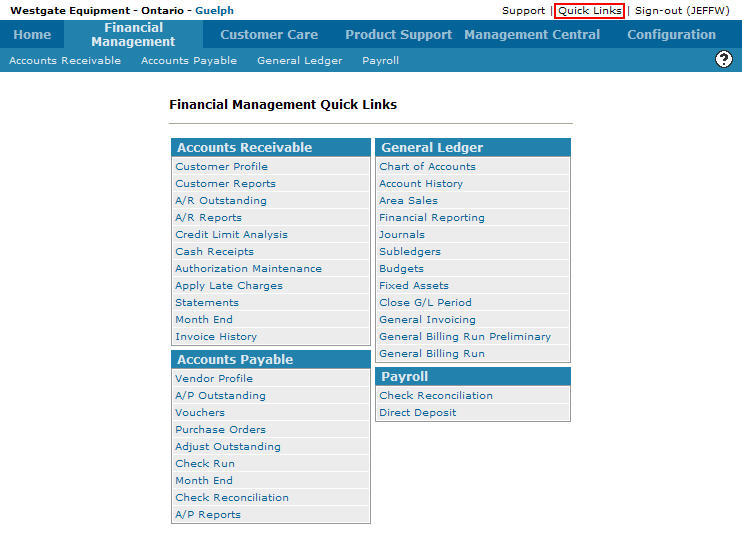
Financial Management Quick Links screen
-
The Printer Output screen will appear.
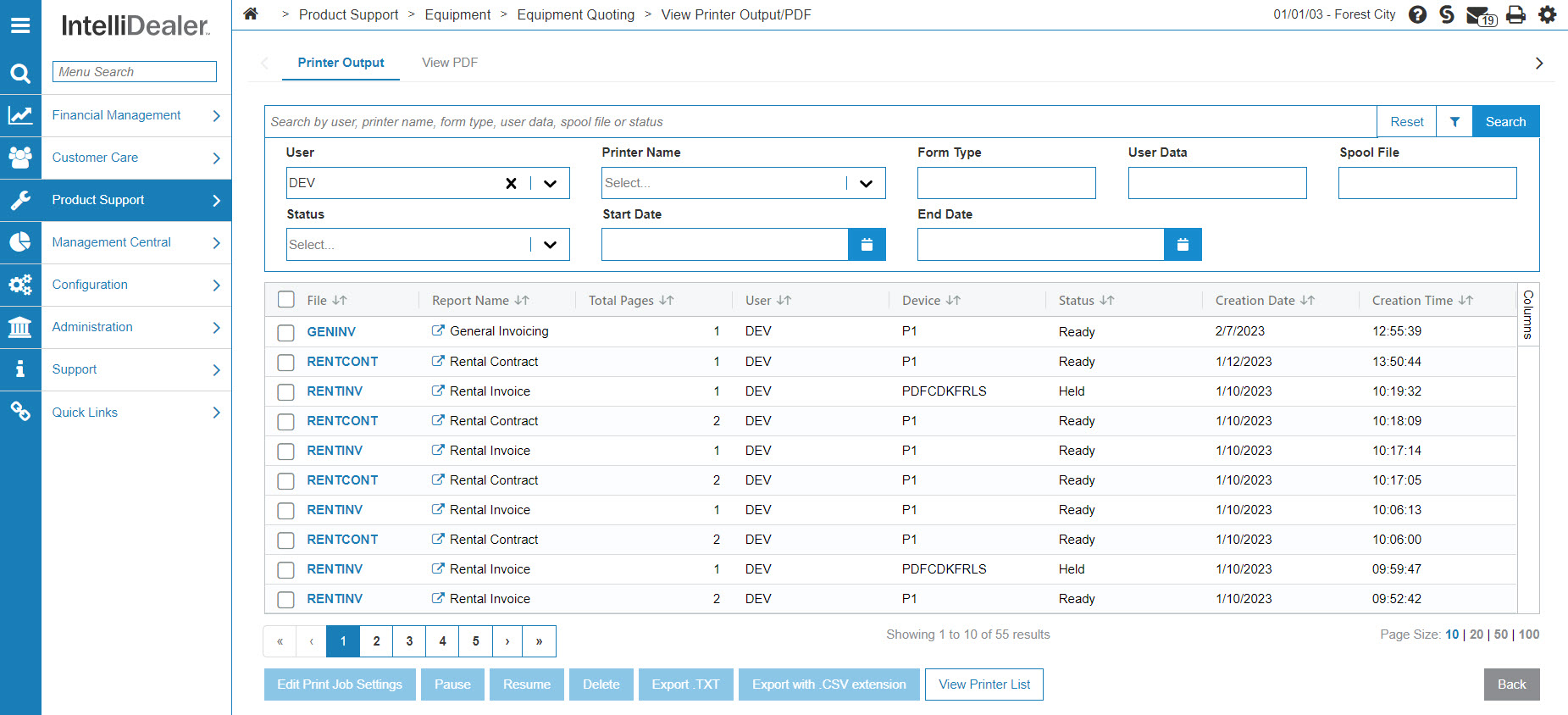
Printer Output screen
-
On the Printer Output screen, select a printer output file that has a current Status held.
Note:
You can only release a printer output file which current Status is held.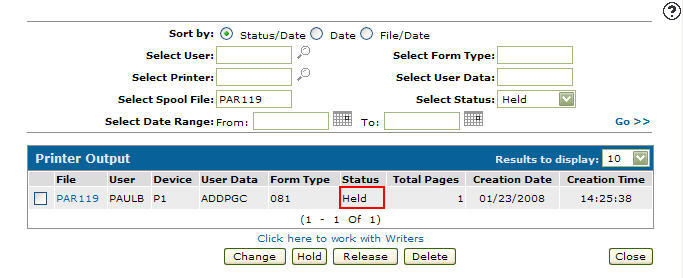
Printer Output screen
-
Select a printer output file by selecting the checkbox next to the File name.
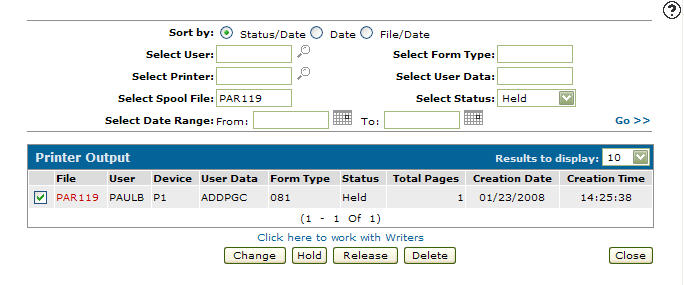
Updated Printer Output screen
-
Click the Release button, the selected printer output file Status will change from held to Ready indicating that the file has been released.
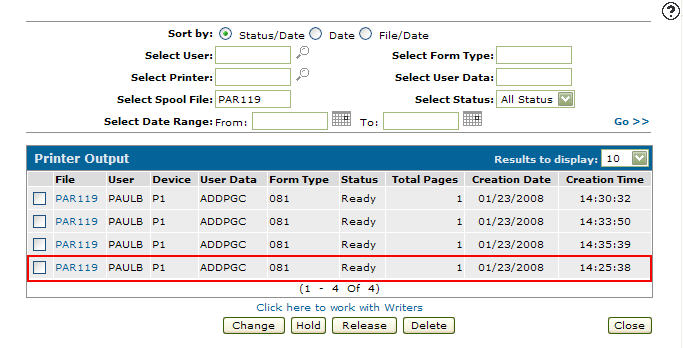
Status Released