
Printer Output
Use the Printer Output screen to view your pending printer output, or an another user's printed output depending on your authorization.
To open the Printer Output screen, click the printer icon from anywhere within IntelliDealer and select Printer Output (End Date To Be Announced) from the drop down list.
Note: Reports that were sent to PDF appear on the View PDF tab. Or see PDF Viewer.
 The Printer Output screen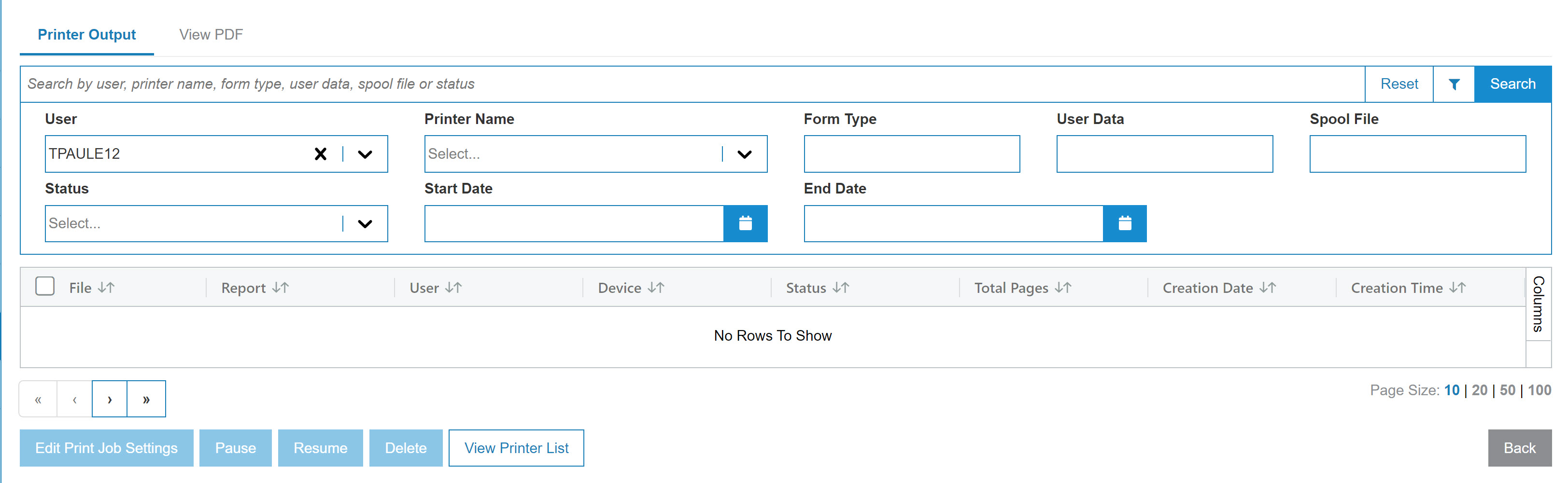
You can download multiple print spool files together into a zip archive by selecting one or more files using the checkboxes next to the file name, then clicking either Export .TXT or Export with .CSV extension. If the download requires a long time to process, you can continue working on other tasks while the download is being prepared on the server side. Once the download is ready, you receive a notification.
Note: When you select multiple files, the total export size cannot exceed 50,000 pages. There is no page limit when only one file is selected.
The search fields on the Printer Output tab are:
| Field | Description |
|---|---|
| Select User |
Search for output files by entering a user ID. Note: Access to this field is restricted if you are on ASP. If you are on your own server, you must have access to 995 User Security (Allow Viewing of Other Users PDF/Printer Output). |
| Select Printer Name | Search for output files by entering a printer ID. You can select more than one printer. |
| Select Form Type | Search for output files by entering a form type. |
| Select User Data | Search for output files by entering user data. |
| Select Spool File |
Search for output files by entering a spool file name. Note: For ASP dealers, spool files are kept for a minimum of 45 days. Spool files are purged after this retention period. |
| Select Status | Search for output files by selecting one or more print statuses from the drop-down list. |
| Select Date Range | Narrow the search results by entering a date range within which the output was created. |
Click the checkbox next to a printer output file name to select a file for the buttons at the bottom of the screen.
The fields on the Printer Output tab are:
| Field | Description |
|---|---|
| File |
The printed document file name. Hover over and chose either:
|
| User | The ID of the user who created the printed output. |
| Device | The device used to print the output. |
| User Data | Indicates where the print originated from. For example, the name of the program or run that generated the spool file. It could also be the job number or other information. |
| Form Type | The type of forms which should be loaded on the printer; usually Standard (*STD). See Forms Numbers. |
| Device Type |
The type of data stream created for the printer file. Can be one of:
|
| Status |
The status of the spooled file. Possible statuses include:
These status values (with a '*' in front of them) are displayed when an action was performed on the file as a result of taking an option:
|
| Total Pages | The total number of pages of printed output. |
| Creation Date | The date the printed output was created. |
| Creation Time | The time the printed output was created. |
Use these buttons to complete your work:
| Button | Function |
|---|---|
| Edit Print Job Settings |
Opens the Print Job Settings menu in which you can select a different printer, adjust the number of copies, determine whether the output is Double Sided and you have the option to Save File After Printer. |
| Pause | Pauses the selected print job. |
| Resume | Resumes a paused print job. |
| Delete | Deletes the selected output file. |
| Export .TXT |
Exports the printer output into a .txt file or a .csv file, respectively. You can select multiple files before you click an Export button. The files are bundled into a zip file, called download.zip. Each file within the zip retains the name of the original selection, but with an extension consisting of attributes of the spooled files to uniquely identify it. |
| Export with .CSV extension | |
| View Printer List |
Opens a window where you can configure any printer that is available and what is currently printing. |
| Back | Returns to the previous screen. |
Note: Edit Print Job Settings, Pause, Resume, Delete, and the export buttons are available when you select your own spool files, or another user's spool files if you have 995 User Security (Allow Change of Other Users Printer Output) enabled. View Printer List requires Access Writers on the same security screen.
Security: 995 User Security
Revision: 2026.08