
MyDealer - Guest Shopping Mode
The MyDealer Guest Shopping facility allows users to use MyDealer's Shop For Parts and Equipment For Sale features without requiring a MyDealer User ID or password.
Topics in this section include:
How it Works
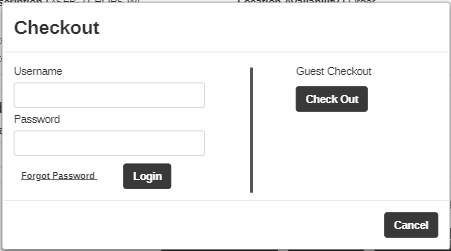
The user can shop as normal and when they are ready to checkout the user is prompted for a MyDealer sign in credentials or if they wish to continue as a guest:
When checking out as a guest, the system requires the user to fill in guest information so that the transaction can be processed.
If the user has parts in their cart and navigates away from the guest shopping application, those parts automatically return to their cart upon return.
The telephone number and email address are placed in the Comments tab of the invoice that is generated.
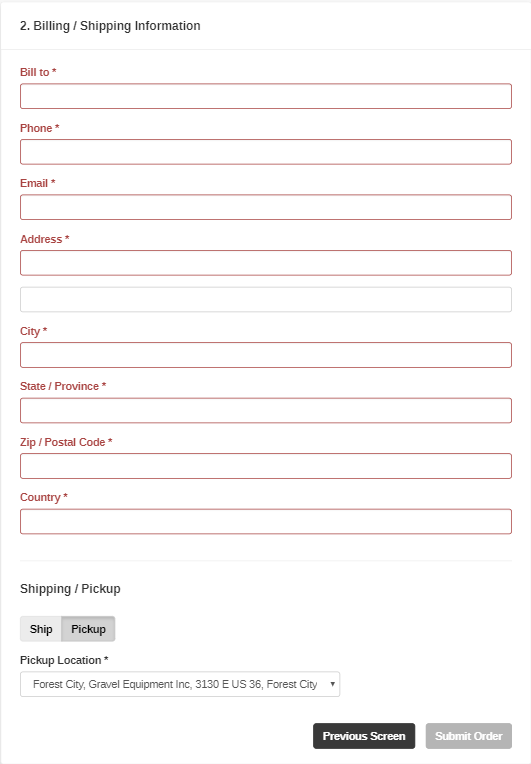
Shipping/Pickup can also be chosen on this screen.
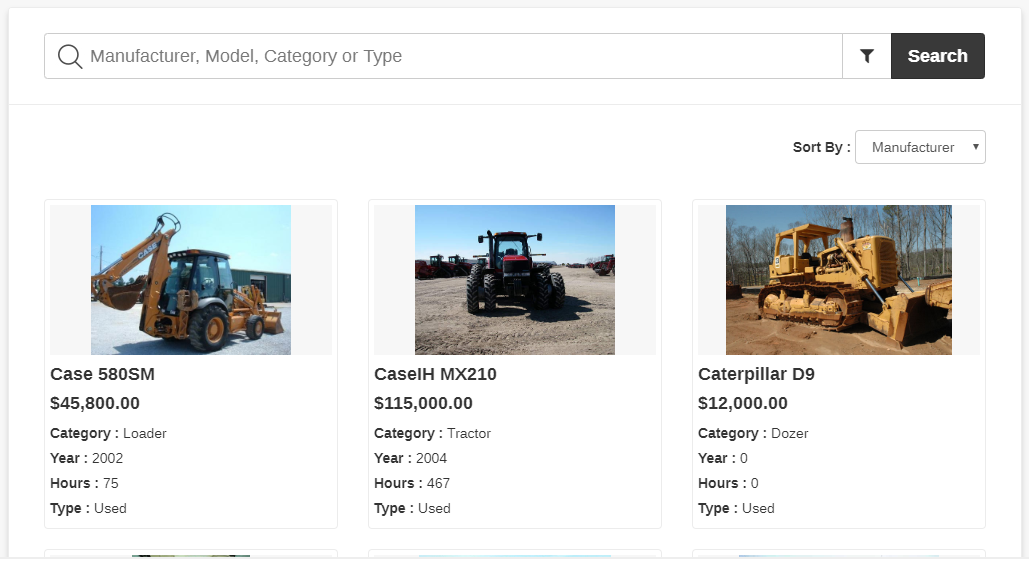
Just as with Shop For Parts, Equipment For Sale can be accessed with the guest shopping facility.
Setup
-
Create a new customer profile to be used for all guest orders. Mark this customer as 'Miscellaneous'. This customer number is used to determine parts pricing (re: Customer Pricing).
When an order is placed, you can change or add the customer as desired within the Parts Invoicing application.
-
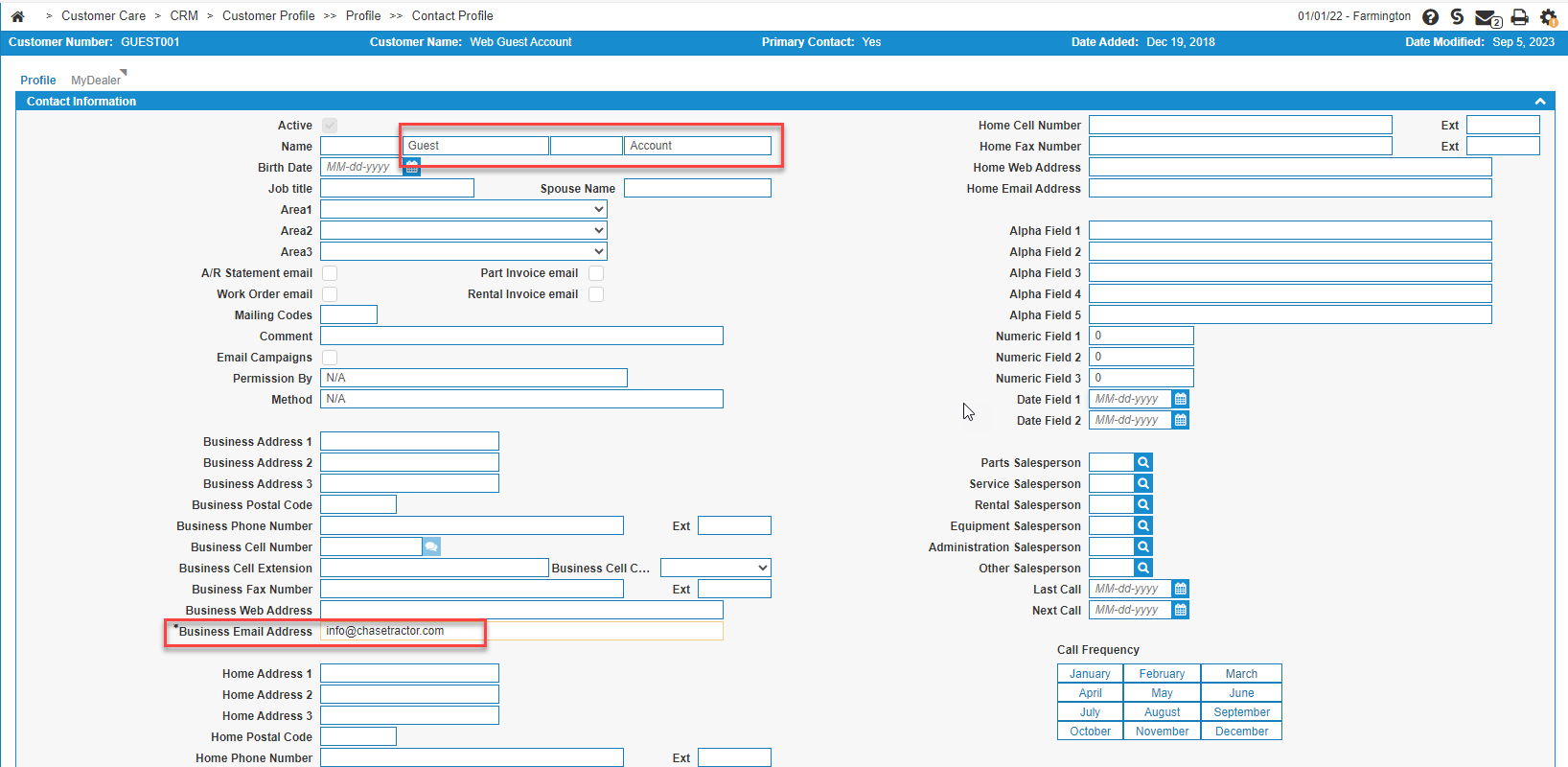
Change the primary contact name to something generic and relevant. The email should also belong to a dealer inbox although it is not used as part of the guest shopping process.
-
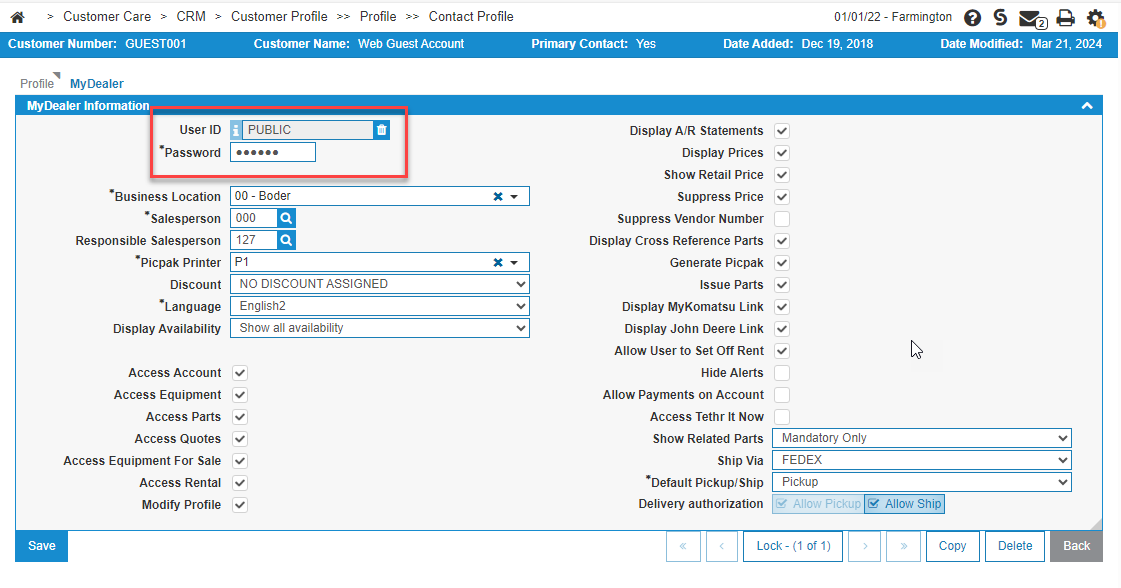
Add MyDealer credentials to the contact. Note that:
-
The Business Location is the default location for availability and ordering. The user can override this value as desired. It is recommended you specify the main dealership location.
-
The settings on this screen determine what the guest sees (non-Shop For Parts switches are ignored). The Access: Parts switch MUST be checked.
-
The printer on this MyDealer user does not matter. Picpaks are controlled by the branch based on where the order is placed.
-
The user ID and password specified here CANNOT be used through the normal MyDealer sign in page.
-
-
Go to Administration > MyDealer Settings > System and click the Division tab. Enter the user name you added to that special customer.
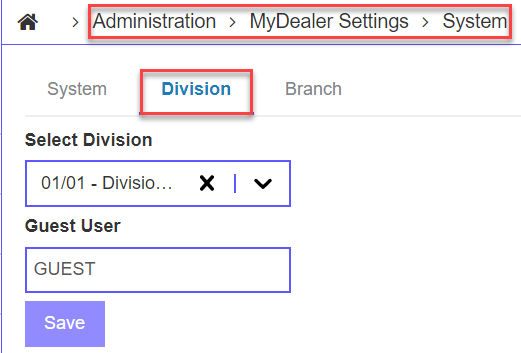
 Example profile 'GUEST001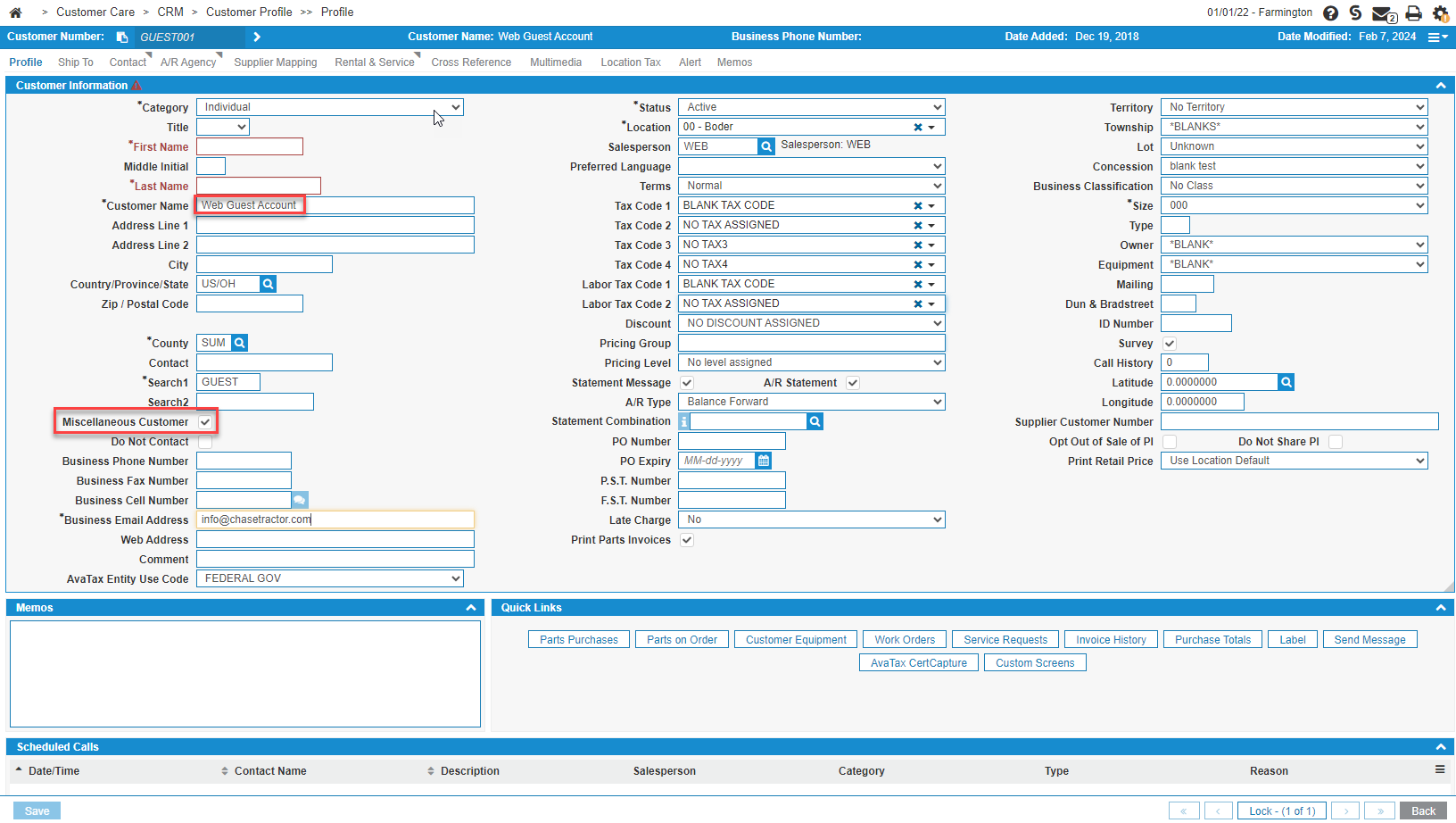
Post-requisite
Once the above steps are completed, you can create a test URL to access your Shop for Parts and Equipment For Sale applications. Your webmaster can use the URL to implement guest shopping into your dealership website. Dealers can build the URL based on the information provided in the MyDealer URL you are using.
Topics in this section are:
Migration from CDK URLs
Warning: Old URLs that leverage CDK Global’s Network for connectivity will no longer work after April 2025.
To update your URL:
-
Identify the “Old URL Domain” used in your MyDealer URL from the table below.
-
To update your MyDealer URL(s) replace the “Old URL Domain(s)" with the "New URL Domain(s)" listed in the table below.
-
Test the new URL to verify that you can reach the MyDealer Application.
For example, if your current MyDealer URL is
https://id1eservices.cdkglobal-es.net/mydealer/#/login/PFWFZZZZ,
change it to
https://mydealer-01.intellidealer.com/mydealer/#/login/PFWFZZZZ
|
Old URL Domain |
New URL Domain |
|---|---|
|
Id1eservices.cdkglobal-es.net |
mydealer-01.intellidealer.com |
|
Id2eservices.cdkglobal-es.net |
mydealer-02.intellidealer.com |
|
Id3eservices.cdkglobal-es.net |
mydealer-03.intellidealer.com |
|
Id4eservices.cdkglobal-es.net |
mydealer-04.intellidealer.com |
|
Id5eservices.cdkglobal-es.net |
mydealer-05.intellidealer.com |
|
Id6eservices.cdkglobal-es.net |
mydealer-06.intellidealer.com |
|
Id7eservices.cdkglobal-es.net |
mydealer-07.intellidealer.com |
|
Id8eservices.cdkglobal-es.net |
mydealer-08.intellidealer.com |
|
Id9eservices.cdkglobal-es.net |
mydealer-09.intellidealer.com |
|
Id10eservices.cdkglobal-es.net |
mydealer-10.intellidealer.com |
|
Idpteservices.cdkglobal-es.net |
mydealer-pt.intellidealer.com |
URL Format
The format is:
https://mydealer-Y.intellidealer.com/mydealer/#/login/PFWFXXXX where ‘Y’ is your server and 'XXXX' is your library.
For each company and division, a separate URL must be created. Use the ‘Y’ and ‘X’ values above to substitute into the URL’s below.
Note: The following examples are for ASP dealers ONLY. Dealer's with on-site servers should follow up with VitalEdge Support.
Example for Company 01, Division 01:
New Domain
https://mydealer-Y.intellidealer.com /mydealer/#/PFWFXXXX/public/01/01/shop-for-parts
https://mydealer-Y.intellidealer.com /mydealer/#/PFWFXXXX/public/01/01/equipment-for-sale
Old Domain
https://idYeservices.cdkglobal-es.net/mydealer/#/PFWFXXXX/public/01/01/shop-for-parts
https://idYeservices.cdkglobal-es.net/mydealer/#/PFWFXXXX/public/01/01/equipment-for-sale