My Dealer: John Deere Parts Catalog Integration
The John Deere Parts Catalog MyDealer Integration is a link between the John Deere Parts Catalog EPC that allows end customers to select parts from the John Deere Parts Catalog website and order them through a dealer's MyDealer parts ordering system.
There are two main "flows" for this interface. The first is by using the John Deere button on the Shop for Parts screen in MyDealer, which will allow a logged-in MyDealer user to select parts from the John Deere Parts Catalog website and have them added to the user's MyDealer shopping cart. This is sometimes called the "Customer A" flow by John Deere.
The second flow is when a user accesses the John Deere Parts Catalog website directly (not by going through MyDealer), and chooses a VitalEdge dealer that is set up for the MyDealer Guest/Public mode as their shopping location. The user can add parts to their John Deere Parts Catalog website shopping cart, and upon choosing Check Out, will be redirected to the guest/public mode of the selected dealer, where they can either log in to MyDealer or continue to check out as a guest. This is sometimes called the "Customer B" flow by John Deere.
Topics in this section include:
Prerequisites
This setup must be done by a VitalEdge associate person only, not the dealer. John Deere will not send the credentials to the dealer. For dealers being licensed and configured for MyDealer, the Implementation associate should handle communication to Deere and configuration in IntelliDealer. For customers that already have MyDealer or have previously set this up and need changes made, support will need to communicate with Deere as per #2 below.
-
Feature number 6000 - John Deere PMPro EPC must be licensed.
-
To use the checkout option directly from the John Deere Parts Catalog website, MyDealer must have "Guest mode" activated for Shop for Parts. See Guest Shopping Mode.
-
Contact VitalEdge Support to obtain the Akana App ID and Shared Secret. VitalEdge support arranges to get these values from John Deere and load them in the configuration screen shown below on your behalf. It may take several days to get these credentials from John Deere. VitalEdge Support will let you know when the credentials have been obtained and loaded on your system.
Once these credentials have been loaded, proceed to configuration.
Configuring the Integration
-
For each customer, navigate to the MyDealer administration contact page on the customer profile and enable the following checkbox:

-
Navigate to Configuration > Interfaces > John Deere > Parts Catalog and input the AkanaApp Key and Shared Secret provided by John Deere to the dealership.
-
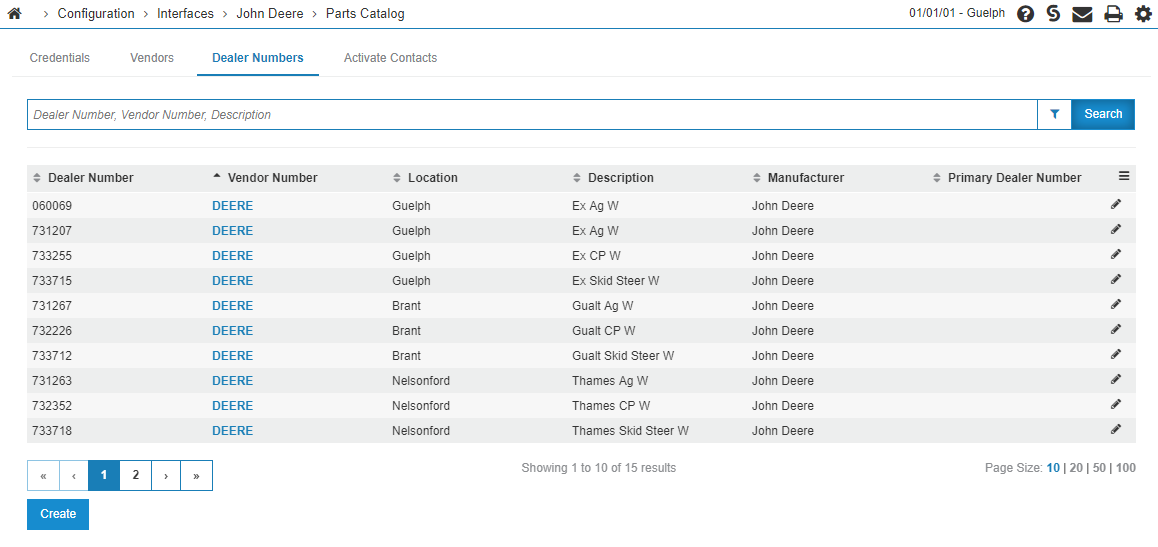
Make sure the manufacturer code on the main Deere vendor profile is set up correctly. You can do this by choosing the Vendors tab and verifying that the Deere vendor shows up in the list. If it does not, choose Assign Manufacturer, search for your Deere vendor, and choose John Deere as the manufacturer code.
See Manufacturer Codes.
-
Ensure that all dealer numbers on the Dealer Numbers tab are properly configured for the dealership locations. These locations are used for the quest mode "customer B" flow from the Parts Catalog website.
-
To enable the guest mode MyDealer integration (imperative for the guest mode "customer B" flow from the Parts Catalog website), the base URL for the dealer's MyDealer must be entered in the MyDealer Base URL box.
- This URL should be the start of the dealer's MyDealer URL. For example, if the dealer's MyDealer login URL is http://100.78.65.20:82/mydealer/#/login/QS36R708 then http://100.78.620:82/ should be entered into the box.
- For LPAR libraries, the format should follow the format:
https://mydealer-X.intellidealer.com/
where X is replaced by LPAR number. For more information see: MyDealer URL Format.
- It is recommended to request a test customer account from the dealer to ensure the interface has been properly configured.
 John Deere Parts Catalog Credentials screen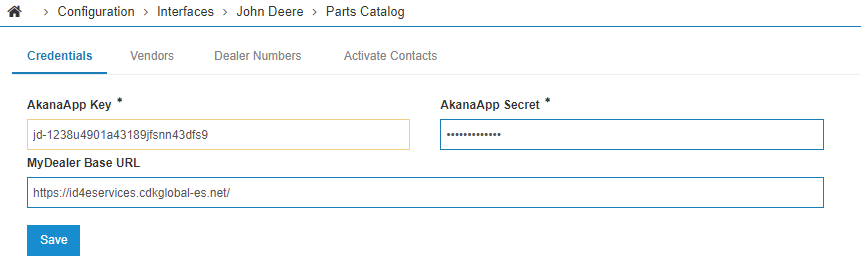
Process Walkthrough
The process follows one of these options:
Shop for Parts (Logged-in MyDealer)
This integration with John Deere Catalog is for a user who is logged in to the MyDealer application and has access to the John Deere button.
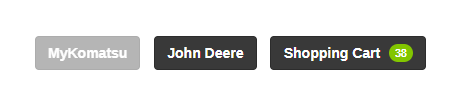
- For a MyDealer customer to access John Deere Parts Catalog, open MyDealer and navigate to "Shop For Parts" in the Parts Menu. The John Deere button should appear at the bottom of the listing screen:
-
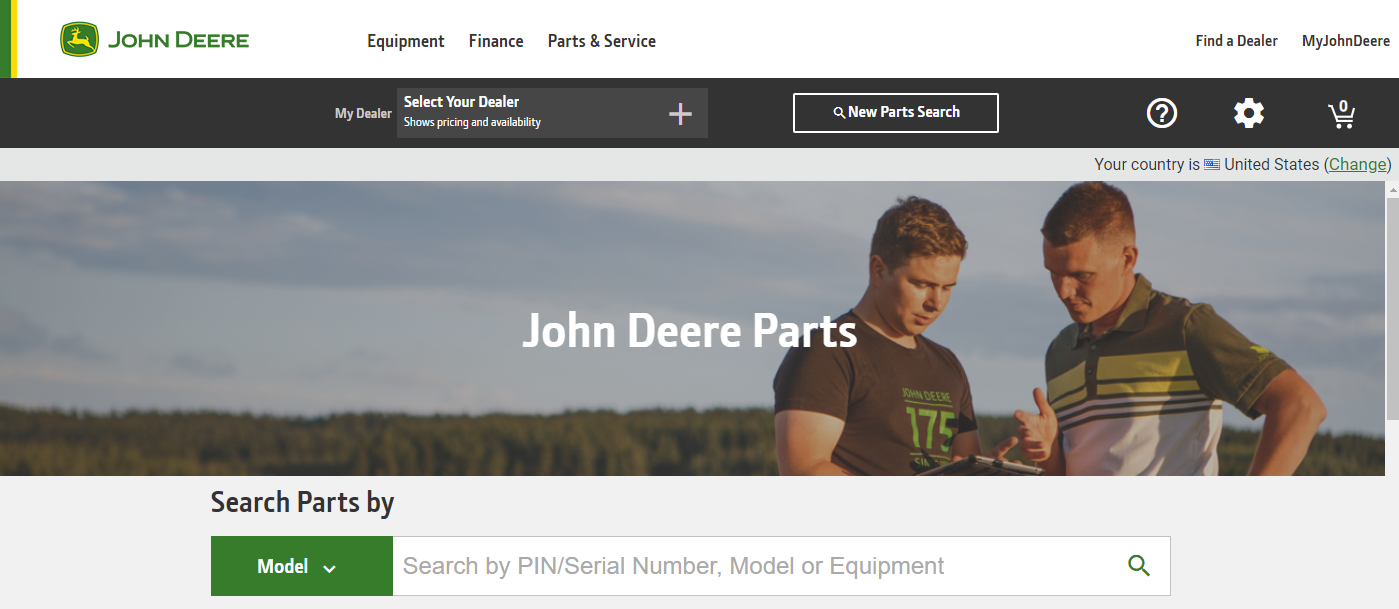
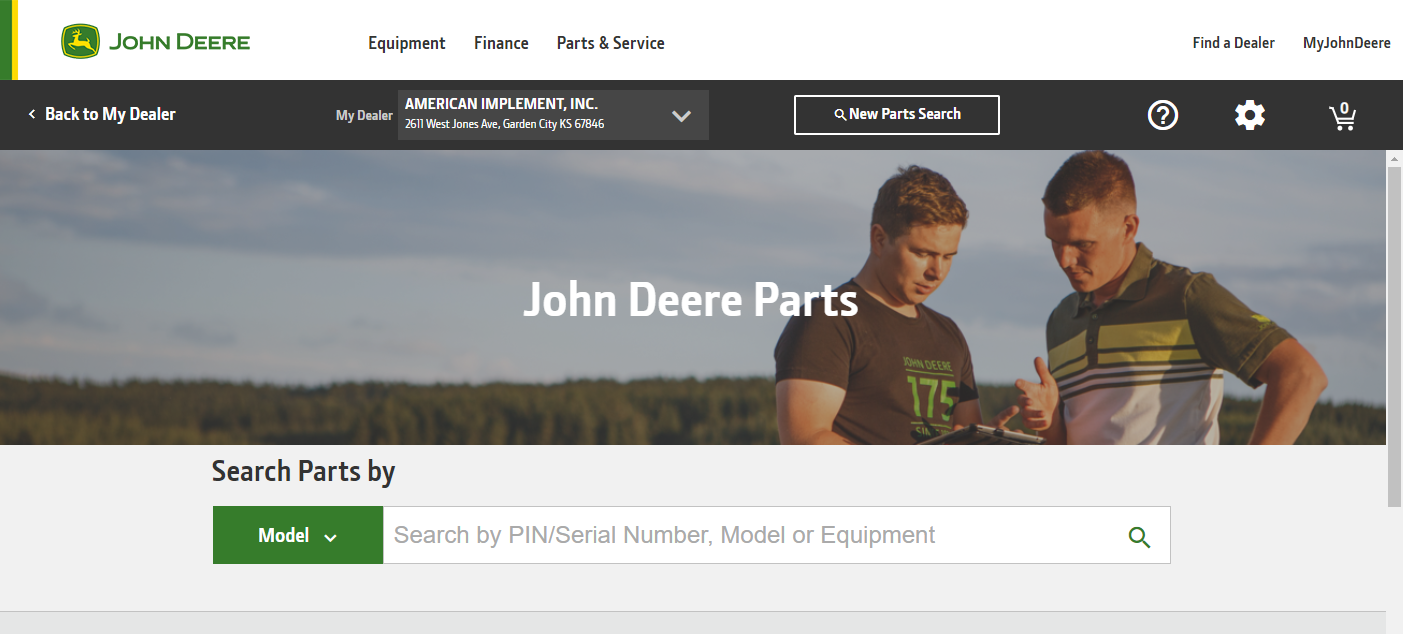
Clicking the button takes the customer to the John Deere Parts Catalog website where the user can search for parts by Model or Part Number and add them to their shopping cart on the Parts Catalog website.
-
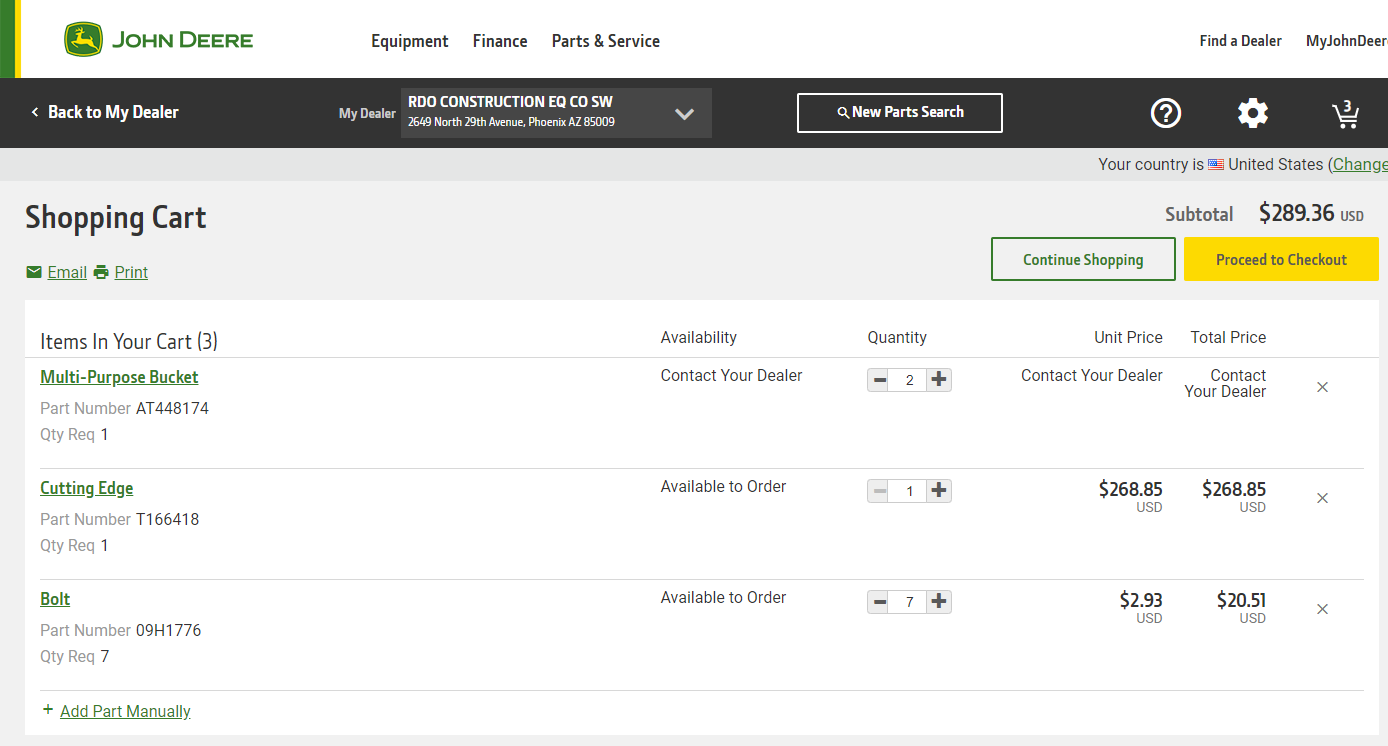
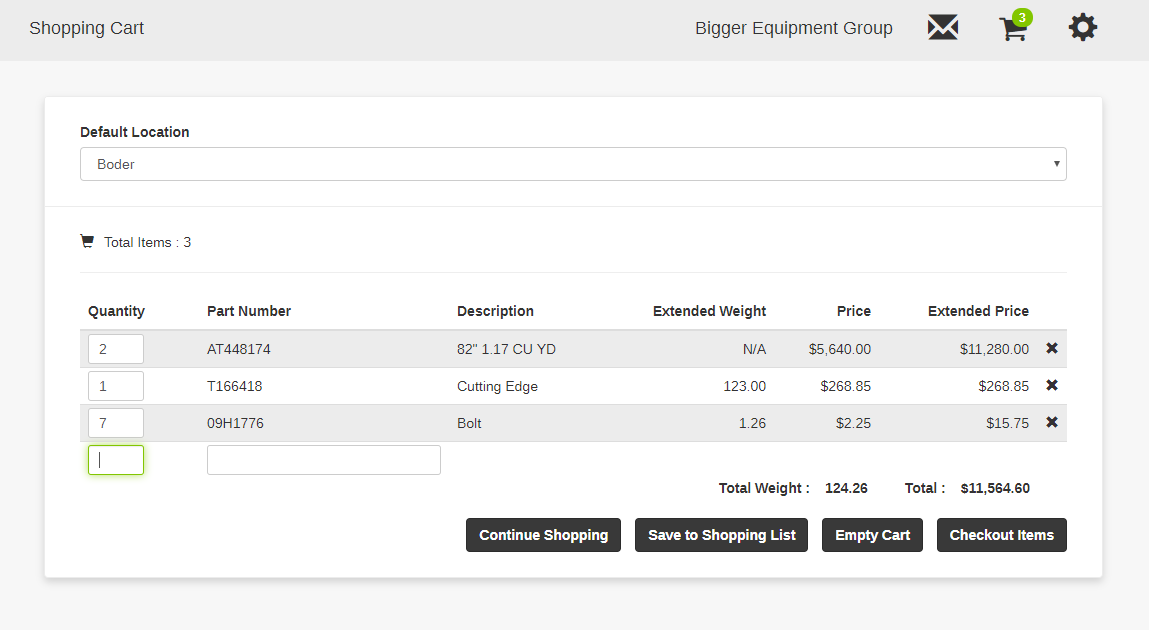
The user can then select parts. When the "Proceed to Checkout" button is clicked, the user is returned to the MyDealer Shopping Cart page with their selected parts listed on screen.
-
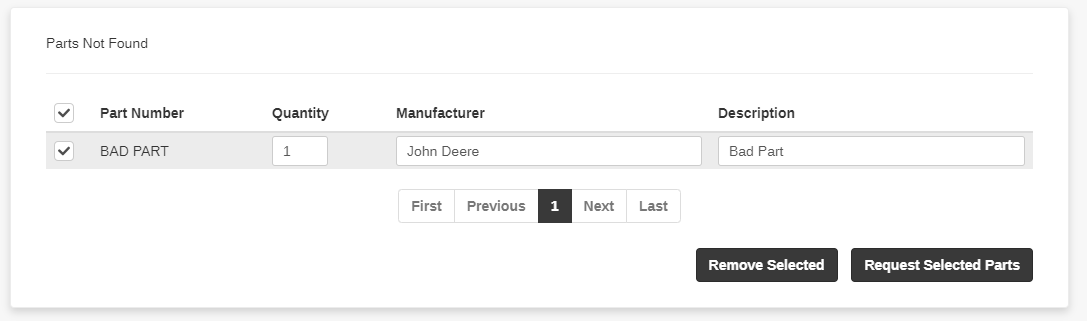
If the user selected parts that do not exist in IntelliDealer, they appear in the Parts Not Found section below the shopping cart. The user request the parts by clicking the Request Selected Parts button, which sends an automated email to the dealership parts manager with the part details.
John Deere Parts Catalog (MyDealer Guest Mode)
This integration with John Deere Parts Catalog is for a web user who navigates to the John Deere Parts Catalog website without first accessing MyDealer. This can be a user from the internet and is not necessarily an existing customer at a dealership.
-
A user visits the John Deere Parts Catalog website:
-
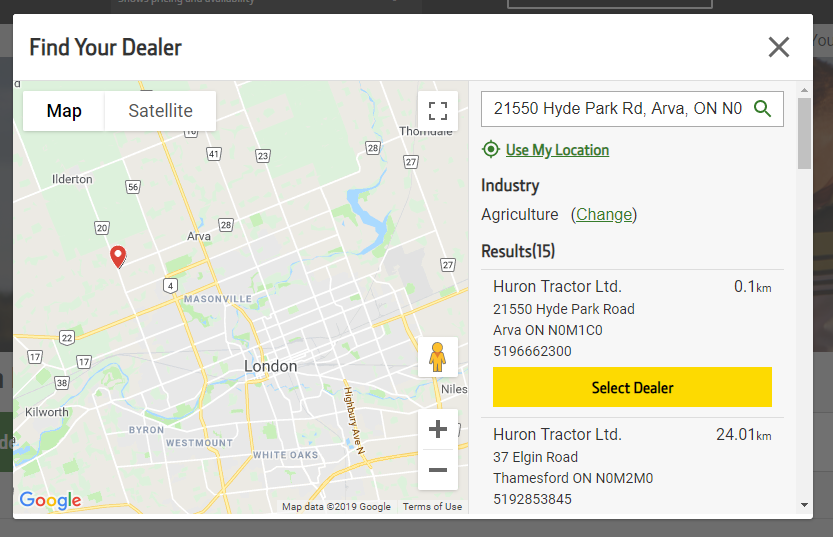
At the top of the screen, there is an option to Select Your Dealer where the customer can choose a dealer based on their location.
-
The customer can add parts to the shopping cart as in the first walk-through.
-
On clicking the Proceed to Checkout button, as long as the dealer selected is enabled for MyDealer Guest access by following the steps above (including adding the link to the configuration screen), the user will be automatically redirected to the dealership's MyDealer guest mode.
If a dealer is NOT configured for guest access, the user will be prompted to check out on the John Deere Parts Catalog website instead. It is imperative for dealers to have configured IntelliDealer for MyDealer quest access using the steps so dealers are not missing out on important web sale from Parts Catalog website. See Guest Shopping Mode.
-
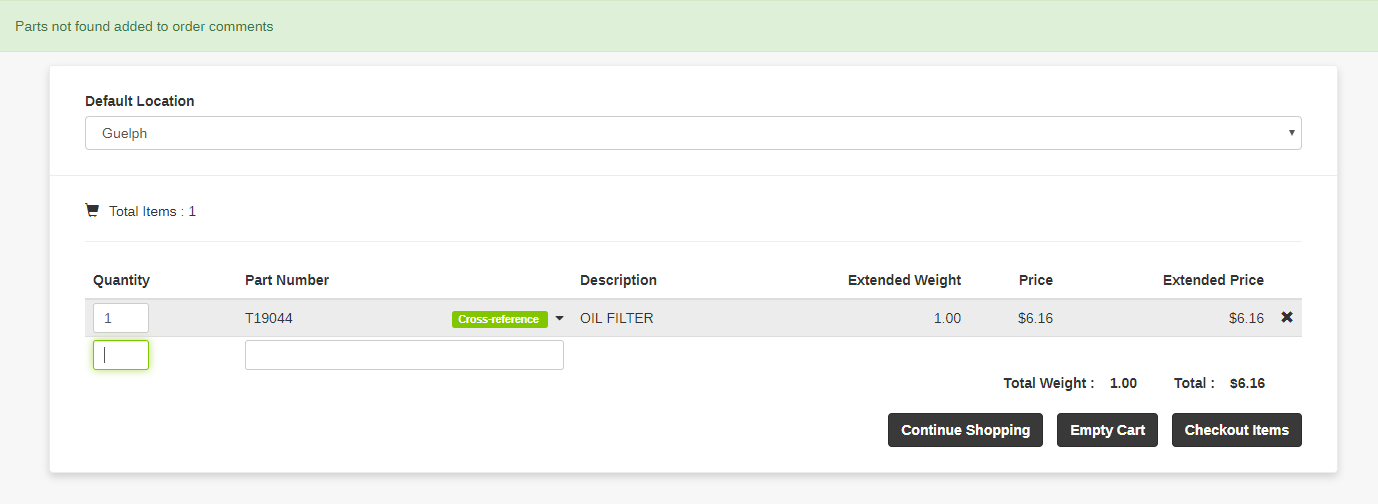
Parts are added to the guest mode shopping cart as below, with any parts that were not found in the dealer's system added to the order comments.
-
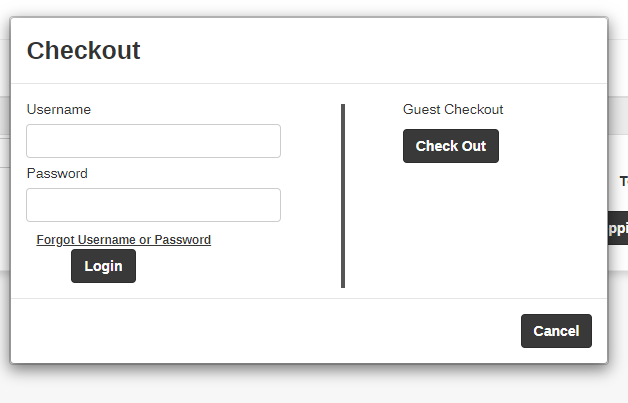
After clicking Checkout Items, the user has the option to either log in to MyDealer if they have an existing account, or continue as a guest:
-
Parts not found are displayed in a comment:
-
If the user does not wish to check out immediately, they can click Continue Shopping to return to the main Shop for Parts page in MyDealer.
-
The John Deere button also functions as it does in the logged-in mode, allowing the user to return to the John Deere Parts Catalog website to add additional parts to their cart if desired.
-
When the user clicks the Proceed to Checkout button again on the Parts Catalog website, they are redirected to their guest mode shopping cart, which will still have their parts from their first checkout from the Parts Catalog website. The user can then proceed to their final checkout with the dealership.
-