
ID InspectionPlus
ID InspectionPlus covers a range of utility options for when an evaluation is needed. This can include building and maintaining a task list for end-of-day closing, preparing job site safety checks, or creating itemized lists for equipment demonstrations.
ID InspectionPlus can be used with the ID InspectionPlus feature within IntelliDealer and offers integrated functionality between the two platforms.
Topics in this section include:
Inspection List
The ID InspectionPlus screen lists either All Inspections or inspections that you have created (My Inspections).
The inspection list displays entries that can be selected for further detail.
 Abridged Inspection Listing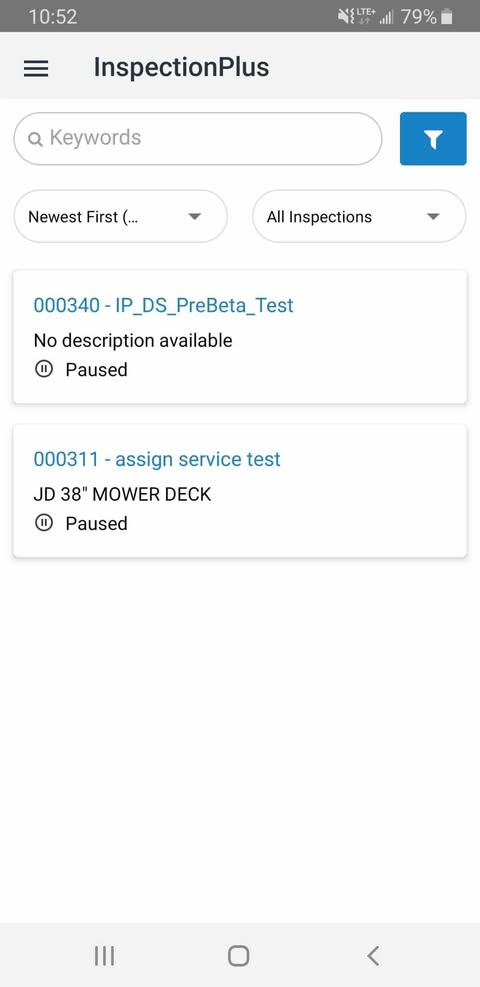
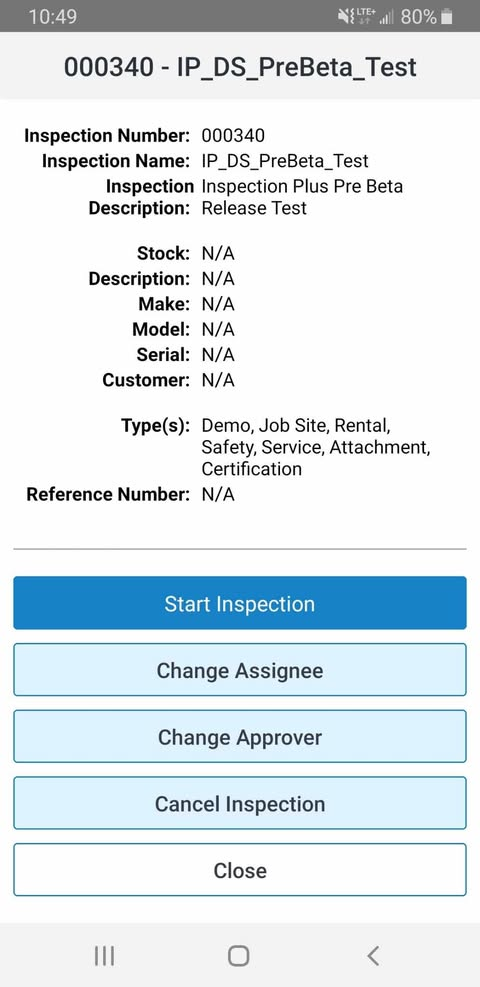
After selecting an inspection the expanded details and context options open.
Using Inspections
Selecting an inspection opens a detail screen with these options:
| Button | Description |
|---|---|
| Start Inspection |
Opens the inspection in a new screen. |
| Change Assignee | Allows you to change the assignee on the inspection. Assignees do not have to be mandatory but can be assigned on the inspection form. For more information on creating inspection forms, see IntelliDealer online help, InspectionPlus Templates List section. |
| Change Approver | Allows you to change the approver on the inspection. For more information on approvers, see the IntelliDealer online help, InspectionPlus Settings section. |
| Cancel Inspection | Cancels an inspection. Selecting this option opens a supplemental window where a Internal Reason for Cancellation can be entered. |
| Close | Closes the screen. |
Starting an On-Demand Inspection
You can start an inspection that has already been configured on the IntelliDealer (desktop) version of InspectionPlus.
At the bottom right corner of the ID InspectionPlus is the  button that opens the On-Demand forms screen.
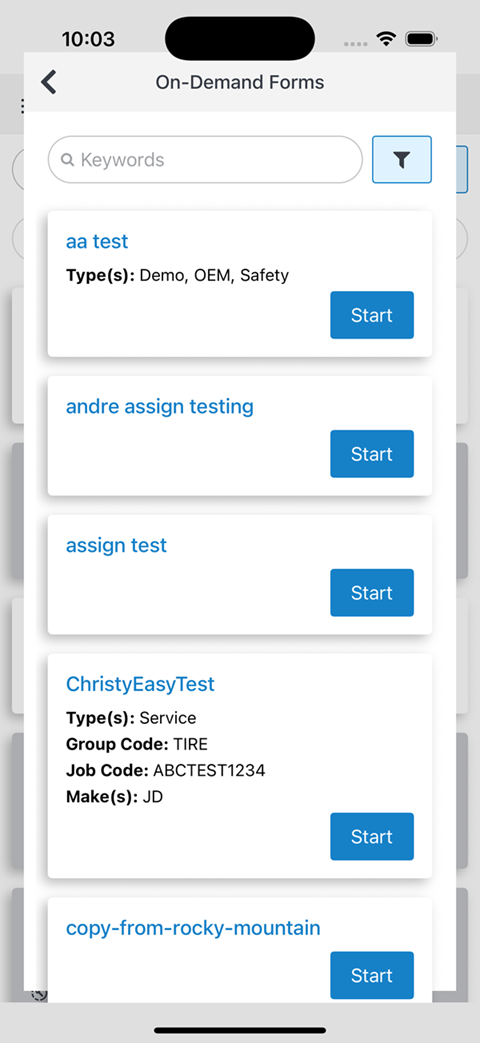
On-Demand forms are inspections that are created in IntelliDealer InspectionPlus. More information on On-Demand forms can be found in the IntelliDealer online help, InspectionPlus On-Demand Forms section.
Click Start to initiate the inspection.
Inspection Form Types
Inspection types refers to the different kinds of inspection forms that can be created. Form types can be created for general performance evaluations or a pass-or-fail type field tests, but can also be for specific tasks like parts or labor evaluations. For more information on how to create inspection templates/forms see the IntelliDealer online help, InspectionPlus Templates List section.
These Form Input types are available in ID InspectionPlus:
| Type of Form Input | Description |
|---|---|
| Single/Multiple Choice |
In the form, the step becomes a list of options that can describe a list of categories like pass-or-fail. (ex. Good Condition, Some Wear, Needs Repair.) Example of an Single/Multiple Choice based step: a general evaluation of parts or equipment with a choice of representative conditions. |
| Text Field |
In the form, the step becomes a text field that can either contain only numbers or numbers and text. Example of a Text Field based step: a technician can enter specific responses on a step for a tire replacement. |
| Value Range |
In the form, the step becomes a field where a value can be entered. This is used to indicate a quantity out of a hundred that might be required or a number out of a maximum required amount of a specific item or a piece of equipment. Example of a Value Range based step: a step that would determine the diameter of apples in a yield. A value range would be: Diameter less than 2 inches: Small diameter. Between 2 to 2.5 inches: Medium diameter. Greater than 2.5 inches: Large diameter. |
| Spec Range |
In the form, the step becomes a specification range where a value for specification is defined. Details for what In Spec and Out Spec means for that inspection form can also be defined. Example of a Spec Range based step: a step that would measure the oil viscosity used. A common specification for engine oil viscosity is SAE 5W-30. The "5W" stands for winter, which indicates the oil viscosity at cold temperatures. The "30" indicates the oil viscosity at high temperatures. A spec range would be: A range of acceptable viscosity grades between 0W to 10W: Low temperature viscosity. A range of acceptable viscosity grades between 20W to 40W: High temperature viscosity. |
| External/Customer Note |
If this option is selected then the step becomes a reference to external material provided elsewhere but related to the inspection. Example of an External/Customer Note on a step: a step that might require supplemental information, clarification of definitions, or historical context. |
On Media Requirements
Depending on how the inspection template is built, a step can require media (photos or files) based on your answer on that step. ID MobileAccessevaluates your response and treats the media as required when the template logic applies.
If you add media because it was required and you later change your answer so media is no longer required for that step, the media you already added remains.