
Traffic
To open the Traffic screen, tap the Menu icon from anywhere within the application and select Equipment> Traffic from the drop down list.
The Traffic screen displays pending traffic ticket information that has been configured in IntelliDealer.
The Receipt Number is color coded based on Urgency: Red - High, Orange - Medium, Yellow - Low.
The fields on the Traffic screen are:
| Field | Description |
|---|---|
| Stock Number | The unique identification number for the unit in IntelliDealer, as assigned by the dealership. |
| Description | A brief description of the unit. |
| Make/Model | The manufacturer and model number of the unit. |
| Serial Number | The units serial number. |
| Type | The unit's type code; either New, Used or Traded. |
| From | The source from which the work order was created. |
| To | The location of the dealership associated with the work order. |
| Inbound/Outbound | Indicates whether the unit is in or out of the dealership. This field is maintained through the traffic system. |
The Keyword search allows you to go directly to a specific receipt. Tap the  button to filter your results.
 Traffic Search Filter screen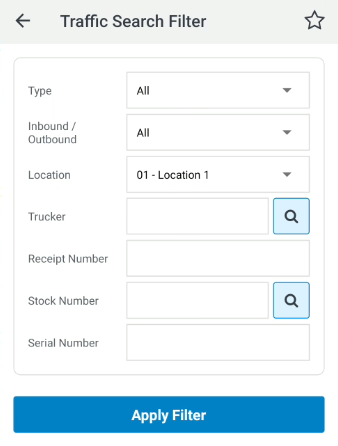
Selecting a result opens the listing into a Traffic Detail screen.
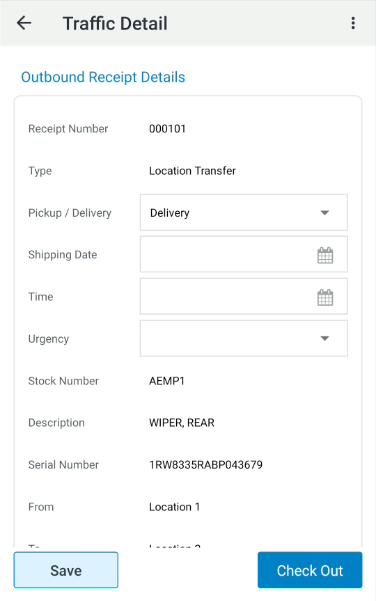
The Traffic Detail screen allows you to view/edit the appropriate information for the receipt. Changes made in the Traffic Detail screen are only applied after you tap Save.
For inbound receipts the a Check In button is shown and for outbound receipts a Check Out button.
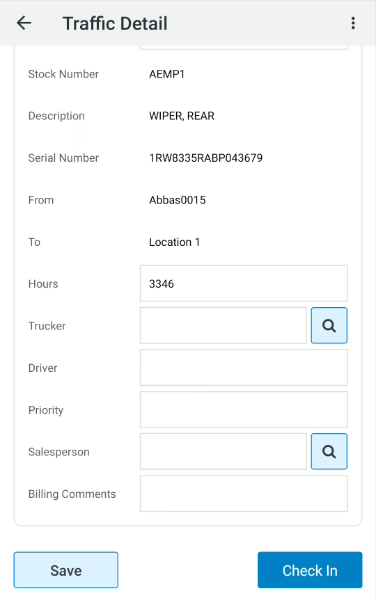
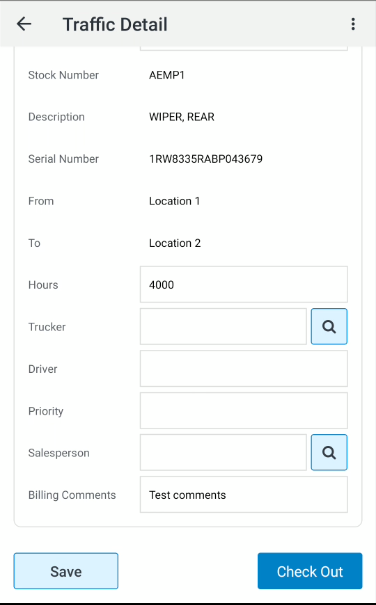
Tap Check In or Check Out to process the appropriate validations. Validations vary depending on the Traffic Type associated to the Traffic Receipt. Example validations: update machine hours, Trucker, Salesperson and/or Priority.
If the Equipment In/Out status is not in the correct state, you are prompted to create a correction receipt and continue.
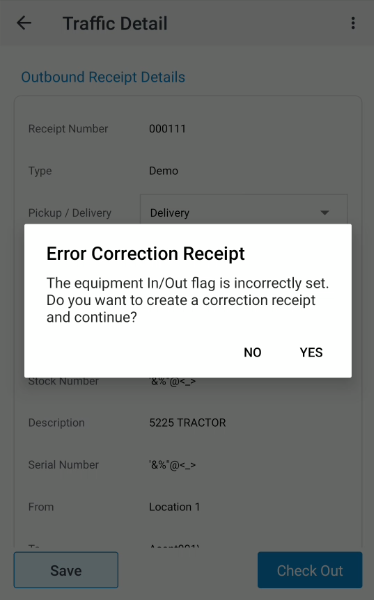
Additionally, you are prompted to print a delivery receipt.
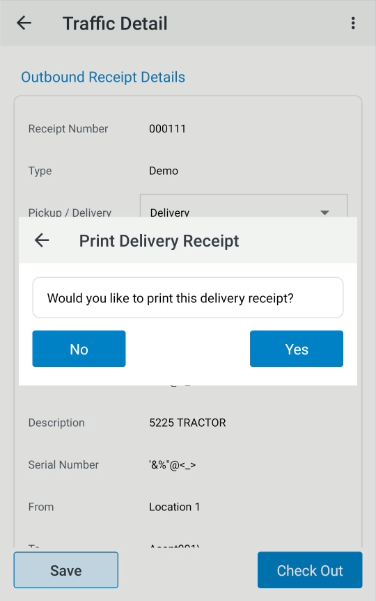
Once the Check Out process has completed for Outbound receipts, the Traffic status updates to Being Shipped.
Once the Check In process has completed for Inbound receipts, the Traffic status updates to Received.
Context Menus
To the top right of the Traffic Detail screen you'll find the context menu icon  .
.
Depending on the information entered on a traffic unit, certain options become applicable to that traffic unit. These options only appear if those certain areas have no information entered. These context sensitive options include:
-
Equipment Details for the associated unit.
-
Customer Details for the customer associated with the unit.
-
View and/or Add Comments for the Traffic Receipt.
-
Shipping Information for adding new shipping information.
-
View and/or Add Inspections for the Traffic Receipt, if any have been configured for the traffic type and direction
-
ID InspectionPlus to open InspectionPlus inspection forms linked to the traffic ticket. See ID InspectionPlus for how to work with the inspection list and inspection details.
ID InspectionPlus
When your dealership licenses InspectionPlus, the Traffic Detail context menu () includes InspectionPlus.
This option is shown whenever InspectionPlus is available; it is disabled if a legacy traffic Inspections item has already been started for the receipt (finish or continue that inspection before using InspectionPlus from Traffic).
Tap InspectionPlus to open a list of InspectionPlus forms associated with the traffic receipt.
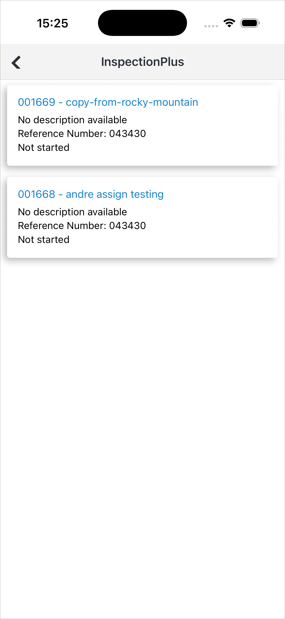
The list uses the ticket�s company, division, and location.
Pull down on the list to refresh it. Tap a row to open Inspection Details, where you can start or continue the inspection.
For buttons on the detail screen, filters, and the full InspectionPlus work-flow, see ID InspectionPlus.
If no InspectionPlus forms are linked to the ticket, a message explains that no linked inspections were found and that you should contact your manager to link inspections to the traffic ticket if required.
Note: The Equipment Details and Customer Details menu options do not display if no customer and/or equipment is associated with the traffic receipt
Note: The badge tag alert (Red '!') appears whenever there is a mandatory inspection to be completed or an inspection that has been started and not finished.
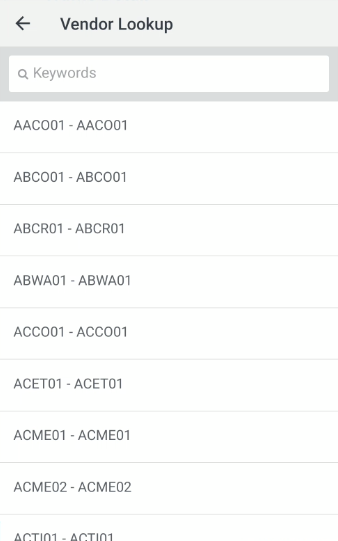
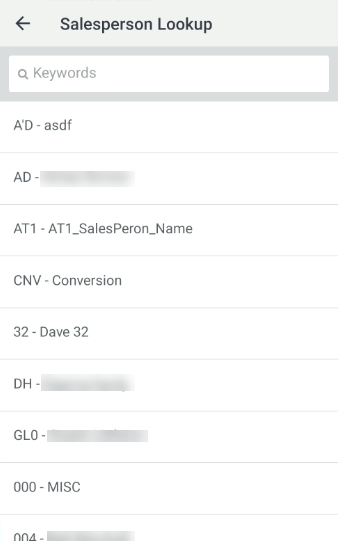
The  button opens a Lookup screen with entries relevant to that field in a list.
Tap the  button to open the Add Traffic screen.
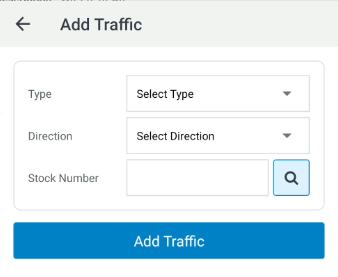
Based on the selected Type the user is prompted for the appropriate selections: Direction (inbound or outbound), From/To, and Stock Number
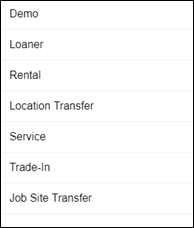
Note: To create a Sale traffic ticket, you must use IntelliDealer (navigate to Product Support > Equipment > Traffic). See Traffic: Select Type.
Tap  to open a Stock Number Lookup screen.
Use the Add Traffic button to add the new traffic listing to the Traffic screen.