
Used Evaluations
The Used Evaluation screen is found under the Equipment menu.
 Used Evaluations screen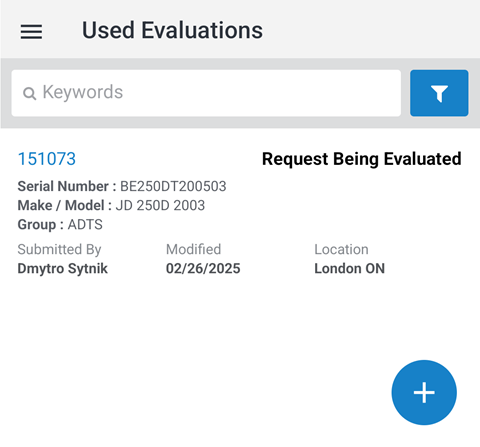
Topics in this section include:
Screen Description
The fields on the Used Evaluations screen are:
| Field | Description |
|---|---|
| Evaluation Number |
The number associated with the evaluation. |
| Serial Number | The serial number of the unit being evaluated. |
| Make/Model | The make and manufacturer model for the evaluated unit. |
| Group | The equipment grouping used to sort various pieces of equipment together for reporting purposes. |
| Submitted By | The user that submitted the evaluation. |
| Modified | The date the evaluation was last modified. |
| Location | The location of the evaluation. |
| To add a new Used Evaluation | Tap the  icon to open the Add Used Evaluation screen. icon to open the Add Used Evaluation screen. |
The evaluation statuses are:
| Status | Description |
|---|---|
| Pending Request | A used evaluation has been created, but not yet submitted, to either management or service. |
| Submitted Request |
The used evaluation has been submitted to management for review but has not yet been picked up by a manager. The salesperson can still go in and make modifications and/or undo the submitted request, returning the evaluation back to pending status. You can cancel a used evaluation in this status with the Undo Submit button. |
| Service Request | The used evaluation has been submitted to service for evaluation. The evaluation can be edited but cannot be forwarded to the next stage until service has completed the evaluation and sent it back. |
| Being Inspected by Service | A service representative has picked up the evaluation and is in the process of performing the evaluation. |
| Request Being Evaluated | A manager has picked up the evaluation to perform their evaluation. |
| Accepted Request | The manager has accepted the request. With this status, the salesperson can place the evaluation into history or resubmit it. |
| Rejected Request | The manager has rejected the request. With this status, the salesperson can resubmit or delete the evaluation. |
Used Evaluation Detail: General Tab
Clicking on a Used Evaluations expands the listing in the Used Evaluation Details.
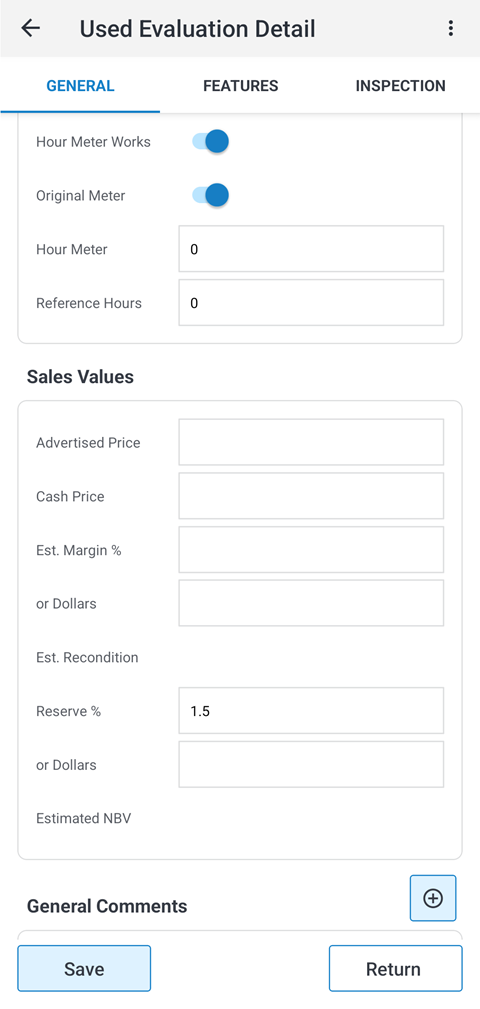
When you open a used evaluation, the header includes a Sub Menu icon and, when you are allowed to add multimedia, a Camera icon beside it.
| Field | Description |
|---|---|
| To take a photo for the evaluation |
Tap the Camera icon beside the Sub Menu icon. If prompted, allow ID MobileAccess to use the camera. The photo is uploaded to the evaluation. Note: When you upload an image, ID MobileAccess automatically resizes it so that neither the width nor the height exceeds 1280 pixels. Image scaling cannot be adjusted or turned off. See Add Multimedia. |
| To view or add multimedia using the sub menu |
Tap the Sub Menu icon and select Multimedia. The Multimedia window appears. To add a file, tap the Add icon. See Adding Multimedia. |
The fields on the Used Evaluation Detail screen are:
| Field | Description |
|---|---|
| Evaluation Number | The number associated with the evaluation . |
| Submission | The submission number for the evaluation. Use the  button to search for submission numbers. button to search for submission numbers. |
| Status | The status of the evaluation. Note: Once a service request is picked up by a technician or service manager the status of the request changes to Being Inspected by Service and the request can only be displayed; the sender of the evaluation can no longer change it. |
| Location | The location of the evaluation. |
| Created By | The user who created the evaluation. |
| Stock Number | The stock number of the unit being evaluated. |
| Base | The base number of the unit being evaluated. |
| Group | The group code associated with the unit being evaluated. |
| Make/Model | The manufacturer and model number of the unit being evaluated. |
| Model Year | The model year of the unit being evaluated. |
| Serial Number | The serial number of the unit being evaluated. |
| Type | The type of evaluation being performed. |
| Personally Inspect | Indicates the inspector personally evaluated the unit. |
| Personally Operate | Indicates that the inspector personally operated the unit for the evaluation. |
| Hour Meter Works | Indicates the unit's hour meter has been checked and verified as operational. |
| Original Meter | Indicates that the unit contains its original meter. |
| Hour Meter | Hours accrued to the unit. Applies only to machines that have an hour meter. |
| 2nd Hour Meter |
Secondary hours accrued to the unit. Applies only to machines that have more than one hour meter. |
| Reference Hours | User-defined hour field. |
Depending on your authority setting within IntelliDealer, the Sales Values and Manager Values also appear:
| Field | Description |
|---|---|
| Advertised Price | The unit's advertised price. |
| Cash Price | The unit's cash value. |
| Est. Margin % or Dollars | The unit's estimated profit margin percentage or margin dollar value. |
| Est. Recondition |
The estimated recondition cost for the unit. The Estimated Recondition value is pulled from the Inspection tab and is based on the Sales Estimate field totals. |
| Reserve % or Dollars |
The reserve percentage applied to the unit. The reserve % defaults the value loaded from a table within IntelliDealer. (Cash Price - Margin Dollars) X reserved % |
| Estimated NBV |
The unit estimated net book value. The estimated NBV is calculated as: Cash Price - Margin Dollars - Estimated Reconditioning - Reserve |
| General Comments | A text field used for adding notes about the evaluation. |
Control over these fields depends on what user role you are assigned within IntelliDealer. Options and accessibility change depending on your user role based on the Evaluation/Inspection Area field in your IntelliDealer User Profile:
-
Service Manager—The service manager can either complete the inspection or assign a Service Representative to complete the inspection. Any inspections first come to the service manager if this role is defined for any users in a location.
-
Service Representative—The service representative completes inspection and returns them to either the service manager or the creator of the inspection if the manager role was not defined.
Adding Multimedia
To add multimedia:
-
Search for and open a Used Evaluation detail instance.
-
On Used Evaluation detail, tap the Camera icon beside the Sub Menu icon to take a photo. The photo is saved to the evaluation. You can also tap the Sub Menu icon, select Multimedia, tap the Add icon, and choose Take photo...
The Multimedia window appears.
-
Select how you want to add a file. Tap one of these choices:
-
Take photo...
-
Choose from photos...
-
Choose from files...
If prompted, allow the application access to the camera or file system.
Note: When you upload an image, ID MobileAccess automatically resizes it so that neither the width nor the height exceeds 1280 pixels. Image scaling cannot be adjusted or turned off. See Add Multimedia for more information.
The multimedia file is saved to the used evaluation.
-
Used Evaluation Detail: Features Tab
Tap the Features tab to open the features checklist.
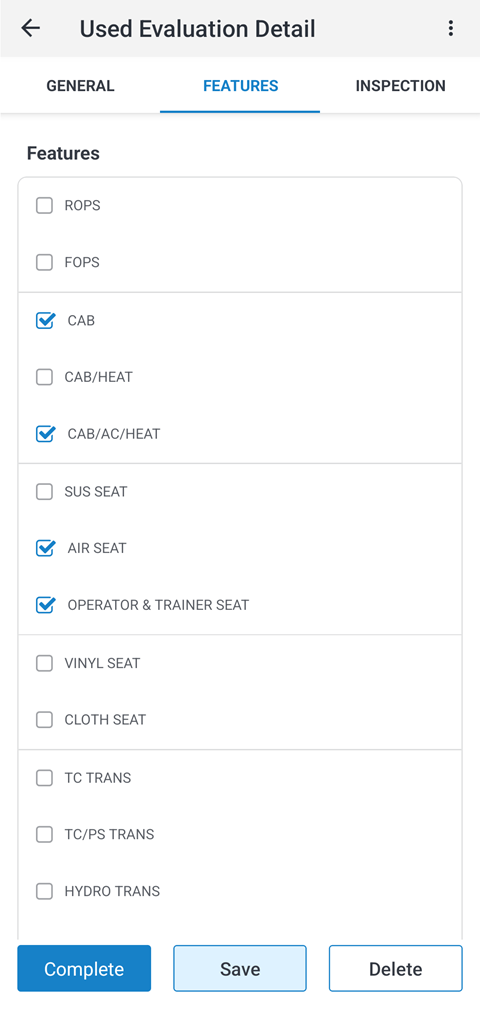
Checked features appear as details associated with the inspected unit. The Return button opens the Return Inspection window where you can enter comments before returning the evaluation upon completion.
If an evaluation is in status Pending Request, tap the Submit button to submit the evaluation.
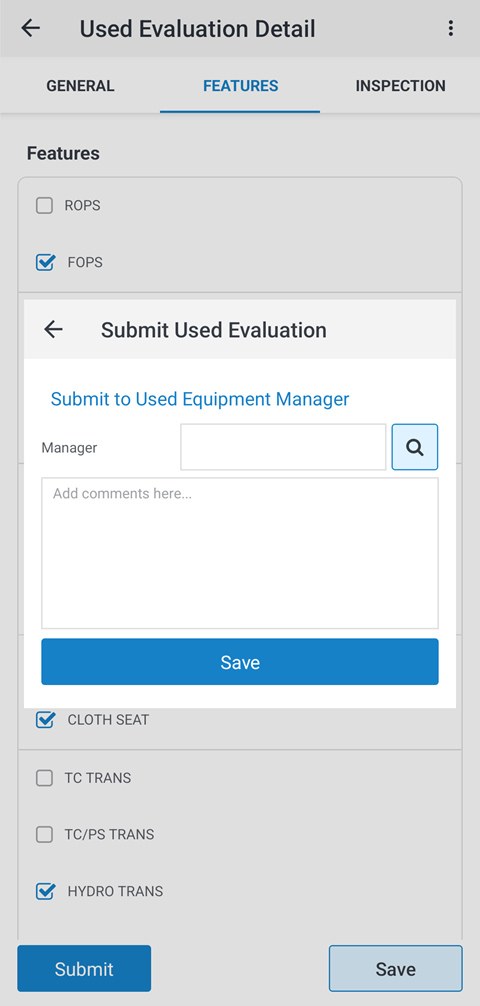
You may enter comments and save them to the evaluation upon submission. After submission, use the Undo Submit button if you wish to undo your submission for any reason and edit the evaluation once more.
Used Evaluation Detail: Inspection Tab
Tap the Inspection tab to open the inspection checklist.
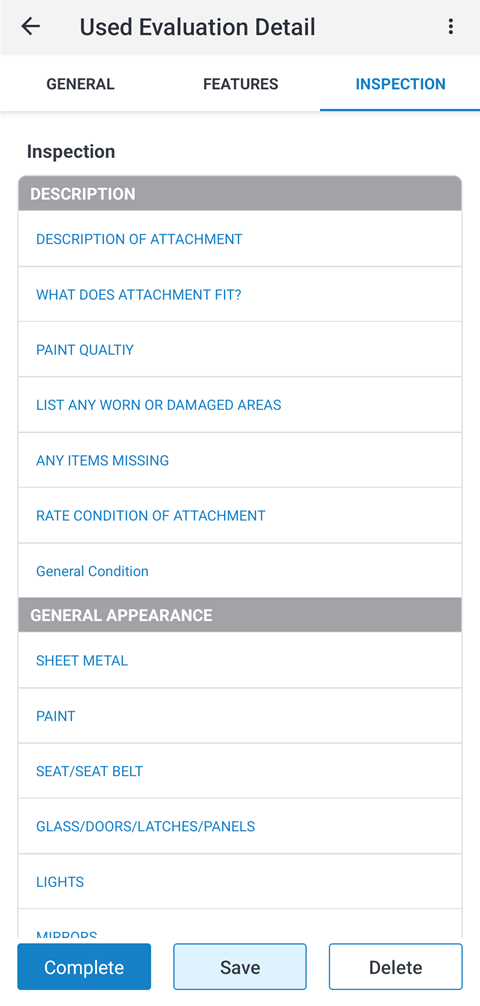
Tap an individual Inspection detail to expand the option for further editing.
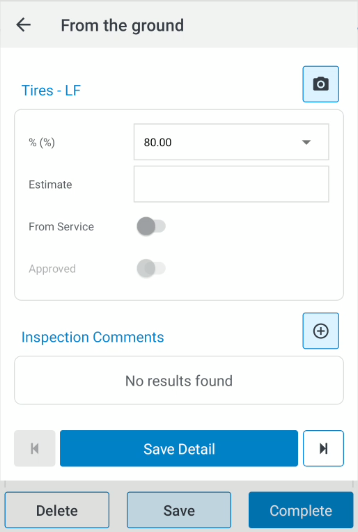
The fields on the Inspection Detail creation screen are:
| Field | Description |
|---|---|
| Condition | The condition of the unit in the area being inspected for this step. |
| Estimate | The estimated cost of repairs that might be needed. |
| From Service | The estimated cost of repairs obtained from the Service Department. |
| Approved | Whether approval has been given to have the repairs completed. |
You can navigate through each Inspection Detail entry by entry using the Next/Previous arrow buttons. You can complete inspection steps for multiple details before clicking Save Detail to return to the tabbed inspection list.
Tap the Send to Service for Inspection button to open the Send to Service window and send the evaluation off for review.
You can attach photos from the evaluation header while you complete the inspection checklist.