
Configuration: Types Listing
Use the Types screen to define different kinds of call types within the system. Once a code is defined on this screen, it can be used as a valid call type code used to record the calls made to a customer. The Types screen also shows the existing configuration of all previously defined call types.
Valid call type values appear on the Select Type screen accessed by clicking on the Search icon next to the Type of Call or Select Type field.
To open the Types screen, navigate to Configuration > CRM > Calls > Types.
Topics in this section are:
Adding a Call Type
-
Navigate to Configuration > CRM > Calls > Types.
-
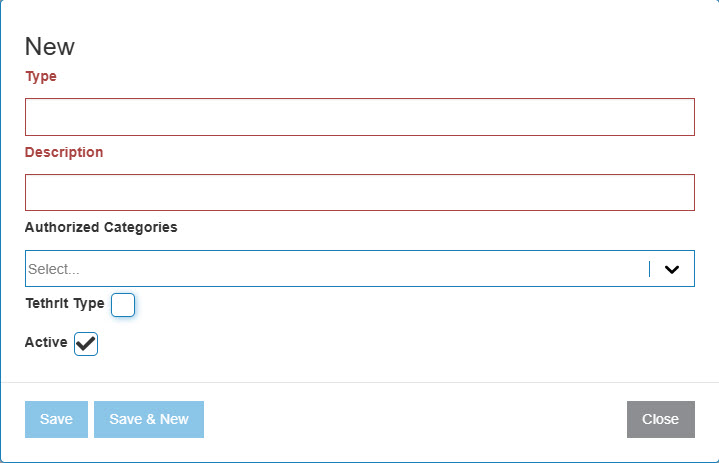
Click Create.
-
Fill in the fields, referring to the tables below.
-
Click Save to save the new call type code and return to the Types screen.
- or -
Click the Save & New button to save the new call type code.
The Types screen refreshes, allowing you to add another call type without closing the screen.
 The Types listing screen appears.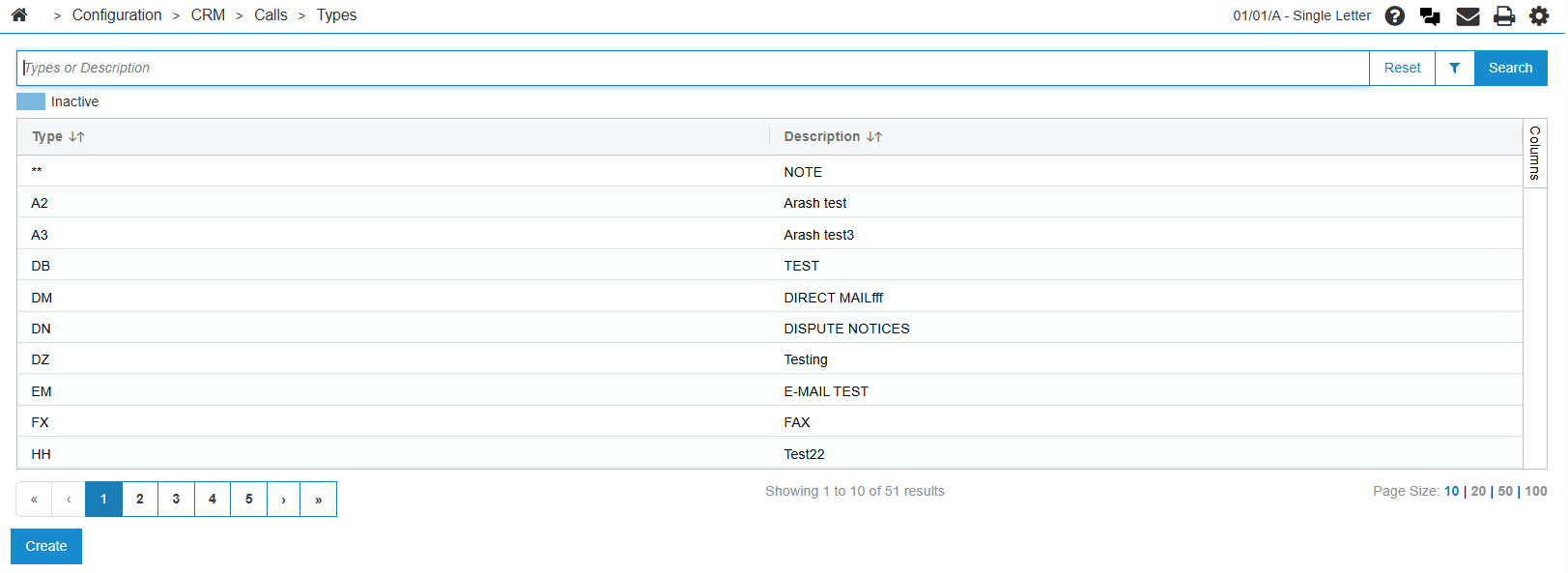
Configuring TethrIt Now 2.0
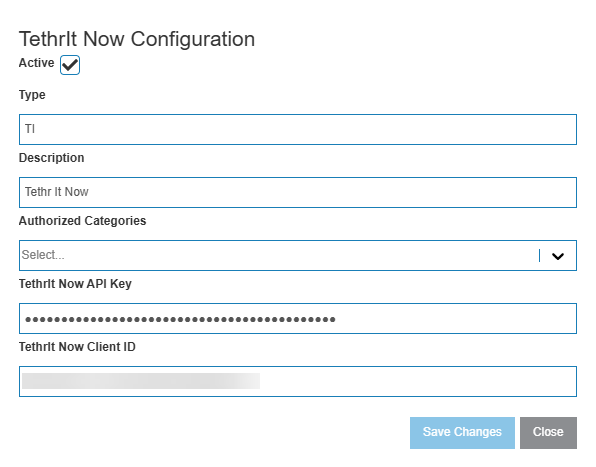
Prerequisites: To use TethrIt Now 2.0, the user must have a TethrIt Now API key and Client ID.
-
Navigate to Configuration > CRM > Calls > Types.
-
Click either the Create TetherIt Now or the Edit TethrIt Now Type button.
The TehtrIt Now Configuration screen appears. If this is the first time TetherIt Now has been configured, the fields are empty.
-
Fill in the fields, using the API key and client ID you received from TethrIt Now.
-
Click Save or Save Changes to save and return to the Types screen.
- or -
Click Close button to exit without saving.
Deactivating a Call Type
-
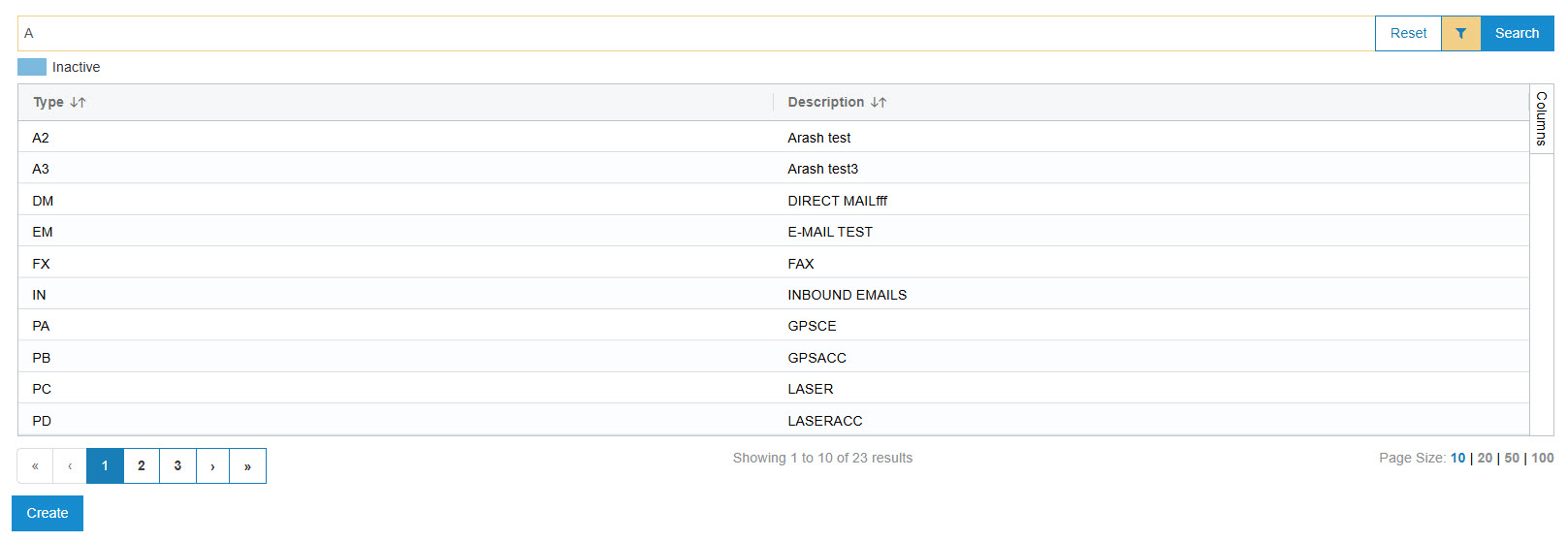
Enter the name in the appropriate field and click the Search button.
-
Click Code.
-
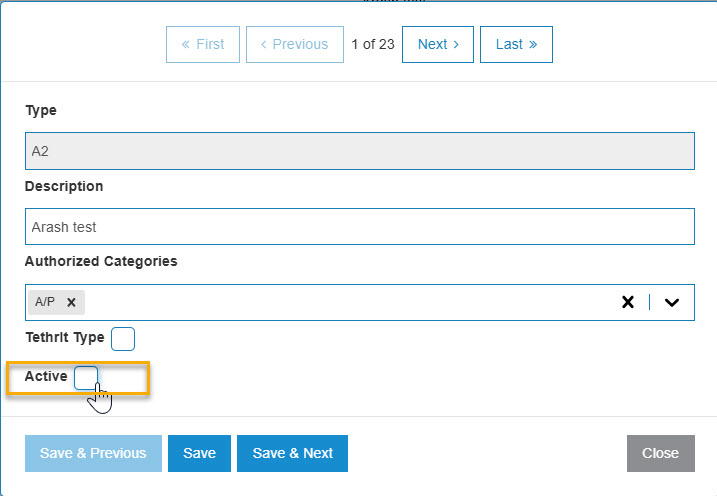
Select the Active checkbox, removing the checkmark.
-
Click the Save button to deactivate the call type code within the system.
Screen Description
The sorting options on the Types screen are:
| Sort by | |
|---|---|
| Field | Description |
| Code | Sort the search results by type code. |
| Description | Sort the search results by type code description. |
The search fields on the Types screen are:
| Field | Description |
|---|---|
| Select Code | Search for a call type by entering a call type code. |
| Select Description | Search for a call type by entering a call type description. |
| Include Inactive | If selected, includes inactive call types in the search results. |
The fields on the Types screen are:
| Field | Description |
|---|---|
| Code | A 1 to 2 character alphanumeric code representing the call type throughout the system. |
| Description | A brief description of the call type. |
Additional fields available when editing or creating a Type are:
| Field | Description |
|---|---|
| Authorized Categories |
A categories that can use this call type. Select All to enable all categories for this call type. |
| Active for System |
Controls whether the call type code is active for use within the system.
|