
Configuration: Bill.com
The Bill.com Accounts Payable integration enables IntelliDealer to exchange Accounts Payable data with Bill.com. Dealers create and maintain vouchers, vendors, and chart of accounts in IntelliDealer, sync bills to Bill.com for approval and payment, and sync paid transactions back into IntelliDealer check run batches. IntelliDealer remains the system of record for general ledger posting.
See also: Bill.com Overview.
Topics in this section include:
Prerequisites
-
IntelliDealer feature 6529 - BILL.com A/P Automation must be licensed for your dealership.
-
Users who configure credentials or run sync operations must have security switch 999 - Configuration, Accounts Payable - Bill.com. See 999 Configuration.
-
Your dealership must have a Bill.com organization for each IntelliDealer company that uses the integration. Contact Bill.com to obtain API credentials for each organization.
-
Configure email recipients for Bill.com integration alerts on the System Notification Email Address screen. See Email Alerts and Integration Mapping.
Configuration Screen
Use the BILL | Financial Operations Platform screen to store Bill.com API credentials per company and to run voucher and payment sync. To open the screen, navigate to Configuration > Interfaces > Other > Bill.com.
 The Bill.com configuration screen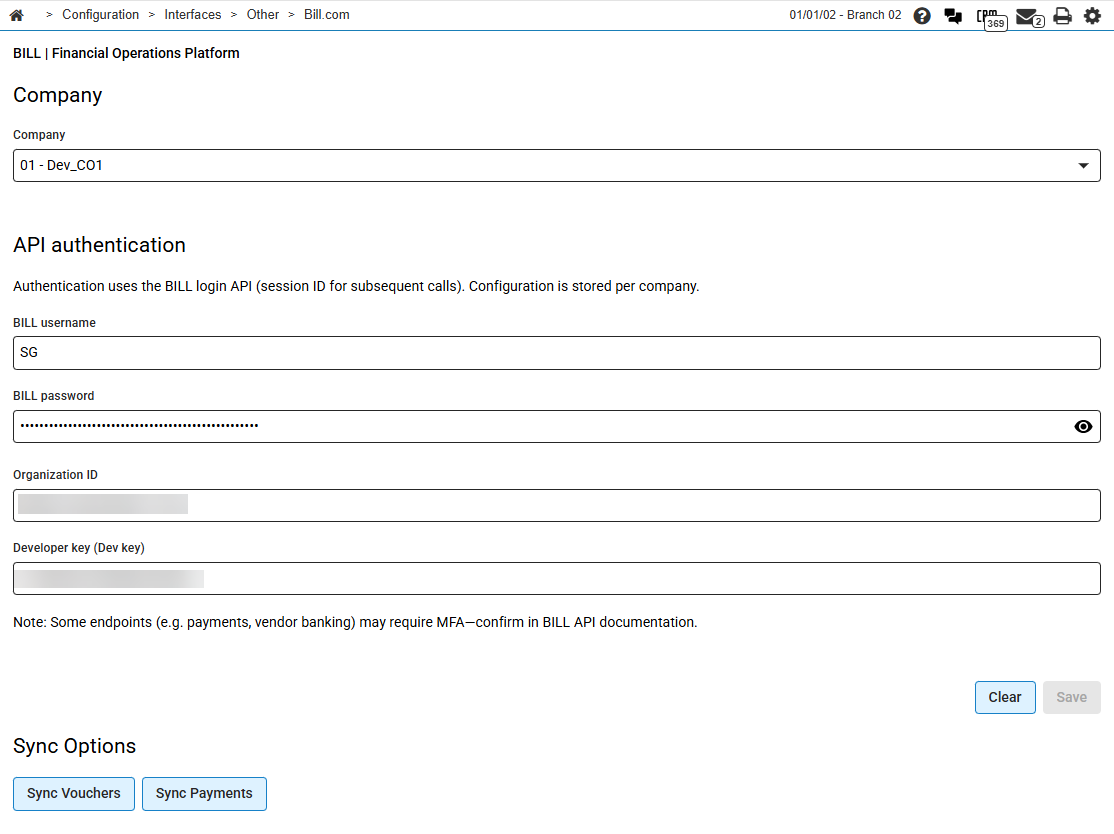
Company
Select the IntelliDealer company whose Bill.com credentials you are viewing or editing. Configuration, credentials, and sync timestamps are stored separately for each company. If your dealership has multiple companies, each company that uses Bill.com must have its own Bill.com organization and credentials.
API Authentication
Authentication uses the Bill.com login API. Credentials are stored per company. Contact Bill.com to obtain the values for your organization.
| Field | Description |
|---|---|
| BILL username | Bill.com API login username for the selected company. |
| BILL password |
Bill.com API password for the selected company. If a password is already saved, leave this field blank to keep the existing password, or enter a new password to change it. |
| Organization ID | Bill.com organization identifier for the selected company. |
| Developer key (Dev key) | Bill.com API developer key for the selected company. |
Note: Some Bill.com endpoints (for example, payments and vendor banking) may require multi-factor authentication. Confirm requirements in Bill.com API documentation.
Click Clear to clear the company selection and credential fields on the screen.
Click Save to validate the credentials against Bill.com and store them for the selected company. IntelliDealer validates the login when you save.
Sync Options
| Button | Description |
|---|---|
| Sync Vouchers |
Sends pending chart of accounts, vendors, outstanding vouchers, and vendor credits from IntelliDealer to Bill.com. A confirmation dialog shows when vouchers were last synced for the selected company. Click Sync to start the sync. |
| Sync Payments |
Retrieves Bill.com payments made since the last payment sync and adds fully paid vouchers to check run batches in IntelliDealer. Payment sync runs in the background. A confirmation dialog shows when payments were last synced for the selected company. Click Sync to start the sync. At least one voucher must have been sent to Bill.com before payment sync can run. |
Initial Setup
Complete these steps once for each IntelliDealer company that uses Bill.com.
-
Confirm that feature 6529 is licensed and that users who configure or sync Bill.com have security switch 999 - Configuration, Accounts Payable - Bill.com.
-
Contact Bill.com to obtain API credentials (username, password, organization ID, and developer key) for the Bill.com organization that corresponds to the IntelliDealer company.
-
Navigate to Configuration > Interfaces > Other > Bill.com.
-
Select the company, enter the Bill.com credentials, and click Save.
-
On the System Notification Email Address screen, configure recipients for Bill.com integration failures. See Email Alerts and Integration Mapping.
-
Verify that chart of accounts and vendors in IntelliDealer are current. Saving those records sends them to Bill.com automatically.
-
Run Sync Vouchers after outstanding vouchers are ready to send to Bill.com. Confirm that bills appear in Bill.com.
Data Source: BCMAP, PFWTAB, OUTSTD, YTDIST, VMASTR, VMCON, COACMAST, ACCMAST, EMAILTRIG
Feature: 6529 - BILL.com A/P Automation
Security: 999 Configuration, Accounts Payable - Bill.com
Revision: 2026.08