
Worldpay: Partial Approvals
The Worldpay credit card interface supports partial approvals for payments. For example, when the invoice is for an amount such as $200, but the credit card authorizes a lower amount such as $150. Because the invoice is not fully paid, the dealer must ask for the remaining $50 in another form of payment. It could be cash, another credit card, or some other form of payment.
IntelliDealer supports partial approvals in Equipment, Parts, and Work Orders invoicing. Rental and general billing invoices are currently NOT supported.
How to Allow Partial Authorizations
You must add your location to the equipment deposit configuration on all tabs: Equipment, Parts, and Work Orders.
Prerequisite: the Worldpay credit card interface must be configured and the Offer Partial Payment checkbox must be selected. See Worldpay Setup.
-
Navigate to Configuration > Equipment > General > Deposit, and click the Equipment tab.
-
Verify that your location is listed. If your location is not listed, click Create to add it. See Deposit: Equipment and Work Orders.
-
On the Equipment tab, perform these steps:
- Select your location.
- Select your deposit part number.
- Select both checkboxes Print Deposit Receipt and Active for System.
- Click Save.
-
Repeat these steps for the Parts tab and the Work Orders tab.
 The Deposit Configuration screen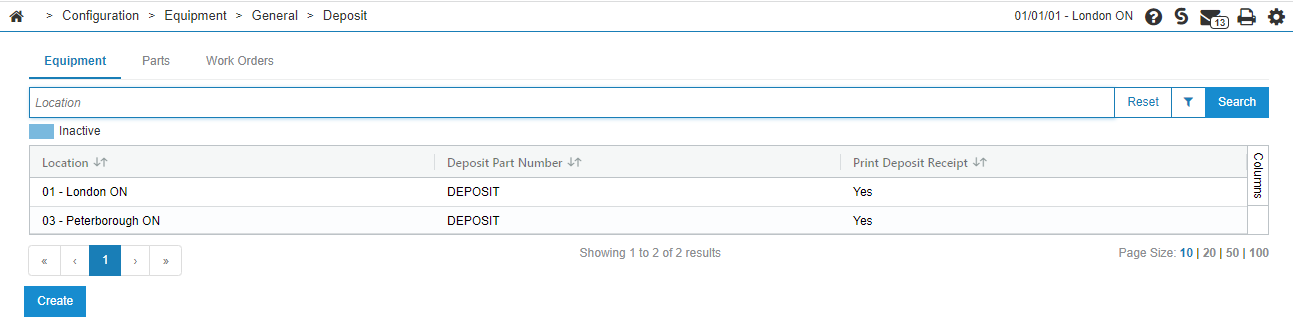
Daily Usage: Deposit Button
Partial approval works the same way in Equipment, Parts, and Work Orders invoicing. When using the Deposit button on an invoice the process is:
-
Create an invoice. For an example, see Creating a New Parts Invoice.
-
Click Deposit.
-
Enter the amount of the deposit.
-
Choose the Worldpay Credit Card cash code. In this example, the code is B.
-
Press the Sale button on the Worldpay device. The Worldpay device prompts for the credit card information.
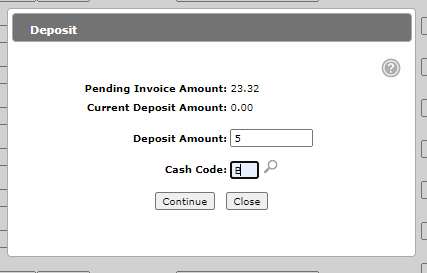
When the credit card company returns the authorization, if you receive a partial authorization, IntelliDealer displays the following. Notice that in Step 4, the deposit window shows a request for $5. However, the current deposit amount at the bottom is showing only $2.50.
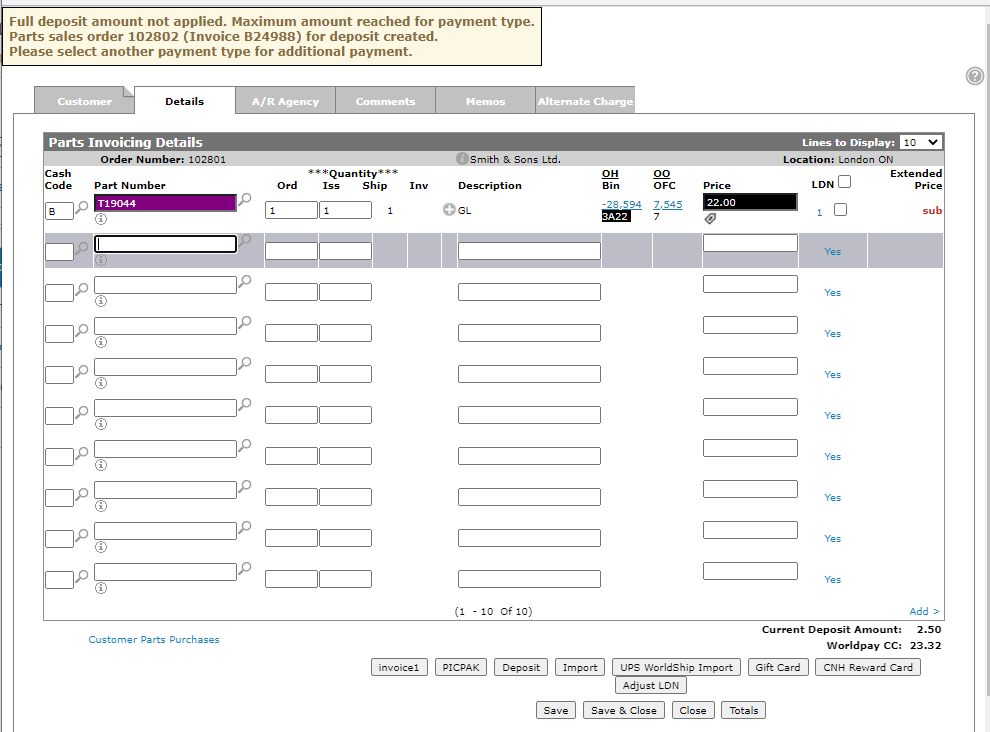
If the full amount is returned, a green message is displayed.

Daily Usage: A/R Agency Tab
In this scenario, the user has pressed the A/R tab and was not forced there during the invoicing process.
-
Create an invoice. For an example, see Creating a New Parts Invoice.
-
On the invoice, click the A/R Agency tab.
-
In the New Authorized Amount field, enter the amount to authorize.
-
Click the Authorize button. The Worldpay device prompts for the credit card information.
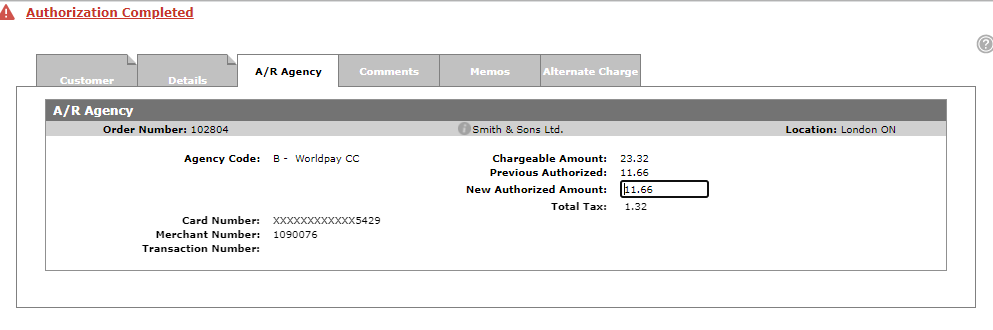
When the authorization is returned, IntelliDealer displays the amount that has been authorized. In this example, the user requested $23.32, but $11.66 was approved. When the user goes to invoice this, IntelliDealer asks again for a new credit card to be authorized.
Note: In this process the user has only put a hold on the money. About 7 days later, that authorization is removed and the customer is able to use the money at some other retailer. IntelliDealer never captures this amount.
Daily Usage: Invoicing
In this scenario, the user has pressed the Invoice button and released the equipment invoice or closed the work order.
-
Create an invoice using either the Worldpay cash code or G/L Account, depending on the invoicing application.
-
Click the Invoice button, and release the equipment invoice or close the work order.
At some point during the invoicing process IntelliDealer brings up the A/R Agency tab.
-
Click Sale, and follow the prompts on the device.
If IntelliDealer receives a partial approval, it returns to the invoicing application with something similar to the following screen. Notice in the example, the current deposit amount is $11.66. The user can now ask the customer how they would like to pay the remainder of the invoice.
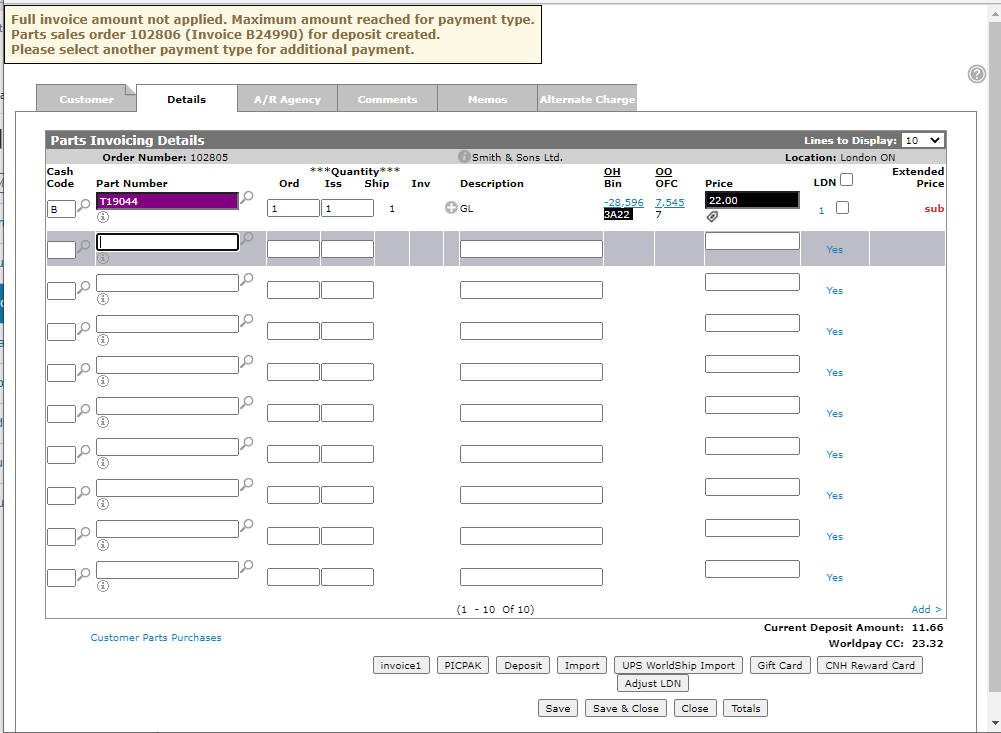
If IntelliDealer receives approval for the full amount, the invoice closes as normal and IntelliDealer returns to the listing screen.