
Part Selection
Use the Part Selection screen to add a selected part to a parts order.
To open the Part Selection screen, click a Vendor name with a stock order (SO) Type on the Pending Special/Allocation Orders screen.
-OR-
The Part Selection screen can also be accessed from the Parts Order screen by clicking the Part Selection link when parts for allocation are found.
 Parts Selection screen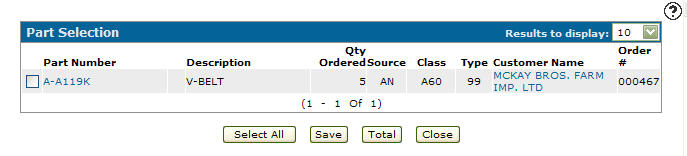
Fields on the Part Selection screen are:
| Field | Description |
|---|---|
| Part Number | The number of the part selected to be added to a parts order. |

|
Flags the part to indicate that the part is currently on a special terms program. Click this icon to open the Special Terms Programs screen. |
| Description | A brief description of the part. |
| Qty Ordered | The amount of parts ordered. |
| Source |
The part's source of supply code. This typically represents the part's originating warehouse location. Valid source of supply codes are configured and listed on the Source of Supply screen. |
| Class |
The class code of the selected part. In conjunction with the Type code, the class code is used to group similar parts together. Valid class codes are configured and listed on the Classes screen. |
| Type |
The type code of the selected part. In conjunction with the Class code, the type code is used to group similar parts together. Valid type codes are configured and listed on the Types screen. |
| Customer Name | The customer's name. |
| Order # | The sales order number. |
Fields that only appear on the Part Selection screen when accessed through the Pending Special/Allocation Orders screen are:
| Field | Description |
|---|---|
| Location | The branch location where the part order was created. |
| Vendor | The vendor number for the supplier of this part. |
| Type | The type of part order (e.g. Stock Order- SO). |
The field that only appears on the Part Selection screen when accessed through the Parts Order screen is:
| Field | Description |
|---|---|

|
Indicates if the part number has been selected. |
Click a Part Number to open the Parts Profile screen.
Click the Customer Name to open the Customer Profile screen.
Multiple appears in the Customer Name and Order # fields when the part appears on multiple part orders.
Click the Multiple link to open the Multiple Orders screen.
Click Totals to open the Totals screen displaying the parts order totals (e.g line items, quantity, cost, and weight).
Click Close to close the screen and return to the Pending Special/Allocation Orders screen.
Buttons that only appear on the Part Selection screen when accessed through the Parts Order screen are:
Click Select All to select all listed part numbers.
Click Save to save changes made on the Parts Selection screen and return to the Parts Order screen.
Data Source: BACKORD
Revision: 2026.01