
Configuration: Source of Supply
Use the Source of Supply screen to search for, edit, and add parts source of supply codes to the parts system. Source of Supply codes added to the system appear as a valid source code on the Select Source Codes screen accessed from on the Parts Profile tab by clicking on the Search icon next to the Source field in the Parts Profile system.
To open the Source of Supply screen, navigate to Configuration > Parts > Profile > Source of Supply.
Topics in this section
Adding a Source of Supply Code
-
Navigate to Configuration > Parts > Profile > Source of Supply.
-
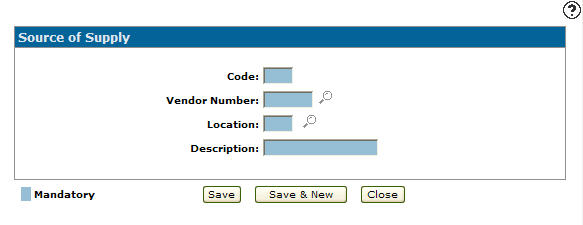
Click Need to create a new source of supply? Click here to add link.
-
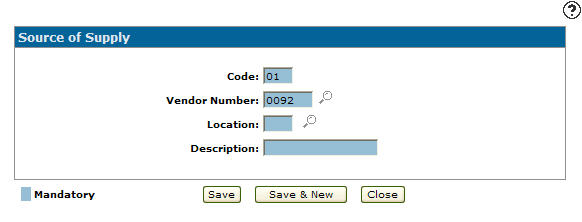
Enter a two character alphanumeric type Code.
-
Enter the Vendor Number you wish to associated to the source of supply code enter above.
- or -
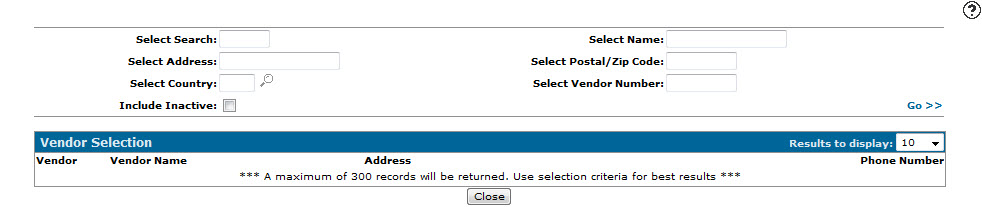
Click on the Search icon.
icon. -
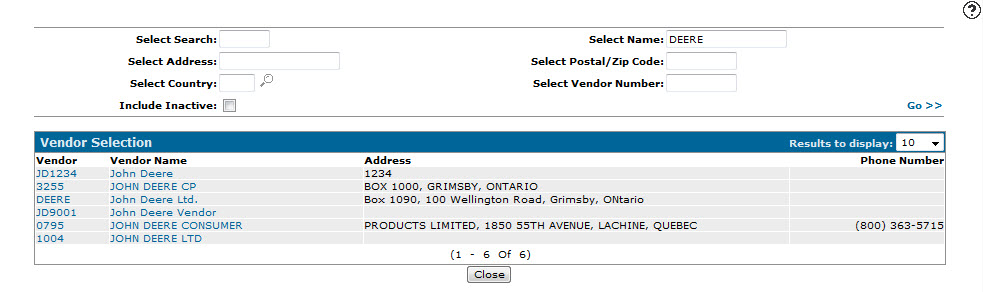
Fill out the appropriate fields and click the Go >>.
-
Click Vendor Number.
-
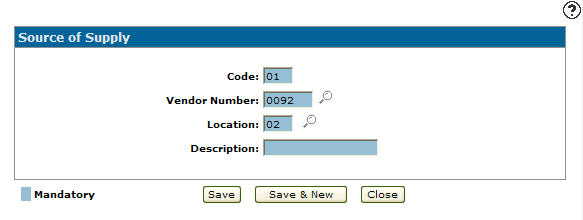
Enter the Location where the type code is valid.
- or -
Click on the Search icon and select a location.
 -
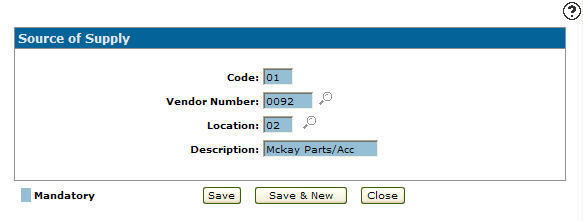
Enter a brief source of supply code Description.
-
Click the Save button to save the new source of supply code and return to the Source of Supply screen.
- or -
Click the Save & New button to save the new source of supply code.The Source of Supply screen refreshes, allowing you to add another source of supply code without closing the screen.
 The Source of Supply screen appears.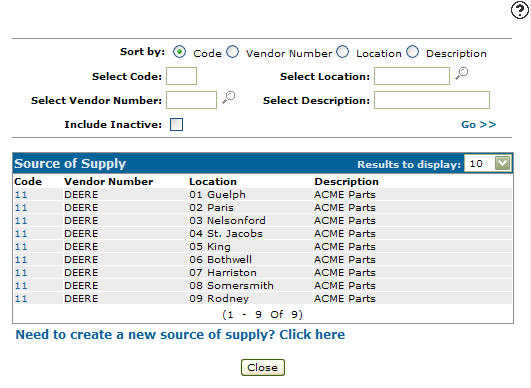
Deactivating a Source of Supply Code
-
Navigate to Configuration > Parts > Profile > Source of Supply.
-
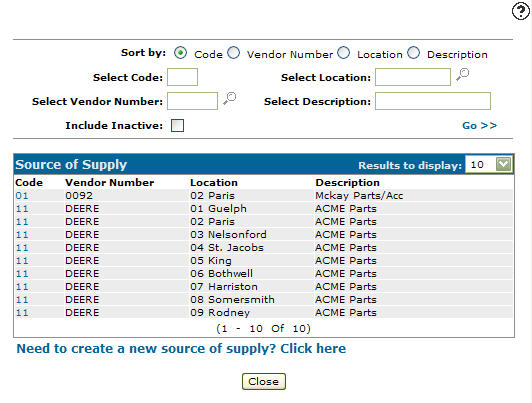
Fill out the appropriate fields and click Go >>.
-
Click Code.
-
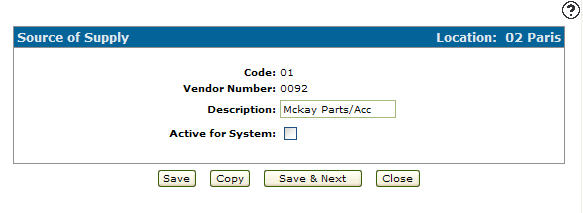
Select the Active for G/L checkbox, removing the checkmark.
-
Click on the Save button in order to deactivate the source of supply code within the system.
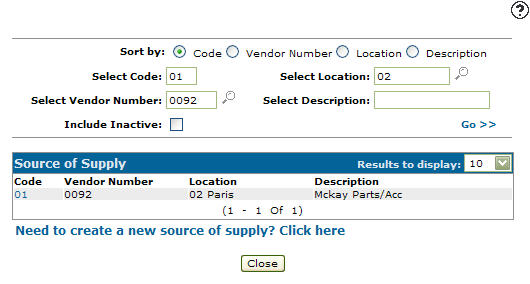
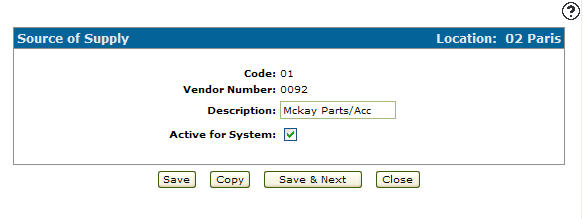
Screen Description
The sorting options on the Source of Supply screen are:
| Sort by | |
|---|---|
| Field | Description |
| Code | Sort the search results by a two character source of supply code. |
| Vendor Number | Sort the search results by vendor number. |
| Location | Sort the search results by location. |
| Description | Sort the search results by source of supply code description. |
The search fields on the Source of Supply screen are:
| Field | Description |
|---|---|
| Select Code | Search for a source of supply code by entering a two character source of supply code. |
| Select Vendor Number | Search for a source of supply code by entering a vendor number. |
| Select Location | Search for a source of supply code by entering a location. |
| Select Description | Search for a source of supply code by entering a source of supply code description. |
| Include Inactive | If selected, includes inactive source of supply codes within the search results. |
The fields on the Source of Supply screen are:
| Field | Description |
|---|---|
| Code | An alphanumeric code used to define the part source of supply code within the parts profile system. |
| Vendor Number | The vendor number the source of supply code is set up as a valid source of supply code to define parts within the parts profile system. |
| Location | The location where the source of supply code is currently used as a valid source of supply code. |
| Description | A brief description of the source of supply code. |