
Screen Tour of IntelliDealer
This topic describes user interface elements that appear across IntelliDealer. Some elements are shared by every screen. Others apply only to NextGen and other modern React screens, or only to legacy screens.
Topics in this section are:
Common Elements
These elements appear on most IntelliDealer screens, including NextGen, React, and legacy screens.
| Element | Description |
|---|---|
| Home | The home button  returns you to the home page from anywhere in the system. returns you to the home page from anywhere in the system. |
| Menu path (breadcrumbs) |
The top of the screen displays the path for your current screen. Click these options to expand menus in each section instead of returning to the main menu in the left panel.
|
| Collapsed menu | The  icon in the top left collapses the left menu into icons to provide more room on screen. icon in the top left collapses the left menu into icons to provide more room on screen. |
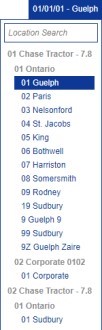
| Location |
The Location setting near the top right can be expanded to open the Location Search window. You can change locations at any time, or search for specific locations.
|
| Customer toolbar |
Hold the cursor over a customer name link to open a hover menu with shortcuts to the customer profile, calls, notes, and related actions. See Customer Toolbar - Overview.
|
| Printer output and PDF viewer | Printer output and PDF viewer options are located under the  icon at the top right of the screen. icon at the top right of the screen. |
| Messages |
A message notification system lets users know when they have a new unread message. The numeric badge next to the envelope icon displays the number of new, unread messages. When you receive a message while signed in, you see the message as a prompt in the top right corner of the screen:
Informational messages can also appear after you perform an action. Green messages indicate a successful action. Red messages with a warning icon indicate an unsuccessful action. |
| Close | Always use the Close button when exiting a pop-out screen or module. Using the X button at the top right of the window may cause unexpected behavior. See Required Restarts. |
| Color theme | Color schemes are available by location. From Administration > Settings > System, under the Theme dropdown list, select a color theme, click Save, and log out. The color option is applied when you log back in. |
| Field highlighting |
Fields interact with user input. A yellow highlight means the user has modified the field since the screen was originally loaded. A red highlight means the field has an error that must be corrected.
|



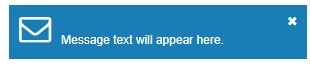 This prompt appears again if the message is still unread and continues until the message is opened.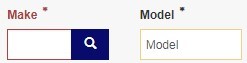
NextGen and React Screen Elements
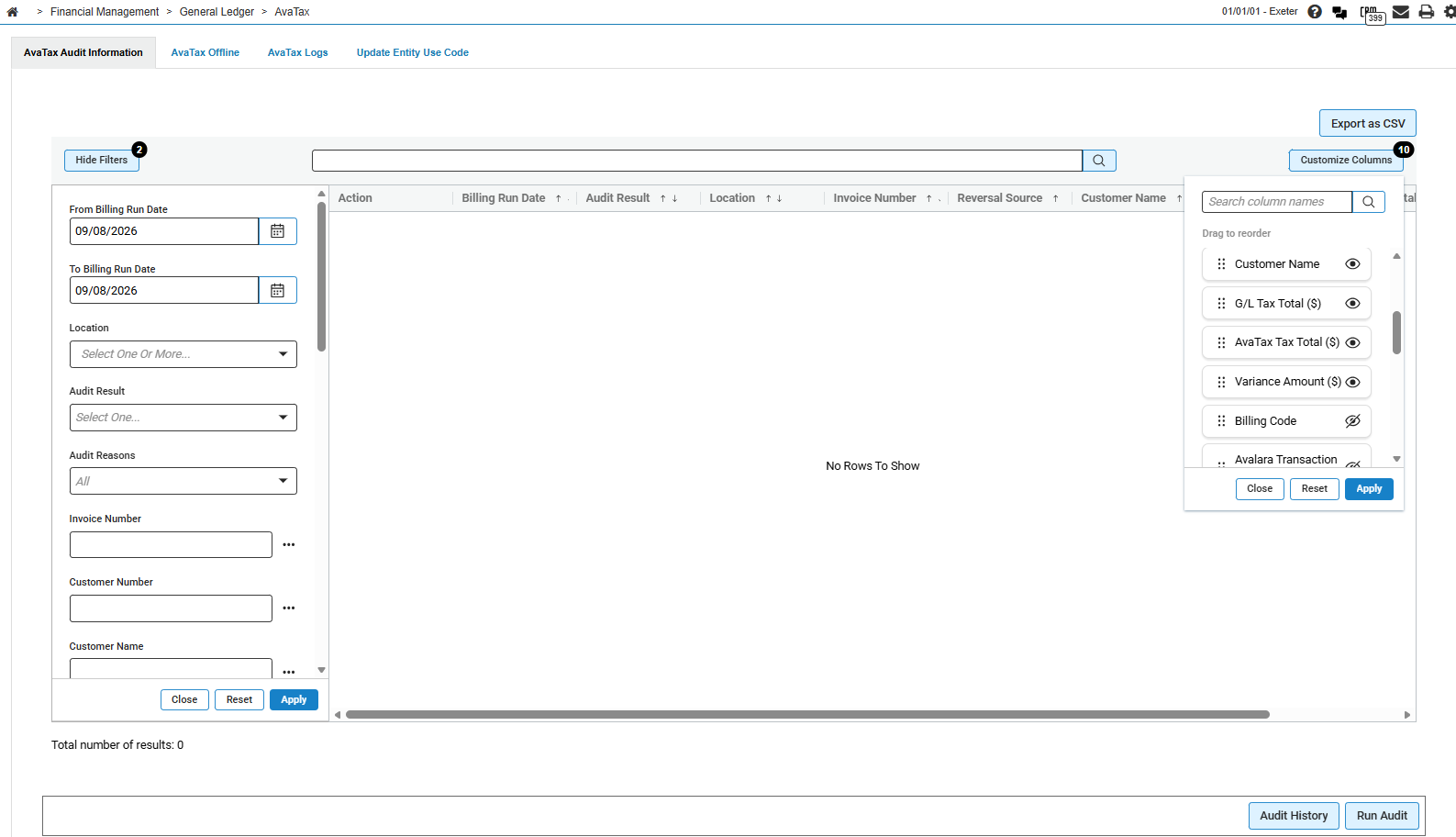
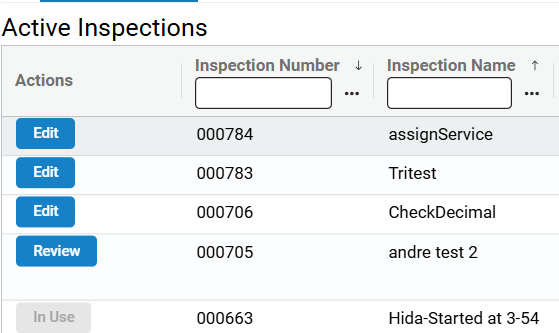
NextGen modernizes selected IntelliDealer screens through a phased rollout (see NextGen Overview). Other React screens use the same modern listing, filter, and form patterns even when they are not part of the NextGen rollout. Examples include InspectionPlus, Cloud Emails on Customer Care: Email Logs, AvaTax Audit Information, and Real-time Billing Queue.
Listing grids
Most NextGen and React screens display search results in a listing grid. Common behavior includes:
-
Click a column heading to sort ascending or descending.
-
Use pagination controls at the bottom of the grid to change how many rows display per page and move between pages.
-
Click Edit, Select, or another row action button to open a record or perform an action on that row.
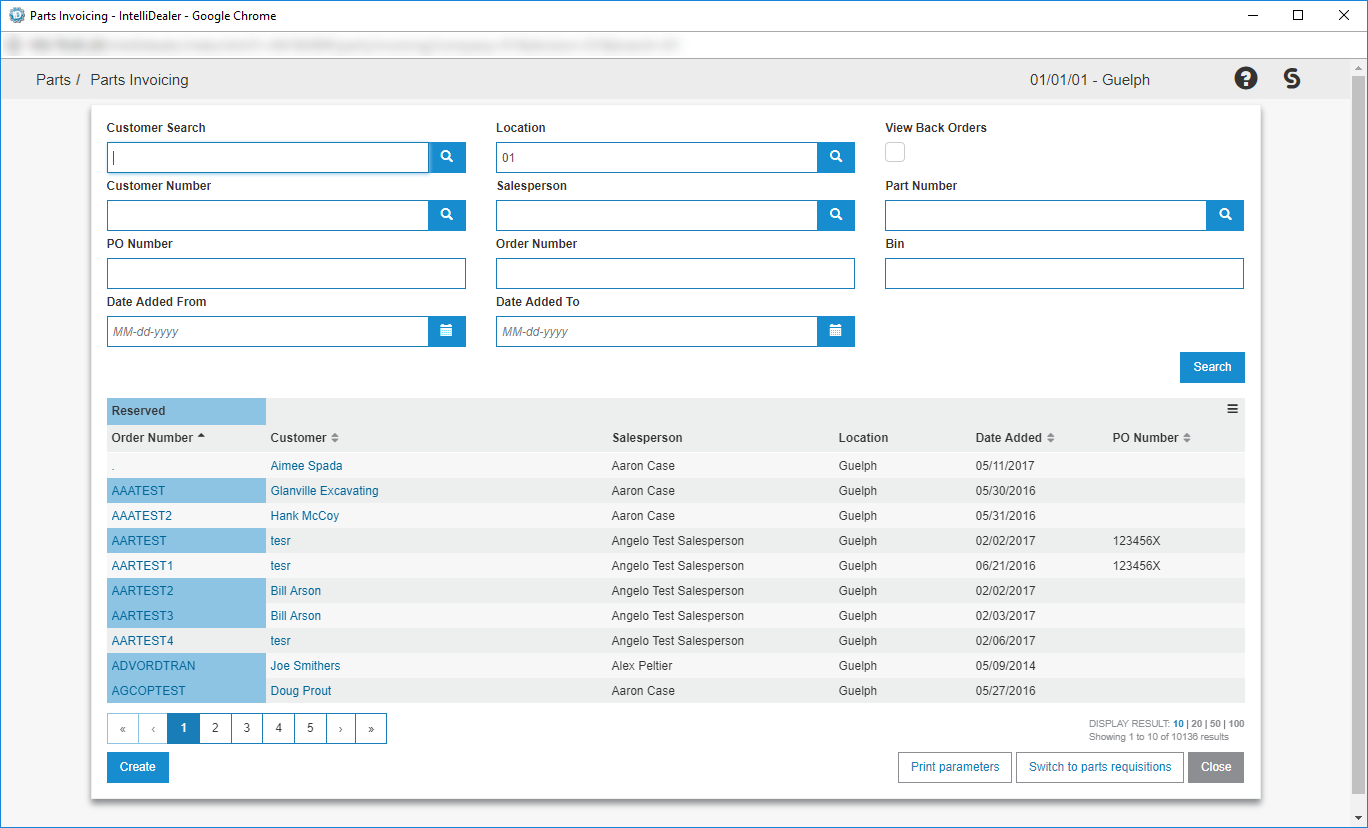
 Example NextGen listing grid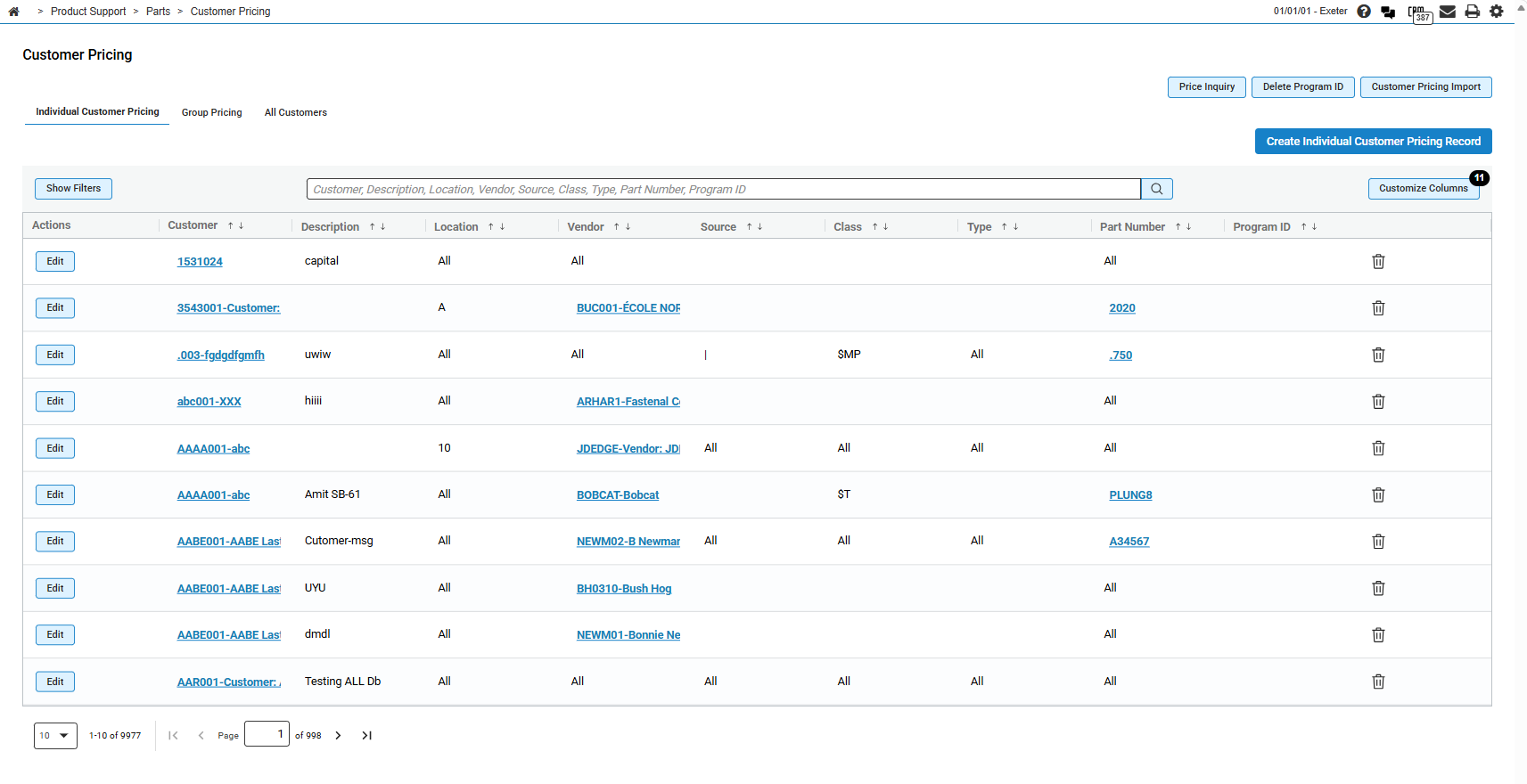
Filtering
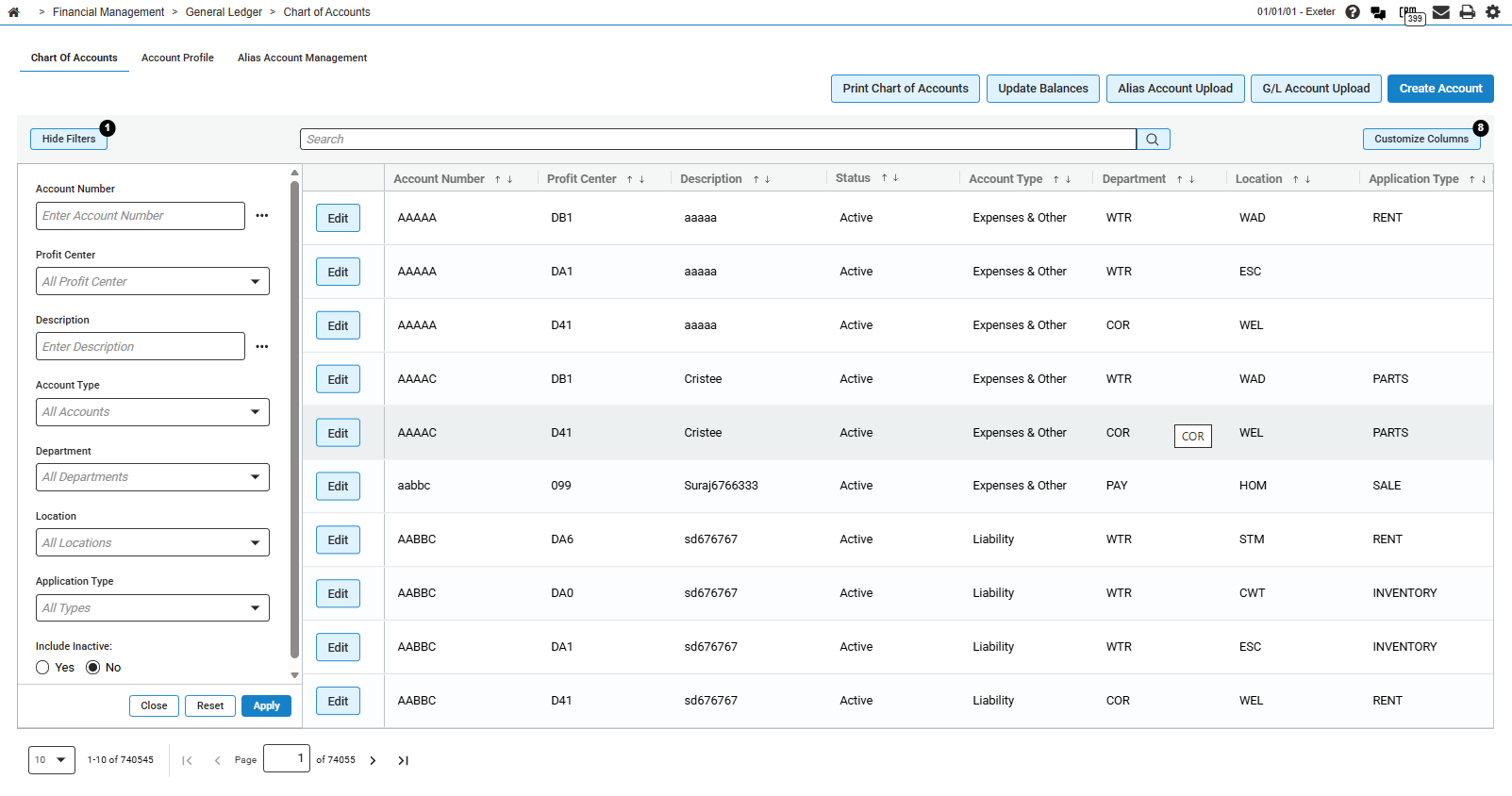
React listing screens use one or more of these filter patterns. The controls available on a screen depend on how that screen was built.
| Pattern | How it works |
|---|---|
| Filter panel |
Click Show Filters to display filter fields above the grid. Click Hide Filters to close the panel. Some screens also provide a Search box for keyword search across listing fields. |
| Column header filters |
Click the submenu icon Not every column supports filtering. |
| Side filter panel |
Click Filter to open a panel—usually on the right side of the screen—with filter fields. Apply your criteria to refresh the listing. |
| Apply and reset |
Some screens display filter fields in a dedicated panel with Apply, Reset, and Close actions. Click Apply to refresh the grid using the current filter values. |
 in a column header to filter that column. Filter options can include text match types such as Starts With, or dropdown values such as Active and Inactive.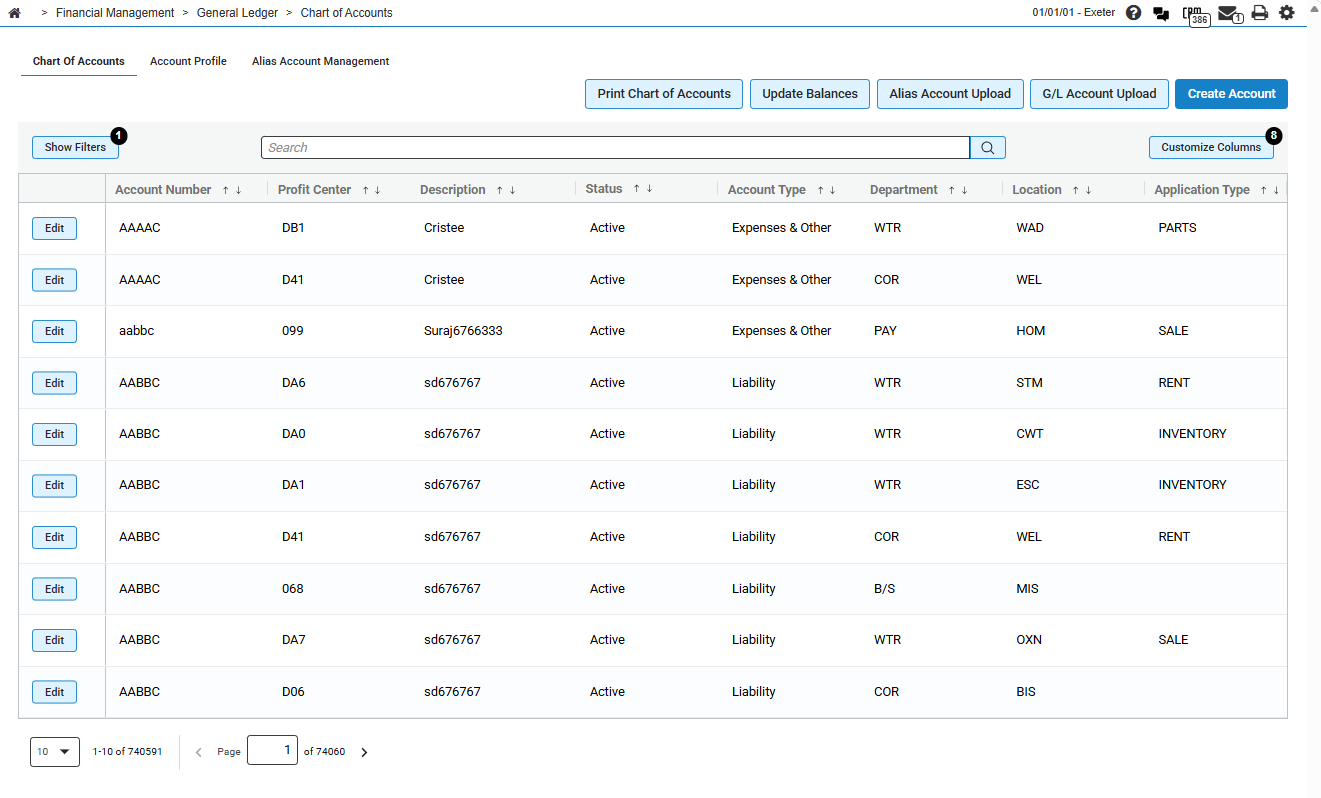
Columns and layout
On many NextGen and React listing screens, you can control which columns appear and how they are ordered.
| Option | Description |
|---|---|
| Customize Columns |
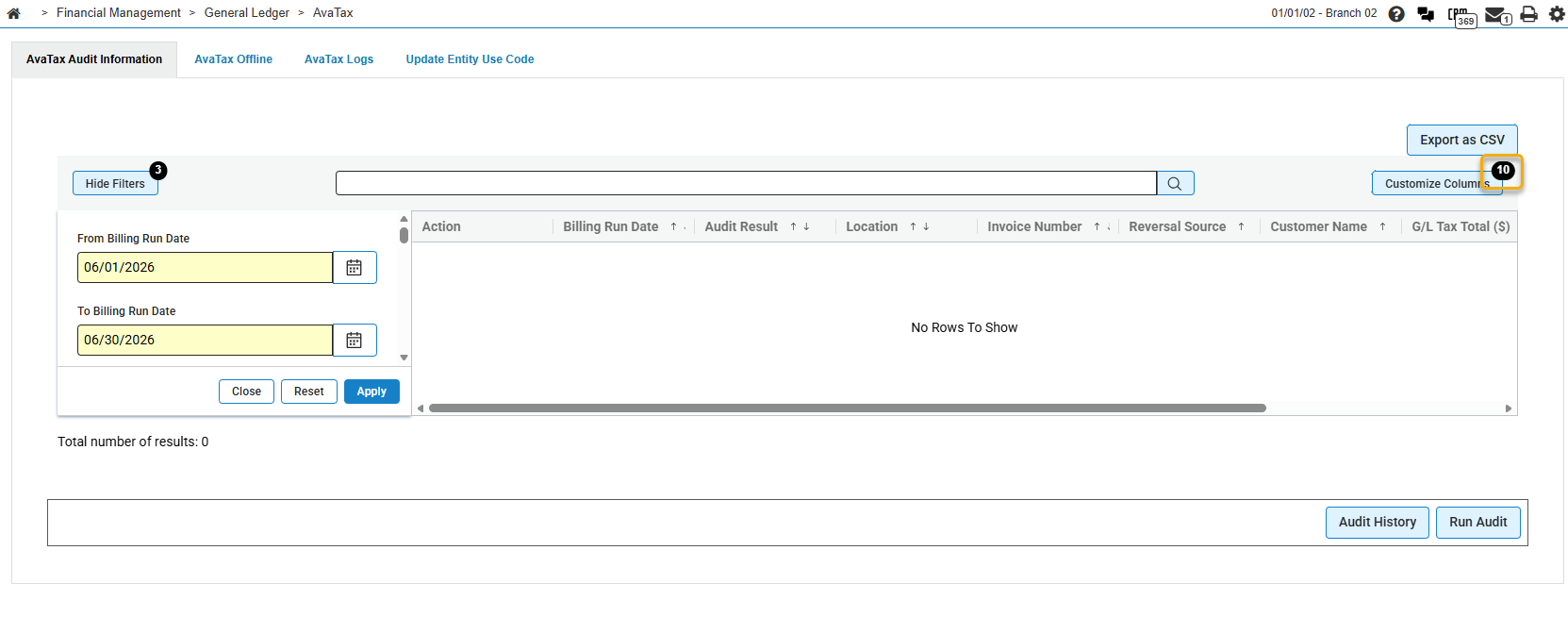
Opens a panel where you select which columns are displayed or hidden. On some screens, a numeric badge on the button shows how many columns are currently visible. Drag and drop columns in the panel to change their presentation order where supported. |
| Hidden columns | Hidden columns remain available in Customize Columns and are often included when you export the listing to CSV. |
| Export as CSV | Downloads listing data to a CSV file. Export behavior varies by screen. Some exports include all rows that match the current filters—not only the visible page—and may include hidden columns. |
Modals, tabs, and side panels
-
Modals—Many NextGen screens open create and edit workflows in an in-page modal instead of a separate pop-out window. Click Save or Cancel in the modal footer to complete or discard your work.
-
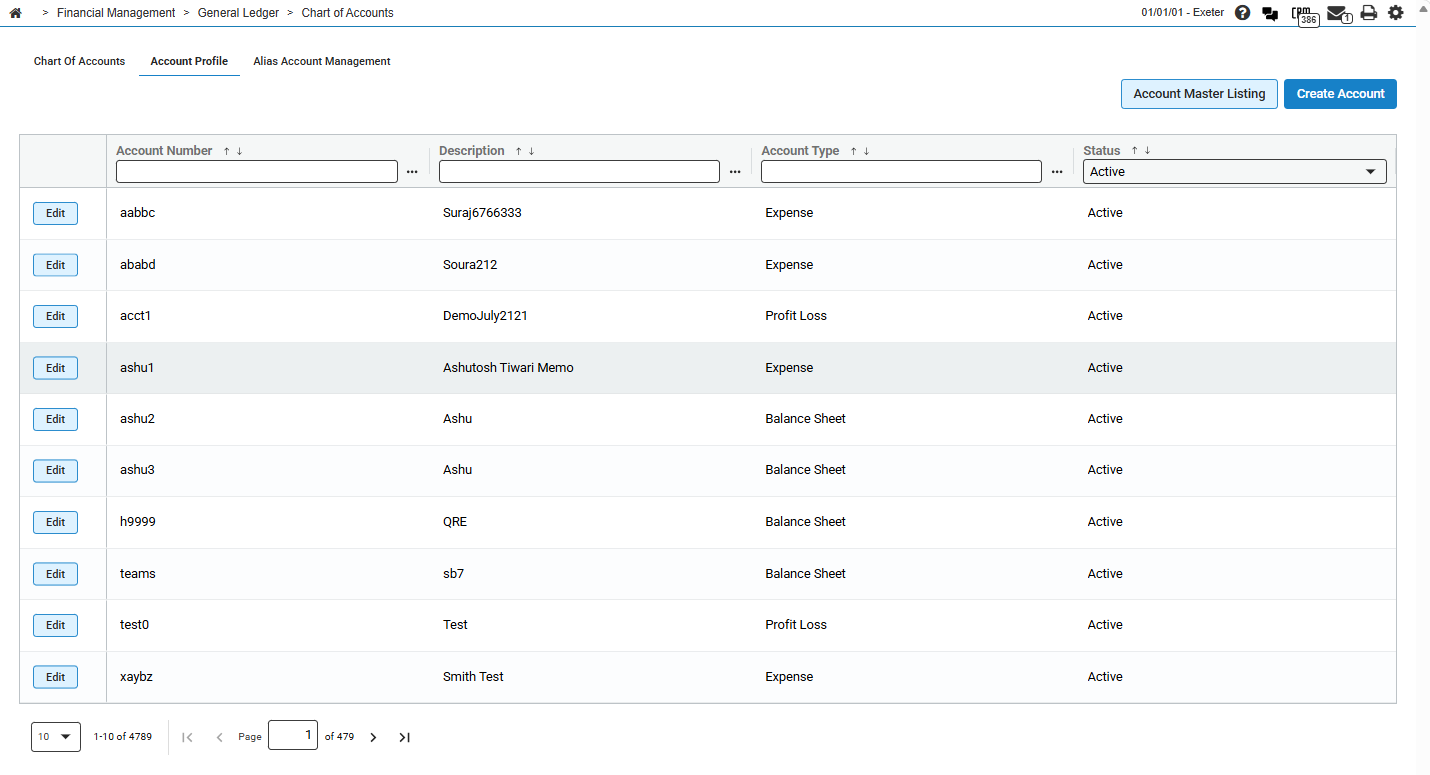
Tabs—Screens such as Chart of Accounts and Email Logs organize related listings or settings on separate tabs within one screen.
-
Side panels—Some React screens open detail, preview, or activity information in a panel beside the main content. On InspectionPlus, clicking a linked inspection number can open a generated PDF in a side panel.
Legacy Screen Elements
Legacy screens use the original IntelliDealer presentation layer. Many listing, search, and layout behaviors are documented in Listing Screens.
| Element | Description |
|---|---|
| Pop-out menus |
Some menu items open in the main window or as a separate window.
|
| Long menu lists |
Menus that open into long lists have a grey pull-down arrow for scrolling:
|
| Listing layout menu |
On legacy listing screens, the |
| Column selection (legacy) |
Click the checkbox beside columns you want to see. Use Adjust Layout and drag and drop columns to position them. Use Reset Layout to return to the default configuration.
|
| Sort indicators |
Click column headings to sort. Sort direction is shown with arrow icons: Some listing screens show a priority sort order beside column headings:
|
| Search and wildcards | Legacy search fields support % wildcard patterns. See Listing Screens for valid search patterns and the Go >> action. |
| Gear menu | On some legacy listing screens, the gear  icon includes a Base Language checkbox for toggling customized language keys. See Listing Screens. icon includes a Base Language checkbox for toggling customized language keys. See Listing Screens. |
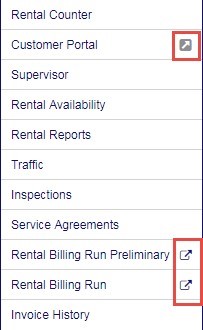
 icon indicates a choice. Click the menu label to open in the main window, or click the icon to open a separate window.
 icon indicates the window automatically opens as a separate window.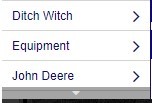
 button opens options such as Adjust Layout, Reset Layout, Export as CSV, and Columns. See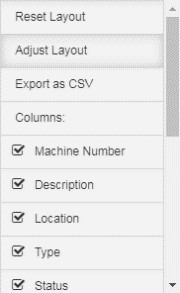
 descending,
  ascending.
Revision: 2026.09