
Changing Multiple Printer Outputs
-
From any IntelliDealer screen, move the cursor over Quick Links and select Printer Output from the pop-up menu.
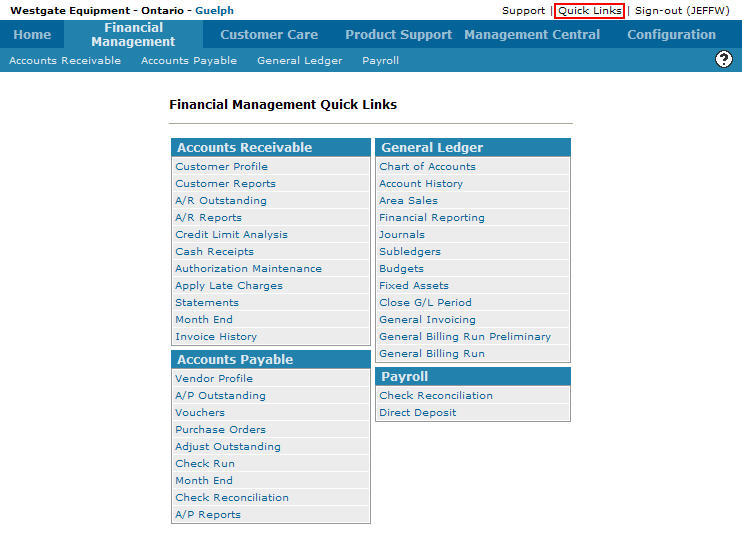
Financial Management Quick Links screen
-
The Printer Output screen will appear.
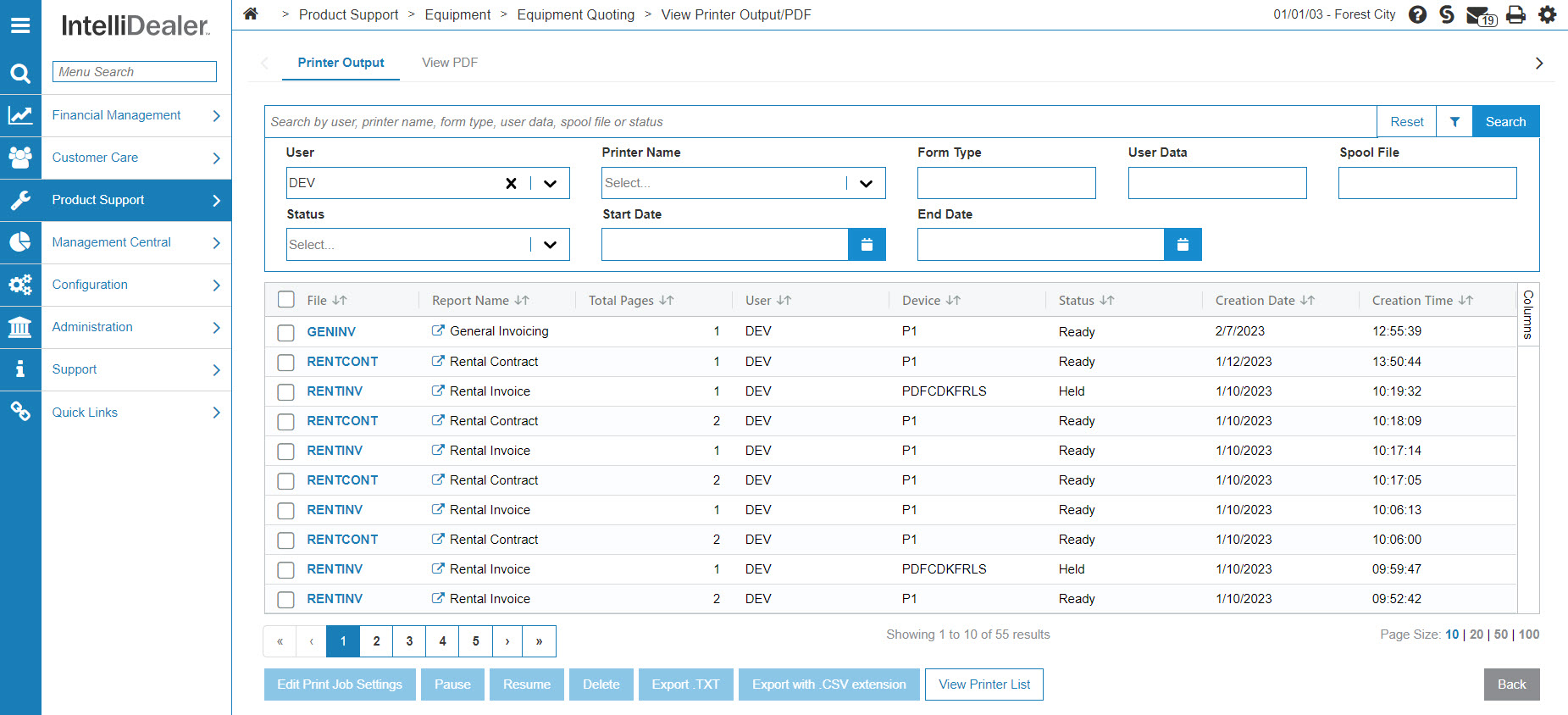
Printer Output screen
-
On the Printer Output screen, select which printer output Files you wish to change by selecting the checkbox next to the desired file.
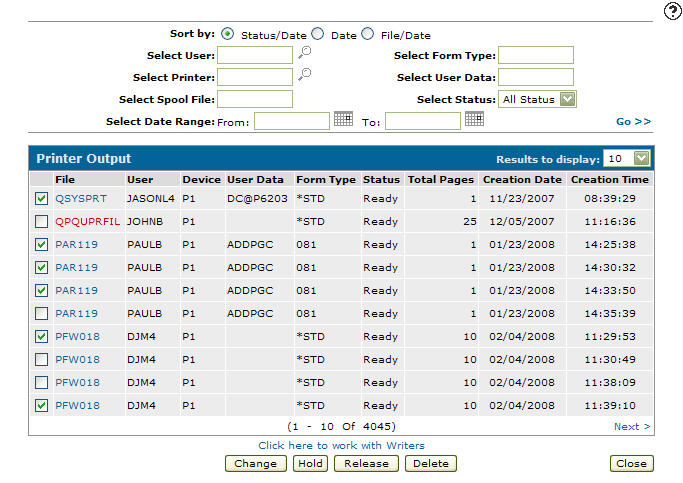
Updated Printer Output screen
-
Click the Change button, a blank Change Output Attributes screen will appear.
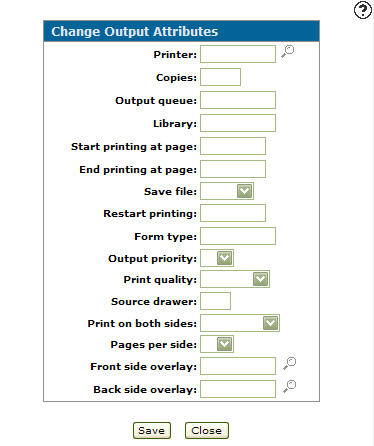
Change Output Attributes screen
-
On the Change Output Attributes screen, you may set or change any of the available printer attributes by altering the appropriate field as desired.
-
Click the Save button to save changes made to all of the selected printer output files.
- or -
Click the Close button to close the screen without saving changes.