
Topics in this section are:
Preliminary Checks
Check that the Printer can Print
Use these checks to verify that the printer is functional:
-
Turn the printer’s power off, wait about five seconds, then turn the printer on, and try printing again.
-
Verify that there is paper in the printer, that the printer is not jammed, and that there are no problems with the printer's cartridge or toner.
-
Try printing to that printer from Windows.
If these steps do not resolve the issue proceed to the next step.
Test the Network Connection of the Printer
You can use the PING command from the Command Prompt to test the ability of the source computer to reach a specified network destination. This is a simple way to verify that a computer can communicate over the network with the printer.
-
Print a settings page from your printer to obtain the IP address assigned to it.
This may change depending on your system type, see your printer's manual for information on printing a printer/system settings page.
-
Note down the IP Address which should be listed under the Network sub-heading.
 Example of TCP/IP settings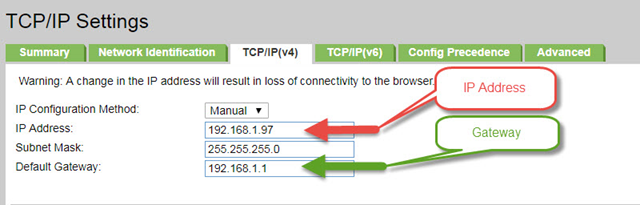
To ping the printer:
-
From your Windows PC or a PC on the network of the printer, click the Windows Start icon.
-
In the search field enter
cmd. -
Click Command Prompt.
The Command Prompt Window opens.
-
Enter
pingthen the IP address of the printer. For exampleping 192.168.1.97.If the ping command can reach the printer it will respond and you should see the reply in the command window.
If the ping command has failed it displays "Request timed out" or "Host is unreachable".
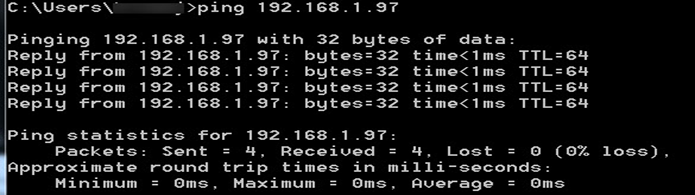
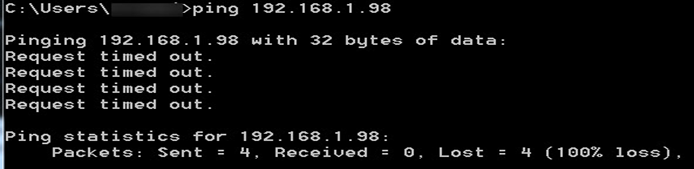
If the PING command does fail then the issue may be with the IP address or another network problem.
Check the hardware:
-
The device may require a power cycle. Try switching the device off and then back on again. The device that you are trying to communicate with may require to be switched off and then on again before the IP address you set is accepted.
-
There is a possibility that there is a problem with the cabling, if there is another device on the same segment of cabling that uses TCP/IP, see if you can communicate with that device using the PING command. If you can, then it is a card related problem, if you can't, there is a good possibility that there is something wrong with your cabling.
-
The device that you are attempting to communicate with is on the other end of a router/gateway.
-
If the device is not physically attached to the segment of cabling that you are using, check to see if you have to specify a gateway address.
-
Verify the gateway is the correct IP address.
Troubleshooting a Replacement Printer
Use these troubleshooting steps when a replacement printer doesn't work with IntelliDealer.
-
Check that the printer's connection is hardwired to the network. All networked printers must have a hardwired connection.
-
Check that the printer's default gateway settings are correct by comparing them to another printer's default gateway settings.
To troubleshoot the default gateway settings:
-
Find a Printer that is already working with IntelliDealer.
-
Make a note of the default gateway settings.
-
Compare the default gateway settings with the ones set for the replacement printer.
-
If required, update the replacement printer's default gateway settings to match those of the printer that is already working.
-
-
Provide the printer's ID to VitalEdge Support so they can verify it and perform further troubleshooting.
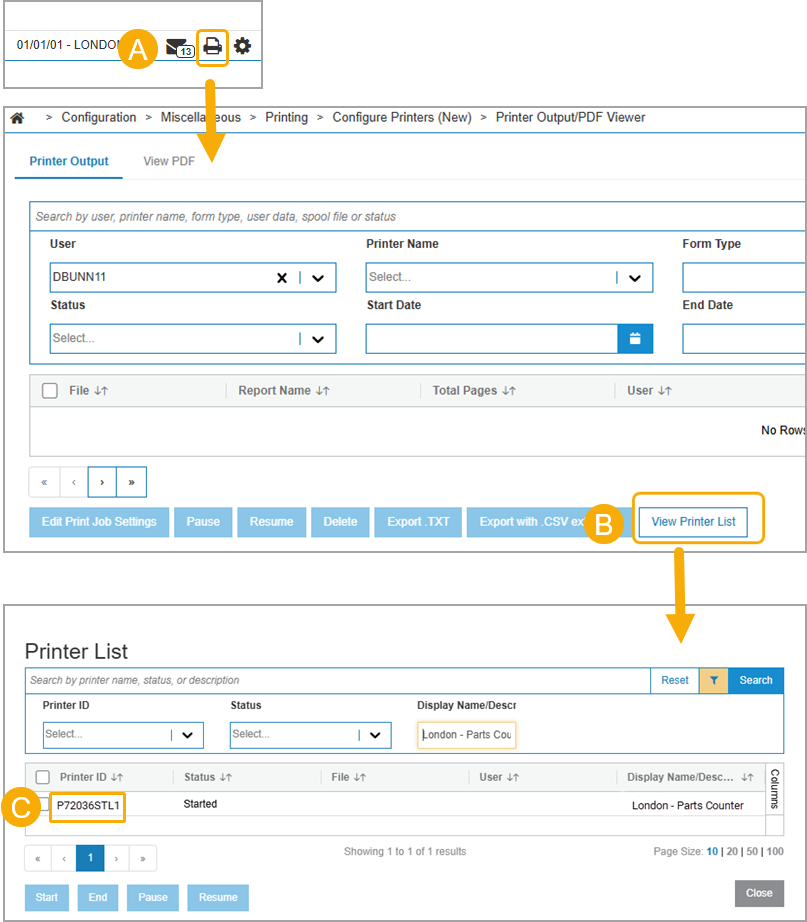
To find the ID (for example, P72036STL1) of the replacement printer in IntelliDealer:
-
Click the Printer
 icon
icon -
Click View Printer List.
-
Use the filters (for example, Display Name/Description = 'London - Parts Counter') to search for the printer and make note of the Printer ID.
-
Before Contacting Support
To expedite the support process, when contacting VitalEdge support please have the following information to hand:
-
Site CMF#
-
Printer's location (city, state)
-
Printer's name (for example, P72002GGG1)
-
Printer's local IP address
-
Printer's IPv4 gateway
-
Results from your troubleshooting
Revision: 2026.06