
IntelliDealer Tips and Tricks
Many dealerships only scratch the surface of IntelliDealer's many capabilities. By leveraging some often-overlooked features and small configuration tweaks, teams can improve efficiency and reduce manual work across parts, service, and equipment departments. This section provides a deep dive into some quick wins, high-return configuration updates, and process shortcuts that are easy to implement and deliver tangible benefits.
Topics in this section are:
Quick Wins
These IntelliDealer features are quick to setup and can yield an immediate improvement in workflow:
-
Enable Parts Highlighting and Parts Requisition Highlighting rules to give your team a quick visual cue of potential parts issues.
-
Adopt the PicPak Process for parts delivery. The PicPak process improves parts accountability: no more confusion over whether a customer already picked something up, and less risk of billing mistakes.
-
Log Lost Sales and Use the Data. A part with multiple lost sales shows up in reports and can be considered by the system as future demand, to be considered during demand forecasting. Accurate data means a better forecast, allowing you to capture future sales you might otherwise miss. Dealers who enforce lost sale logging often see their fill rates improve over time because the system learns what it should carry.
-
Turn on MyDealer customer portal. MyDealer lets your customers shop for parts online and manage their account with you. This self-service option reduces the manual workload of your parts department, and can lead to an increase of sales because customers can conveniently order after hours or check stock before driving over.
Configuration Updates with High ROI
Investing time in your IntelliDealer setup – whether it’s implementing an underused module, integrating with external systems, or adjusting a few key settings – pays back through smoother operations. By letting the system handle routine tasks and enforce standards, your people can focus on exceptions and work that adds value.
Some IntelliDealer configuration settings or modules may require a bit of effort to set up initially, but once in place, they yield outsized returns in efficiency and accuracy. Consider these high-impact configuration updates:
-
Service Scheduling—IntelliDealer's built-in Service Scheduling tool provides a real-time, integrated calendar for all your work orders and technicians. You can drag and drop jobs onto technicians’ schedules, reassign work on the fly, and see immediately who is booked and who is free.
-
Use and tune suggested order parameters for parts—IntelliDealer can generate suggested stock orders based on your Order Formula Codes (OFC) and min/max settings. Investing time in OFC table updates and then trusting the system’s suggested orders can greatly reduce the manual effort in ordering. By configuring seasonality flags, vendor lead times, and order cycles, the Suggested Order generation can produce very reliable orders.
To maximize the potential of this powerful tool you must first configure it correctly and then maintain it regularly by:
-
maintaining the OFC code table, so parts get classified correctly as stock vs non-stock based on sales
-
setting up the order schedule to have IntelliDealer auto-run stock orders for each vendor at the desired frequency
These tasks take far less time than manually building every parts order from scratch, saving hours of work. The ROI is both in time saved and in higher fill rates (meaning more sales) because your ordering becomes systematic, and data driven.
Related links:
-
-
Enable Original Equipment Manufacturer (OEM) integrations—such as ordering, warranty, or telematics. If you’re an OEM-affiliated dealer, IntelliDealer likely offers a suite of interfaces for your brand.
-
Configure Automated Emailing of Documents—you can set up IntelliDealer to directly email invoices, statements, or purchase orders to customers or vendors based on automatic triggers. This is a much faster and more accurate process than printing and sending a physical copy or even generating a PDF and manually attaching it to a message. Intelligent use of automated emails reduces administrative workload and improves communication reliability – a high ROI combination.
Check your system settings to ensure email servers are configured and templates for the text that accompanies an invoice are set up. This is usually a one-time setup by your IT or provider, but once done, it’s largely hands-off.
-
Tweak Security and Work Flow Settings to Prevent Errors—some simple configurations can save a lot of cleanups. If you identify an area where errors frequently occur in your dealership, check if IntelliDealer has a configuration option to address it. Often, it does. These kinds of configurations tighten the process and automate oversight, reducing the need for someone to manually catch mistakes after the fact. The ROI is less time fixing problems and more consistent data. Some examples are:
-
For Parts, you can disable the Allow Negative Quantities on Requisitions security setting to disallow negative on-hand quantities. When disabled, the system blocks users from invoicing a part that isn’t in stock (or at least warn strongly), forcing staff to receive it or handle the discrepancy first. This one change can prevent the inventory inaccuracies and manual adjustments that come from negative stock situations.
-
In Service, there are settings to require certain fields or enforce processes. For example, you can enable Cause Mandatory and Correction Mandatory to ensure technicians enter proper notes or force review of work orders that are open too long. These don’t necessarily reduce data entry, but they reduce the manual follow-up and rework that happens when things slip through cracks.
-
For Equipment deal flow, making sure that whole good sales always follow the quote > deal > invoice process in the system rather than side-steps. You can configure mandatory quote approval work flows for deals above a certain amount, which, while an extra step, prevents manual corrections later if something was priced or booked wrong. See Margin Worksheet Overview.
-
Reducing Manual Data Entry Across Departments
Manual data entry is not only time-consuming, but also error-prone. IntelliDealer provides tools to automate data capture and eliminate duplicate entry; using them can significantly speed up work flows and improve accuracy.
By systematically attacking manual entry points, you’ll not only accelerate operations but also reduce errors (since data flows through system logic). Technicians entering their time directly are more likely to be accurate than an admin typing handwritten notes. Scanners don’t hit the wrong key the way humans might. And when a process is integrated end-to-end, you don’t lose information between hand-offs. The overall impact is a faster, leaner operation: invoices get out quicker (and cash in faster), staff have more capacity for customer-facing work, and your data is more reliable for decision-making.
Here are ways to reduce typing and re-typing information:
-
Wireless Inventory Control—IntelliDealer supports wireless parts receiving and inventory scanning. With a compatible handheld device, you can scan part barcodes to receive a shipment or count inventory, and the quantities go straight into the system. For daily parts sales, consider barcode scanners at the counter – scanning the part tag or bin label is much faster and more accurate than typing part numbers (especially when some OEM part numbers can be 10+ characters of mixed letters and digits). Implementing wireless receiving reduces discrepancies and speeds up processing times. Similarly, scanning during cycle counts means more frequent counts are feasible, boosting accuracy.
-
Use MobileTech and ID InspectionPlus for Service and Rental—using IntelliDealer mobile solutions like MobileTech for technicians and InspectionPlus for digital inspections can cut out a ton of manual data transcription. With MobileTech, a technician can clock in/out of jobs, add notes, and even record parts used on a mobile device while in the bay. Those entries go straight into the work order in IntelliDealer, so the service admin no longer has to decipher and re-enter handwritten timecards or bench notes. The same goes for inspections: using InspectionPlus or a tablet-based inspection checklist means the results (checkmarks, photos, recommended repairs) are digitally captured and can flow into a work order or customer report without someone retyping an inspection form. These tools drastically reduce double entry – the tech’s input becomes the system record.
-
MyDealer —getting customers to input their own requests reduces internal entry. Going beyond parts orders, you could also use web forms or create a portal for customers to request service appointments or quote requests for equipment. If you feed that into IntelliDealer (even as an email alert or a lead entry), it saves the step of an employee taking that information over the phone and typing it in. MyDealer can also integrate OEMs so customers can use the online parts catalogs (IPC) that integrate with IntelliDealer reducing mis-entries and speeding up the quoting and ordering processes.
-
Avoiding Duplicate Entry between Departments—IntelliDealer lets information flow from one department to another:
-
Converting equipment quotes to a deal and then to an invoice in IntelliDealer carries all that data forward, updating inventory and financials automatically. Ensure your sales process uses the system’s deal workflow rather than off-system documents that later must be keyed in for accounting. See Converting an Equipment Quote to an Equipment Invoice.
-
Using parts requisitions on work orders. Technicians or service writers can add parts requirements to the work order (Assigning Parts to a Work Order) or through the Parts Requisitions screen, which alerts the parts department to pick them. The parts department can then simply fulfill and invoice to that work order with a couple clicks – no redundant data entry of the part number and job number because it’s already linked in the system.
-
IntelliDealer can convert equipment orders or import OEM order files to avoid manually typing the model, serial number and so on for new equipment. For example, the John Deere Complete Goods interface can create equipment records from the OEM order. Or you can use the Equipment Defaults and Equipment Models tables to auto-fill common information when adding a new unit to reduce data entry.
-
-
Use Task Tracker for things that happen regularly—Task Tracker is like an internal to-do list in IntelliDealer that you can use to set reminders. Using internal automation and notification tools can replace sticky notes, spreadsheets, or separate calendars – consolidating work inside the system where it can trigger actions or at least pop up when needed.
Process Shortcuts and Under-used Features
IntelliDealer has a lot of small conveniences that can make daily work flows easier. Adopting these as standard practice in your dealership can save clicks, prevent mistakes, and generally streamline operations. Here are some worth noting:
-
Use Copy Functions for Repetitive Work—IntelliDealer is designed to reuse data where possible. Many IntelliDealer screens let you copy an existing record to create a new one.
For example, if you have a complex work order for a common job (say a 500-hour service on a certain model tractor), you can use it as a template. Copy that work order (using the Add/Copy Segments screen) to a new one, and it brings over all the job segments, labor descriptions, etc. (you might need to close it first, or use the quote to work order conversion, depending on scenario).
Similarly, you can copy an equipment deal/quote (using the Copy Quote screen) to a new customer if you’re giving two customers quotes on a similar machine – no need to build it from scratch twice.
For parts, if you frequently create similar purchase orders, you can copy a prior purchase order (using the Create Purchase Order/Copy Purchase Order screen) and just update the quantities.
The Equipment Profile and Parts Profile screens have copy functions to replicate configurations or entire accounts for new entries. These shortcuts are huge time-savers and reduce the chance of forgetting details. Even copying something as small as a parts kit (a group of parts) instead of re-selecting each part can turn 5 minutes of entry into 30 seconds. Over a year, that adds up.
-
Exploit Data Miner (and Excel) for Analysis—Data Miner reduces manual data gathering. Instead of manually compiling data (like scanning a report and then typing numbers into Excel), often Data Miner can pull that directly. You can select exactly which fields you need from various tables and save those queries for reuse giving you one-click results.
Also, just about any screen with a list in IntelliDealer can be exported to Excel (either via a built-in Export button or by printing to a CSV format).
-
Use Executive Summary Widgets—the Executive Summary can be configured to show live data widgets that include links that bring you to the full information screen. Setting these up is relatively easy. There are pre-built widgets, and you can adjust thresholds for color coding.
By tailoring the dashboard to each role (parts manager sees inventory turns and top stock outages, service manager sees WIP hours) you enable your team to jump directly to their priority tasks with one click. Configuring the dashboard to your needs creates a custom cockpit for your staff, guiding them where attention is needed without manual digging.
-
Enforce IntelliDealer as the Source of Truth— discourage your team from maintaining parallel records in Excel, on notepads, or on whiteboards. Often, these shadow systems exist because people find a task in IntelliDealer cumbersome or didn’t know a feature existed. To retire the manual workaround, train them on the IntelliDealer feature or create a shortcut for them. Consolidating data and processes into IntelliDealer means everyone sees the same information and no effort is wasted on maintaining separate files.
For example, a rental manager might be keeping an Excel sheet of where each rental unit is – but IntelliDealer’s rental availability and yard location features do that. Or a parts person might keep a notepad of customers who need to be called when a part arrives – IntelliDealer has a backorder fill function that prints a “notify customer” list, and you can even automate an email or text to the customer on receipt if set up.
-
Small but Mighty Tricks that can save time:
-
Global Search Bar—most listing screens include a search bar at the top. Use it to find anything by keyword – a customer name, a part number, an equipment serial.
-
Wildcards and Filters—on listing screens, use the filter options with wildcards to quickly locate what you are searching for.
-
Right-click to open in new tab—when working between two screens (say, needing to check a customer account while in the middle of a parts invoice), you can often right-click a menu item or link and open a second IntelliDealer tab. It mimics multi-tasking, so you don’t have to close one screen, lose context, then come back.
-
Online Help—IntelliDealer has context-sensitive help by clicking the help
 icon on a screen. Teach staff to first check the built-in help for the screen they’re on to reduce confusion and help them learn to use features properly (and discover new ones). The help often includes step-by-step usage and tips for that function.
-
 Example of Executive Summary widgets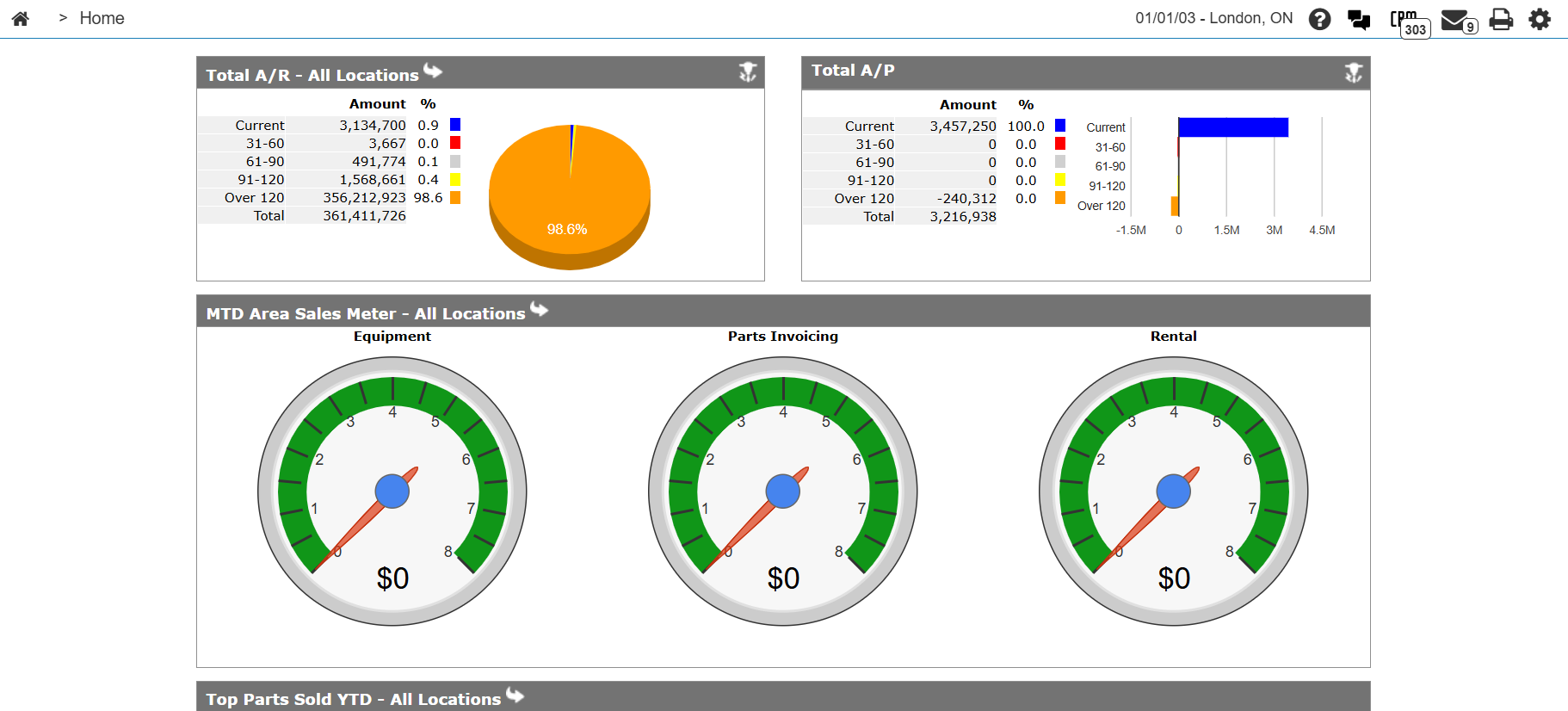
Revision: 2026.03