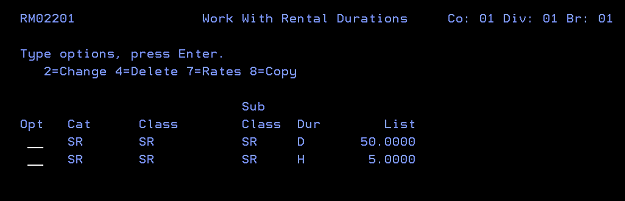
Description: How to update rental rates for multiple branches at one time using the master rates option
Solution:
From menu PFWS01:
9 Rental Fleet Management > 20 Rental Counter Menu > 20 Related Systems > 14 Rental Cat/Class Maint
The secret is when you modify the master rates (option 14) it will only update the rates in the specific branches if the existing values before the modification were the same.
Here is an example:
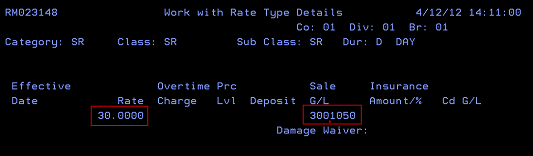
In this case we are looking at the specific rate type details for SR/SR/SR in 01/01/01 where the rate is $30.00 with a sale account of 3001050.
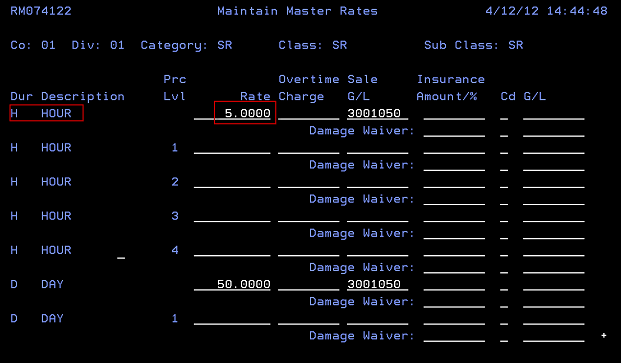
Here is the master rate screen for SR/SR/SR:
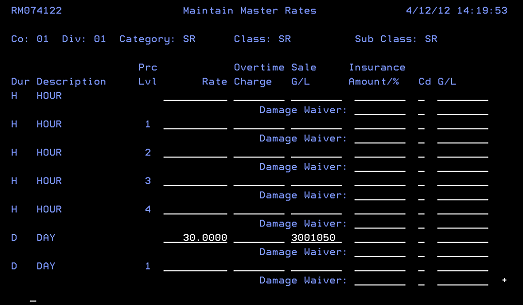
The system will prompt you for what branches this is will be affecting, you can either select a specific branch or AA for all branches. <F2> to continue the update.
Here is the rate type details screen again for SR/SR/SR in 01/01/01 showing the rate of 50.0000.
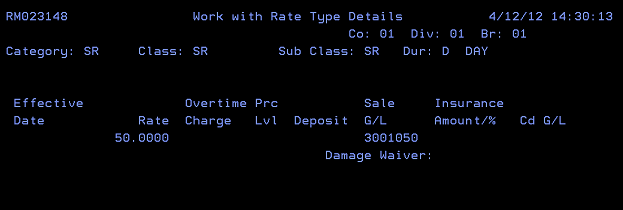
If the rates in the rate type details screen are different than the master rates, then when the master rates are modified the rate type details screen will not be affected even if that branch is selected. The other fields (sale G/L / deposit / ect.) work the same way.
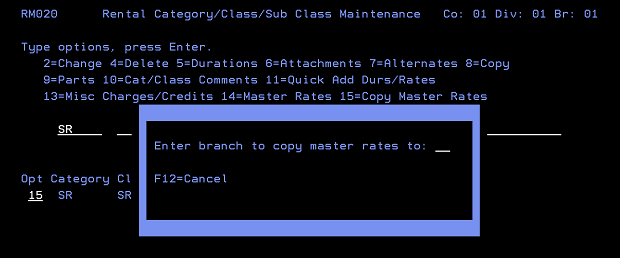
The copy master rates option (15) from the rental category/class/sub class maintenance screen will only update the rate type details screen for a specific branch for durations that don’t currently exist for that branch. The copy option adds them and uses the master rates for the details. This is typically used during initial setups.
In this example the master rates screen for SR/SR/SR shows a rate for the hour duration:
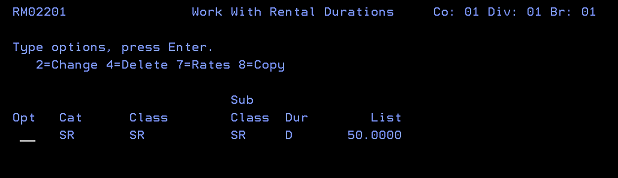
The work with rental durations screen for SR/SR/SR in 01/01/01 currently has no hour duration configured:
When taking the option 15 to copy master rates it will prompt you for the branch:
Now the work with rental durations screen for SR/SR/SR in 01/01/01 shows the hour duration.