
Configuration: Text Connect
Text Connect allows you to review and record text messages between users and clients. To use this feature, you must be licensed for PFW.6267 Text Connect.
Note: For dealers transitioning from Text Connect to VitalEngage Text, if both features are enabled, the system defaults to using VitalEngage Text.
Topics in this section include:
Setting up the SMS Alerting Option
Prerequisites:
-
The dealer must have purchased Text Connect and be licensed for feature 6267 Text Connect
-
The location must have phone lines provisioned for texting.
-
Navigate to Configuration > Interfaces > Text Connect.
-
Click Create.
-
Fill in these properties:
-
Enterprise Information System Location ID—the IntelliDealer ID is a registered CDK Text Connect EIS number. Contact VitalEdge support to obtain this number.
-
Alert Phone Number—the number to be used for outgoing Alerts. Each branch or IntelliDealer user can have a phone number provisioned. The provisioned number appears as the "from" number on cell phones so a local number is recommended.
-
Location—select the location you wish to use from the drop down. Location is mandatory when no IntelliDealer user ID is specified. Location is optional when specifying an IntelliDealer user ID.
-
IntelliDealer User ID—select the ID of the IntelliDealer user from the drop down or type it in. User ID is mandatory when no location is specified. User ID is optional when specifying a location.
-
-
Click Test EIS Connection.
A message displays at the top of the screen indicating either success or providing an error message with possible fixes.
-
Click Save to save your changes or Save & New to save your changes and enter another configuration.
Screen Description
The search filters on the Text Connect configuration screen are:
| Field | Description |
|---|---|
| Enterprise Information System Location ID | The registered CDK Text Connect EIS number. |
| Alert Phone Number | The number used for outgoing Alerts. |
| Location | The location. |
| IntelliDealer User ID | The User ID. |
| IntelliDealer User Name | The User's name. This field auto fills after entering the User ID. |
Click the pencil icon at the right of an entry to open the edit module.
 Editing a Text Connection configuration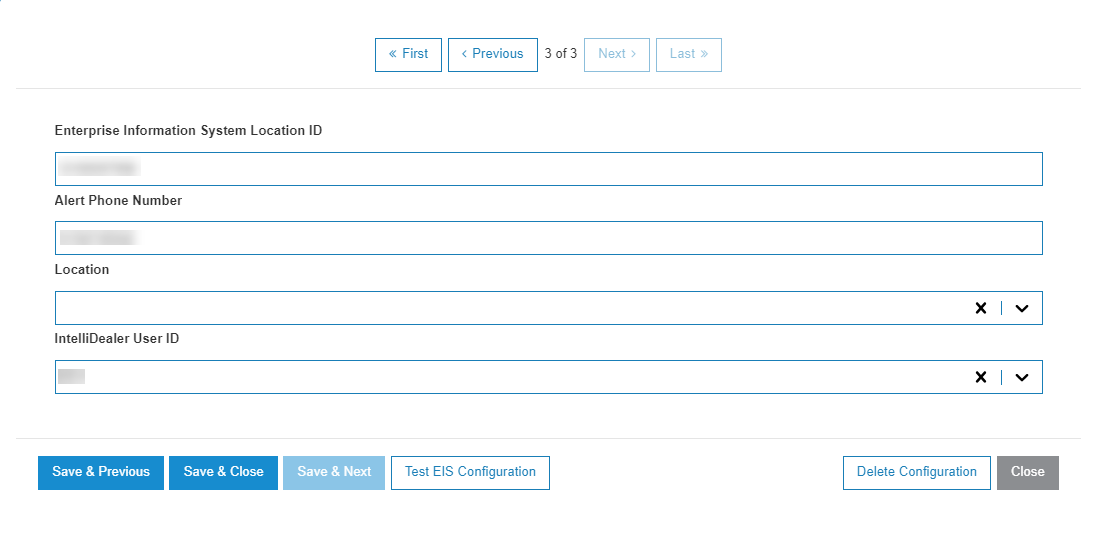
Security: 999 - Configuration, Interfaces
Revision: 2026.06