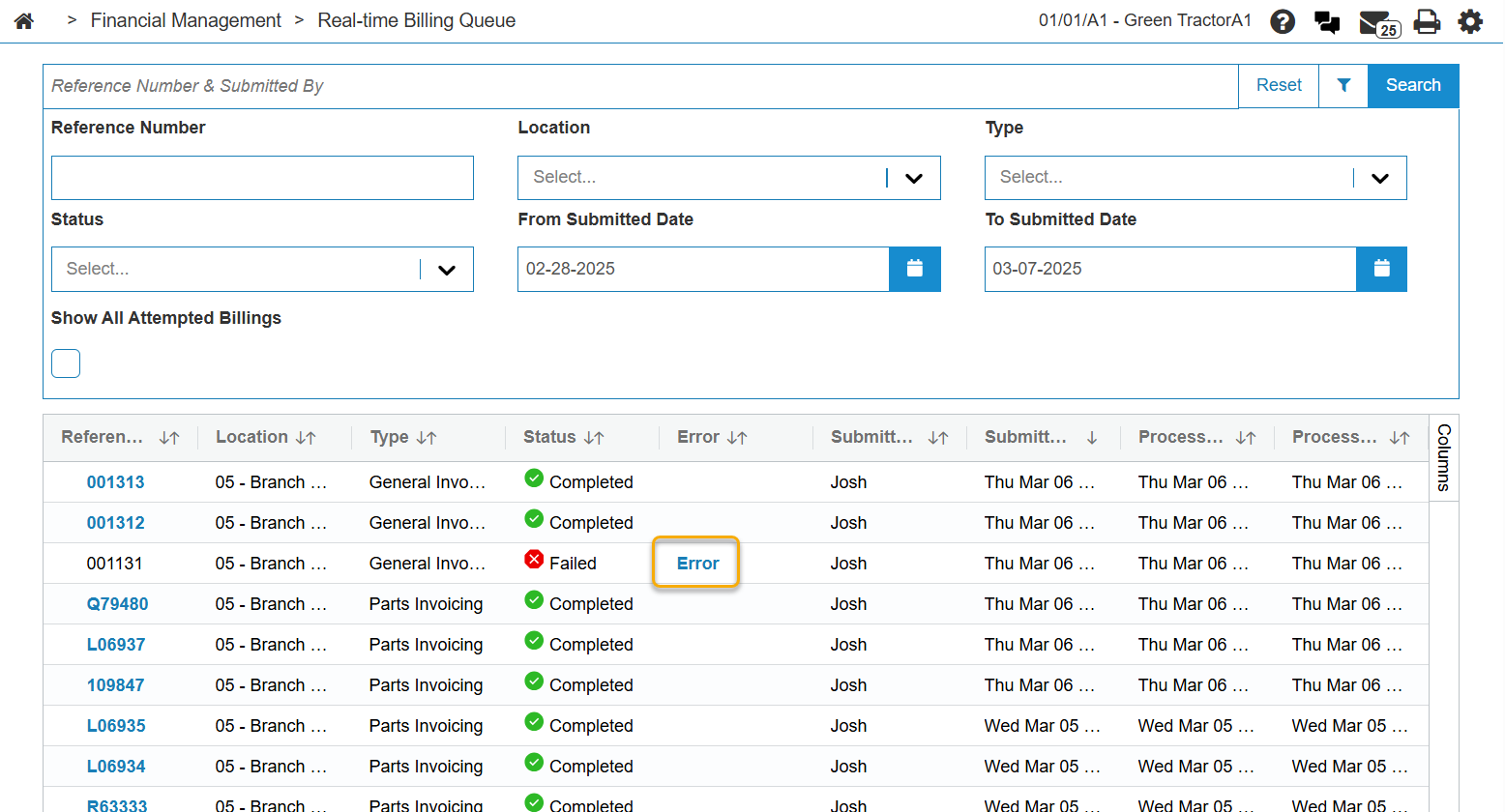
Real-time Billing Queue
The Real-time Billing Queue lists the Real-time Billings that have been submitted. For details on a specific billing, click a Reference Number and the Data Portal screen opens showing the reports for that billing. Note that only successful billings are linked. Unsuccessful billings have an error message listed.
There is a trigger to purge the billing queue called Real-Time Billing Queue - Purge Completed/Failed Weekly - Trigger. By default it is configured to run weekly to purge any Completed or Failed jobs that are older than two months. You can modify the default by navigating to Administration > Settings > Batch Jobs then searching for the trigger and opening it for edit. See Job Scheduler: Batch Jobs for details.
 The job details for the Billing Queue Purge trigger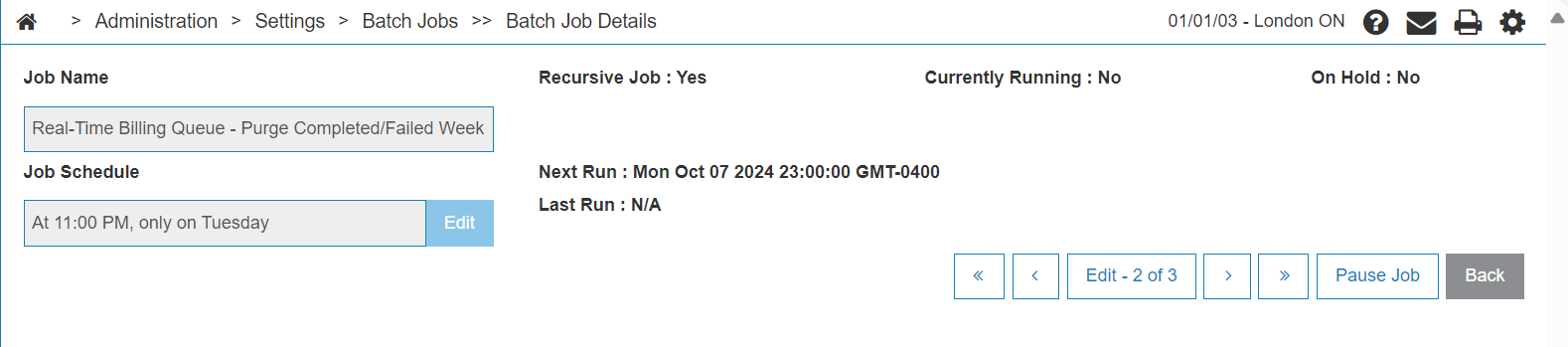
To view the Real-time Billing Queue, navigate to Financial Management > Real-time Billing Queue.
Topics in this section are:
Security Prerequisites
You can enable real-time billing for a location, or for only a few users at a time, allowing you to control the roll out of this feature in your dealership. For instructions see Real-time Billing System.
Screen Description
Click the Filter button to open a right-side panel displaying these filter fields:
| Field | Description |
|---|---|
| Reference Number | The unique number of the billing to search for. |
| Location | Select the location in which to search. |
| Type | Select the type of billings to search for. |
| Status | Select the status of billing to search for. |
| From Submitted Date | Search for billings from this submission date. |
| To Submitted Date |
Search for billings up to this submission date. |
| Show All Attempted Billings | Select this checkbox to include billings that were attempted but did were not successfully submitted. |
The fields on the Real-time Billing Queue screen are:
Note: Date and time values in Submitted Date, Processing Start, Processing End, and Next Retry After are displayed in server time.
| Field | Description |
|---|---|
| Reference Number |
A number uniquely identifying the billing. For successfully processed invoices, this number is a hyperlink that opens the Data Portal displaying the related reports. For Rental invoices, hover over the hyper link and chose one of:
|
| Location | The location that originated the billing. |
| Type | The type of billing. |
| Status |
The status of the billing. Can be one of:
|
| Error | Click the link to see the error description in full. See Error Details. |
| Submitted By | The name of the user who submitted the billing. |
| Submitted Date | The date and time the billing was submitted (server time). |
| Processing Start | The date and time the job starts running from the queue (server time). |
| Processing End | The date and time the job ends (server time). |
| Billing Date | A user-selected date for when to bill the invoice. |
| A/R Date | The current month end that is open. |
| Printer | The printer assigned to print the billing. |
| Invoice Printer | The invoice printer assigned to print the billing. |
| Billing Output |
The output of this billing, as determined at the time of billing the invoice. |
| Print Format | The format of the print output. For details on the formats, Printing Parameters. |
| Next Retry After | The date and time after which the billing will be retried again automatically (server time). |
| Number of Retries | The number of times this billing has been attempted. |
Error Details
Billing runs that generate an error are listed in the Real-time Billing Queue list with an Error link.
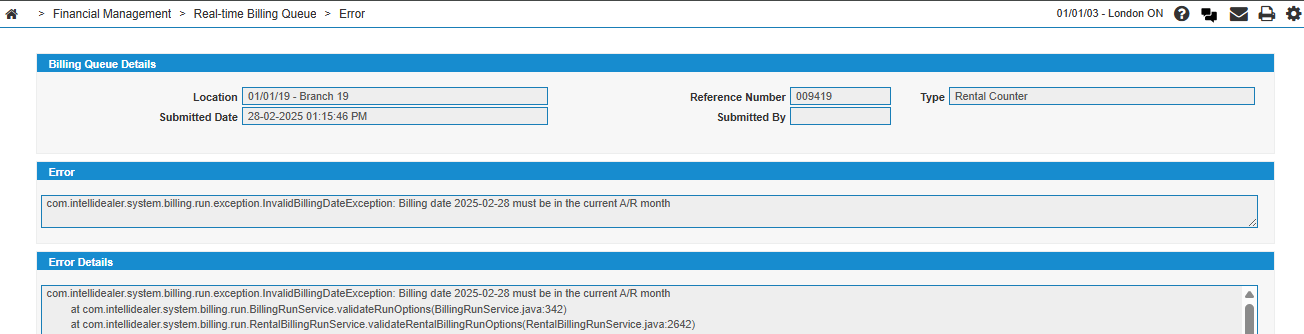
Click the link to display details for the error and the full stack trace. If, under the Error column, you see the message "No Transactions Found", it simply means that there was nothing to bill in the context of the run.
Click Copy All Fields to Clipboard to copy the content of the error so it can be saved in a file or sent in an email to support.