
Month-End and Year-End Procedures
Use this guide as a checklist and reference of procedures you must perform when closing out a month or year. Dealers using Real-time Billing should also read Month-End timing and Real-Time Billing before following the checklists below. The important dates for regarding month-end procedures are:
-
Month-End Tasks—performed on the last day of the month
-
Month-End Wrap up Tasks—performed 7 to 10 days in to the new month
-
Year-end Tasks—performed for the last month-end of the year
Warning: Once a month end is closed, it cannot be reopened. This includes Accounts Receivable, Accounts Payable, General Ledger, and Parts month ends. Do not close any month end until you are certain of the details of each transaction in the month.
Month-End timing and Real-Time Billing
Most of this guide assumes that invoicing is finalized during the day and that accounting updates from legacy billing runs complete in a scheduled window (typically overnight) before you run month-end reports and close Accounts Receivable (A/R). If your dealership uses the Real-time Billing System, timing works differently.
With Real-time Billing, accounting, inventory, and related sub-ledgers update as soon as an invoice is billed. Invoices created through this process display code T in the invoice header. Activity continues throughout the business day; billings also appear on the Real-time Billing Queue with status, submitted date/time, and processing timestamps.
How month-end differs for Real-time Billing dealers
-
Billing completion—Instead of waiting for a nightly billing run, before you close A/R confirm that:
-
intended invoices are billed (header code T where applicable)
-
the Real-time Billing Queue has no billings still Pending or Processing
-
Failed items are resolved or retried
-
Recurring general and rental invoices may still use a scheduled billing job; verify those jobs have completed successfully as well.
-
-
Reconciliation reports—Reports such as the Equipment Balancing Report, Equipment Inventory Summary, and Parts Inventory Summary Report reflect live sub-ledger balances. During business hours, especially at larger dealerships, new billings can post while a long report is running, so totals may not match General Ledger at a single instant. To maximize the accuracy of these reports:
-
plan to run these reports during a quiet period
-
run them as close together as possible
-
repeat them after billing activity slows
-
-
Statements—Print Accounts Receivable Statements captures balances at the time of printing. If you print statements during the day, balances can include invoices billed minutes earlier through Real-time Billing. This is expected behavior and differs from month-end under legacy billing runs, where most posting often occurred in batch before statements. Dealers who previously used legacy Real Time Processing (invoice code R) encountered similar snapshot timing; Real-time Billing (code T) follows the same principle with continuous posting.
-
Closing during the day—You can close A/R when all required invoices are billed, the billing queue is clear of incomplete work, reconciliation reports are acceptable, and statements are printed. Real-time Billing does not require closing only after hours, but you must accept that sub-ledgers and statements reflect activity up to the moment you print and close, not only through the prior night.
For billing errors, logging, and report output, see Real-time Billing System and Real-time Billing Queue — Error Details.
Month-End Tasks
At the end of the month, you want to include all possible revenue. Therefore, the night before you close the month, ensure that these tasks have occurred:
-
Close monthly work orders—specifically the work orders used to track technician time spent on non-revenue producing activities such as cleaning the shop, truck unloading, or training (type MW). To make sure this time is properly expensed to the month in which it occurred these work orders should be closed at the end of each month. Either the accounting office or the service manager could perform these steps. See Closing Monthly Work Orders.
-
(Optional) Equipment Billing Run—to post any last-minute Equipment billings for the month.
-
Accounts Receivable Month End —controls the month's statements, late charges and all sales revenue transaction. See Accounts Receivable Month End below.
-
Parts Month End—recommended best practice is for the accounting office to execute this task to be sure that it is performed in a timely fashion. It takes only a couple of minutes and rolls the parts history sales months back one month. This is necessary to keep calculations correct for the parts stock orders.
Accounts Receivable Month End
Since the Accounts Receivable Month End controls the month's statements, late charges and all sales revenue transactions, it must always be current and is always closed on the last business day of the prior month or the first business day of the current month, so you are always posting to the Accounts Receivable sub-ledger in the current period. The tasks for closing an Accounts Receivable month-end are:
-
Finalize any invoices (Equipment, Service, or Parts) that you want to be posted into the month being closed.
-
Perform Final Billings for the Month—ensure that everything is invoiced that you would like to be included with the month that you are about to close. Once all the items are invoiced, they will be processed by the nightly billing runs (scheduled), which completes the accounting side. If the nightly process encountered errors and the billing runs did not process, you can manually run each of them instead.
Note: If you use Real-time Billing, invoices post when billed. Before closing A/R, review the Real-time Billing Queue for Pending, Processing, or Failed entries, and confirm scheduled recurring billings (if used) have completed. See Month-End timing and Real-Time Billing.
Complete all customer payments for the month
Accounts Receivable always reflects the current month. Once A/R is closed, all cash receipts posting will be reflected in the new current month. Therefore, all batches in the month being closed must be updated because closing the A/R Month end erases any outstanding batches.
-
Navigate to Financial Management > Accounts Receivable > Cash Receipts.
The screen opens with your username.
-
Delete your username and click search.
This type of search provides a complete list of all Cash Receipts that are still active in the system.
-
You can now updated the listed outstanding batches. See Updating Cash Receipt Batches.
Run Reports
Before closing the A/R Month End, you should run these reports to verify the accounts are balanced:
Note: If you use Real-time Billing, inventory and equipment balancing reports are point-in-time snapshots while billing continues. Run them when transaction volume is low, or expect to re-run if new billings post during the run. See Month-End timing and Real-Time Billing.
-
Print an Aged Trial Balance for the date of the month end you are about to close. This report prints a summary of all customers who have outstanding accounts receivable. Compare this report to against the General Ledger balance of each account that is set as a true Accounts Receivable Account within the system.
-
Equipment Inventory Summary—the total current cost on this report should equal the whole goods inventory balances from the G/L Preliminary.
-
Equipment Balancing Report—run this report daily or weekly, and before closing the A/R Month end, to ensure the equipment subledger is in balance with general ledger.
Note: Be careful to include all the status values you are using at the dealership in your report so you are not missing these in your balancing (for example, Transferred, Inventory and so on). Include the various statuses in the balancing report for entries that have also been processed to the G/L inventory account.
-
Parts Inventory Summary Report—balance the average cost on this report (either detailed or summary) to the Inventory G/L account.
Close out the Month
Now you can proceed to the actual closing. The steps are:
-
Apply Late Charges—there is no preliminary run for late charges, however you can perform an Auto Apply All Customers first.
-
Print Accounts Receivable Statements—for the last day of the month. This procedure will print a paper statement.
Note: With Real-time Billing, statement balances include all invoices posted to the open A/R period through the time you print, including invoices billed shortly before the print job. For month-end, you should print statements after you have finished billing for the period and review the Real-time Billing Queue.
-
Print an Aged Trial Balance again and save it to a PDF because the system cannot back date this report.
Parts Month-End
You need to perform the parts month-end process immediately after completing your accounts receivable month end because this keeps your sales history accurate for each part so stock-orders calculate correctly. This is especially important for dealers that use either AMAX or AGCO API.
Tasks when performing a parts month end:
-
Print an Inventory Summary Report to reconcile parts to the general ledger. See Creating an Inventory Summary Report.
-
Close the parts month end. See Performing a Parts Month End.
Month-End Wrap up Tasks
These tasks should be performed 7 to 10 days in to the new month:
Accounts Payable Month End
Unlike Accounts Receivable Month End, Accounts Payable has a month end plus one. For example, if the next month to be closed is June, then June and July are open to be posted into from Accounts Payable. See A/P Month End.
The process creates an aged Accounts Payable report (AP0006 — Accounts Payable Month End Error Log ) that is back dated to the month end date you entered. Keep this report for your records, particularly for the last month of the fiscal year.
Fixed Assets Month End
You only need to perform this month end when the IntelliDealer Fixed Assets system is being used to produce the monthly depreciation entries in the system. If this is the case, then the month end needs to be performed for each of the twelve fiscal months in the year. If you miss a month, the Fixed Assets system records the depreciation for several months in one lump sum entry, and you will not have a total in each fiscal month for financial statement purposes. Since month ends for Fixed Assets that have been completed are not recorded in the system in any specific table you must take great care not run a month end more than once.
Entries from the Fixed Assets month ends are made as journal entries so you should time the Fixed Assets month end to coincide with the General Ledger month end.
The Fixed Assets year end does not record any depreciation (hence the need to run all 12 monthly periods), it simply resets which year a fixed asset is in to use in yearly depreciation amount calculations.
See Running a Depreciation Year End / Month End.
Check Reconciliation Month End
Prerequisites: Before closing a Check Reconciliation month end:
-
Make all entries that need to be made that affect the month you are about to close.
-
Run a A/P Check Reconciliation Month End Preliminary to see activity done since the last month end.
See Performing a Check Reconciliation Month End.
Closing a General Ledger Period
Warning: The General Ledger period should be closed only after the accountant has completed their monthly review, and no later than 12 months after the end of the period.
The steps to closing a General Ledger period are:
-
Verify and ensure that:
-
Accounts receivable is closed
-
Accounts payable is closed.
-
If you use the Fixed Assets module, then the Fixed Assets month end must be completed
-
-
Run the General Ledger Preliminary.
-
Review the generated reports and make any necessary corrections. Then re-run the General Ledger Preliminary and review again. Repeat this step until you are satisfied with the result.
-
Save PDF copies of the finalized reports.
-
Run any additional reports required by your dealership and save them. You may need to review again later or send a copy to your CPA.
-
Close the General Ledger Period.
-
Check your home page to ensure there are no errors.
Year-end Tasks
Closing the year end is not different than closing any other G/L period throughout the year. The tasks involved are:
-
Before you perform standard month end tasks, run Year-end Reports.
-
Close the month end as described above.
Year-end Reports
Assuming you run your A/R and Parts month ends at the same time, you should run the recommended reports before you do these month-end runs for the last month of the fiscal year.
The reports to run are:
Equipment: Wholesale Report
The Equipment Wholesale report provides a detailed snapshot list of your inventory. The total current cost on this report should equal the whole goods inventory balances from the G/L Preliminary. You may want to run and additional report for new equipment and one for used equipment, since the wholesale report lumps these two categories together by default.
Note: This report CANNOT be back dated.
Service: Detailed Work In Process (WIP) Report
During the fiscal year-end you should run a detailed Work in Process report (report WPSWIP2B) before your final accounts receivable month end. This report shows you all work still in process at your dealership.
See Creating a Work in Process Report.
Parts: Inventory Summary Report
You should run a detailed parts inventory summary at year end. Use Current the On-Hand Quantity, not Net on Hand. Use Average Cost to balance to the general ledger.
If you track lost sales or special-order frequency you should run a year end listing on these fields. Most dealers run an availability listing with lost sales > 0 OR special-order frequency > 0. These fields are reset to zero in part master maintenance after your parts month end for your 12th month.
See Creating an Inventory Summary Report.
Customer Care: Customer Purchase History
You can use the Data Miner to create a customer purchase history report for your records using the CMFIS file (Customer Fiscal Sales History), or you can look at the Data Miner Repository for a Customer Purchase History report.
The current year to date (YTD) fields in customer maintenance are reset to zero during the final month-end and these figures are moved into the last year column in customer maintenance. So if you want to know who your best customers are this year this is a valuable report to run.
If you do not run such a report, you can still access these details through Management Central at anytime. See Current Fiscal YTD - Total/Customer Profitability.
General Ledger: Budgets
If you are using IntelliDealer's budget reports function, decide whether you are doing a Budget Upload. You may also wish to run budget reports. See Budget: Report Options.
Close the Year End
When you go to close the General Ledger Period for the year-end, the screen shows you that this is the last month of the fiscal year.
 The Close General Ledger Period screen for December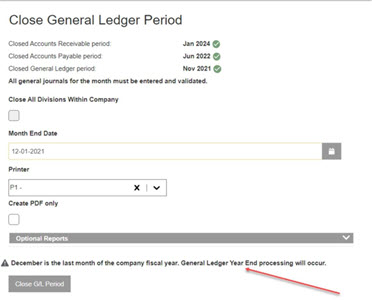
Because this is the last month of the fiscal year, a confirmation screen is shown reminding you that you are running the G/L Month End of the last month of the company fiscal year, and what must be completed before you close the period.
Closing the final period may take some time due to the amount of work in the background it takes close the year. Always check your home page for any error messages
When the G/L final is run for the last month of the fiscal year, a Year End Closing Journal (GL2000) is printed. The journal prints all G/L accounts and their end balances which will be set to zero. The journal also prints the adjusted retained earnings balance after the total of all the G/L accounts that appear on this journal has been applied.
Procedure Checklists
Once you have read and understood the material above, you can use these checklists when performing your month-end:
Month-end Checklist
| Check | Task | Link to Task | Notes / Cautions |
|---|---|---|---|
| Close monthly work orders (MW) | Ensures non-revenue labor is expensed in the correct month | ||
| (Optional) Run Equipment Billing | Capture any last-minute revenue before close | ||
| Complete all customer payments | Required – unposted batches are removed at A/R close | ||
| Finalize all invoices (Equipment, Service, Parts) | Only invoiced items post to the closing month | ||
| Perform final billing runs |
Nightly run must complete or be run manually. RTB: Confirm billing queue clear (no Pending/Processing/Failed); nightly run N/A for T invoices. See Month-End timing and Real-Time Billing. |
||
| Review Real-time Billing Queue (RTB dealers) | Required before A/R close when using Real-time Billing | ||
| Run A/R Aged Trial Balance | Compare to GL to ensure A/R is in balance | ||
| Run Equipment Inventory / Balancing Reports |
Confirm subledger matches GL. RTB: Run in low-activity window; re-run if billing continues during report. |
||
| Run Parts Inventory Summary | Use average cost to reconcile to GL | ||
| Apply late charges | No preview—consider auto apply first | ||
| Print A/R statements |
Must be done before closing A/R. RTB: Midday print includes recent T invoices; not identical to legacy batch timing. |
||
| Save final A/R Aged Trial Balance (PDF) | Cannot be backdated after close | ||
| Close Accounts Receivable Month End | ⚠️ Cannot be reopened |
Immediately After A/R
| Check | Task | Link to Task | Notes / Cautions |
|---|---|---|---|
| Run Parts Inventory Summary (final) | Final check before closing Parts | ||
| Close Parts Month End | Must be done immediately after A/R |
Month-End Wrap-Up (7–10 Days Into New Month)
| Check | Task | Link to Task | Notes / Cautions |
|---|---|---|---|
| Close Accounts Payable Month End | A/P allows posting to current + next month | ||
| Run Fixed Assets Month End (if applicable) | Must run monthly or depreciation lumps | ||
| Complete Check Reconciliation | Ensure all entries are posted before closing | ||
| Run General Ledger Preliminary | Review and correct errors before final close | ||
| Save financial reports (PDF) | Required for audit / CPA review | ||
| Close General Ledger Period | ⚠️ Final step—locks the period |
Year-End (Final Month Only – Before Closing)
| Check | Task | Link to Task | Notes / Cautions |
|---|---|---|---|
| Run Equipment Wholesale Report | Cannot be backdated | ||
| Run WIP Report (Service) | Captures open work before final close | ||
| Run Parts Inventory Summary (detailed) | Use current on-hand, not net | ||
| Run Customer Purchase History | YTD values reset after final month | ||
| Run Budget Reports (if used) | Optional but recommended |
Year-End Close
| Check | Task | Link to Task | Notes / Cautions |
|---|---|---|---|
| Complete standard Month-End steps | Same process as any other month | ||
| Close final General Ledger Period | Triggers year-end close | ||
| Review GL2000 Year-End Journal | Confirms balances reset and retained earnings |
Revision: 2026.06