
Running a Rental Rate Exceptions Report
This is a report that can be run for the rental counter system to show contracts that have rate exceptions (overrides) on them. It can be run for daily rates, weekly rates, or both in the same run. The report shows various details to do with the contract items and rates, and associated discounts.
-
Navigate to Product Support > Rental > Rental Reports.
The Rental Reports screen will appear.
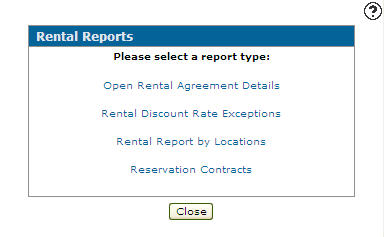
Rental Reports screen
-
On the Rental Reports screen, click on the Rental Discount Rate Exception link.
The Report Options screen will appear.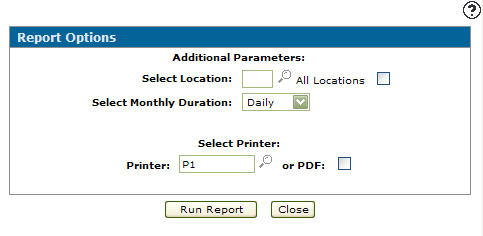
Report Options screen
-
On the Report Options screen, enter a branch location in the Select Location field to run the selected rental report for the branch location selected.
- or -
Click on the Search icon and select a branch location from the Location Selection screen.
- or -
Select the All Locations checkbox to run the selected rental report for all branch locations.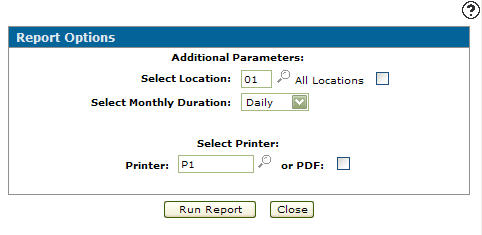
Report Options screen
-
Select a monthly duration from the Select Monthly Duration drop down list, to include rental contracts with a rental duration the same as the duration selected will be included in the run. Narrows down the rental contract selection criteria by rental duration.
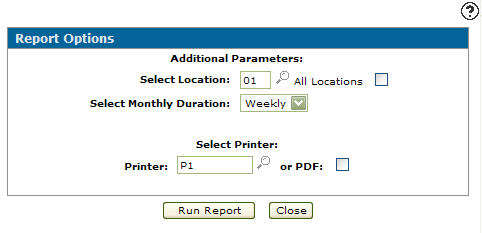
Report Options screen
-
Enter a Printer.
- or -
Click on the Search icon and select a printer from the Printer screen. -
Click on the Run Report button.
The Report Options screen will indicated that the rental rate exception report was successfully submitted (RIRPT01).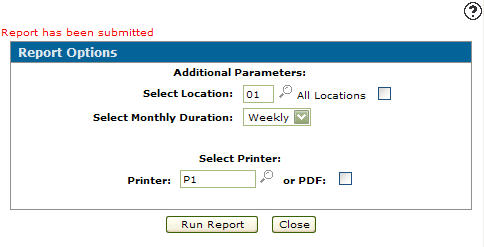
Report Options screen