
Running a Rental Reservation Contract
This report lists all units attached to rental reservations for the corresponding date range entered.
-
Navigate to Product Support > Rental > Rental Reports.
The Rental Reports screen will appear.
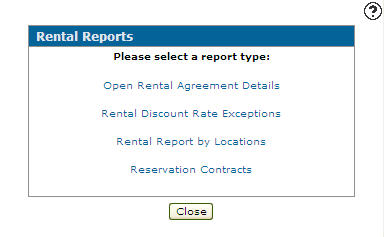
Rental Reports screen
-
On the Rental Reports screen click on the Reservation Contracts link.
The Report Options screen will appear.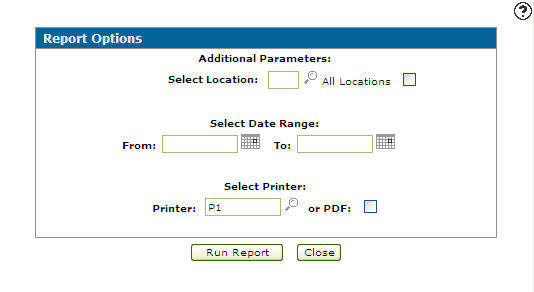
Report Options screen
-
On the Report Options screen, for an individual location enter a location in the Select Location field for all locations selected the All Locations checkbox.
-
Enter a Date Range including all reservation contracts created during the period of the two dates specified.
- or -
Click on the Calendar icon and select the dates from the Calendar screen. -
Enter a Printer.
- or -
Click on the Search icon and select a printer from the Printers screen.
 -
Select the or PDF checkbox to create a PDF version of the report, which can be viewed via the PDF Viewer.
-
Click on the Run Report button, the system will indicate that the reservation contracts report has been submitted (RM050).