
Configuration: Profit Centers
Use the Profit Centers screen to classify G/L accounts by department and location. This is accomplished by attaching the profit center to an account through a chart of account profile. The result is a series of G/L accounts which all stem from the same account master, each representing individual departments and locations. The software will also generate departmental profit and loss statements and balance sheets by location based on the profit center values entered in this screen. These are separate from any statements generated by groupings (also defined on this screen).
Location-specific balance sheets may appear unbalanced because they do not include all corporate-wide balance sheet accounts.
To open the Profit Centers screen, navigate to Configuration > General Ledger > G/L Accounts > Profit Centers.
Topics in this section are:
Adding a Profit Center
-
Navigate to Configuration > General Ledger > G/L Accounts > Profit Centers.
-
Click Need to create a new profit center? Click here to add.
-
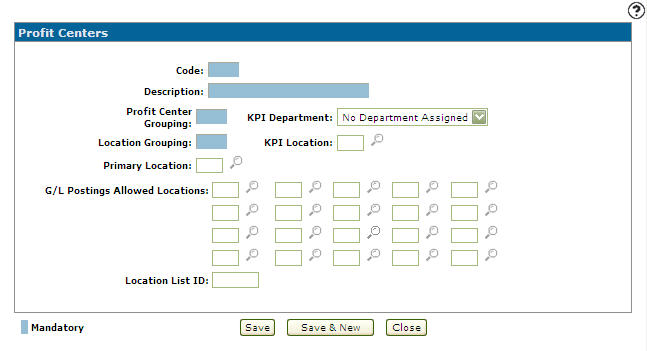
Fill in the fields, referring to the table below.
-
Click Save to save the new profit center code and return to the Profit Centers screen.
- or -
Click Save & New to save the new profit center code and enter another code.The Profit Centers screen refreshes to add another profit center code without closing the screen.
 The
The 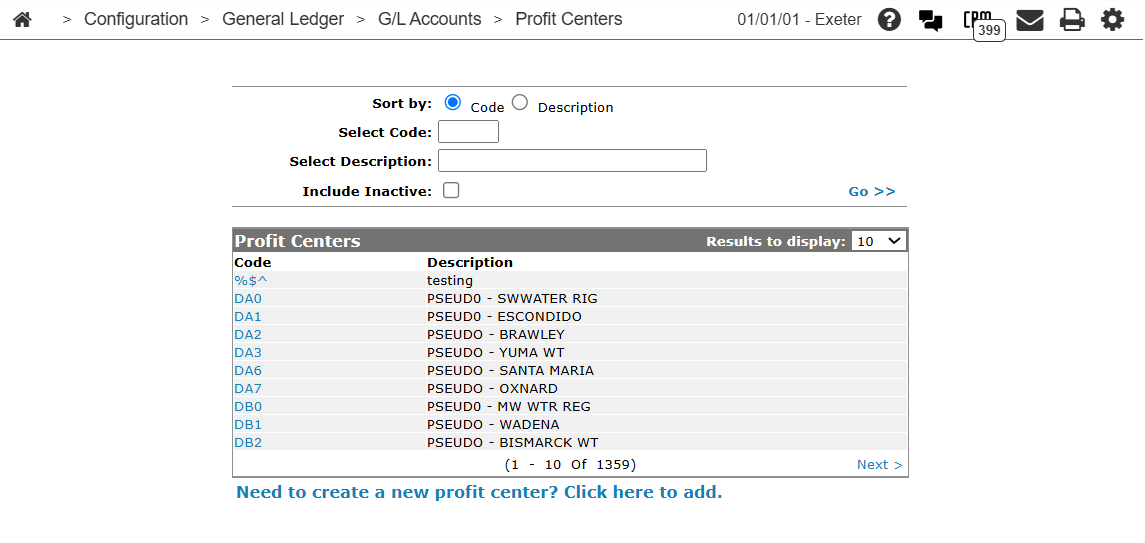
Deactivating a Profit Center
You cannot delete a profit center, only deactivate it. Once a profit center is inactive, it is no longer available for active transaction posting, employee assignment, or operational billing.
Warning: Deactivating a profit center before clearing or reassigning dependent configurations causes system errors during transaction processing (for example, Special Accounts posting errors during G/L updates or invoice posting). Complete all verification steps below before clearing Active for System.
Before You Deactivate
Complete these verification steps across system modules before deactivating a profit center.
Special Accounts and G/L Defaults
-
Navigate to Financial Management > Special Accounts and review all default G/L account mappings. See Special Accounts.
-
Reassign any active control accounts, default posting accounts, or transaction rules that reference only the profit center you are deactivating.
Chart of Accounts and Account Profiles
Review all active Account Profile and profit center combinations tied to the profit center. Also review active percentage-based G/L distributions and corresponding accounts (for example, cost of sales or revenue distributions) that post to the profit center.
Before you deactivate profit-center-specific chart of accounts accounts, ensure the base G/L account (the account master without a profit center) is active. If the base G/L account is inactive, the system returns an error and prevents deactivation of the profit-center-specific account.
To identify and resolve chart of accounts dependencies:
-
Navigate to Configuration > General Ledger > G/L Accounts > Account Profile. See Account Profiles Listing.
-
Select Include Inactive.
-
Search for the base G/L account number (the account without the profit center).
-
Confirm that the base G/L account is active. If it is inactive, reactivate it before proceeding. See Deactivating an Account.
-
Deactivate the profit-center-specific chart of accounts account(s) tied to the profit center, as needed. See Chart of Accounts.
-
After the profit-center-specific account is deactivated, deactivate the base G/L account again if required.
Run financial reports and verify inventory and cost of sales accounts to confirm profit centers are correct before you deactivate the profit center.
User and Personnel Profiles
-
Review employee records (sales, service personnel/technicians, and parts counter) in System Administration > Security / Personnel.
-
Reassign the profit center on employee profiles to an active profit center.
-
Verify that road technicians and branch technicians linked to the profit center are reassigned on the Technician Service Scheduling screen.
Operational and Transactional Records
-
Confirm that no open, unbilled, or unassigned work orders are associated with the profit center. Close or reassign open work orders.
-
Complete or update active parts invoices, sales orders, quotes, and backorders mapped to the profit center.
-
Audit open rental contracts, category/class/sub-class rate tables, and serialized rental equipment assigned to the profit center.
-
Transfer or update active equipment profiles and serialized inventory items to an active profit center location.
Customer and Vendor Profile Overrides
-
Check customer account defaults (for example, default sales or service profit center overrides) and reassign them to an active location.
-
Verify default purchase order and payables profit center assignments on vendor profiles.
Module Control Files and Integration Defaults
-
Audit module control settings (A/R, A/P, General Ledger, Parts, Service, and Rental) to ensure the profit center is not used as a fallback location for automated jobs.
-
Confirm that OEM integrations (for example, price files, telematics, or electronic invoicing) do not target the profit center you are deactivating.
Deactivate a Profit Center
-
Navigate to Configuration > General Ledger > G/L Accounts > Profit Centers.
-
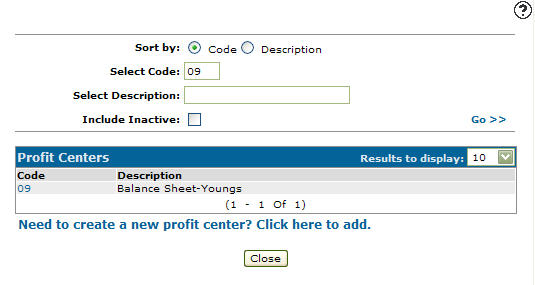
Fill out the appropriate fields and click the Go >>.
-
Click a Code.
-
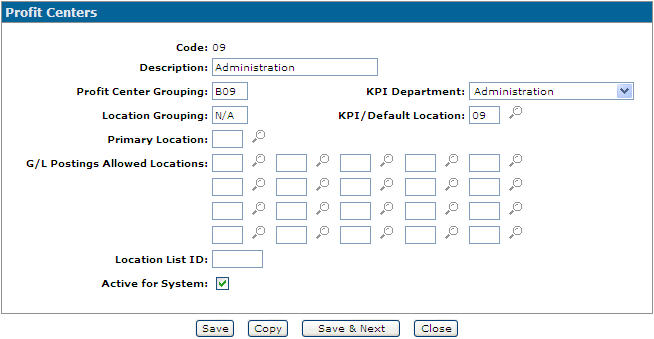
Select the Active for System checkbox, removing the checkmark.
-
Click Save.
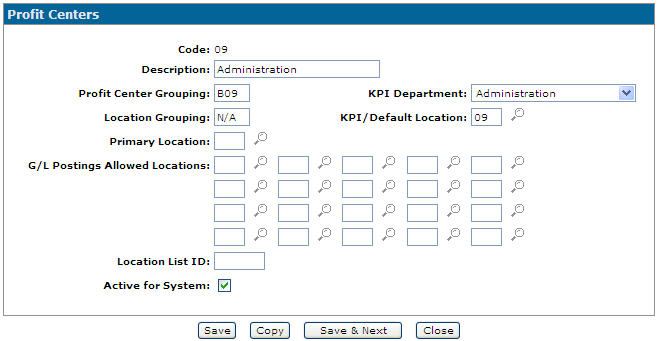
Screen Description
The fields on the Profit Centers screen are:
| Field | Description |
|---|---|
| Code |
A three digit alphanumeric field which represents a department and a location. For example: G/L account number 50000401 would be broken down as 50000, which comes from the account master and represents an expense account, 4 would represent the service department, and the 01 would represent location 01. The first digit of the profit center indicates the area of responsibility. The balance sheet items are denoted by 0 in the first digit. income statement items are recognized by a start digit of 1 for administration, 2 for Sales, etc. See the Profit Center table for a list of recommended start digits. |
| Description | Used to describe the profit center. It will be used on various G/L reports that have reference to that profit center. |
| Profit Center Grouping | Used to group profit centers on the financial reports to produce departmental reports. |
| KPI Department | Allows you to create a correlation between the profit center and a department used for calculating KPI (Key Performance Indicators). |
| Location Grouping | Used to group profit centers together to produce location reports. |
| KPI/Default Location | Allows you to create a correlation between the profit center and a branch location used for calculating KPI (Key Performance Indicators), or a default location that will determine which branch location the account totals for that profit center belong to. |
| Primary Location |
The primary location is the only location that can use the current profit center in the Sales Account field on the Parts Profile tab. The system does an edit check when the user edits a part profile and displays an error message if an invalid account is entered. |
| G/L Postings Allowed Locations |
Allows you to indicate a list of valid branch locations (up to 20 branch locations) that are authorized to make general ledger postings to any account that is associated with the current profit center. The Primary Location must be included as one of the locations listed. |
| Location List ID |
The system will perform an edit check on the locations listed in the G/L Postings Allowed Locations field. This edit check ensures that all journal postings associated with the list of branch locations net out to zero. All other profit centers using locations listed on the G/L Postings Allowed Locations field should be using the same Location List ID. |
| Active for System |
Controls whether the profit center is active for use within the system.
This field appears only by accessing the Profit Centers screen by clicking on a Code. |
We recommend the following first digits for your Profit Center
| 0 | Balance Sheet |
| 1 | Administration |
| 2 | Equipment Sales |
| 3 | Parts |
| 4 | Service |
| 5 | Rental |
| 6-9 | User defined departments |
The reports are produced though a Profit Center Grouping:
| DE1110 | Balance Sheet Analysis. |
| DE1160 | Income Summary. |
| DE1120 | Area Of Responsibility Income Summary. |
For example, suppose the profit center groupings were defined:
| 001 | B/S |
| 002 | B/S |
| 003 | B/S |
| 101 | ADM |
| 102 | ADM |
| 103 | ADM |
| 201 | EQ |
| 202 | EQ |
| 203 | EQ |
| 301 | PAR |
| 302 | PAR |
| 303 | PAR |
| 401 | SER |
| 402 | SER |
| 403 | SER |
This grouping would produce a balance sheet for 001, 002 and 003 together, since asset and liability accounts would be the only accounts with a profit center of 001, 002, 003, etc. The grouping would also produce income statements (P&L) for 101, 102 and 103 together, 201, 202 and 203 together, etc.
The reports are produced though a Location Grouping:
| DE1110 | Balance Sheet Analysis. |
| DE1160 | Income Summary. |
For example, suppose the following location groupings were defined:
| 001 | HOU (Houston) |
| 002 | SAN (San Antonio) |
| 003 | DAL (Dallas) |
| 101 | HOU (Houston) |
| 102 | SAN (San Antonio) |
| 103 | DAL (Dallas) |
| 201 | HOU (Houston) |
| 202 | SAN (San Antonio) |
| 203 | DAL (Dallas) |
| 301 | HOU (Houston) |
| 302 | SAN (San Antonio) |
| 303 | DAL (Dallas) |
| 401 | HOU (Houston) |
| 402 | SAN (San Antonio) |
| 403 | DAL (Dallas) |
This location grouping would produce a balance sheet for each of HOU, SAN and DAL, since asset and liability accounts would be the only accounts with a profit center of 001, 002, 003, etc. The grouping would also produce income statements (P&L) for HOU, SAN and DAL. That is, one P and L would be produced for all profit centers ending in 01, another for all profit centers ending in 02, etc.
The these buttons complete your work on the Profit Centers screen are:
| Button | Function |
|---|---|
| Save | Saves changes made on the Profit Centers screen. |
| Copy |
Copies the selected profit center code. This button appears only by accessing the Profit Centers screen by clicking on a Code. |
| Save & New |
Saves a newly added profit center code and refreshes the Profit Centers screen, allowing you to add another profit center code without closing the screen. This button appears only by accessing the Profit Centers screen by clicking the Need to create a new profit center? Click here to add link. |
| Save & Next |
Allows you to save any edits/changes made to the selected profit center code and scroll through to the next profit center code in the list to apply any edits/changes. This button appears only by accessing the Profit Centers screen by clicking on a Code. |
| Close | Closes the Profit Centers screen without saving and returns to the Profit Centers screen. |