
Add Subtask
Use the Add Subtask screen to create and assign subtasks to a user.
The Add Subtask screen is accessed by clicking a User profile on the Task Templates screen under the Participants tab and selecting Click here to add a Subtask.
 The Subtask screen
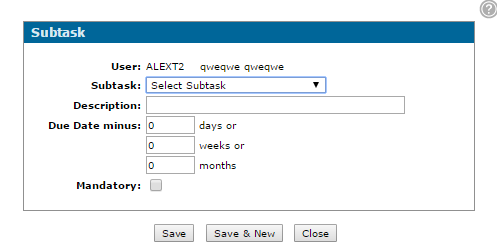
The fields on the Add Subtask screen are:
| Field | Description |
|---|---|
| User | The user selected for subtask assignment. |
| Subtask | A dropdown list with the selection of subtasks available. |
| Description |
A brief description can be entered to describe the subtask. If description is not entered then the name of the subtask is used when prompted to perform their subtask. |
| Due Date Minus | The entries keyed in the days, weeks, or months fields determine the default values on the task. Information entered in this field determines the Required By date on the subtask. |
| Mandatory | This indicates if a subtask is mandatory to complete. If checked, the option to Decline is not available. |
Use these buttons to complete your work on the Add Subtask screen:
| Button | Description |
|---|---|
| Save | Saves the new subtask. |
| Save & New | Saves and then opens a new Add Subtask window. |
| Close | Closes the window. |
Security: 999 - Configuration
Revision date: 2026.01