
Interface Logs
The Interface Logs screen provides the XML and JSON requests and responses for OEM interfaces.
To access the Interface Logs screen, navigate to Administration > Settings > Logs, then click the Interface Logs tab.
 The Interface Logs screen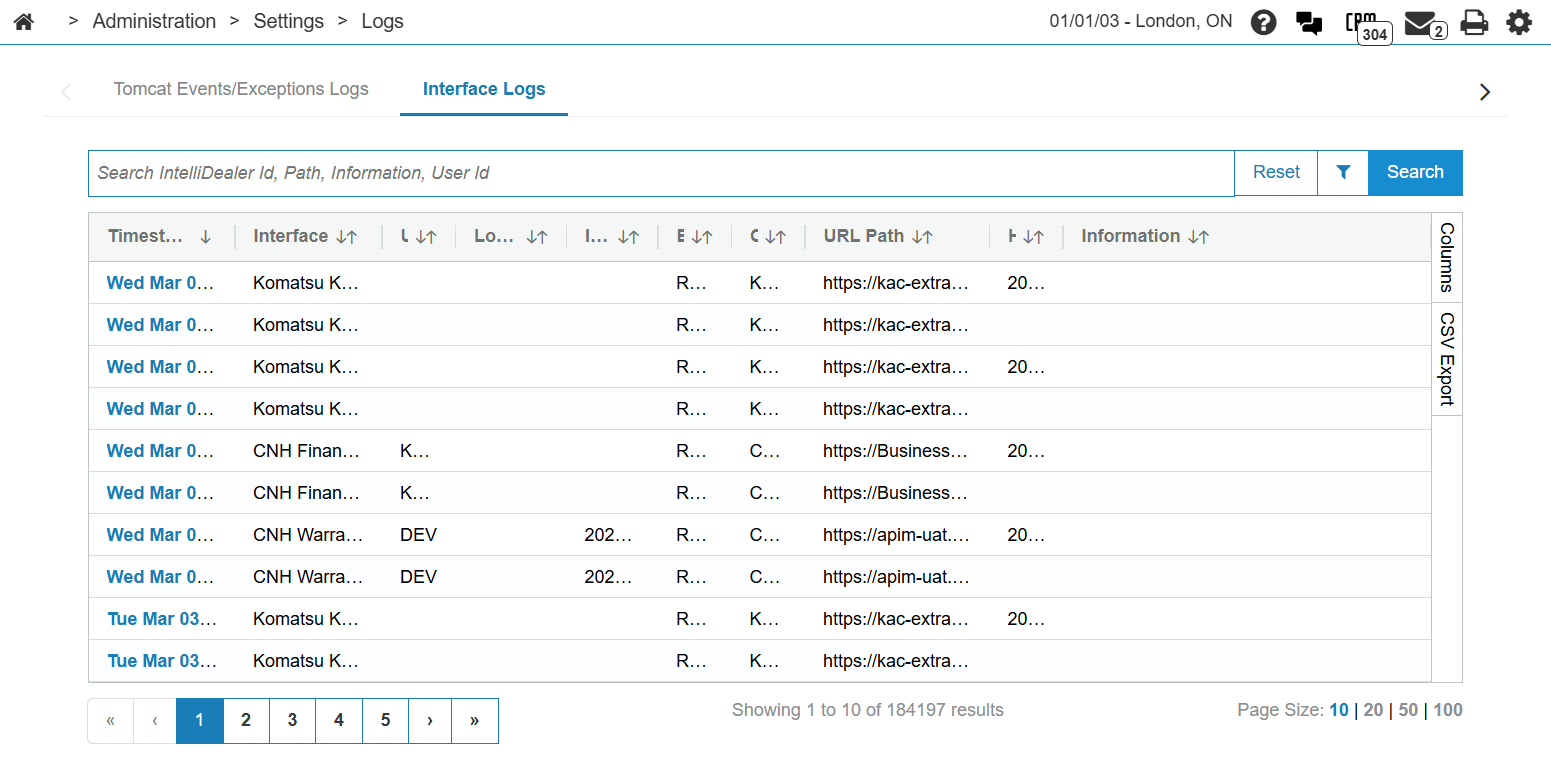
The fields on the Interface Logs screen are:
| Field | Description |
|---|---|
| Timestamp | The exact date and time the interaction occurred. |
| Interface | The specific IntelliDealer module or service that initiated the call. |
| User Id | The IntelliDealer username of the person who triggered the action. |
| Location | The physical dealership location from which the request originated. |
| IntelliDealer ID | A unique internal identifier for the specific record involved. (eg. a Quote ID, a Part Number, a VIN.) |
| Event Type | Categorizes the nature of the interaction. (eg. Request, Response, Error, Timeout.) |
| OEM | The specific original equipment manufacturer the system communicated with. |
| URL Path |
The specific API endpoint or web address that was called on the OEM's server. |
| HTTP Status |
The standardized numeric status code returned by the OEM's server. Examples of HTTP Status classifications:
|
| Information | A message or the raw data payload of the request/response. A "what happened" field. This might contain the OEM's error message (ie, Invalid Part Number) or a log summary in the event of a successful interaction. |
Click a Timestamp link to open a specific log.
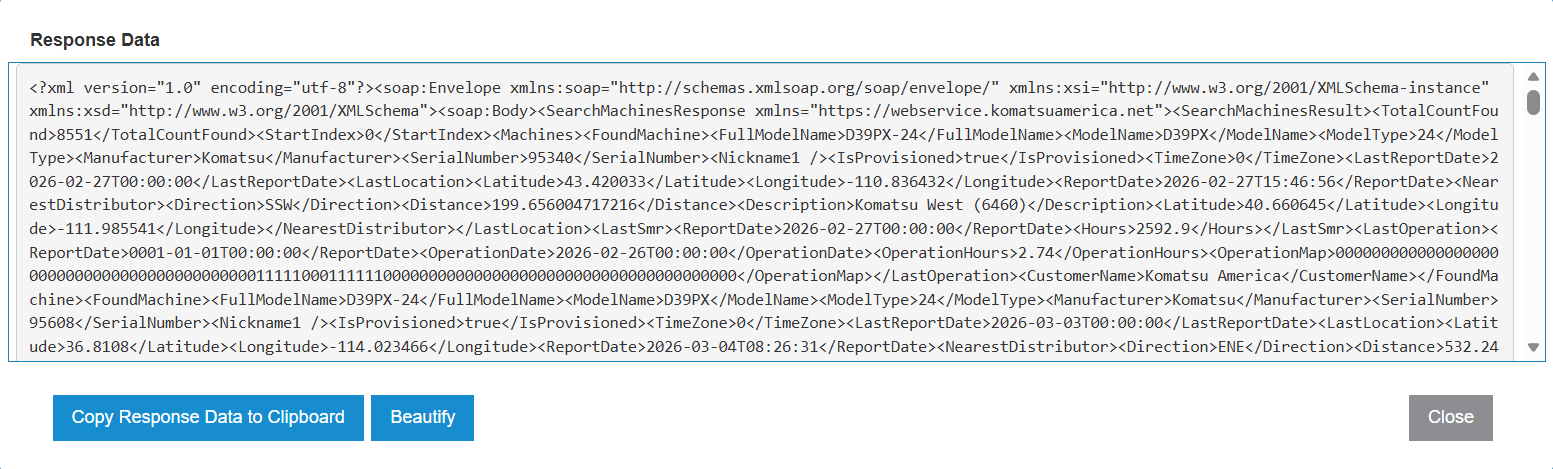
Click Copy Response Data to Clipboard to copy all the response data.
Click Beautify to format the response data to be more readable.
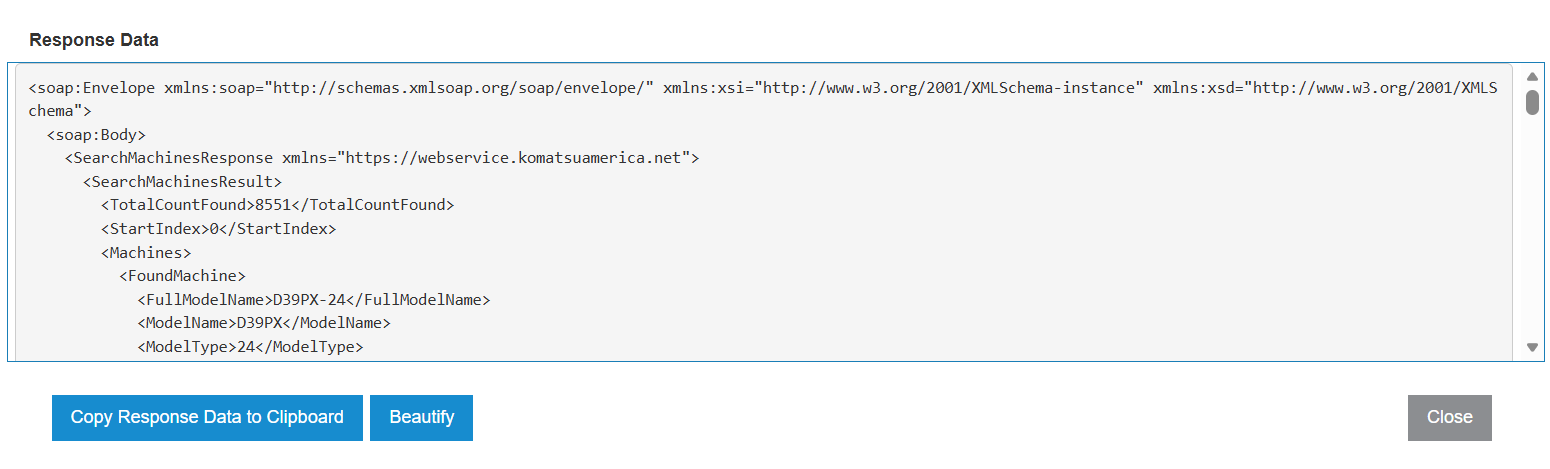
Click Close to return to the Interface Logs screen.
Revision: 2026.03