
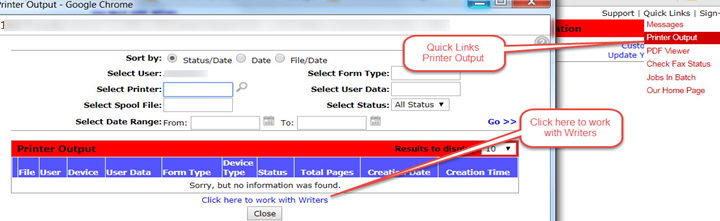
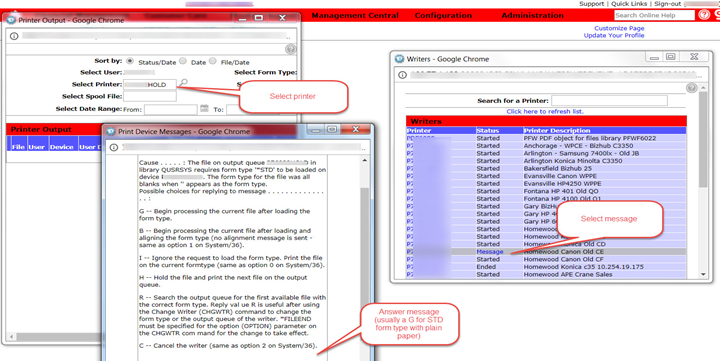
Look in IntelliDealer for any messages and select - Quick Links, Printer output, Click here to work with Writers
Messages could be
1. Form messages
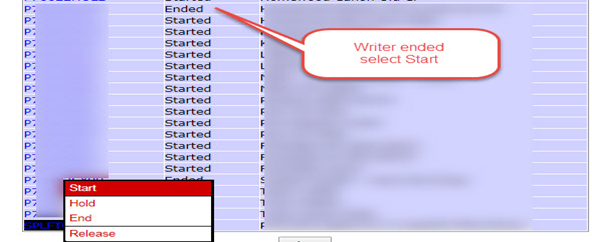
2. Writer ended
3. Writer on hold
These are additional steps you need to perform before you contact VitalEdge support on a printer issue.
The following is a list of trouble shooting tasks you need to perform before you contact VitalEdge support.
1. Turn the printer’s power off, wait about five seconds, then turn the printer on, and try printing again.
2. Verify that there is paper in the printer, that the printer is not jammed, and that there are no problems with the printer cartridge or toner.
3. Try printing to that printer from Windows.
If these steps do not resolve the issue proceed to the next step.
Test the Network Connection of Your Printer Using the PING Command
The ping command is a Command Prompt command used to test the ability of the source computer to reach a specified network destination. The ping command is usually used as a simple way verify that a computer can communicate over the network with the printer.
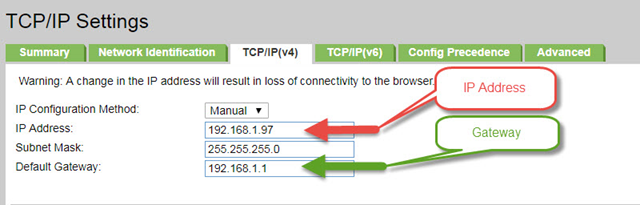
1. Print a settings page from your printer to obtain the IP address assigned to it (this may change depending on your system type, please see your User Guide for information on Printing a Printer/System Settings Page).
2. The IP Address will be listed under 'Network' sub-heading.
From your Windows PC or a PC on the network of the printer. If you are unsure contact your hardware/network person.
1. Open up a Command Window:
2. Click on Windows Start Icon.
3. In the 'Search' Box or 'Run' Box type "CMD".
4. Click on the 'CMD' or 'Command' Icon.
5. The Command Prompt Window will now open.
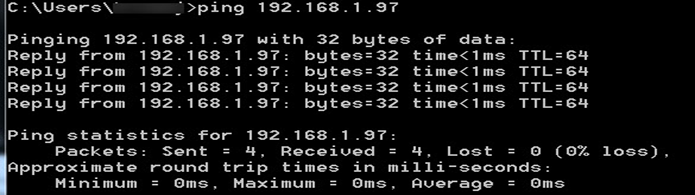
6. On the first line type PING then IP Address (EG. PING 192.168.1.97) then hit Enter.
If the PING command has worked the Printer should begin responding and you should see the reply in the command window.
If the PING command has failed you will be advised that the "Request has Timed Out" or that the "Host is Unreachable".
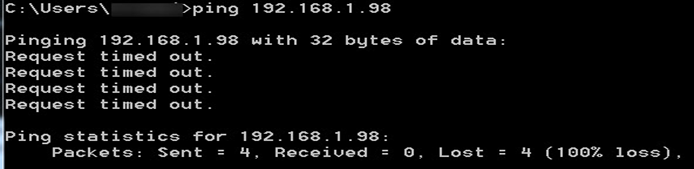
1. If the PING command does fail then the issue may be with the IP Address or another network problem, please continue diagnosing the network issue with your network or contact your hardware/network person.
You may need to check the IP address configuration of the device that we are trying to communicate with. More specifically there are typically Six things you should check:
• You did not specify the correct IP address.
Check that the IP address that you specified matched the IP address of the device you are trying to communicate with.
• You have not specified the correct subnet mask for the device that you are trying to communicate with.
Check the subnet mask setting of your computer matches the subnet mask of the device you are trying to communicate with. A typical subnet mask would be '255.255.0.0' or '255.255.255.0'
• The device may require a power cycle.
Try switching the device off and then back on again. The device that you are trying to communicate with may require to be switched off and then on again before the IP address you set is accepted.
• There is a problem with the cabling.
There is a possibility that there is a problem with the cabling, if there is another device on the same segment of cabling that uses TCP/IP, see if you can communicate with that device using the PING command. If you can, then it is a card related problem, if you can't, there is a good possibility that there is something wrong with your cabling.
• The device that you are attempting to communicate with is on the other end of a router/gateway.
If the device is not physically attached to the segment of cabling that you are using, check to see if you have to specify a gateway address.
• Verify the gateway is the correct IP address.
When you contact VitalEdge support please have the following information. Providing this information will expedite the support process.
Did you turn the printer off and on. Yes / No
If No please turn the printer off and then on.
Did you gather the IP information for the printer Yes / No
If No please obtain the IP information and test locally.
Were you able to successfully ping the printer. Yes / No
If No please investigate why you cannot communicate with the printer with your hardware or network person.
If you can ping the printer locally successfully.
If you have verified the IPv4 Gateway of the printer.
Have this information for the VitalEdge support associate.
Site CMF#
Printer location (City, State).
Printer Name (ex P72002GGG1).
Printer local IP address.
Printer IPv4 Gateway.
Results from your trouble shooting.