
Before running any month ends for the 12th month of the fiscal year at your dealership, there are some year end reports that you should create.
Note: This help topic assumes that your fiscal year end is in December and that the A/R and Parts month ends occur at the same time at your dealership.
Note: All reports mentioned below should be run prior to the A/R and Parts month ends for December.
 Equipment
During the fiscal year-end you should run an Equipment Wholesale listing for new and used equipment (reports CGI025 & CGI020) prior to your A/R month end. These reports will give you a snapshot of your equipment inventory at the year end. It is important to run this report at year end because it cannot be backdated after you start modifying your equipment inventory in the next fiscal year. See Running an Equipment Report.
To generate the reports from the green screen application, navigate to the following screen and enter the appropriate values:
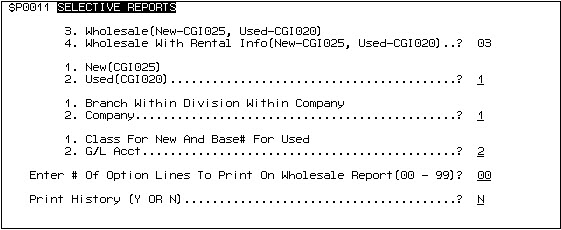
Note: IntelliDealer will not automatically generate separate reports for new and used equipment. You must manually create a separate report for each.
Service Management
During the fiscal year-end you should run a detailed Work in Process report (report WPSWIP2B) prior to your A/R month end. This report will show you all work still in process at your dealership.
To generate the report from the green screen application, navigate to the following screen and enter the appropriate values:
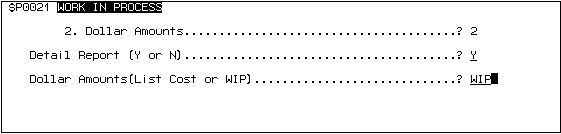
To generate the report from within IntelliDealer, complete the steps outlined in the Creating a Work in Process Report procedure.
Parts Management
During the fiscal year-end you should run a Parts Inventory Summary (report WPSPR04A). This report will you show detailed information about your parts inventory.
Note:
When running the report, use the On Hand quantity, not the Net on Hand quantity. Also, use Average Cost to balance to the G/L.
Note:
If you track lost sales or special order frequency at your dealership, you should run a year end listing on these fields as well. Most dealers run an availability listing with lost sales > 0 OR special order frequency > 0. These fields are reset to zero in part master maintenance after your parts month end for your 12th month.
To generate the report from the green screen application, navigate to the following screen and enter the appropriate values:

To generate the report from IntelliDealer, complete the steps outlined in the Creating an Inventory Summary Report procedure.
Customer Profile
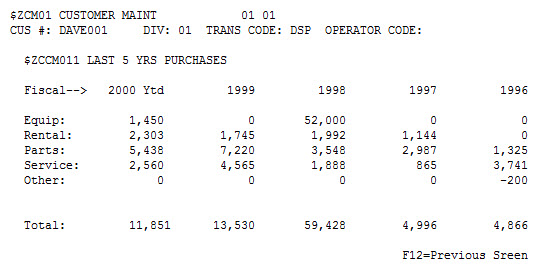
During the fiscal year-end you should run a Customer Purchasing History report (report CMM123) prior to your A/R month end. This report will show you the year-to-date purchases for each customer at your dealership, allowing you to quickly determine which customers you sell the most to.
The Customer Purchasing History report can only be generated using the green screen application by completing the following steps:
-
From the main menu, select option 1 to open the Customer Profile menu.
-
From the Customer Profile menu, select option 13 to open the Selective Reports menu.
-
From the Selective Reports menu, select option 8 to view the Customer Purchasing History report.
General Ledger
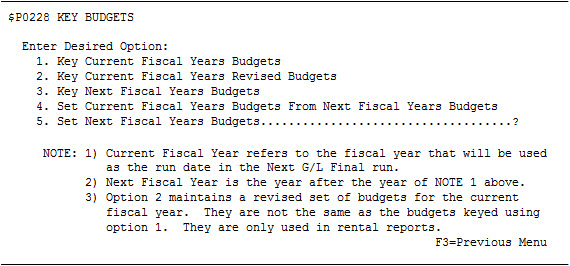
If you use G/L budgets at your dealership, you should run a G/L budget report during your fiscal year end using the Set Current Fiscal Years Budgets From Next Fiscal Years Budgetsoption in the green screen application. This report must be run within one month of the fiscal year end in order to retain the budgets you have already configured.
To generate the report from the green screen application, navigate to the following screen and select option 4:
To generate the report from IntelliDealer, complete the steps outlined in the Creating a Budget Listing or Budget Worksheet Report.