
Using Google Analytics with IntelliDealer or MyDealer
Google Analytics can provide web analytics that track and record website traffic. This is useful to learn how your employees are using IntelliDealer or how your customers are using MyDealer.
For more information on Google Analytics, see the Google documentation.
New Google Analytics Setup
-
Create a Google Analytics account at https://analytics.google.com.
-
Use setup Assist to setup the properties for the websites you are collecting data for (IntelliDealer and/or MyDealer).
-
Navigate to Custom Definition, then Custom Dimensions tab.
-
Set the Dimension properties as required.
-
Navigate to Custom Definition, then Custom Dimensions tab.
-
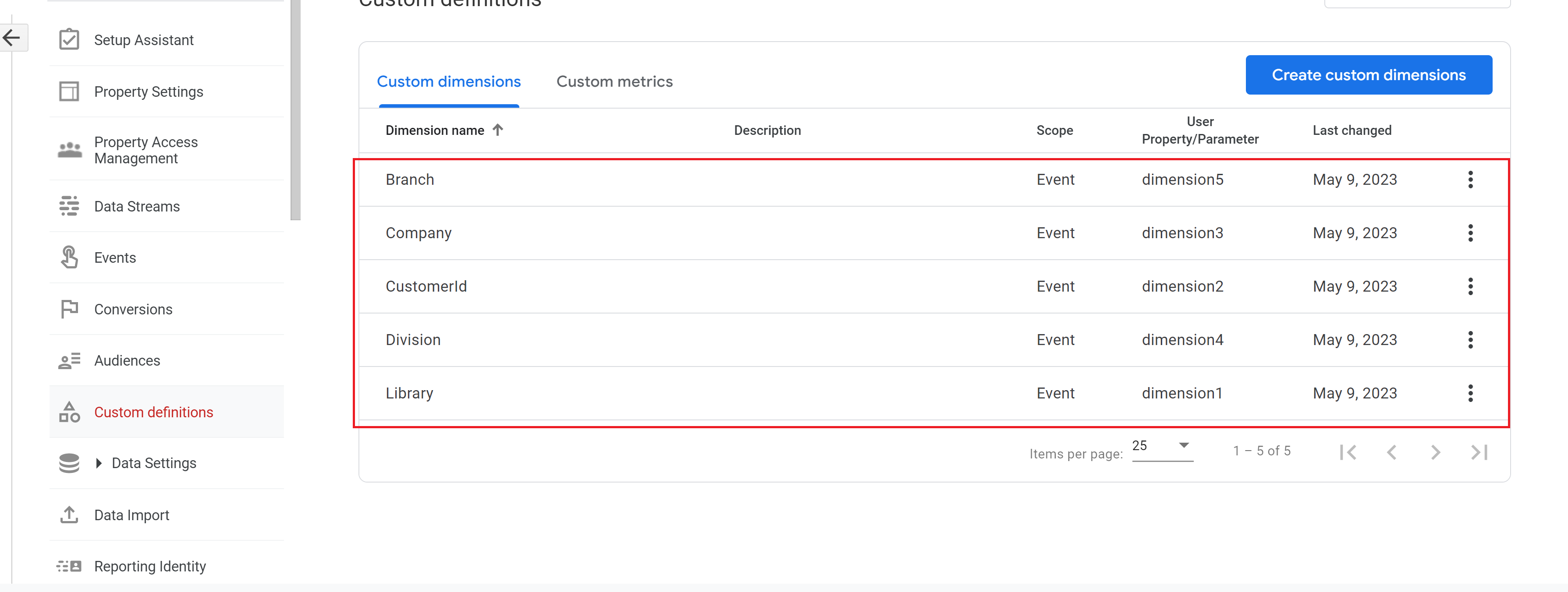
Click Create Custom dimension properties and set the properties using the names listed in the table below:
Custom Dimension
Event Parameter NameIntelliDealer MyDealer dimension1 Library Library dimension2 Username CustomerId dimension3 Company Company dimension4 Division Division dimension5 Location (Branch) Location (Branch) dimension6 Tab Id dimension7 Page State -
Make a note of the Measurement Id for your websites to use in the post-requisite.
 An example of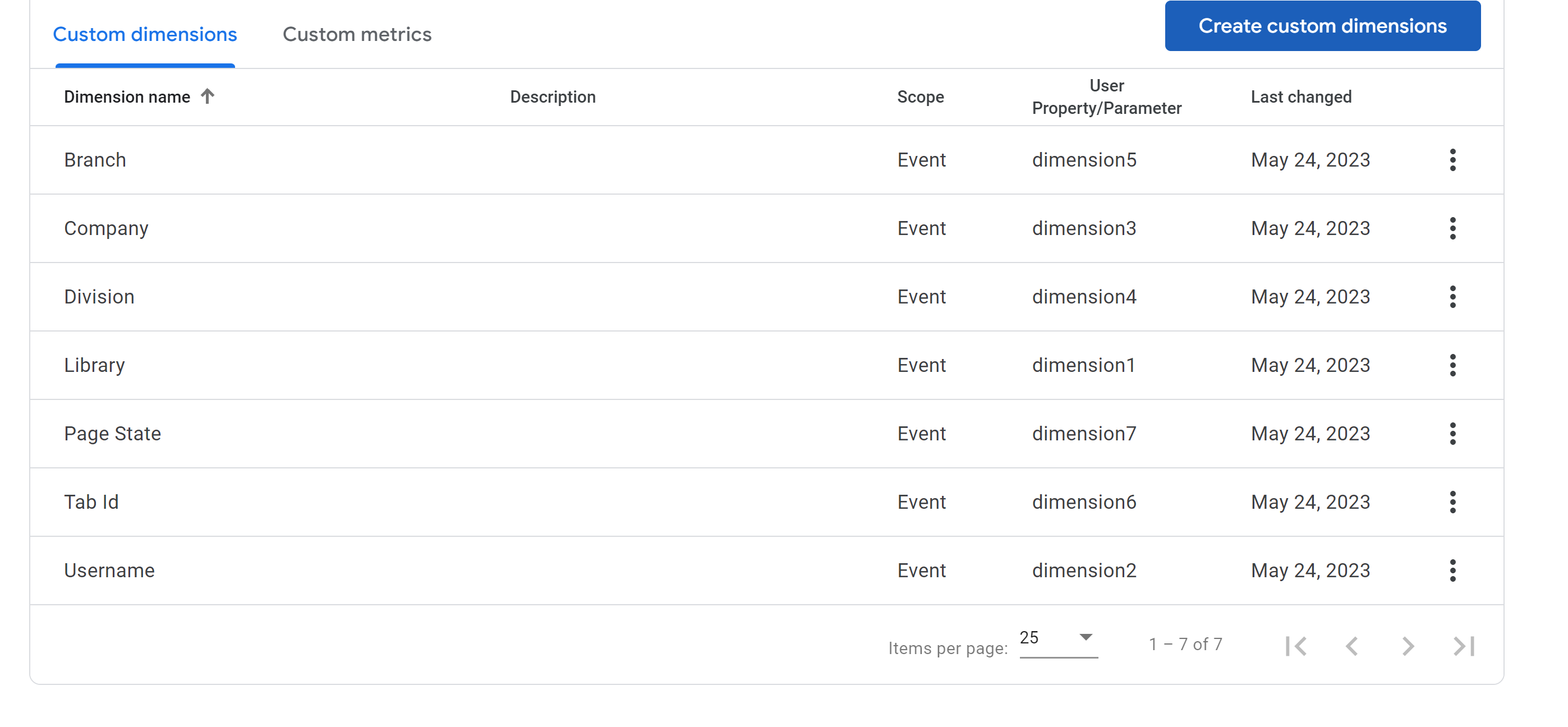
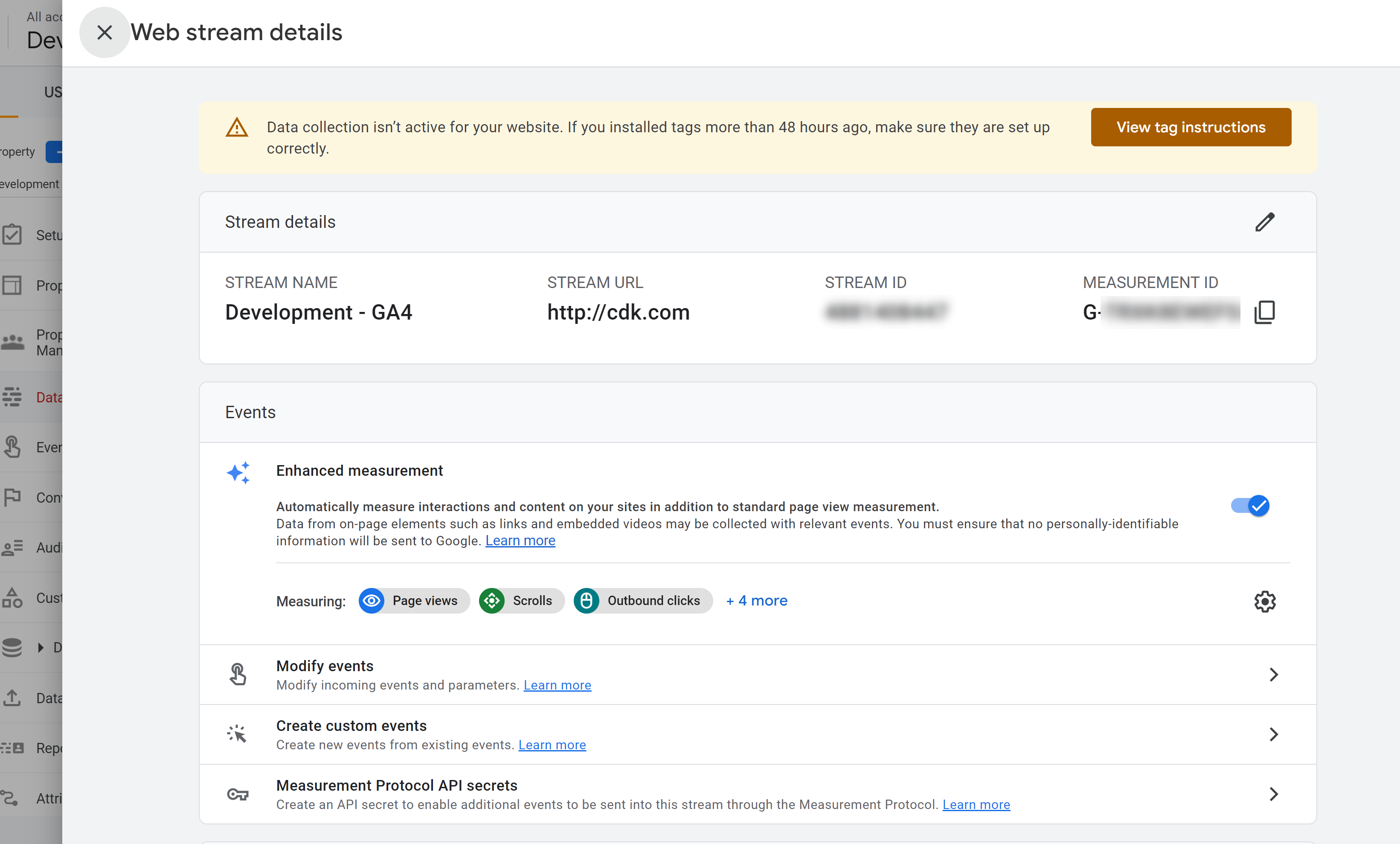
Post-Requisite: You must configure IntelliDealer with the Analytics IDs. See Post-Requisites
Migrating from Universal Analytics to Google Analytics 4
Google Analytics 4 replaces Universal Analytics (UA) as of July 1, 2023. If you are still using UA, follow these steps to migrate to Google Analytics 4.
Pre-requisite: you must have administrative access.
-
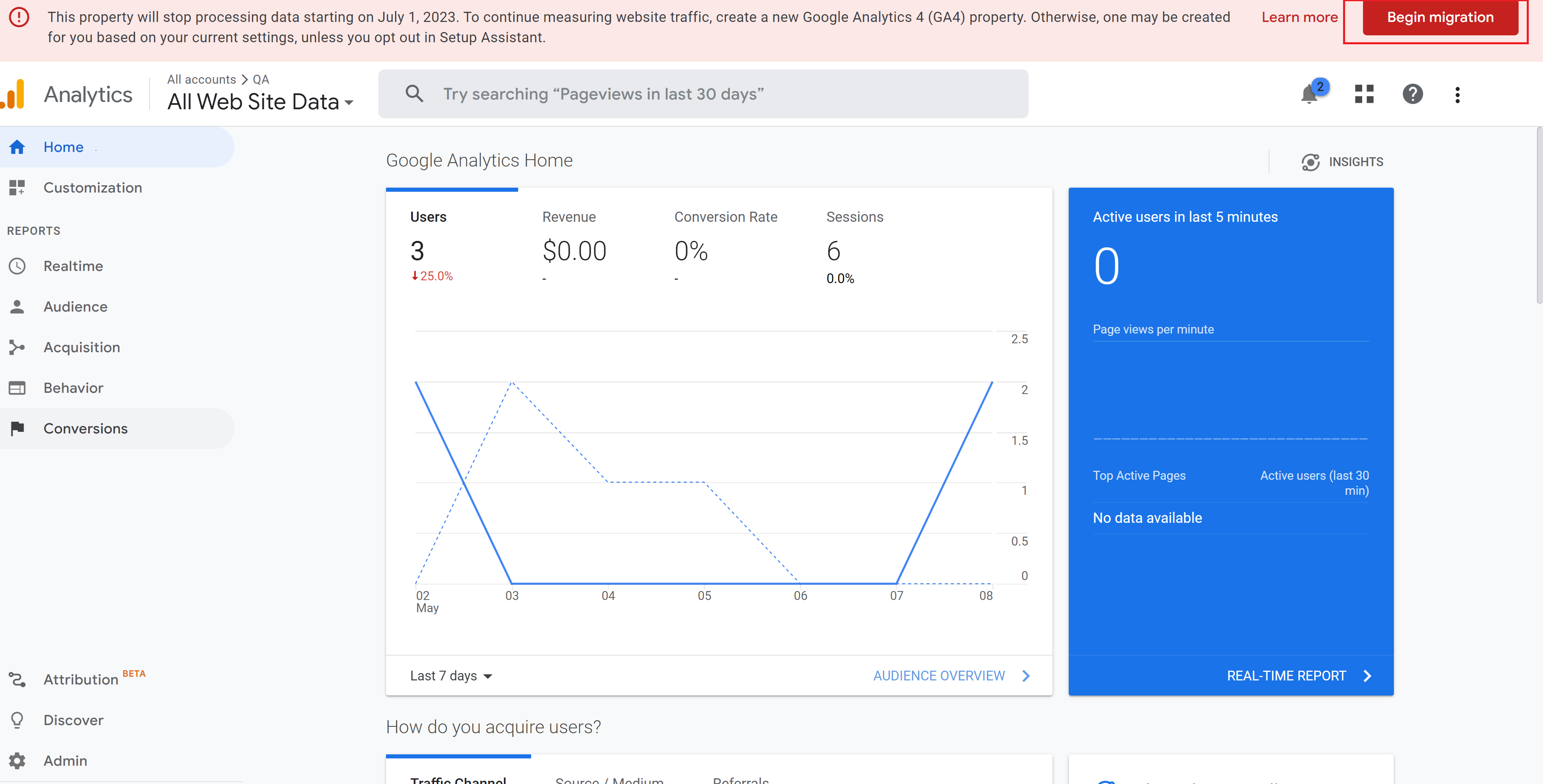
Open your old Google Analytics page. Note the warning at the top of the page.
-
Click Begin migration.
The GA4 Setup Assistant opens.
-
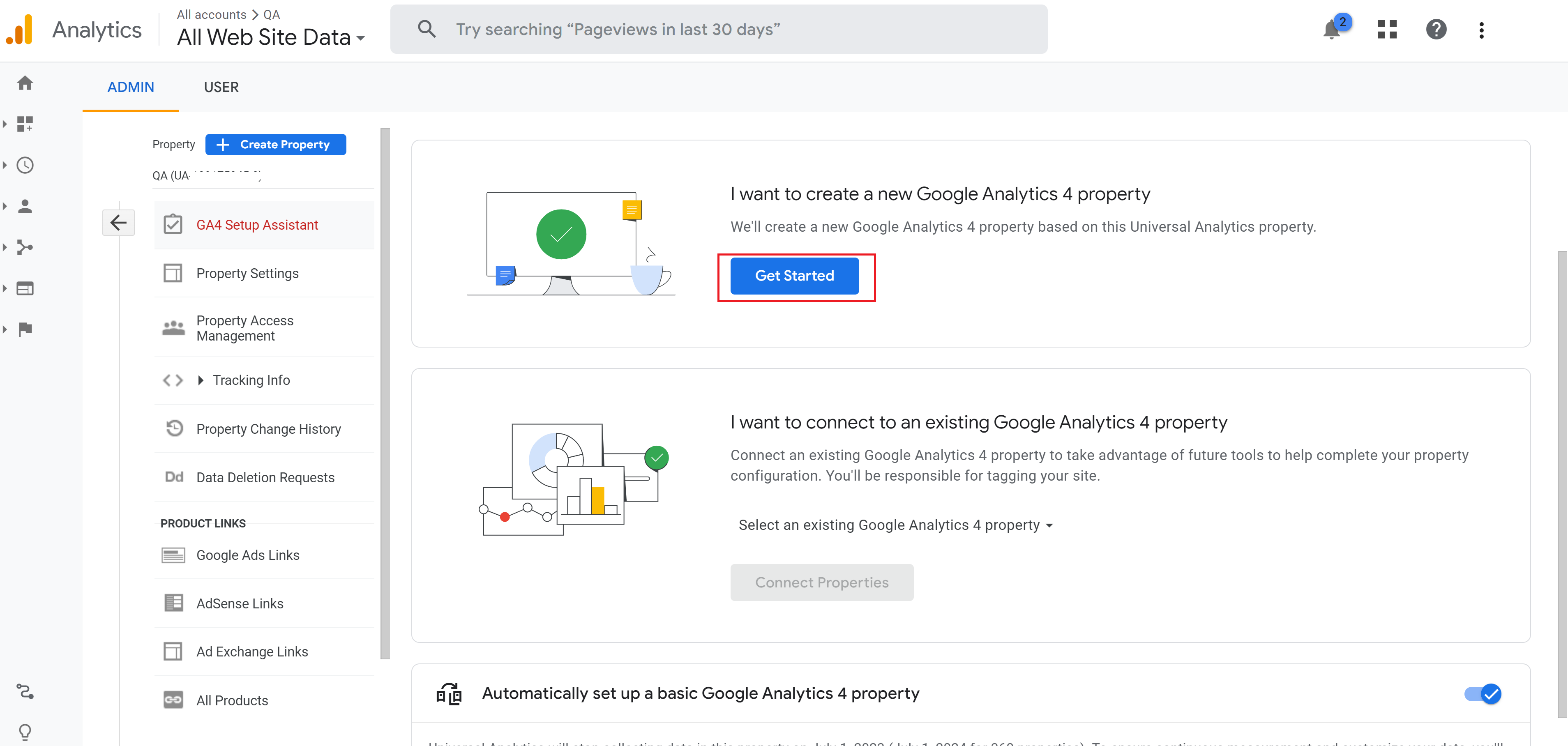
Click Get Started.
A popup opens to create a new Property.
-
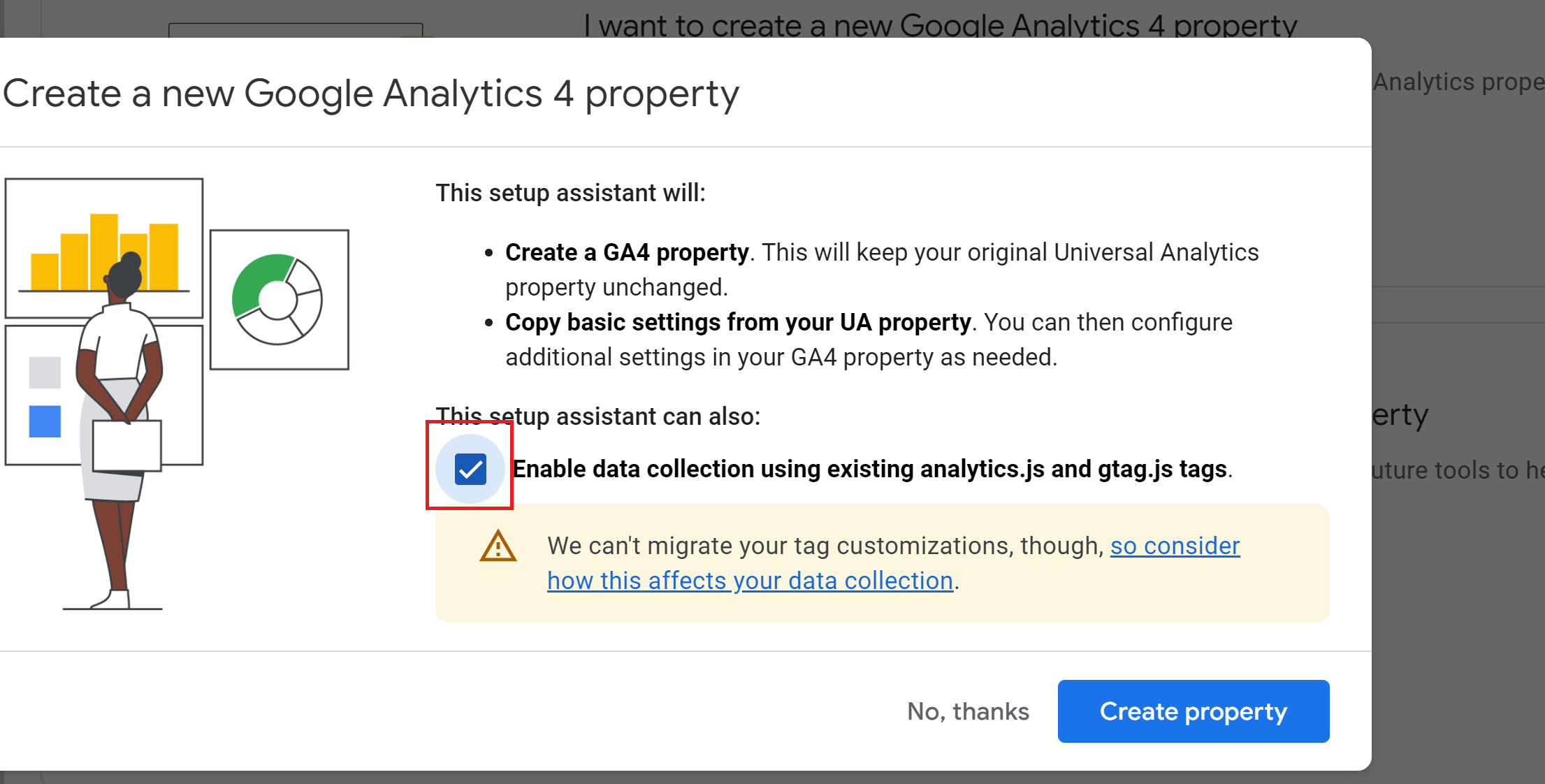
On the popup, click the checkbox to enable data collection.
-
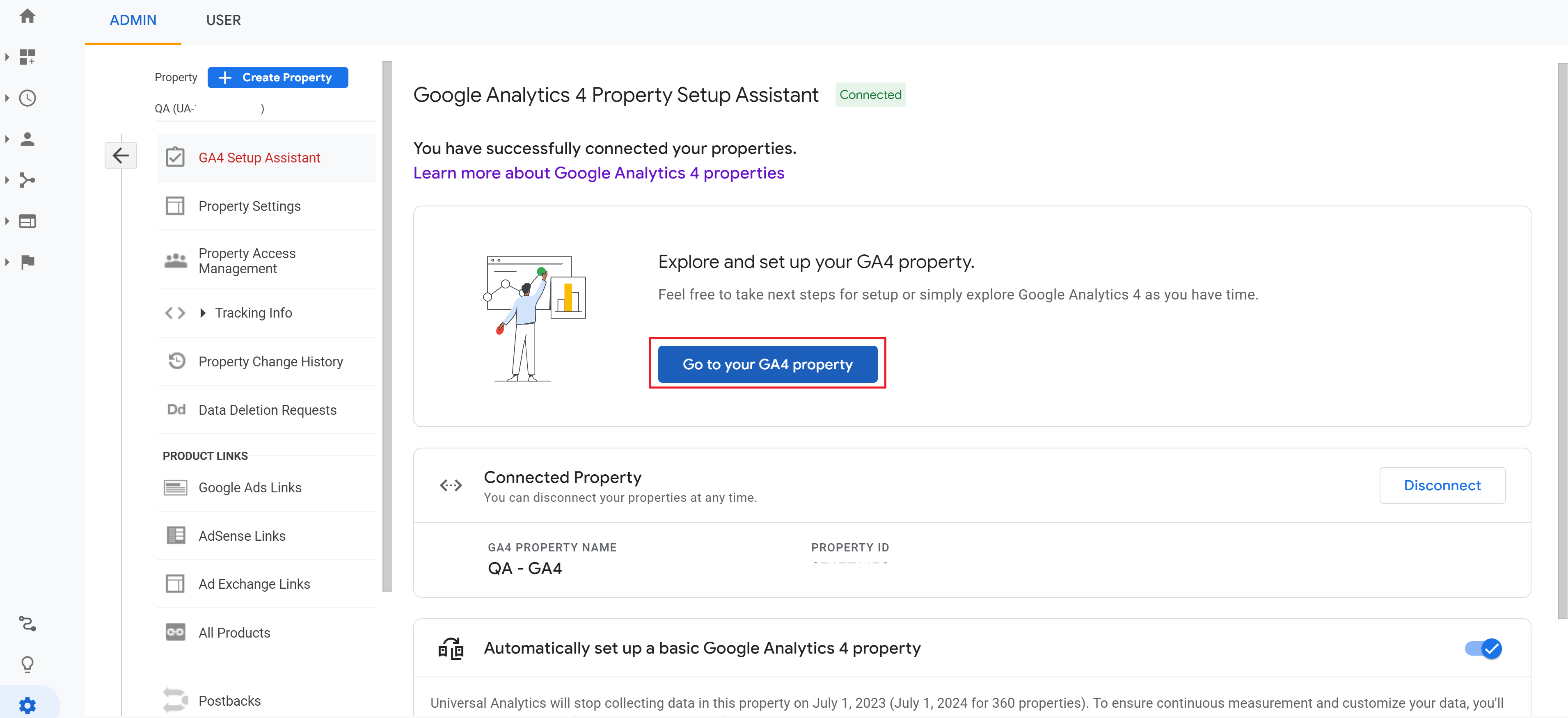
Click Create Property. You should get a success message.
-
Click Go to GA4 property. This takes you to the new Google setup assistant for GA4.
-
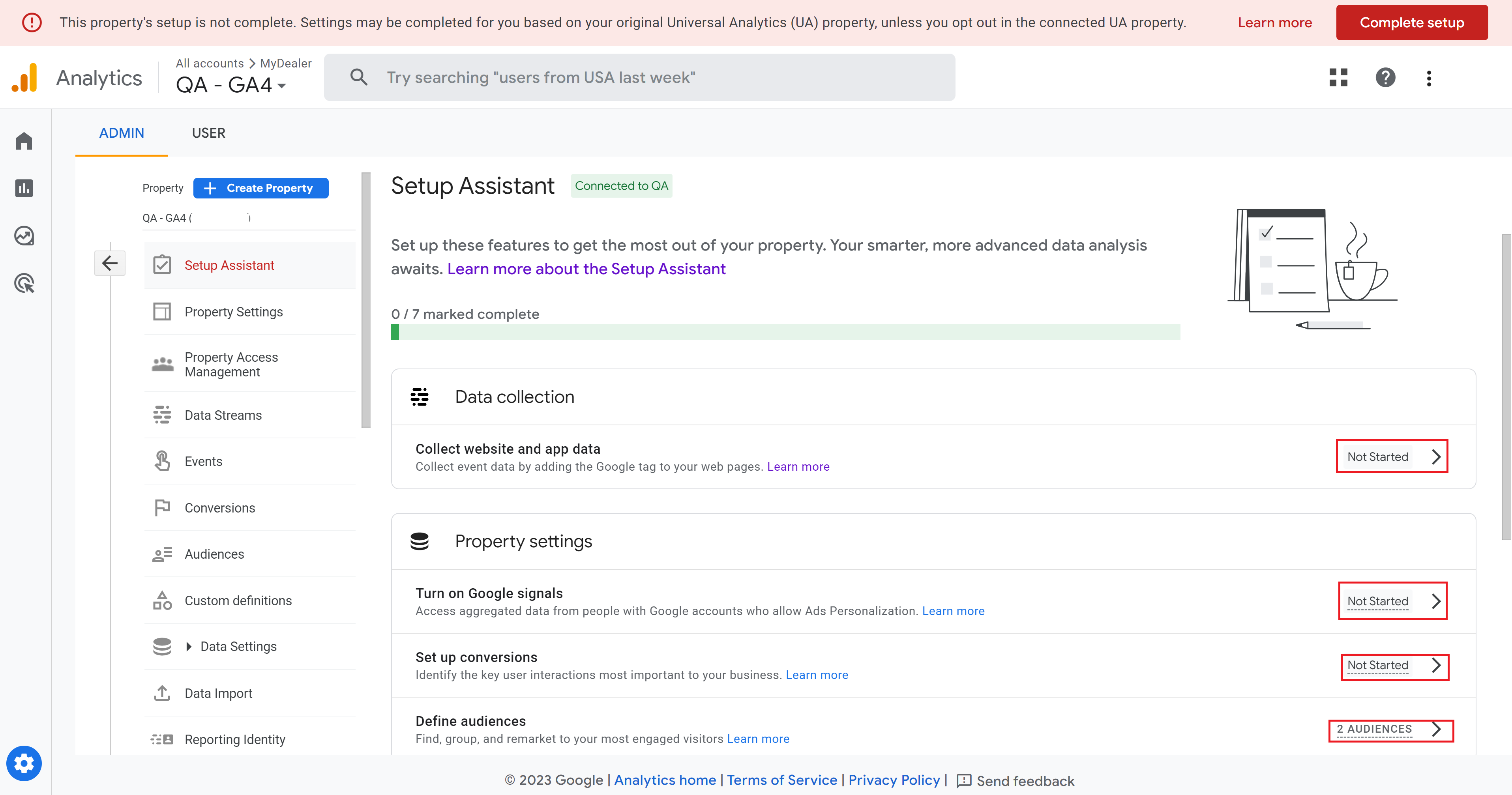
You need to setup seven properties. For all properties, click Mark as complete to accept the same settings as the old analytics. Otherwise you can change the settings. Refer to the Google analytics documentation.
-
Navigate to Custom Definition, then Custom Dimensions tab.
-
Click Create Custom dimension properties and set the properties using the names listed in the table below:
Custom Dimension
Event Parameter NameIntelliDealer MyDealer dimension1 Library Library dimension2 Username CustomerId dimension3 Company Company dimension4 Division Division dimension5 Location (Branch) Location (Branch) dimension6 Tab Id dimension7 Page State -
Make a note of the Measurement Id for your websites to use in the post-requisite.
Post-Requisite: You must configure IntelliDealer with the Analytics IDs. See Post-Requisites
Post-Requisites
Once configured, the Google Analytics home screen presents the statics and data gathered from either IntelliDealer or MyDealer.
Navigate to Administration > Settings > IntelliDealer Settings and enter the Tracking Id into the respective ID field in IntelliDealer. See IntelliDealer Settings.
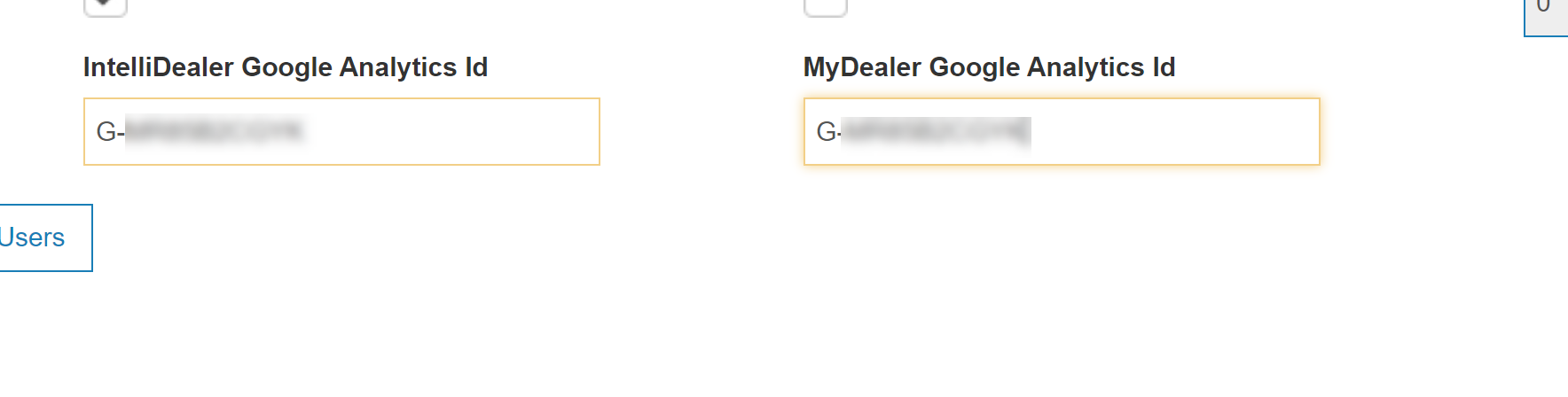
Note: The Tracking Id MUST start with 'G-'.