
Add Currency/Change Currency
Use the Add Currency/Change Currency screen to add a new currency code to the system or edit an existing currency code. To open the Add Currency/Change Currency screen, click a Code or the Need to add a new currency? Click here to add link on the Currency screen.
Adding currency codes allows you to define different currency codes, their exchange rates, and the default General Ledger accounts to be used when posting Accounts Payable transactions. A currency code can be set up for each vendor on the Currency field on the Vendor Profile tab. When A/P vouchers are posted and/or checks are issued for a vendor, automatic journal entries are generated based on the information on this screen for the vendor’s currency.
An optional bank account, payables account, and discount account can be set up on the currency code. IntelliDealer defaults vendors set up with the corresponding currency code to these accounts if accounts have not previously been assigned to the vendor. Currency codes can also be set up with separate Foreign Exchange G/L accounts used to post transactions within the Accounts Payable and Parts Sales systems.
Topics in this section are:
Adding a Currency Code
-
Navigate to Configuration > General Ledger > Accounts Payable > Currency .
-
Click the Need to add a new currency? Click here to add link.
-
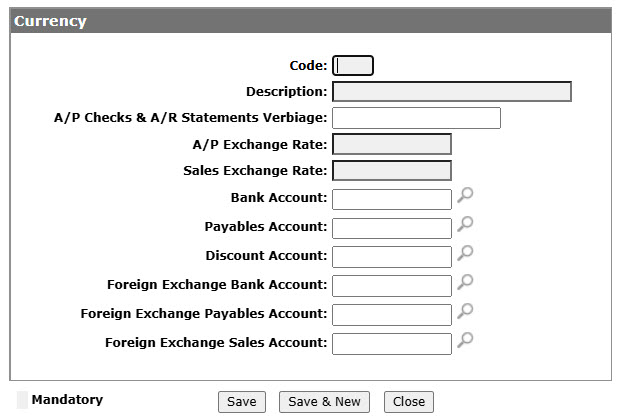
Fill in the fields, referring to table below.
-
Click Save button to save the new currency code and return to the Currency screen.
- or -
Click the Save & New button to save the new currency code and add another code.
 The
The 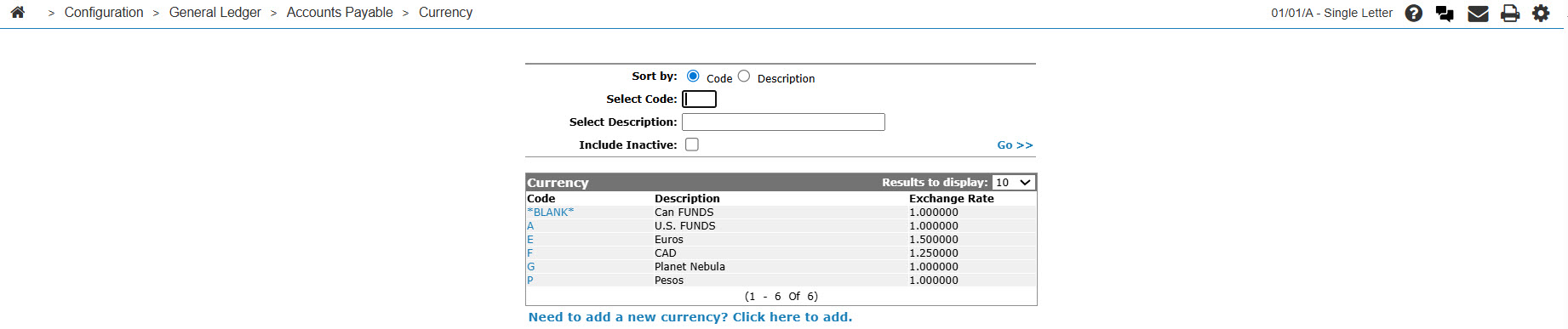
Editing a Currency Code
-
On the Currency screen, fill out the appropriate fields and click the Go >> link.
The Currency screen refreshes the generated search results.
-
Click on the code to edit.
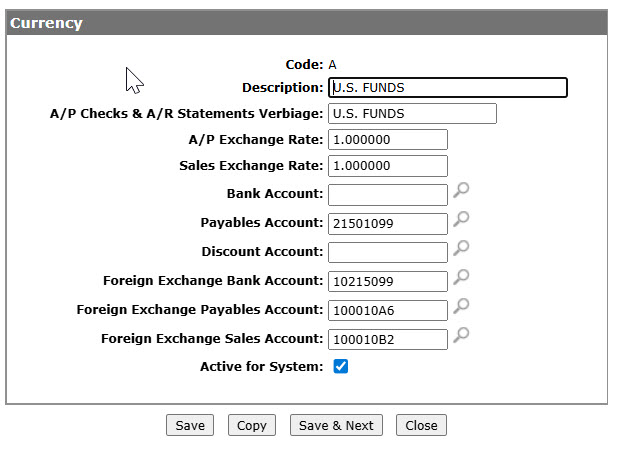
The Change Currency screen appears.
-
Edit any of the available fields on the currency code.
-
To deactivate the code, ensure the Active for System checkbox is not selected.
-
Click the Save button to save any changes made to the currency code.
- or -
Click the Save & Next button to save any changes made to the currency code and continue to the next currency code on the list.
Screen Description
Fields on the Add Currency/Change Currency screen are:
| Field | Description |
|---|---|
| Code | A one character alphanumeric code used to represent the currency within the system. Blank currency codes are reserved for Canadian funds and Currency Code "A" is reserved for American funds. |
| Description | A brief description of the currency code. The Description field is used for reference and is not printed. |
| A/P Checks & A/R Statement Verbiage | The currency verbiage appears on checks. This verbiage prints below the numeric value. For example, U.S. FUNDS. |
| A/P Exchange Rate | The exchange rate used to calculate the currency exchange amount posted to the payables on the G/L. |
| Sales Exchange Rate | The exchange rate used to calculate the currency exchange amount posted to the sales account. |
| Bank Account | This account is the default G/L bank account number used when the currency code is attached to a vendor for whom A/P is being processed. It can be changed at the time that an A/P voucher is entered if necessary. Otherwise, it is used as the bank account for the transaction. This account must be defined in the SPECACCT table allowing it to be used as a bank account for the A/P system. |
| Payables Account | This account is the default which is used when the currency code is attached to a vendor for whom A/P is being processed. It can be changed at the time that an A/P voucher is entered if necessary. Otherwise, it is used as the A/P control account for the transaction. This account must be defined in the SPECACCT table allowing the system to maintain the A/P sub ledger entries. |
| Discount Account | This account is the default which is used when the currency code is attached to a vendor for whom A/P is being processed. It can be changed at the time that an A/P voucher is entered if necessary. Otherwise, it is used as the discount account for the transaction. This account must be defined in the SPECACCT table allowing it to be used as a discount account for the A/P system. |
| Foreign Exchange Gain/Loss Account |
The currency exchange amount is posted to the G/L foreign exchange bank account number entered. You cannot enter an account designated as a bank account in Special Accounts in this field. |
| Foreign Exchange Payables Account | The currency exchange amount is posted to the G/L foreign exchange A/P account number entered. This account is debited when an A/P voucher is updated and credited when a check is issued. |
| Foreign Exchange Sales Account | Cash receipts posted to batches IntelliDealer that use the corresponding currency code are posted to the G/L foreign exchange sales account entered. This allows an account to be loaded only if the currency code is not blank. Any adjustment made to the currency rate for a currency code used on the Cost Code Updates screen also updates the associated Cost Code Order Creation screen. |
| Active for System |
Controls whether the currency code is active for use within the system.
This field appears only on the Change Currency screen when you click a Codeon the Currency listing screen. |
Click Save to save changes made on the Add Currency/Change Currency screen.
Click Copy to copy the corresponding currency code. This button appears only on the Change Currency screen when you click a Code.
Click Save & New to save a newly added currency code and refresh the Add Currency screen, allowing you to add another currency code without closing the screen. This button appears only on the Add Currency screen when you click the Need to add a new currency? Click here to add link.
Click Save & Next to save edits to the selected currency code and scroll to the next currency code in the list. This button appears only on the Change Currency screen when you click a Code.
Click Close to complete your work on the Add Currency/Change Currency screen and return to the Currency screen.