
Ditch Witch: Price Configuration
You can use the Ditch Witch and Radius Price Configuration screens to download a master price file from the Ditch Witch SFTP site, and to check for price file updates on a nightly basis.
Topics in this section include:
Setup the Automated Price Update
-
Navigate to Configuration > Interfaces > Ditch Witch> Ditch Witch Price Configuration or Configuration > Interfaces > Ditch Witch> Radius Price Configuration.
-
Enter or search for the Vendor Number in the Vendor field associated with your Ditch Witch parts.
-
In the PDF Report User ID field, enter the ID of the user that should receive the PDF reports.
If the user is left blank, then the reports are sent to the user configured in Configuration > Miscellaneous > Other > System Settings in the Job Schedule User field. If this option is blank too, then the report is sent to CDKJOBSCH.
-
In the Price File Printer ID field specify the printer which should print the "Not Found" report.
-
To have the system automatically check for updates, select the Check for Updates Nightly checkbox.
-
Set these fields as desired:
-
Desired Percentage Cutoff—causes a report to be generated for all parts that have their prices (List or Cost) increased by more than the entered cutoff percentage during the price update.
-
Print Return Code Change Report—not currently functional.
-
Print Parts Not Found Report—not currently functional.
-
-
Once you are satisfied with your Ditch Witch or Radius Price File configuration, click Save to save your settings.
The Automated Price Update process configuration is complete.
 Ditch Witch Price Configuration Screen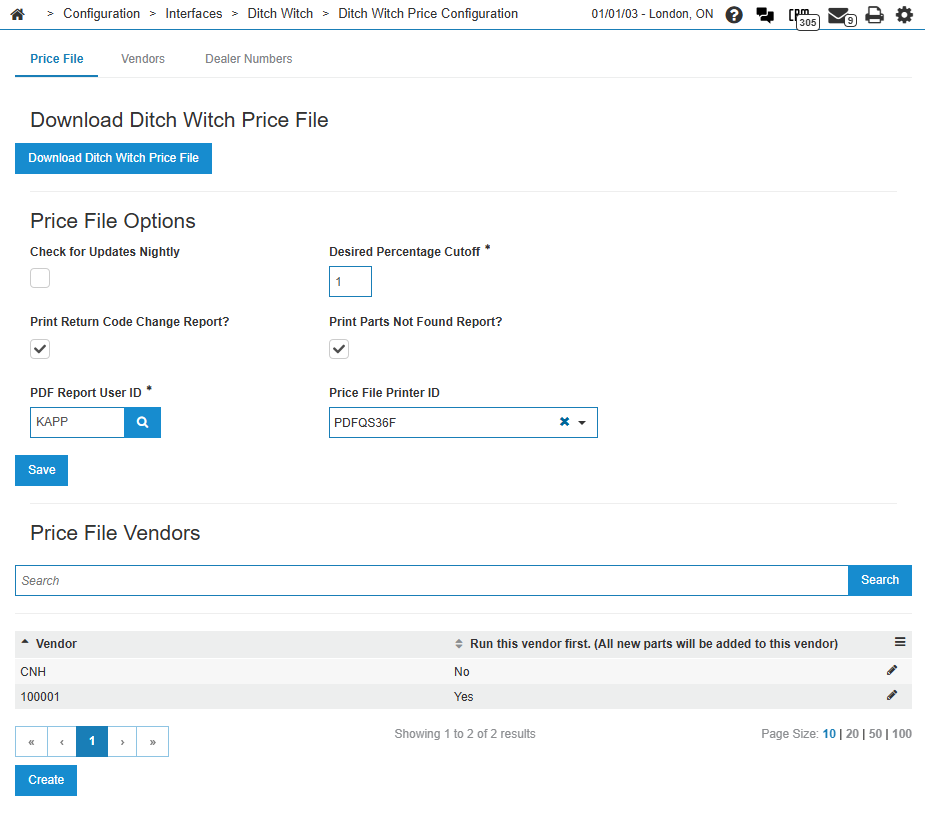
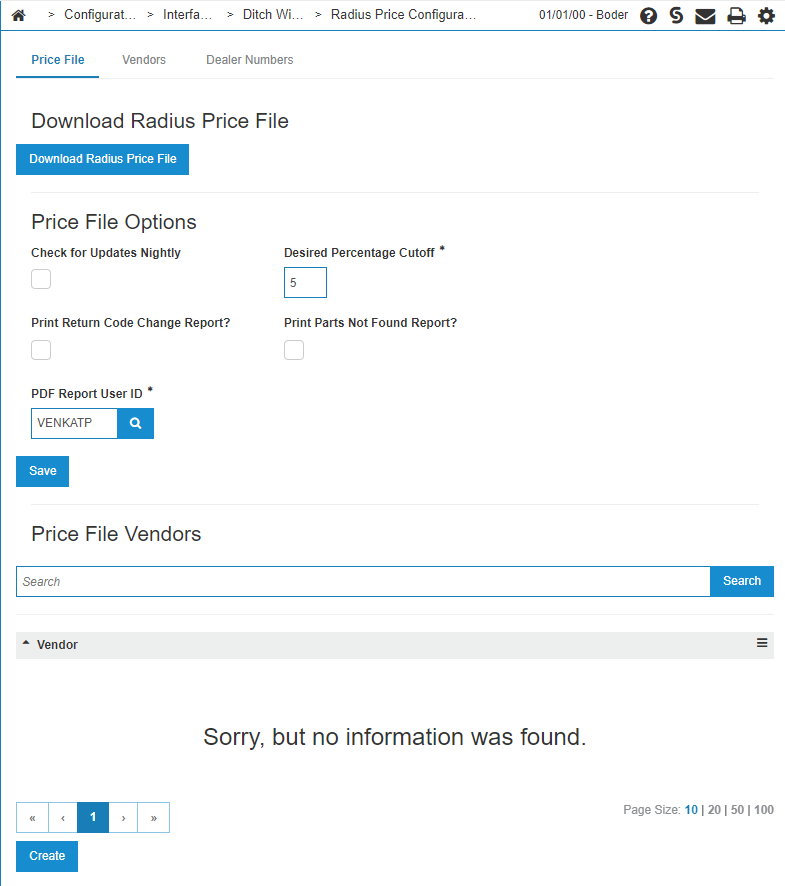
Manually Running the Price Update
This price file update process can be initiated manually as well. To initiate it manually:
-
Navigate to Configuration > Interfaces > Ditch Witch> Ditch Witch Price Configuration or Configuration > Interfaces > Ditch Witch> Radius Price Configuration.
-
Click the Download Radius Price File.
This forces a download of the latest file, even if it has already been downloaded. The job runs in the background. You will get a notification when the job is complete.
Process Walkthrough
Ditch Witch and Radius price files are released monthly to IntelliDealer. IntelliDealer hosts the files for dealers to download. The process of downloading these files is automated to generate the IntelliDealer-formatted 158-byte price file and call the greenscreen Price File update program (#PARTPRC).
If the Check for updates nightly checkbox is selected, the following process happens nightly:
-
Every night at 9:00 PM, IntelliDealer polls the Ditch Witch price file server for a new price file. If there is a new price file, IntelliDealer runs the Download Ditch Witch Price File job.
-
The records from the Ditch Witch or Radius Price File are compiled into the IntelliDealer-formatted 158-byte price file "DW158" (for Ditch Witch) or "RD158" (for Radius) to be consumed by the #PARTPRC program.
-
A PDF report is generated under the printer output > PDF Report screen, under the user that is configured as the PDF User Id. The report lists any errors generated while running the report.
The process is now complete and will run again at 9:00 PM the following night.
Security: 999 Configuration
Revision: 2026.03