
VitalEngage Text Window
After you click the VitalEngage Text icon from anywhere in IntelliDealer, the VitalEngage Text window opens.
 The
The 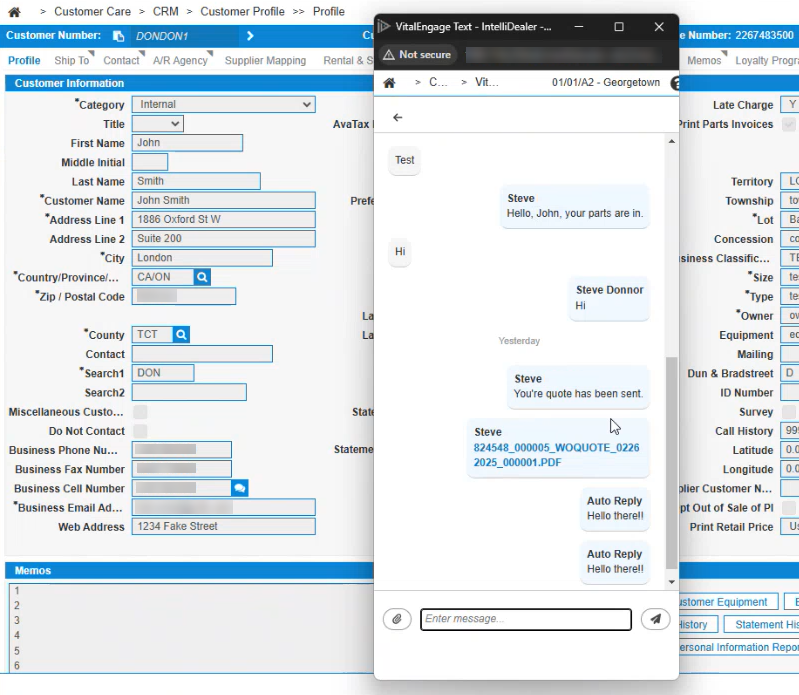
Use this screen to review and respond to the customer's text messages. You can attach up to four files to a single message.
You can search for a particular message by name or by number. Click on it to open the conversation history. Click the back arrow to view a list of all customer interactions for the phone number assigned to your user.
Saving Message Drafts
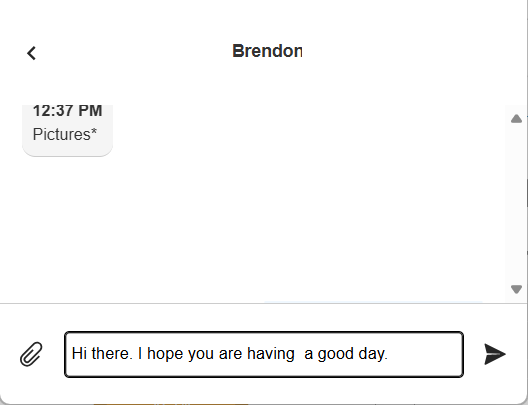
While you compose a message, IntelliDealer can save the unfinished text as a draft for that conversation. Drafts are stored per conversation and per user, so you can leave a conversation, work elsewhere in the application, and return later to continue the same message.
When you open a conversation that has a saved draft, the draft text appears automatically in the message box. You can edit or delete the text before you send the message.
Saving a draft
A draft is saved when you do either of the following:
-
Click the Back arrow to return to the conversation list. If the message box contains text, that text is saved as the draft for the current conversation.
-
Click the Send icon to open the send menu, then click Save as Draft.
Note: Closing the VitalEngage Text window does not save a draft.
Sending a message
-
Press Enter to send the message immediately.
-
Press Shift+Enter to start a new line in the message box.
-
Click the Send icon and choose Send now to send the message from the send menu.
When a message is sent successfully, any saved draft for that conversation is removed.
Drafts in ID MobileAccess
Drafts saved in IntelliDealer are available when you open the same conversation in ID MobileAccess (IDMA). The draft appears in the message box so you can send it from the mobile app.
Note: ID MobileAccess can retrieve and send an existing draft but cannot save or update drafts. To save draft text, use IntelliDealer.
Inserting Message Templates
If your dealership has configured message templates, you can insert template text into the message box while you compose a reply. Templates are useful for sending common status updates (for example, parts status, work order status, or inspection updates) without retyping the same message.
Templates are configured on the VitalEngage Text: Templates screen. Only active templates assigned to your working location are available.
-
Open a conversation in the VitalEngage Text window.
-
Click the add menu next to the message box and click Add Templates.
-
Search for a template, then click the template name to insert it.
-
Review and edit the message text as needed, then send the message.
If the message box is empty, the template text replaces the message. If the message box already contains text, the template text is added on a new line.
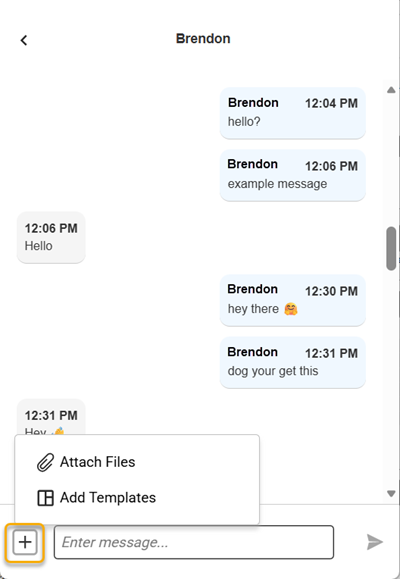
After you insert a template, a notice appears above the message box reminding you to review the text before sending. If you change the message text, the notice is removed.
If you have a Message Signature configured and enabled, the signature is still appended when you send the message.
Menu Options
Click the gear icon  to open a menu listing.
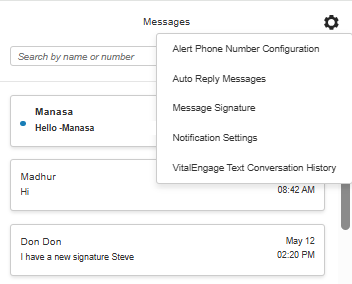
The available menu options are:
-
Alert Phone Number Configuration—opens the VitalEngage Text: Configuration screen.
-
Auto Reply Messages—opens the configuration screen for auto reply messages.
-
Notification Settings—opens the configuration screen for notifications.
-
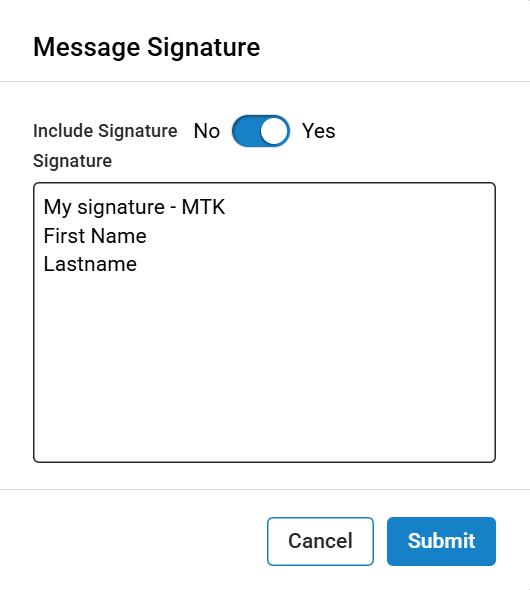
Message Signature—opens a screen you can use to configure a signature to appear at the bottom of every outbound message you send if Include Signature is toggled to yes. The message can only include characters (letters, numbers, and special characters) to a maximum of 1024 characters. Do not include phone numbers, links or emojis as they may impact message deliverability.
-
VitalEngage Text Conversation History—opens, if the user has authorization for it (security switch 995 User Security).
Feature: 6285
Revision: 2026.09