
VitalEngage Text: Templates
Use the Templates screen to create reusable message templates for VitalEngage Text. Templates help you send consistent status updates to customers (for example, parts status, work order status, or inspection updates) without retyping the same message each time.
Users insert active templates into a conversation from the message compose area in the VitalEngage Text window. See also VitalEngage Text.
To open the Templates screen, navigate to Configuration > Interfaces > VitalEngage Text > Templates.
 The
The 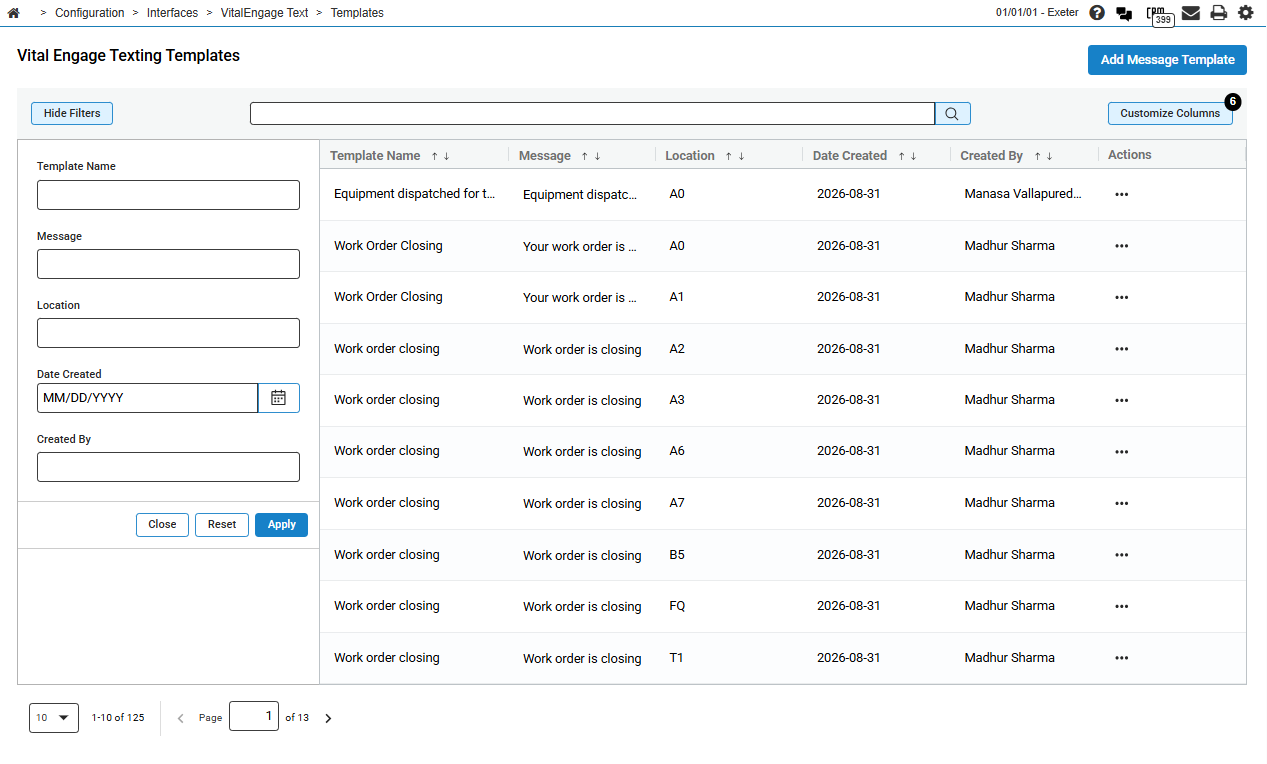
Topics in this section are:
Adding a Message Template
-
Navigate to Configuration > Interfaces > VitalEngage Text > Templates.
-
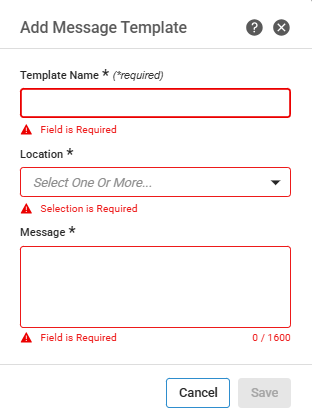
Click Add Message Template.
-
Enter a Template Name, select one or more Location values, and enter the Message text.
-
Click Save.
New templates are active by default. Only active templates assigned to the user's working location appear when a user inserts a template into a conversation.
Editing a Message Template
-
Navigate to Configuration > Interfaces > VitalEngage Text > Templates.
-
Locate the template and click the actions menu.
-
Click Edit.
Edit is available only for active templates.
-
Update the template fields and click Save.
Activating or Deactivating a Message Template
Deactivate a template to stop it from appearing in the template list when users compose messages. Reactivate a template to make it available again.
-
Navigate to Configuration > Interfaces > VitalEngage Text > Templates.
-
Locate the template and click the actions menu.
-
Click Deactivate or Activate.
Deleting a Message Template
Delete a message if you never plan to use it again. Otherwise, you can choose to deactivate it to make unavailable to users who are composing messages.
-
Navigate to Configuration > Interfaces > VitalEngage Text > Templates.
-
Locate the template and click the actions menu.
-
Click Delete.
A confirmation popup opens.
-
Click Delete on the confirmation message.
The message is deleted from the list.
Screen Description
The Templates listing shows the templates configured for your dealership. The fields on the Templates listing screen are:
| Field | Description |
|---|---|
| Template Name | The name of the template. |
| Message | The message that the template sends. |
| Location | The location in which the template is active. |
| Date Created | The date the template was created. |
| Created By | The IntelliDealer user who created the template |
| Date Modified | The date the template was modified. |
| Modified By | The IntelliDealer user who modified the template |
| Actions |
Click the submenu icon
|
 and select one of: