
Editing a Field Name Variable
-
Navigate to Administration > Settings > Field Names.
The Field Names tab will appear.
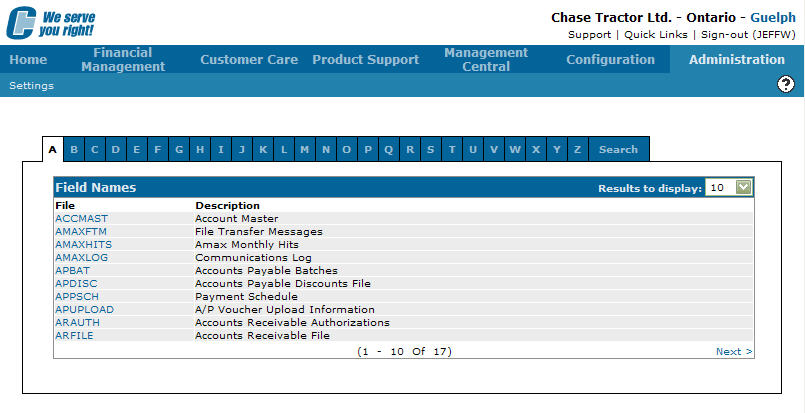
Field Names tab
-
On the Field Names tab, click on the Search tab.
The Field Names tab will refresh populating the tab with search fields.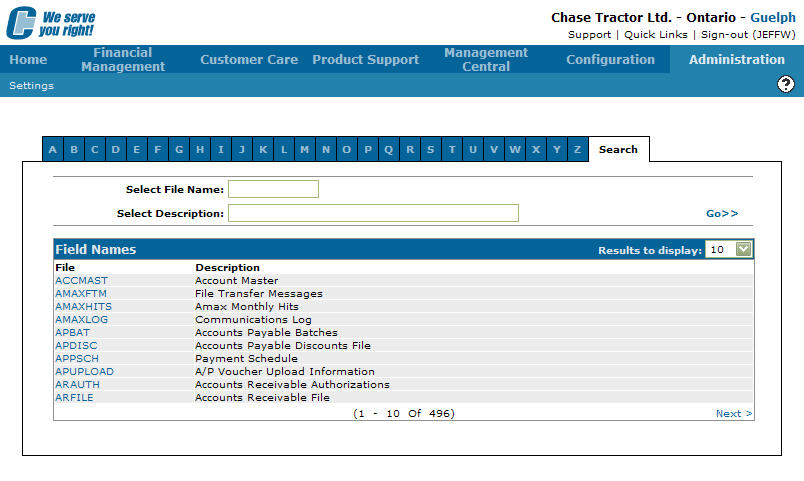
Field Names tab
-
On the Field Names tab, enter a file name in the Select File Name field.
-
Enter a description in the Select Description field click on the Go >> link.
The Field Names tab will refresh listing the generated search results.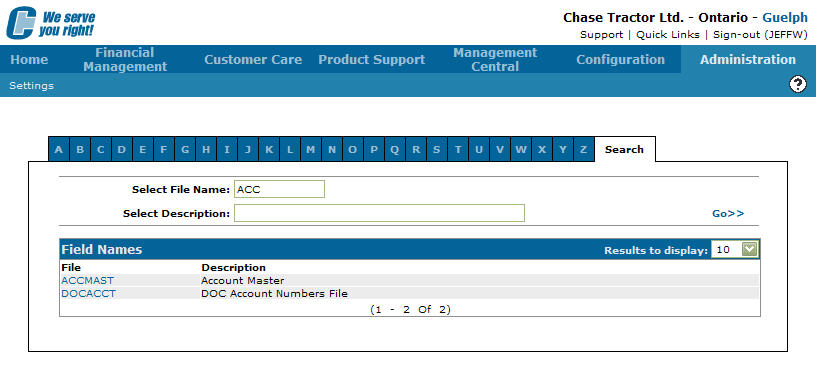
Field Names tab -
Click on a File.
The Fields screen will appear.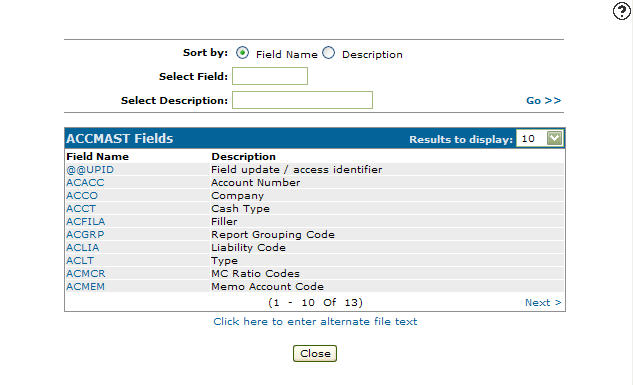
Fields screen
-
On the Fields screen, fill out the appropriate fields and click the Go >> link.
The Fields screen will refresh listing the generated search results.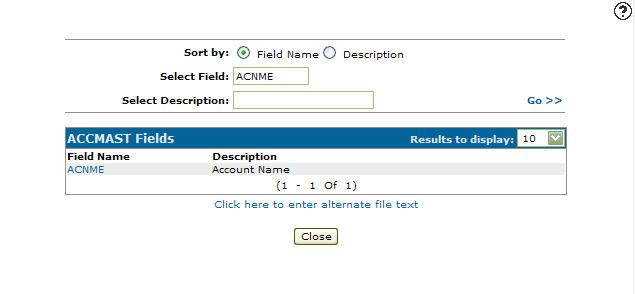
Fields screen
-
Click on a Fields Name.
The IntelliDealer Administration - Fields screen will appear.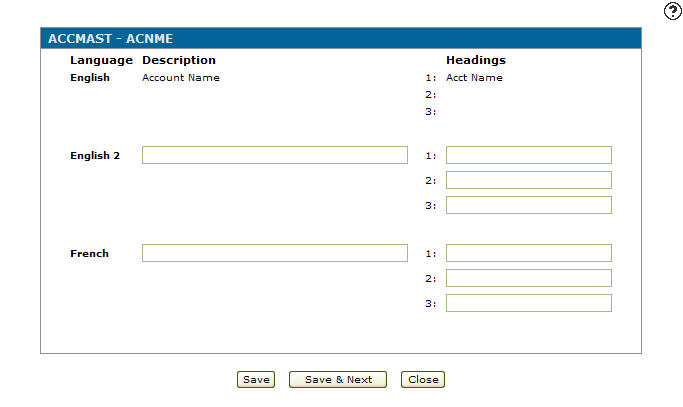
IntelliDealer Administration - Fields screen
-
On the IntelliDealer Administration - Fields screen, enter in an alternate field description in the English 2 field.
-
Enter an alternate Heading text.
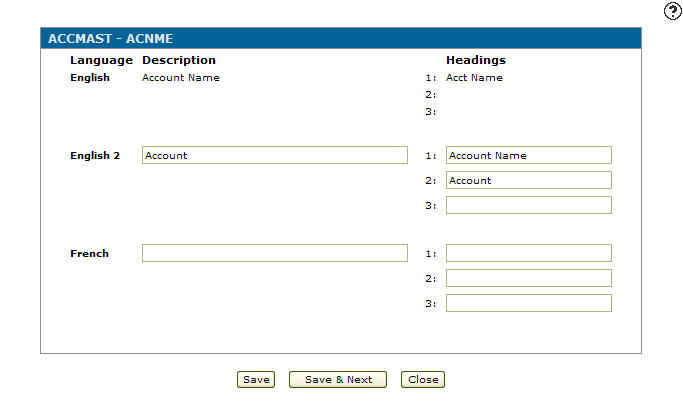
IntelliDealer Administration - Fields screen
-
(OPTIONAL) enter another dialect option in the available dialect fields (e.g. Francais or Japanese fields)
-
(OPTIONAL) enter another dialect Heading text for the corresponding dialect field.
-
Click the Save button to save any changes make to the alternate field text.
- or -
Click the Save & Next button to save any changes made to the alternate field text and continue to the next alternate field text on the list.