
Sell Parts
You can use the Sell Parts screen to add parts to a work order requisition. You can sell parts from consignment, or from a location that stocks the parts. Selling parts from consignment (for example from off a service truck) requires the technician to be set up as a consignment customer in IntelliDealer. See Consignment in the IntelliDealer online help.
You cannot add consignment parts to a parts requisition that already has stocked parts listed on it. Instead, create a new parts requisition.
Parts requisitions containing consignment parts cannot be modified.
To open the Sell Parts screen and add parts to a requisition:
-
Tap a work order segment on the Work Order Segments window.
The Logged On screen opens.
-
Tap the Sub Menu
 icon and select Sell Parts from the drop-down list.
 -
Tap the Sell from consignment button at the top of the screen.
The Sell Parts screen opens. Consignment customers and parts are limited to the work order segment location. For example, when the segment location is 01/01/02, only consignments with inventory at 01/01/02 are listed, and only parts at that location are available to sell.
-
Select parts then click Submit.
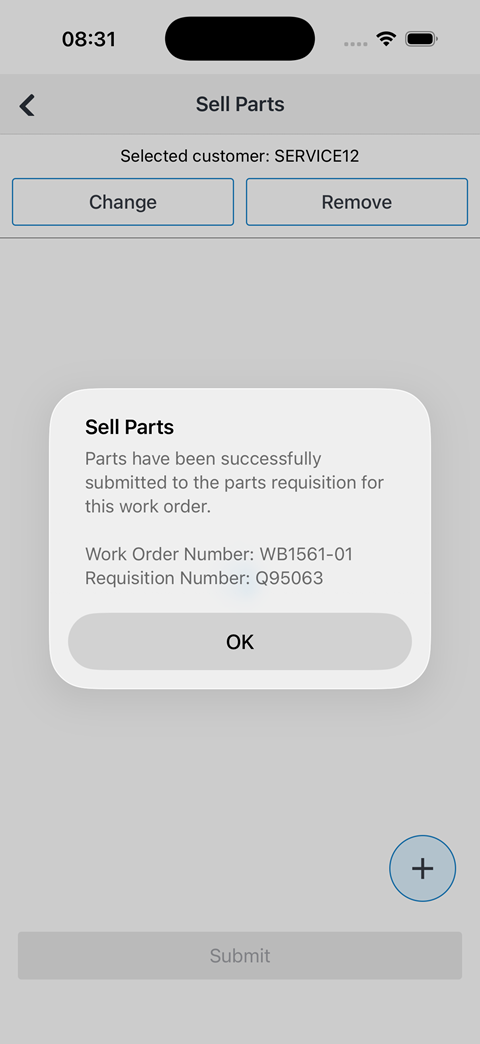
The parts are added to the work order and a success message is displayed listing the Work Order Number and the Requisition Number.
-
Tap OK to close the message.
The Logged On screen opens.
 The Sell Parts screen opens.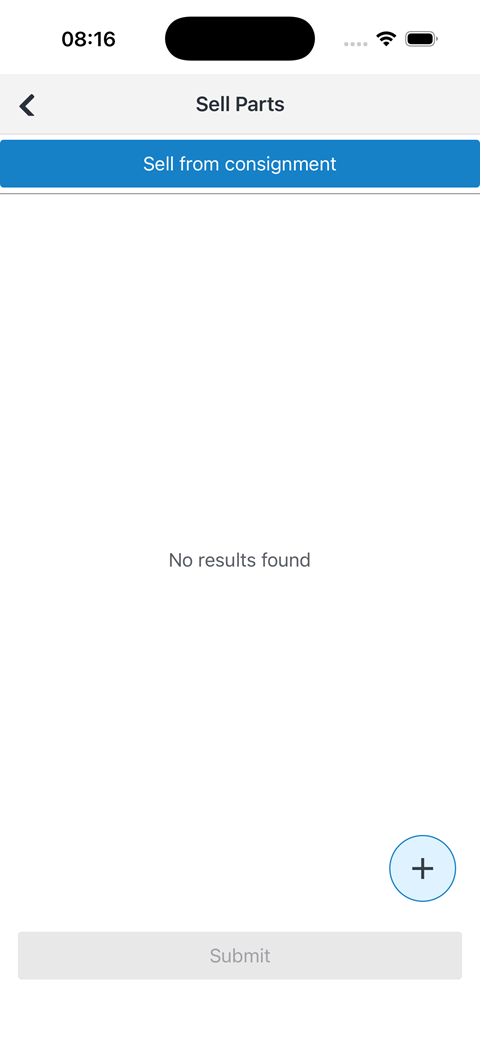
Screen Description
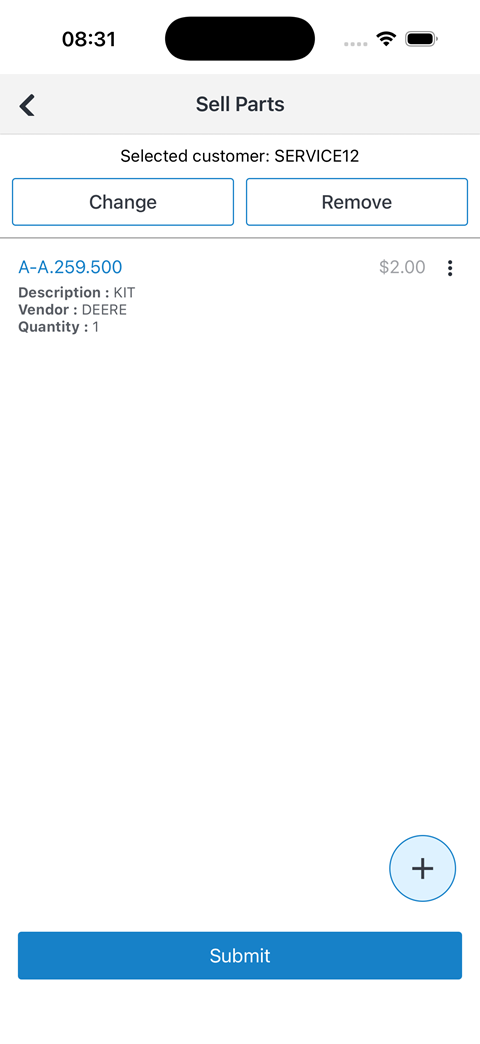
The customer number listed at the top refers to the consignment customer that is selling the parts (not the customer receiving service). If you change the consignment customer, any parts previously added to the list are removed.
When you sell parts from consignment, the app uses the location of the work order segment you logged on to. Consignment customers are listed only when they have inventory at that location. You cannot sell parts from consignment at another location.
Click the add  icon (located at the bottom right) to open the Parts Search screen and add stocked parts (parts in a location's inventory) to the work order.
Click Sell from consignment (located across the top of the screen) to open the Sell Parts screen and add consignment parts to the work order. Only parts available to the consignment customer at the work order segment location are listed.
Buttons on the Sell Parts screen are:
-
Change changes the customer that is selling the parts. Tap this button to search for a new consignment customer. The list includes only consignment customers with inventory at the work order segment location.
-
Remove removes parts from the list.
-
Submit adds the listed parts to the parts requisition. A success message is displayed listing the Work Order Number and the Requisition Number. Tap OK to close the message. The Logged On screen opens.